1. הקדמה
Welcome to the world of immersive audio with your new TOZO NC20 Pro Active Noise Cancelling Wireless Earbuds. These earbuds are designed to provide a superior listening experience with advanced features such as LDAC Hi-Res Audio, adaptive active noise cancellation, and a smart touch screen charging case. This manual will guide you through the setup, operation, and maintenance of your device to ensure optimal performance and longevity.
2. וואָס איז אין דער קעסטל
Your TOZO NC20 Pro package includes the following items:
- TOZO NC20 פּראָ אַקטיוו ראַש קאַנסאַלינג וויירלעסס אויערקנעפּלעך
- Wireless Charging Case with Smart Touch Screen
- אויער-טיפס (פארשידענע גרייסן פאר אן אפטימאלן פאס)
- יו-עס-בי-סי (א צו סי) קאבל (20 ס״מ)
- באַניצער מאַנואַל

3. סעטאַפּ
3.1. אַקטאַוויישאַן
To activate your TOZO NC20 Pro earbuds, ensure they are charged. You can power them on by pressing and holding the multifunction button on the charging case or by connecting a USB-C cable. Remove the insulation film from the earbuds and place them into the charging case. Close the lid for 10 seconds, then take the earbuds out again to complete the activation. For full functionality, open the TOZO App, connect to the charging case, and synchronize your phone's time.
3.2. בלועטאָאָטה פּערינג
To pair your earbuds with a device, take the earbuds out of the charging case. The white indicator light on the earbuds will slowly flash, indicating pairing mode. On your phone or device, search for "TOZO NC20 Pro" in the Bluetooth settings and tap to connect. If the earbuds have been paired before, they will automatically reconnect to the last connected device. If no pairing record exists or pairing was canceled, the earbuds will enter pairing mode automatically.
3.3. אַפּ קאַנעקשאַן
Download and install the TOZO App from Google Play Store or the Apple App Store. After confirming the earbuds are connected via Bluetooth, open the App, complete authorization, tap the "+" icon, search for "TOZO NC20 Pro", and connect. Once connected, all available functions and settings will be displayed, and the charging case time will sync automatically.
3.4. טראָגן די אויערקנעפּלעך
Gently insert the earbuds into your ears. Rotate them toward the ear concha until they fit securely and comfortably. If the default ear tips feel uncomfortable, please try a different size from the spare ear tips provided in the box to ensure a proper seal and optimal sound quality.
4. אָפּערייטינג
4.1. Touch & Button Controls
די אויערקנעפּלעך האָבן אינטואיטיווע ריר קאָנטראָלס פֿאַר פֿאַרשידענע פֿונקציעס:
- מוזיק קאָנטראָלס: Double-tap Left Earbud for Previous Track, Double-tap Right Earbud for Next Track. Single tap Right Earbud for Play/Pause. Press and hold Left Earbud for Volume Down, Press and hold Right Earbud for Volume Up.
- רופן קאָנטראָלס: Single tap Left or Right Earbud to Answer Call. Press and hold Left or Right Earbud to Reject/End Call or Cancel Outgoing Call.
- Noise Cancellation Control: Single tap Left Earbud to switch between Transparency Mode and Noise Cancellation. Triple tap Left or Right Earbud for Normal Mode (ANC OFF).
- שטימע אַססיסטאַנט: Triple tap Right Earbud to activate your phone's voice assistant.
- Factory Reset (Method 1): Place earbuds into the charging case and open the lid. Press and hold the multifunction button for 3 seconds until the factory reset menu appears on the case display. Select "Factory Reset" option.
- Factory Reset (Method 2 via Case): On the charging case, go to "Settings" > "General", then select "Factory reset".
- קראַפט פּאָרינג: If earbuds cannot be found, go to Charging Case > Settings > General > Force Pairing. Follow on-screen instructions to clear pairing records and allow earbuds to be rediscovered.
4.2. Smart Case Gesture Controls
The smart charging case offers additional gesture controls:
- Double tap screen or single press button: Wake screen.
- Swipe right: Unlock.
- Swipe left or right: Select functions (Music, Volume, Noise Cancellation, Sound Modes, Find My Earbuds, Low Latency Mode, Settings).
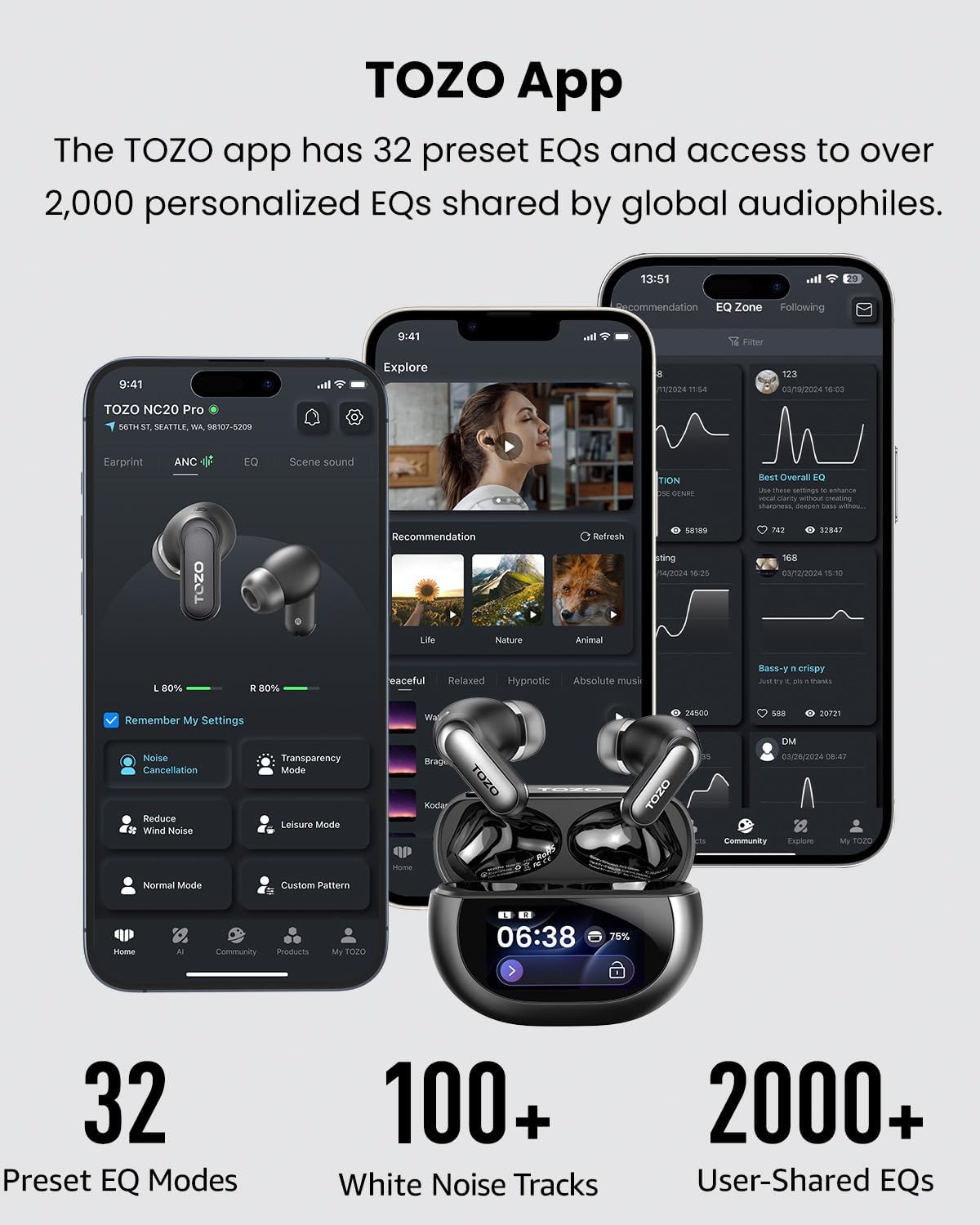
4.3. App Features Overview
The TOZO App unlocks a wide range of customization and advanced features:
- Hearing Compensation: The app conducts a hearing test to analyze sensitivity across different frequencies. AI enhances less sensitive frequencies while reducing volume in sensitive ranges to protect hearing.
- Noise Cancellation Settings: Six modes available via the App or charging case: Noise Cancellation, Transparency Mode, Reduce Wind Noise, Leisure Mode, Normal Mode, Adaptive Mode. (Noise cancellation memory is off by default and can be manually enabled.)
- עקוואַליזער (עק): 32 preset EQs + 1 custom EQ available via App and charging case. Free-band advanced EQ available in the App. (All EQs except Advanced EQ can be shared to EQ Zone.)
- געזונט מאָדעס: Music Mode / Spatial Audio available via App or case.
- Charging Case Settings: Wallpaper, brightness, screen timeout, language, time format, and more.
- Custom Wallpaper: Upload images via the wallpaper menu following on-screen steps.
- דיגיטאַל באַניצער מאַנואַל: Access via Settings -> "?", or scan the QR code in the printed manual.
- נידעריק לייטאַנס מאָדע: Enable Low Latency Mode via App settings or Sound Mode menu. (Low Latency Mode is not saved after power-off to ensure signal stability.)
- אין-אויער דעטעקשאַן: Wear Detection can be toggled via App or charging case. Music pauses when earbuds are removed and resumes when worn.
- מולטיפּוינט קשר: Power on the earbuds and pair with Device A. Disconnect Device A, then the earbuds enter pairing mode and connect to Device B. Reconnect Device A by selecting it from your Bluetooth list. The earbuds will then be connected to both devices simultaneously. (When the earbuds are connected to two devices simultaneously, if Device A is playing audio and you start playback on Device B, the earbuds will automatically pause playback on Device A and switch to play audio from Device B. Multipoint connection and LDAC cannot be enabled at the same time.)
- LDAC: Enable LDAC via App or charging case settings. (Earbuds will restart when LDAC is enabled or disabled. LDAC and Multipoint connection cannot be enabled at the same time.)
- ריר קאָנטראָל קוסטאָמיזאַטיאָן: Go to App Settings -> Touch Controls to customize left and right earbud functions.
- OTA דערהייַנטיקונגען: App Settings -> Scroll to OTA Update. A red "NEW" indicator appears when updates are available. Download the latest firmware for optimal performance. Charging case -> Scroll to OTA Update. A red "NEW" indicator appears when updates are available. Download the latest firmware for optimal performance.
- געפינט מײַנע אויערקנעפּלעך: Use via App or charging case to locate left or right earbud separately. Do not use while wearing the earbuds. (Charging case search is unavailable when the connection icon is grayed out.)
- וואַסער אויסוואַרף: If earbuds get wet, activate Water Ejection in the App. After completion, wipe dry and let them rest before use.
- באַנד באַלאַנס: Adjust the volume balance of the left and right earbuds in the App.
- קינסטלעכע אינטעליגענץ פֿעיִקייטן: Meeting Recording, Real-Time Translation, Simultaneous Interpretation, AI Chat.
5. וישאַלט
5.1. טעגלעך קלינינג
To ensure reliable performance, clean the charging contacts on the earbuds and the charging case regularly using a cotton swab. Check whether the charging contacts are dirty or blocked by foreign objects.
6. טראָובלעשאָאָטינג
6.1. געוויינטלעכע פראבלעמען און לייזונגען
- אויערקנעפּלעך נישט פּערינג: Ensure earbuds are fully charged and in pairing mode. Disconnect from other devices and try re-pairing. Perform a factory reset if necessary.
- פראבלעמען מיט קלאַנג קוואַליטעט: Check ear tip fit for a proper seal. Adjust EQ settings in the TOZO App. Ensure LDAC is enabled for high-resolution audio if your device supports it.
- ראַש קאַנסאַלירונג נישט עפעקטיוו: Ensure earbuds are properly seated in your ears. Select the appropriate ANC mode in the app (Noise Cancellation, Adaptive Mode).
- טשאַרדזשינג ישוז: Clean charging contacts on both earbuds and case. Ensure the USB-C cable is securely connected or the wireless charging pad is correctly aligned. Remove any metal objects from the wireless charging pad.
- פּראָבלעמען מיט אַפּ קאָנעקטיוויטי: Ensure Bluetooth is enabled and the earbuds are connected to your phone. Restart the app or your phone if issues persist.
6.2. Wireless Charging Tips
Place the charging case face-up at the center of the wireless charging pad. The battery indicator light on the charging case will turn on and begin flashing. Once fully charged, the light will stop flashing. Note: Please remove any metal objects from the charging pad before charging. If the charging case overheats, charging will automatically pause.
7. ספּעסאַפאַקיישאַנז
| שטריך | דעטאַל |
|---|---|
| מאָדעל נאָמען | NC20 |
| ראַש קאָנטראָל | אַדאַפּטיוו ראַש קאַנסאַליישאַן |
| אַודיאָ דרייווער טיפּ | DLC Driver |
| אַודיאָ דרייווער גרייס | 12 מילאַמיטערז |
| אָפטקייַט ענטפער | 40 KHz |
| סענסיטיוויטי | 120 דב |
| ימפּידאַנס | 32 אָהמס |
| קאַנעקטיוויטי טעכנאָלאָגיע | ווירעלעס (בלוטוט 5.4) |
| בלועטאָאָטה קייט | 15 מעטער |
| אַודיאָ לייטאַנס | 60 מיליסעקאַנדז |
| באַטעריע לעבן (אויערקנעפּלעך) | ביז 16.5 שעה (ANC אויסגעלאשן), 12.5 שעה (ANC אן) |
| באַטעריע לעבן (גאַנץ מיט קעסטל) | ביז 80 שעה (ANC אויסגעלאשן), 63 שעה (ANC אן) |
| טשאַרדזשינג צייט | 2 שעה |
| וואַסער קעגנשטעל מדרגה | IPX8 וואָטערפּרוף |
| קאָנטראָל טיפּ | Touch Control, App |
| קאַמפּאַטאַבאַל דעוויסעס | סעלפאָונז, לאַפּטאָפּס, טאַבלעטן |
| פּונקט וואָג | 3.2 אונסעס |
| פאַבריקאַנט | TOZO |
| UPC | 810102982292 |
8. וואָראַנטי & שטיצן
For warranty information, technical support, or any inquiries regarding your TOZO NC20 Pro earbuds, please visit the official TOZO website or contact their customer service directly. Details can typically be found in the product packaging or on the TOZO brand store page.
TOZO is committed to providing high-quality products and excellent customer service. If you encounter any issues, do not hesitate to reach out to their support team for assistance.


