1. הקדמה
The DIGITNOW! M125 Film and Slide Scanner is designed to convert your old 35mm/135 film negatives and mounted slides into digital JPEG images. This standalone device features a 2.4-inch LCD screen, allowing you to preview and adjust images without the need for a computer. Digital files can be saved directly to an SD card for easy transfer and archiving.

Image: The DIGITNOW! M125 Film and Slide Scanner converting film, with a vintage camera and film rolls in the background.
2. זיכערקייַט אינפֿאָרמאַציע
- דו זאלסט נישט ויסשטעלן די מיטל צו נעץ אָדער עקסטרעם טעמפּעראַטורעס.
- Avoid disassembling the unit; refer servicing to qualified personnel.
- ניצט נאָר דעם צוגעשטעלטן מאַכט אַדאַפּטער צו פאַרמייַדן שעדיקן.
- האַלטן אויס פון דערגרייכן פון קינדער.
- רייניקט דעם אַפּאַראַט מיט אַ ווייכן, טרוקענעם שטאָף. ניצט נישט קיין פליסיקע רייניגער.
3. פּעקל אינהאַלט
באַשטעטיקן אַז אַלע זאכן זענען פאַראַן אין פּעקל:
- DIGITNOW! M125 Film and Slide Scanner
- 35 מם פילם האָלדער
- רוק האָלדער
- וסב קאַבלע
- מאַכט אַדאַפּטער
- רייניקונג באַרשט
- באַניצער מאַנואַל

Image: The complete package contents of the DIGITNOW! M125 Film and Slide Scanner.
4. פּראָדוקט איבערview
The M125 scanner features a compact design with intuitive controls and a built-in LCD screen for easy operation.

בילד: פראָנט view of the DIGITNOW! M125 Film and Slide Scanner, highlighting the LCD screen and control panel.
4.1. פראָנט פּאַנעל
- LCD פאַרשטעלן: 2.4-inch TFT LCD for previewבילדער און נאַוויגירן מעניוז.
- קאָנטראָל קנעפּלעך: Power, Menu, Capture, Up/Down/Left/Right navigation.
- ינדיקאַטאָר לייץ: SD (SD card status), Power (power status), PC (PC connection status).

בילד: א דעטאַלירטע view of the scanner's screen and buttons, showing the 'FILM SCANNER' label.
4.2. דערציען פּאַנעל
- SD Card Slot: For inserting an SD/MMC card (up to 8GB SDHC, not included) to save scanned images.
- USB רעזולטאַט: Connects to a computer for data transfer or power.
- טעלעוויזיע אַרייַנשרייַב: Connects to a TV for viewing images on a larger screen (NTSC/PAL compatible).

Image: The back of the scanner, clearly labeling the SD card slot, USB output, and TV input ports.
5. סעטאַפּ
- פאַרבינדן מאַכט: Plug the power adapter into the scanner's USB port and then into a power outlet.
- אַרייַנלייגן SD קאָרט: Insert an SD or SDHC memory card (up to 8GB, not included) into the SD card slot on the rear of the scanner. The SD indicator light will illuminate.
- מאַכט אויף: Press the Power button on the front panel to turn on the scanner.
- Connect to TV (Optional): If desired, connect the scanner to a TV using the provided video cable to view בילדער אויף אַ גרעסערן עקראַן.

Image: An SD card being inserted into the scanner, with a message on the screen indicating to insert a memory card.
6. אַפּערייטינג ינסטרוקטיאָנס
6.1. Loading Film and Slides
- For 35mm Film Strips: Open the 35mm film holder, insert the film strip into the designated grooves, and close the holder. Slide the loaded holder into the scanner's film slot.
- For Mounted Slides: Open the slide holder, place a mounted slide into the opening, and close the holder. Slide the loaded holder into the scanner's film slot.

Image: A mounted slide being pushed into the slide holder, which is then inserted into the scanner.
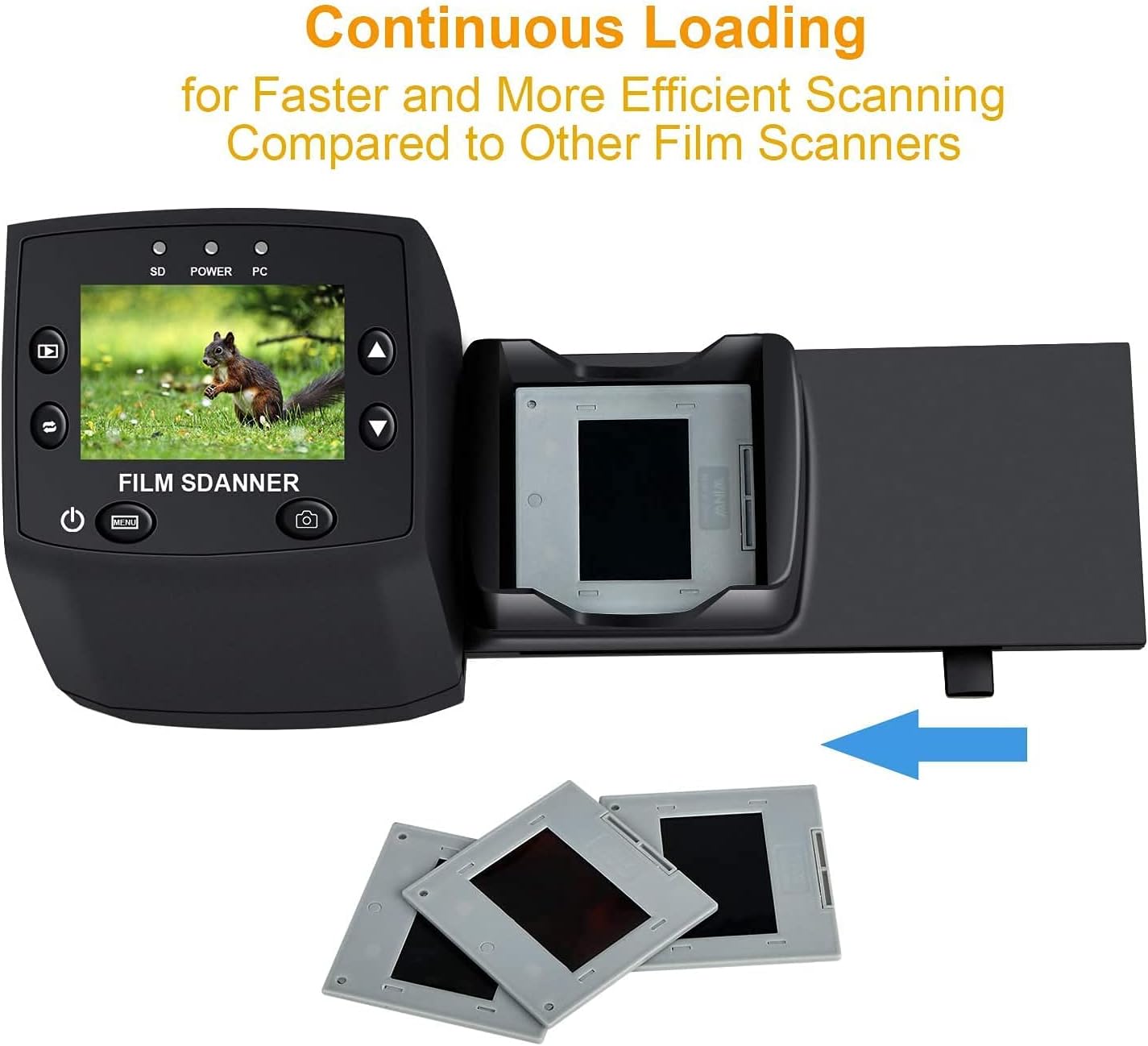
Image: The continuous loading tray for slides, designed for faster scanning.
6.2. סקענען פּראָצעס
- Preview: Once the film or slide is loaded, the image will appear on the LCD screen.
- סטרויערן סעטטינגס (אַפּשאַנאַל):
- דרוק די מעניו קנעפּל צו צוקומען צו די סעטטינגס.
- ניצן די אַרויף / אַראָפּ buttons to navigate through options like EV Exposure, האַכלאָטע, און שפּראַך.
- דרוק OK צו אויסקלייַבן אַן אָפּציע.
- ניצן אַרויף / אַראָפּ to adjust values (e.g., exposure compensation from -2 to +2, resolution between 5M and 10M).
- דרוק OK to confirm changes or אַרויסגאַנג צו צוריקקומען צו די פאַרview פאַרשטעלן.
- כאַפּן בילד: When satisfied with the preview, דריקן די כאַפּן button (camera icon) to scan and save the image to the SD card.
Video: A demonstration of the DIGITNOW! M125 Film and Slide Scanner's setup and operation, including connecting cables, inserting an SD card, loading film, adjusting settings like exposure and resolution, and capturing images.
6.3. קאַנעקטינג צו אַ פּיסי
To transfer images to your computer:
- פֿאַרבינדט דעם סקאַנער צו אייער קאָמפּיוטער מיטן USB קאַבל.
- On the scanner's menu, select וסב MSDC (Mass Storage Device Class) and press OK.
- Your computer will recognize the scanner as a removable disk. You can then access the saved JPEG images on the SD card.

Image: The scanner connected to a laptop, demonstrating the USB connection for data transfer.
6.4. טוישן שפּראַך
To change the menu language:
- דרוק די מעניו קנעפּל.
- נאַוויגירן צו די שפּראַך option using the אַרויף / אַראָפּ קנעפּלעך און דריקן OK.
- Select your desired language (e.g., English, Français, Deutsch, Italiano) and press OK צו באַשטעטיקן.
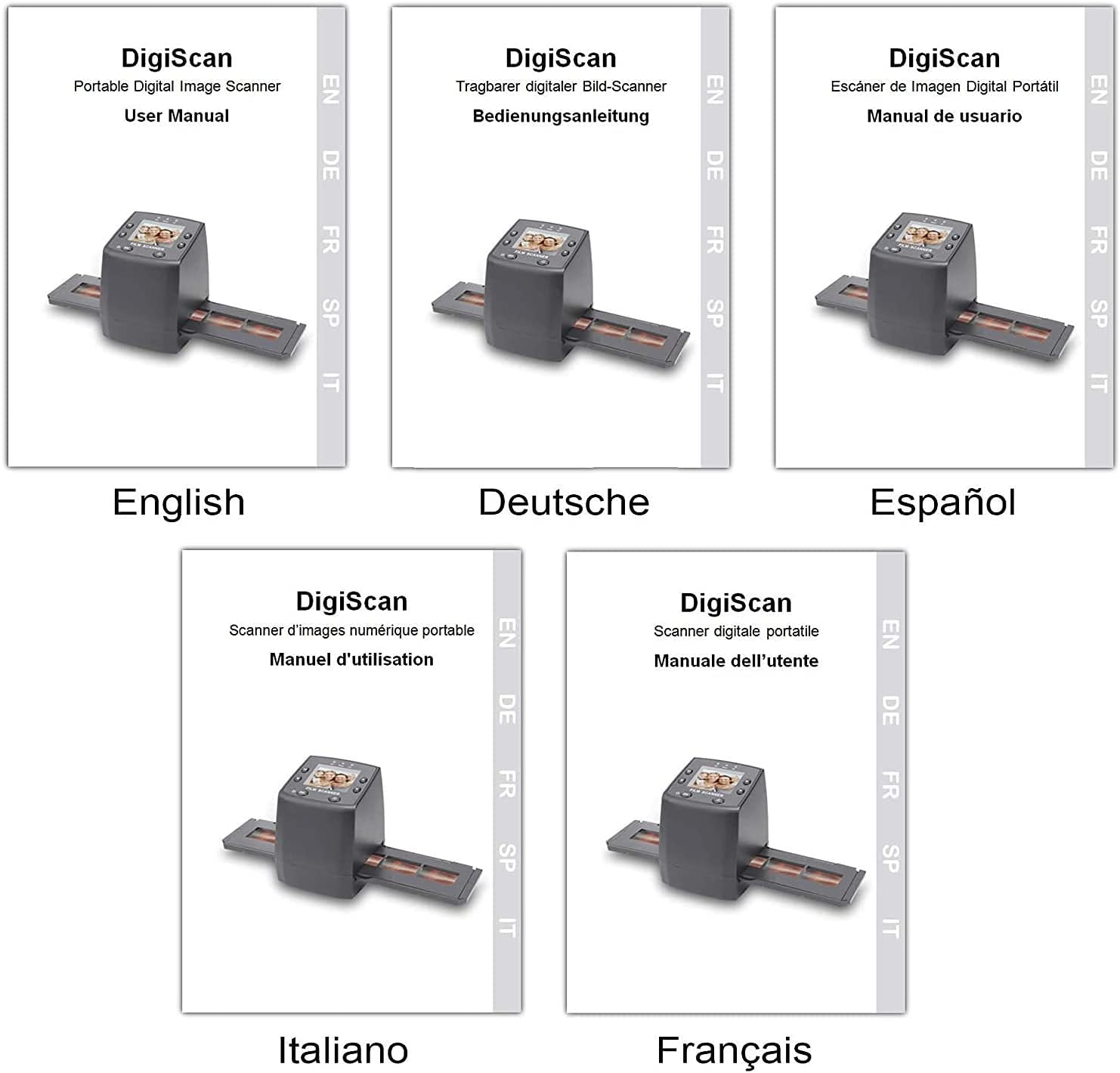
Image: Covers of user manuals in various languages, indicating multi-language support.
7. וישאַלט
- Cleaning the Film/Slide Holders: Regularly inspect and clean the film and slide holders to ensure no dust or debris interferes with scanning.
- Cleaning the Scanner Lens: Use the provided cleaning brush to gently remove dust from the scanner's lens and light source. Avoid touching the lens directly with your fingers.
- סטאָרידזש: Store the scanner in a dry, dust-free environment when not in use.
8. טראָובלעשאָאָטינג
- קיין מאַכט: Ensure the power adapter is securely connected to both the scanner and a working power outlet.
- Image Quality Issues (Blurry/Dusty): Clean the film/slides and the scanner lens using the provided brush. Adjust the focus if available (not explicitly mentioned for this model, but a general tip).
- SD קאָרט ניט דערקענט: Ensure the SD card is inserted correctly and is not damaged. Try formatting the card (this will erase all data) or using a different SD card.
- קען נישט איבערפירן Files צו פּיסי: Ensure the USB cable is properly connected and the scanner is in "USB MSDC" mode. Check your computer's device manager to see if the scanner is recognized.
- Image Color Issues: Adjust the EV Exposure settings in the scanner's menu.
9. ספּעסאַפאַקיישאַנז
| שטריך | באַשרייַבונג |
|---|---|
| מאָדעל נומער | M125 |
| סאָרט | DIGITNOW |
| שטיצט פילם טייפּס | 35mm Film Negatives, 135 Mounted Slides |
| לקד סקרין | 2.4-inch TFT LCD (480 * 234) |
| האַכלאָטע | 5/10 Megapixel (interpolated to 10M) |
| דפּי | 3600 דפּי |
| רעזולטאַט פֿאָרמאַט | JPEG |
| סטאָרידזש | SD/MMC Card (up to 8GB SDHC, not included) |
| צובינד | USB 2.0, Video Out (NTSC/PAL) |
| דימענשאַנז | 8.6 X 8.6 X 11.2 סענטימעטער |
| וואָג | 270 ג |
| מאַכט | 5 וואטס |
| אַפּערייטינג סיסטעם שטיצן | Windows XP, Vista, 7, 8; Mac OS |

Image: Diagram illustrating the dimensions of the DIGITNOW! M125 Film and Slide Scanner.
10. וואָראַנטי און שטיצן
This product comes with a standard manufacturer's warranty. For specific warranty details, please refer to the warranty card included in your package or contact DIGITNOW! customer support. For technical assistance or further inquiries, please visit the official DIGITNOW! webזייטל אדער קאָנטאַקט זייער שטיצע מאַנשאַפֿט דורך די קאָנטאַקט אינפֿאָרמאַציע וואָס איז צוגעשטעלט געוואָרן מיט אייער קויף.


