

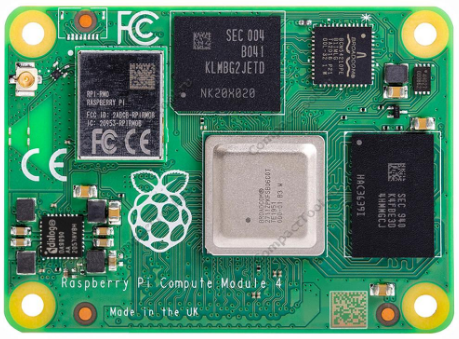
CompactTool Raspberry Pi CM4S Compute Module
ספּעסאַפאַקיישאַנז
| באַשרייַבונג | דעטאַילס |
|---|---|
| פּראָדוקט טיפּ | Embedded Compute Module |
| מאָדעל | Raspberry Pi CM4S Compute Module |
| סאָרט | CompactTool |
| פּראַסעסער | Quad-core ARM-based |
| זכּרון | קאַנפיגיעראַבאַל באַראַן אָפּציעס |
| סטאָרידזש | eMMC or external storage (varies by model) |
| אַס סופּפּאָרט | Linux-based, including Raspberry Pi OS |
| קאַנעקטיוויטי | USB, GPIO, networking, expansion (via carrier board) |
| ווירעלעסס סופּפּאָרט | Available in some configurations |
| פאָרם פאַקטאָר | Compact embedded module |
| אַפּפּליקאַטיאָן | IoT, industrial control, automation, robotics, embedded |
| מאַכט צושטעלן | Via compatible carrier board |
פֿעיִקייטן
- סאָליד פּלאַן: Fits into products with space constraints.
- High Processing: ARM-based performance for embedded/automation applications.
- Flexible Integration: Works with a variety of carrier boards for custom layouts.
- Industrial Support: Ideal for smart devices, control and monitoring equipment.
- קייפל ינטערפייסיז: Supports USB, displays, networking, sensors, etc. (carrier board dependent).
- לינוקס קאָמפּאַטאַביליטי: Runs Linux-based OS and software.
- עפעקטיוו מאַכט באַניץ: Low power for continuous/embedded applications.
- Developer-Friendly: Supports common Raspberry Pi programming environments
ייַנמאָנטירונג / סעטאַפּ
- Ensure compatibility between the carrier board and compute module.
- Disconnect power from the carrier board.
- Align and carefully insert the module into the carrier board connector.
- Connect peripherals, storage, display, network, etc.
- Power via the carrier board.
- Install/configure the operating system and required software.
ווי צו נוצן
Step 1. Download the Official image
- אראפקאפיע Raspbian Official Image
אראפקאפיע URL: https://www.raspberrypi.org/downloads/raspbian/
באַניצער נאָמען: פּי פּאַראָל: ראַזבערי - Download Ubuntu Mate Official Image
אראפקאפיע URL: https://ubuntu-mate.org/download/
The username and password can be set by yourself after startup - אראפקאפיע קאַלי אַפישאַל בילד
אראפקאפיע URL: https://www.offensive-security.com/kali-linux-arm-images/
Username: kali (The old version is root) Password: kali(The old version is toor) - אראפקאפיע אַפישאַל רעטראָפּי בילד
אראפקאפיע URL: https://retropie.org.uk/download/
באַניצער נאָמען: פּי פּאַראָל: ראַזבערי
שריט 2. פאַרברענען אַפישאַל בילד
- Download and install tool software
(If they are already installed, this step can be ignored) SD card format software SDCard Formatter download URL :
https://www.sdcard.org/downloads/formatter_4/
בילד ברענען ווייכווארג Win32DiskImager אראפקאפיע URL:
https://sourceforge.net/projects/win32diskimager/ - פֿאָרמאַט סד קאָרט
Insert the SD card into the card reader -> Insert the card reader into the computer -> Open the SDFormatter software -> Select the SD card -> Select quick format (generally select quick format; other options can be selected according to your own needs) -> Click the Format button -> Select “Yes” -> Click OK after formatting. - באַן בילד
עפֿנט די Win32DiskImager ווייכווארג -> סעלעקטירט דאָס בילד file to be burned (xxx.img ) -> Select the SD card -> Click the “write” button -> Select “Yes” -> Wait for the burning to complete (the whole process lasts about 10 minutes)
שריט 3. מאָדיפיצירן די "config.txt" קאַנפיגיעריישאַן file
עפענען די "config.txt" file in the root directory of the SD card on the computer. Add the following at the end of the file, ראַטעווען און אַרויסגאַנג.
max_usb_current=1
hdmi_force_hotplug=1
config_hdmi_boost=7
hdmi_group=2
hdmi_mode=87
hdmi_drive=1
display_rotate=0
הדמי_קווט 1280 800 60 6 0 0 0
Step 4. Insert SD card
After the above steps are completed, pop up the SD card on the computer and insert it into the SD card slot on the back of the Raspberry Pi.
Step 5. Running system
Connect the HDMI interface and touch interface of the display screen to the Raspberry Pi, connect the power supply of the Raspberry Pi, and start the machine to display and touch normally.
רעסאָורסעס
בילדער אראפקאפיע:
If you have difficulty installing the driver, or if you still can’t use the display properly after installing the driver, Please Try our configured images for testing.
Just download and write the image to the TF card. DO NOT need any driver installation
טריט.
- בילד
ווייכווארג
- Panasonic_SDFormatter/putty/Win32DiskImager
וישאַלט און רייניקונג
- Handle with care; use anti-static precautions.
- Avoid static discharge—use proper ESD protection when handling.
- Keep connector contacts dust-free.
- Store in a dry, temperature-controlled area.
- Don’t touch exposed electronic contacts with bare hands.
- Ensure good ventilation in the final device/enclosure.
זיכערקייַט עצות
- Disconnect power before installing/removing module.
- Use only compatible carrier boards/power supplies.
- Protect from water, moisture, and conductive materials.
- Don’t force connections; insert gently.
- Use ESD protection during handling.
- Ensure cooling for high-load use.
- Never modify connections while powered.
טראָובלעשאָאָטינג
| פּראָבלעם | מעגלעך סיבה | לייזונג |
|---|---|---|
| מאָדול טוט זיך נישט אָן | Incorrect install or power issue | Check connection and power input |
| סיסטעם טוט נישט שטיוול | OS setup or storage issue | Verify software and storage configuration |
| קיין נעץ קשר | Network config or hardware issue | Check network settings/interfaces |
| USB devices not detected | Carrier board/software config issue | Confirm USB ports/drivers are enabled |
| Module overheats | Insufficient cooling or heavy load | Improve ventilation, add cooling |
| ניט קיין אַרויסווייַזן רעזולטאַט | Improper display connection/settings | Check interface and system config |
| סיסטעם פריזיז | Software or resource issue | Restart and review אַפּלאַקיישאַנז |
דאָקומענטן / רעסאָורסעס
 | Raspberry Pi CM4S Compute Module |
רעפערענצן
- drive.google.com/drive/folders/1usvucg6U3mIH-dIsC0D4v6LyBBgRPMhr?usp=sharingdrive.google.com
- drive.google.com/drive/folders/1XrAvtHmrB60jdSCbDieQac-23o7Y7fh_?usp=sharingdrive.google.com
- retropie.org.uk/download/רעטראָפּי.אָרג.יוק
- sourceforge.net/projects/win32diskimager/sourceforge.net
- ubuntu-mate.org/download/ubuntu-mate.org
- offensive-security.com/kali-linux-arm-images/www.offensive-security.com
- raspberrypi.org/downloads/raspbian/www.raspberrypi.org
- sdcard.org/downloads/formatter_4/www.sdcard.org
- באַניצער מאַנואַלmanual.tools