1. הקדמה
Thank you for choosing the BitFenix AL118 ATX Mid Tower PC Case. This manual provides essential information for the proper installation, operation, and maintenance of your new PC case. Please read this manual thoroughly before beginning installation to ensure correct setup and to prevent any damage to the product or its components. Keep this manual for future reference.
זיכערקייַט אינפֿאָרמאַציע
- שטענדיק אָפּשטעקן די מאַכט צושטעל פון די וואַנט אַוטלעט איידער איר ינסטאַלירן אָדער אַראָפּנעמען קיין קאָמפּאָנענטן.
- Handle components with care to avoid electrostatic discharge (ESD) damage. Consider using an anti-static wrist strap.
- זיכער מאַכן אַז אַלע קייבלס זענען ריכטיק געפירט און באַוואָרענט צו פאַרמייַדן שטערונג מיט פאַנס אָדער אנדערע באַוועגלעכע טיילן.
- Do not open the power supply unit (PSU) as it contains high voltagE קאַמפּאָונאַנץ.
- Keep the case away from direct sunlight, high temperatures, and moisture.
2. פּראָדוקט איבערview און פֿעיִקייטן
The BitFenix AL118 is a high-performance ATX Mid Tower PC case designed for enthusiasts. It features a tempered glass side panel, integrated ARGB lighting, and comes equipped with a 1000W 80+ Gold Gen5 ATX 3.0 power supply unit. The case offers extensive compatibility for various motherboard sizes, GPUs, and cooling solutions.
שליסל פֿעיִקייטן:
- פאָרם פאַקטאָר: אַטקס מיטן טאַוער
- מאַכט צושטעלן: Integrated 1000W 80+ Gold Gen5 ATX 3.0 PSU
- זייַט טאַפליע: טעמפּערד גלאז
- לייטינג: Addressable RGB (ARGB) elements
- מאָטהערבאָאַרד שטיצן: MicroATX, Mini-ITX (ATX implied by case type)
- פראָנט I/O: 1 x USB 3.2 Type-C, 2 x USB 3.0
- Storage Bays: 2 x 2.5" internal, 1 x 3.5" internal
- גפּו רעשוס: אַרויף צו 400 מם
- קאָאָלינג שטיצן:
- Top Radiator: 240mm, 280mm, 360mm
- Rear Radiator: 1 x 120mm
- Rear Fan: 1 x 120mm (pre-installed ARGB)
- Top Fan: 3 x 120mm or 3 x 140mm (support)
- Side Fan: 3 x 120mm (pre-installed ARGB)
3. סעטאַפּ גייד
Follow these steps to properly set up your BitFenix AL118 PC case and install your components.
3.1 אויספּאַקן און ערשטע דורכקוק
- נעמט פֿאָרזיכטיק אַרויס דעם קעסטל פֿון זײַן פֿאַרפּאַקונג.
- Inspect the case for any signs of damage during transit. If damaged, contact your retailer immediately.
- Remove the tempered glass side panel by unscrewing the thumb screws (if present) or releasing the latch mechanism. Place it on a soft, flat surface to prevent scratches.
- Locate the accessory box inside the case, which contains screws, cable ties, and other mounting hardware.
3.2 מאָטהערבאָאַרד ינסטאַללאַטיאָן
- Ensure the correct standoffs are installed for your motherboard form factor (MicroATX, Mini-ITX). Additional standoffs may be in the accessory box.
- אינסטאלירט דעם I/O שילד אין דער הינטערשטער עפענונג פונעם קעיס.
- לייגט פֿאָרזיכטיק אייער מאַדערבאָרד אויף די סטאַנדאָפס, און גלייכט אויס די שרויף לעכער.
- באַפעסטיקט דאָס מאַדערבאָרד מיט די צוגעשטעלטע שרויפן. נישט צו שטאַרק אָנציִען.

פיגורע 3.2.1: אינערלעכער view of the case, highlighting the motherboard tray and various mounting points for fans and components.
3.3 גראַפיקס קאַרטל (GPU) ינסטאַלירונג
- Remove the necessary expansion slot covers from the rear of the case, corresponding to your GPU's size.
- Insert your GPU into the appropriate PCIe slot on the motherboard until it clicks into place.
- Secure the GPU to the case with screws.
- Connect the required PCIe power cables from the PSU to the GPU.
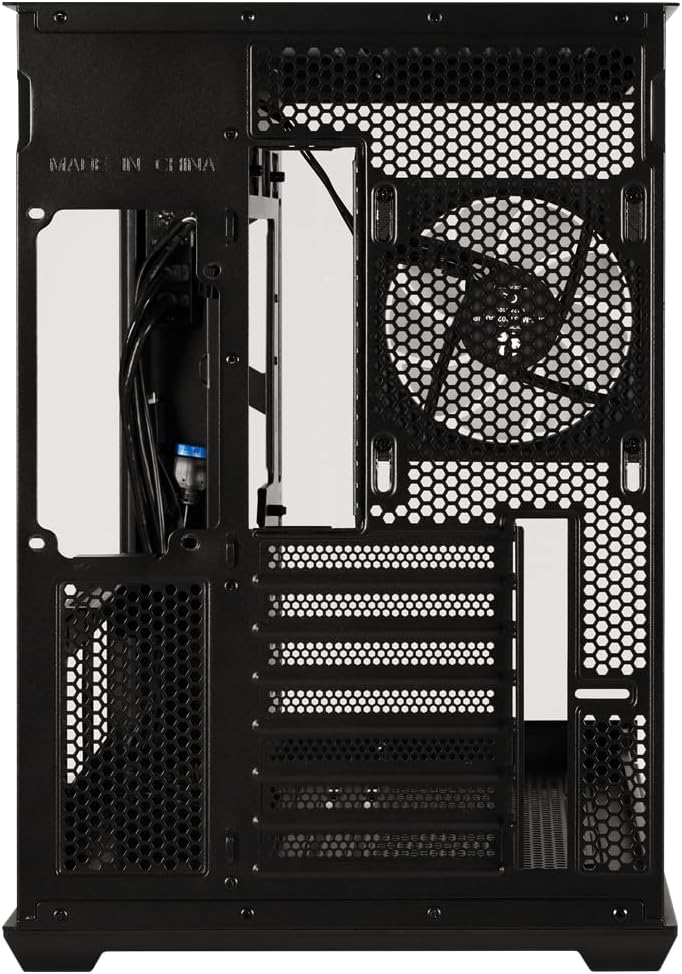
פיגורע 3.3.1: דערציען view of the case, showing the expansion slots where graphics cards are mounted and the pre-installed rear fan.
3.4 Storage Drive Installation (2.5" SSD/HDD, 3.5" HDD)
- Locate the 2.5" drive mounts (2 available) and 3.5" drive bay (1 available). These are typically found behind the motherboard tray or in a dedicated drive cage.
- For 2.5" drives, secure them to the mounting brackets with screws.
- For 3.5" drives, slide them into the drive cage and secure with screws or tool-less clips if available.
- Connect SATA data cables to the motherboard and SATA power cables from the PSU to each drive.
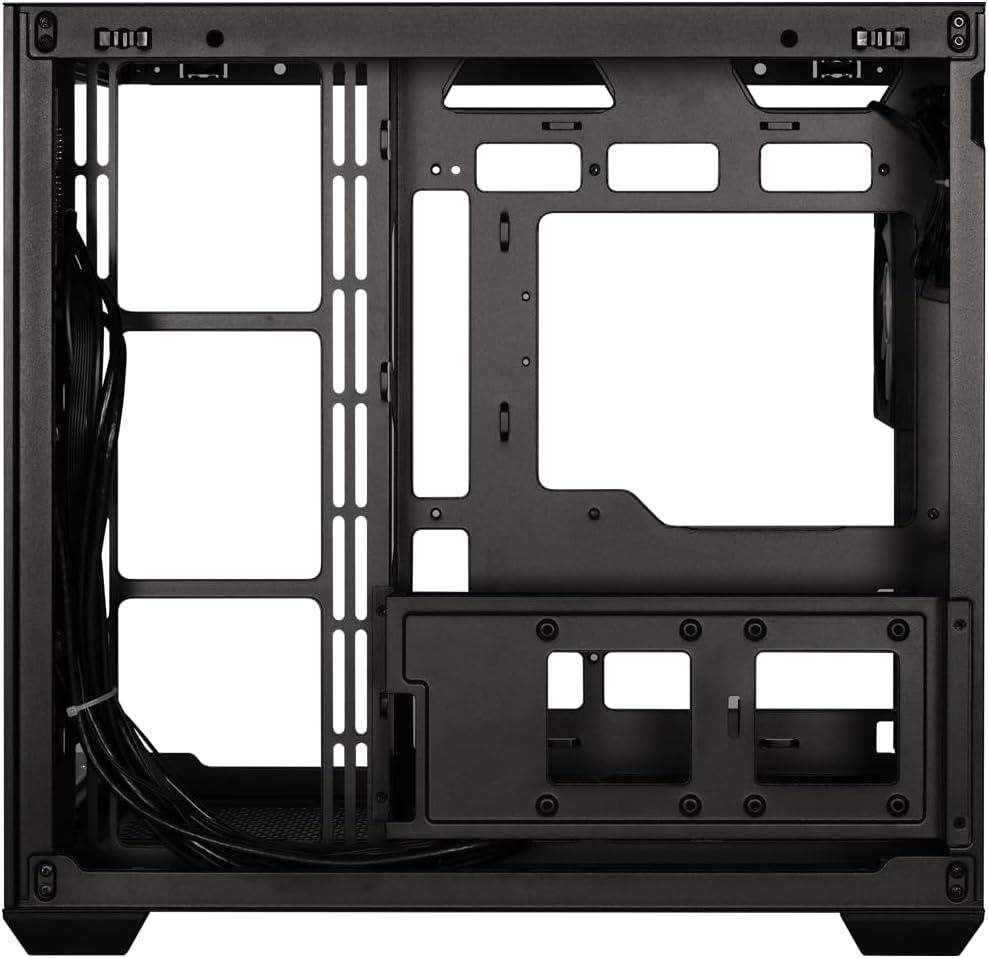
פיגורע 3.4.1: View behind the motherboard tray, illustrating the cable management channels and mounting locations for 2.5-inch and 3.5-inch storage drives.
3.5 Power Supply Unit (PSU) Connections
Your BitFenix AL118 case comes with a pre-installed 1000W 80+ Gold Gen5 ATX 3.0 PSU. Ensure all necessary power cables are connected:
- 24-פּין ATX מאַכט: Connect to the motherboard.
- 8-pin (4+4) EPS/CPU Power: Connect to the motherboard CPU power header.
- PCIe מאַכט: פֿאַרבינד זיך צו אייערע גראַפיקס קאַרטל(ן) ווי נויטיק.
- SATA מאַכט: Connect to your storage drives.
- Peripheral/Molex Power: Connect to any other components requiring this type of power.
3.6 פראָנט פּאַנעל קאַנעקשאַנז
Connect the front panel cables to the corresponding headers on your motherboard:
- USB 3.2 טיפּ-C: Connect the internal USB-C header cable to your motherboard's USB 3.2 Gen2 Type-C header.
- וסב 3.0: Connect the internal USB 3.0 header cable to your motherboard's USB 3.0 header.
- HD אַודיאָ: Connect to your motherboard's audio header.
- Power SW, Reset SW, HDD LED, Power LED: Connect these small connectors to the front panel header pins on your motherboard according to your motherboard manual.

פיגורע 3.6.1: אינערלעכער view showing the pre-installed ARGB fans and the routing of front panel I/O cables, including USB 3.2 Type-C and USB 3.0 connections.
3.7 קאַבלע מאַנאַגעמענט
Utilize the cable routing cutouts and tie-down points behind the motherboard tray to manage cables. Proper cable management improves airflow and aesthetics.
- Route main power cables (24-pin, EPS) through the largest cutouts.
- Use cable ties or Velcro straps (included in accessory box) to bundle and secure cables.
- Ensure no cables obstruct fan blades or airflow paths.
4. אַפּערייטינג ינסטרוקטיאָנס
4.1 Powering On Your System
- Once all components are installed and cables connected, replace the tempered glass side panel.
- Connect the AC power cord to the PSU and then to a wall outlet.
- Flip the power switch on the back of the PSU to the 'ON' position.
- Press the power button on the front panel of your case.
4.2 ARGB לייטינג קאָנטראָל
The BitFenix AL118 features Addressable RGB (ARGB) lighting. The control method depends on how the ARGB components are connected:
- מאָטהערבאָאַרד סינק: If the ARGB cables are connected to a compatible 3-pin 5V ARGB header on your motherboard, you can control the lighting effects using your motherboard's RGB software (e.g., ASUS Aura Sync, MSI Mystic Light, Gigabyte RGB Fusion, ASRock Polychrome Sync).
- Integrated Controller: If the case includes a built-in ARGB controller (often connected to a reset button or dedicated ARGB button), you can cycle through pre-programmed lighting modes by pressing that button. Refer to the specific controller's instructions if applicable.
5. וישאַלט
רעגולערע אויפהאלטונג העלפט זיכער מאכן די בעסטע פאָרשטעלונג און לאַנגלעבעדיקייט פון אייערע פּיסי קאָמפּאָנענטן.
- שטויב פילטערס: The case is equipped with dust filters (e.g., top, front, bottom). Regularly remove and clean these filters with water and mild soap, or by vacuuming/brushing them. Ensure they are completely dry before re-installing.
- ינלענדיש רייניקונג: Periodically use compressed air to blow dust out of the case interior, especially from fan blades, heatsinks, and vents. Ensure the system is powered off and unplugged before cleaning.
- טעמפּערד גלאז: Clean the tempered glass panel with a microfiber cloth and a non-abrasive glass cleaner. Avoid harsh chemicals.
6. טראָובלעשאָאָטינג
If you encounter issues with your PC build, refer to the following common troubleshooting steps:
- קיין מאַכט / סיסטעם הייבט זיך נישט אָן:
- Ensure the PSU power switch is in the 'ON' position.
- Check that the AC power cord is securely connected to both the PSU and the wall outlet.
- Verify all PSU cables (24-pin, EPS, PCIe) are firmly connected to the motherboard and components.
- באַשטעטיקן אַז דער פראָנט פּאַנעל מאַכט סוויטש קאַבל איז ריכטיק פארבונדן צו די מאָטהערבאָאַרד כעאַדער.
- קיין אַרויסווייַז רעזולטאַט:
- Ensure your monitor is connected to the graphics card (GPU) output, not the motherboard's integrated graphics output (unless you are using integrated graphics).
- לייג צוריק די גראַפיקס קאַרטל אין איר PCIe סלאָט.
- Check that the GPU's power cables are securely connected.
- פעןס דרייען זיך נישט / ARGB ארבעט נישט:
- Verify that all fan power cables are connected to the motherboard fan headers or a fan controller.
- Check ARGB cables are connected to a compatible 3-pin 5V ARGB header on the motherboard or an ARGB controller.
- If using motherboard software, ensure it is installed and configured correctly.
- איבערהייצונג:
- Ensure all case fans are spinning and oriented correctly for optimal airflow (intake/exhaust).
- Clean dust filters and case interior as described in the Maintenance section.
- Verify CPU cooler and GPU cooler are properly installed and functioning.
7. ספּעסאַפאַקיישאַנז
| שטריך | באַשרייַבונג |
|---|---|
| מאָדעל נאָמען | BitFenix AL118 1000W 80+Gold Gen5 ATX 3.0 TemperedGlass ARGB ATX MidTower SiyahKasa BFC-ALB100KKGSK-4A |
| טייל נומער | BFC-ALB100KKGSK-4A |
| טיפּ פון קאַסטן | אַטקס מיטן טאַוער |
| מאָטהערבאָאַרד קאַמפּאַטאַבילאַטי | MicroATX, Mini-ITX (ATX implied by case type) |
| מאַכט צושטעלן אַפּאַראַט (פּסו) | 1000W 80+ Gold Gen5 ATX 3.0 (Pre-installed) |
| PSU אָרט | דנאָ |
| זייַט פּאַנעל | טעמפּערד גלאז |
| פראָנט איך / אָ פּאָרץ | 1 x USB 3.2 Type-C, 2 x USB 3.0 |
| Internal 2.5" Drive Bays | 2 |
| Internal 3.5" Drive Bays | 1 |
| מאַקסימום גפּו לענג | 400 מם |
| שפּיץ ראַדיאַטאָר שטיצן | 240 מם, 280 מם, 360 מם |
| דערציען ראַדיאַטאָר שטיצן | 1 X 120 מם |
| Front Panel Fan Support | None (Side fans are present) |
| Rear Panel Fan Support | 1 X 120 מם |
| Top Panel Fan Support | 3 קס 120 מם, 3 רענטגענ 140 מם |
| Pre-installed Fans (Side) | 3 x 120mm ARGB |
| Pre-installed Fans (Rear) | 1 x 120mm ARGB |
| פּראָדוקט דימענשאַנז | 48 X 45.5 X 34.5 סענטימעטער |
| פּראָדוקט וואָג | 8 קילאָגראַמס |
8. וואָראַנטי און שטיצן
BitFenix products are manufactured to the highest quality standards. For specific warranty terms and conditions, please refer to the warranty card included with your product or visit the official BitFenix website. If you encounter any issues that cannot be resolved using this manual, please contact BitFenix customer support or your retailer for assistance.
Official BitFenix Webפּלאַץ: www.bitfenix.com


