1. הקדמה
The Havit MS966SE is a high-performance tri-mode gaming mouse designed for versatility, precision, and comfort. It features a PixArt PMW3325 optical sensor, offering exceptional tracking accuracy and adjustable DPI settings up to 10,000. With its tri-mode connectivity, you can seamlessly switch between 2.4GHz wireless, Bluetooth 5.3, and USB-C wired modes to suit your gaming or work environment. The lightweight and ergonomic design ensures comfortable use during extended sessions, complemented by dynamic RGB lighting for a personalized aesthetic.

Figure 1: Havit MS966SE Gaming Mouse with USB-C cable.
2. סעטאַפּ
2.1 אַנפּאַקינג
Carefully remove the mouse and all accessories from the packaging. Ensure all components are present:
- Havit MS966SE Gaming Mouse
- וסב-C צו וסב-א קאַבלע
- 2.4 גהז וסב ופנעמער
- באַניצער מאַנואַל (דעם דאָקומענט)
2.2 פֿאַרבינדן די מויז
The MS966SE offers three connectivity options:
2.2.1 2.4GHz ווירעלעס מאָדע
- Insert the 2.4GHz USB receiver into an available USB-A port on your computer.
- Locate the mode switch on the bottom of the mouse and slide it to the 2.4G שטעלע.
- די מויז וועט זיך אויטאָמאַטיש פֿאַרבינדן צו דיין קאָמפּיוטער.
2.2.2 בלועטוט 5.3 מאָדע
- Locate the mode switch on the bottom of the mouse and slide it to the BT שטעלע.
- On your computer or mobile device, open Bluetooth settings and search for new devices.
- Select "Havit MS966SE" from the list of available devices to pair.
2.2.3 יו-עס-בי-סי ווייערד מאָדע
- Connect one end of the provided USB-C cable to the mouse and the other end to an available USB-A port on your computer.
- די מויז וועט זיך אויטאמאטיש איבערקערן צו ווייערד מאָדע און אָנהייבן טשאַרדזשינג.
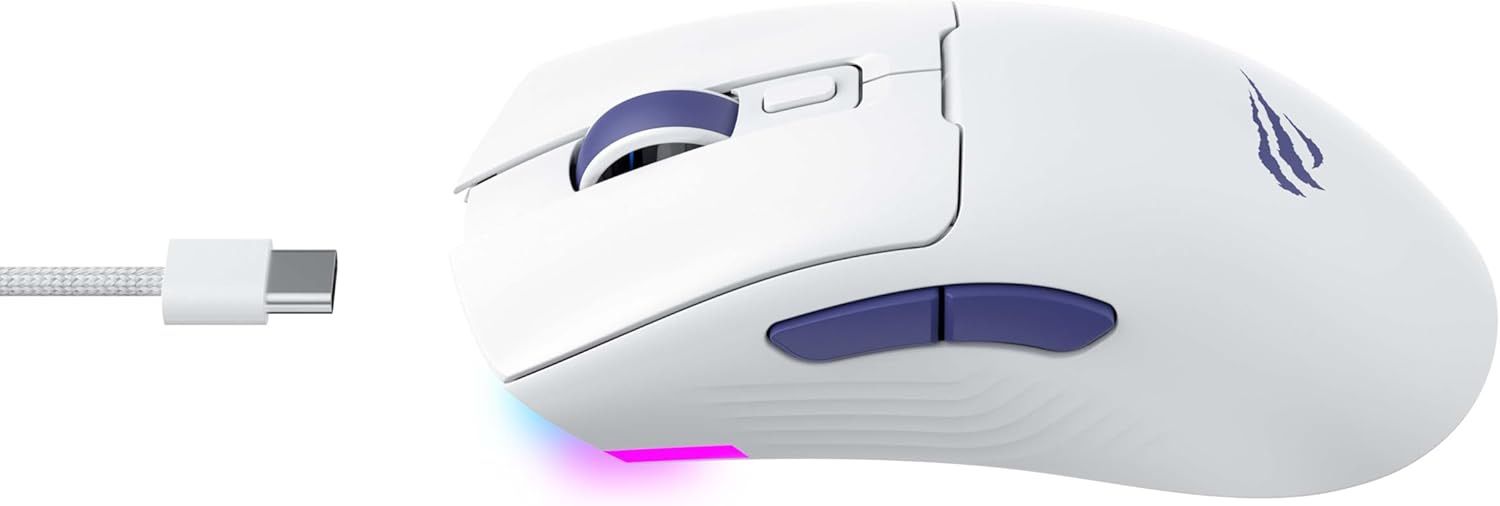
פיגורע 2: זייַט view of the mouse, highlighting the USB-C port.
2.3 אויפלאָדן די מויז
To charge the mouse, connect it to your computer using the USB-C cable. The mouse can be used in wired mode while charging. An indicator light on the mouse will show the charging status (refer to the manufacturer's website or product packaging for specific light behaviors).
3. אַפּערייטינג ינסטרוקטיאָנס
3.1 קנעפּל פאַנגקשאַנז
The Havit MS966SE features several programmable buttons for enhanced control:
- לינקער קליק קנעפל: נאָרמאַלע ערשטיקע קליק פונקציע.
- רעכט קליק קנעפל: נאָרמאַלע צווייטיקע קליק פונקציע.
- סקראָל ראָד: Scrolls up/down, and acts as a middle click button.
- DPI ציקל קנעפּל: Located behind the scroll wheel, this button cycles through preset DPI sensitivity levels.
- זייט קנעפּלעך (פאָרווערטס/צוריק): טיפּיש געניצט פֿאַר נאַוויגאַציע אין web browsers or can be programmed for in-game actions.

Figure 3: Side buttons and ergonomic design.
3.2 דפּי אַדזשאַסטמאַנט
The PixArt PMW3325 sensor allows for adjustable DPI settings up to 10,000. Press the DPI cycle button (located behind the scroll wheel) to switch between different sensitivity levels. Each press will cycle to the next preset DPI, allowing you to quickly adapt to various tasks or game scenarios.
3.3 Connectivity Mode Switching
To switch between 2.4GHz wireless, Bluetooth, and wired modes, use the physical switch located on the bottom of the mouse. Ensure the correct mode is selected based on your connection preference.
3.4 RGB לייטינג
The mouse features dynamic RGB lighting. Specific controls for RGB lighting effects, colors, and brightness may be available through dedicated software provided by Havit. Please visit the official Havit website for software downloads and further customization options.
4. וישאַלט
4.1 רייניקונג
- אָפּשטעקן די מויז פֿון אייער קאָמפּיוטער איידער איר רייניגט עס.
- ניצט אַ ווייכן, טרוקענעם, לינט-פֿרייע שטאָף צו ווישן די ייבערפלאַך פֿון דער מויז.
- פֿאַר שווערן שמוץ, אַ ביסל דampווישט דעם שטאָף מיט וואַסער אָדער אַ מילדער רייניקונג לייזונג. פֿאַרמייַדט שטרענגע כעמיקאַליעס.
- ניצט אַ וואַטע שטעכל אָדער קאָמפּרעסירטע לופט צו רייניקן אַרום קנעפּלעך און דעם סקראָלל ראָד.
- טונקט נישט אריין די מויז אין וואסער אדער קיין שום פליסיקייט.
4.2 סטאָרידזש
When not in use for extended periods, store the mouse in a cool, dry place away from direct sunlight and extreme temperatures. If storing for a long time, ensure the mouse is fully charged to maintain battery health.
5. טראָובלעשאָאָטינג
5.1 מויז רעאַגירט נישט
- טשעק מאַכט: זייט זיכער אז די מויז איז אנגעצינדן און האט גענוג באַטעריע אָפּצאָל.
- טשעק קאַנעקטיוויטי:
- ווייערד מאָדע: זיכער מאַכן אַז דער USB-C קאַבל איז זיכער פֿאַרבונדן צו ביידע די מויז און דעם קאָמפּיוטער. פּרוּווט אַן אַנדער USB פּאָרט.
- 2.4GHz ווירעלעסס: Ensure the USB receiver is properly inserted and the mouse is set to 2.4G mode. Try a different USB port for the receiver.
- בלועטאָאָטה מאָדע: Ensure Bluetooth is enabled on your device and the mouse is paired. Try unpairing and re-pairing the mouse.
- ריסטאַרט: ריסטאַרט דיין קאָמפּיוטער און די מויז.
5.2 DPI טוישט זיך נישט
- זייט זיכער אַז איר דריקט דעם ריכטיקן DPI ציקל קנעפּל.
- If using custom software, check the DPI settings within the software.
5.3 Lag or Disconnections in Wireless Mode
- ינטערפיראַנס: Move the mouse closer to the receiver/device. Avoid obstacles between the mouse and receiver.
- באַטערי מדרגה: א נידעריגע באַטעריע קען אַפעקטירן די ווייערלעס פאָרשטעלונג. לאָדט די מויז אויף.
- וסב פּאָרט: Try connecting the 2.4GHz receiver to a different USB port, preferably a USB 2.0 port if available, as some USB 3.0 ports can cause interference.
6. ספּעסאַפאַקיישאַנז
| סאָרט | האַוויט |
| מאָדעל | MS966SE |
| קאַנעקטיוויטי טעכנאָלאָגיע | Tri-Mode: 2.4GHz Wireless, Bluetooth 5.3, USB-C Wired |
| סענסאָר טעכנאָלאָגיע | אָפּטיש (PixArt PMW3325) |
| דפּי לעוועלס | Up to 10,000 adjustable DPI |
| ספּעציעלע פֿעיִקייטן | Ergonomic Design, Dynamic RGB Lighting |
| קאַמפּאַטאַבאַל אַפּערייטינג סיסטעמס | Windows, macOS, Linux |
| קאַמפּאַטאַבאַל דעוויסעס | Notebook, Personal Computer, Tablet, Smartphone |
| מויז ווייט | בעערעך 68 גראַמז |
| באַטערי טיפּ | ליטהיום-יאָן |
7. וואָראַנטי און שטיצן
7.1 וואָראַנטי אינפֿאָרמאַציע
This Havit MS966SE Gaming Mouse comes with a 1 יאָר מאַנופאַקטורער וואָראַנטיביטע באַהאַלטן אייער קויפן-באַווייַז פֿאַר וואָראַנטי-קליימז. די וואָראַנטי דעקט חסרונות אין מאַטעריאַלן און אַרבעט אונטער נאָרמאַל נוצן.
7.2 קונה שטיצן
For technical assistance, troubleshooting beyond this manual, or warranty inquiries, please contact Havit customer service directly. You can find the most up-to-date contact information and support resources on the official Havit webפּלאַץ (www.havit.com).


