הקדמה
This manual provides detailed instructions for the operation and maintenance of your Vivitar DVR4K 4K & 8K Video Camera Camcorder. Please read this manual thoroughly before using the device to ensure proper functionality and to maximize your recording experience. This camcorder is designed for capturing high-quality video and still images, featuring advanced capabilities for various content creation needs.
וואָס איז אין די קעסטל
באַשטעטיקט אַז אַלע זאכן וואָס זענען אויסגערעכנט אונטן זענען אַרייַנגערעכנט אין אייער פּעקל:
- Vivitar DVR4K Camcorder
- ווייַט קאָנטראָל
- Battery (Nonstandard Battery, 2 included)
- HDMI קאַבלע
- USB Cable (Standard USB to USB-C)
- אָביעקטיוו קאַפּ
- קעריינג טאַש
- Instruction Manual (Easy Guide)
Video: Unboxing the Vivitar DVR4K Camcorder, showing included accessories like the camcorder, remote, battery, cables, and carrying pouch.
סעטאַפּ
1. טשאַרדזשינג די באַטערי
The camcorder uses a 3.7V 1050mAh Li-ion battery (NP-40). Ensure the battery is fully charged before first use.
- עפֿנט דעם דעקל פֿון דער באַטעריע־אָפּטיילונג אויף דער קאַמעראַ.
- Insert the battery into the compartment, ensuring correct polarity.
- נאָענט די דעקן פון די באַטאַרייע אָפּטייל.
- Connect the USB cable to the camcorder's USB-C port and to a power source (e.g., computer USB port or USB wall adapter).
- די טשאַרדזשינג אינדיקאַטאָר ליכט וועט זיך אָנצינדן. עס וועט זיך אויסלעשן אָדער טוישן קאָליר ווען די טשאַרדזשינג איז פֿאַרטיק.
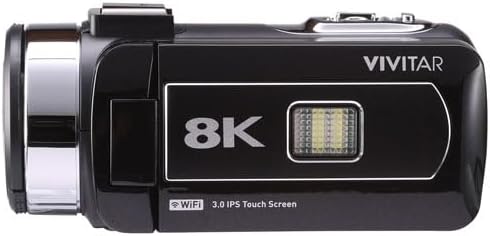
Image: Vivitar DVR4K Camcorder with its flip screen open, showing the controls and ports.
2. אַרייַנלייגן אַ זכּרון קאָרט
The camcorder supports SD flash memory cards. A memory card is required to store videos and photos.
- Locate the memory card slot (usually near the battery compartment or on the side).
- Insert the SD card into the slot with the metal contacts facing the correct direction until it clicks into place.
- צו אַרויסנעמען, דריק די קאַרטל לײַכט ביז זי שפּרינגט אַרויס.
3. Attaching the Hand Strap and Lens Cap
- Secure the hand strap to the designated loop on the camcorder for a firm grip during operation.
- Attach the lens cap to protect the lens when the camcorder is not in use.

בילד: פראָנט view of the Vivitar DVR4K Camcorder with the lens cap in place.
אַפּערייטינג ינסטראַקשאַנז
1. פּאָווערינג אויף / אויסגעלאשן
- To power on, open the LCD flip screen. The camcorder will automatically turn on.
- To power off, close the LCD flip screen. The camcorder will automatically turn off.
- אַלטערנאַטיוועלי, דריקן און האַלטן די מאַכט button located near the screen for a few seconds.
2. Basic Navigation and Modes
Use the buttons next to the LCD screen or the remote control to navigate menus and select modes.
- מאָדע button: Cycles through video recording, photo capture, and playback modes.
- MENU button: Accesses the settings menu for various adjustments.
- UP/DOWN/OK buttons: Navigate menu options and confirm selections.
- WiFi button: Activates Wi-Fi connectivity for file אַריבערפירן.

בילד: זייט view of the Vivitar DVR4K Camcorder with the flip screen open, highlighting the control buttons for power, mode, menu, and Wi-Fi.
3. אויפנעמען ווידעא
- Switch to video recording mode using the מאָדע קנעפּל.
- ראַמען דיין שאָס מיטן LCD עקראַן.
- דרוק די רעקאָרד button (red button on the top/back) to start recording.
- דרוק די רעקאָרד קנעפּל ווידער צו האַלטן רעקאָרדינג.
- Use the zoom lever (located on top) to zoom in or out during recording.
4. גענומען פאָטאָס
- Switch to photo capture mode using the מאָדע קנעפּל.
- ראַמען דיין שאָס מיטן LCD עקראַן.
- דרוק די פאָטאָ button (usually near the record button) to take a picture.
5. ניצן די רימאָוט קאָנטראָל
די אַרייַנגערעכנט ווייַט קאָנטראָל אַלאַוז פֿאַר באַקוועם אָפּעראַציע פון אַ ווייַטקייט.
- Ensure the plastic tab is removed from the remote's battery compartment to activate it.
- Point the remote at the camcorder's IR receiver.
- Use the corresponding buttons on the remote for recording, taking photos, zooming, and navigating menus.

Image: The Vivitar DVR4K Camcorder's remote control and a spare battery.
6. Connecting to a TV (HDMI)
View your recordings and photos on a larger screen using the HDMI output.
- Connect the mini HDMI end of the HDMI cable to the camcorder's HDMI port.
- Connect the standard HDMI end to an HDMI input on your TV.
- אויסקלייבן דעם ריכטיקן HDMI אינפוט אויף אייער טעלעוויזיע.
- The camcorder's display will appear on your TV screen.
7. טראַנספערינג Files (USB & Wi-Fi)
Transfer your media to a computer or other device.
- וסב אַריבערפירן: Connect the camcorder to your computer using the USB cable. The camcorder will appear as a removable drive, allowing you to copy files.
- Wi-Fi Transfer: Activate Wi-Fi on the camcorder using the WiFi button. Follow the on-screen instructions or refer to the full manual for connecting to a smartphone app for wireless transfer.
וישאַלט
1. באַטערי קער
- סטאָר באַטעריז אין אַ קיל, טרוקן אָרט ווען ניט אין נוצן.
- פֿאַרמײַדט אָפֿט פֿולשטענדיק אויסצולאָדן די באַטעריע כּדי צו פֿאַרלענגערן איר לעבן.
- שטעלט נישט אויס באַטעריעס צו עקסטרעמע טעמפּעראַטורן.
2. רייניקונג
- ניצט אַ ווייכן, טרוקענעם שטאָף צו רייניקן דעם קאַמקאָרדער קערפּער.
- For the lens, use a specialized lens cleaning cloth and solution.
- ויסמיידן ניצן האַרב קעמיקאַלז אָדער אַברייסיוו מאַטעריאַלס.
3. סטאָרידזש
- Store the camcorder in its carrying pouch to protect it from dust and scratches.
- אַרויסנעמען די באַטאַרייע אויב די קאַמעראַ וועט נישט ווערן גענוצט פֿאַר אַ לענגערע צייט.
- Keep the camcorder away from direct sunlight, high humidity, and extreme temperatures.
טראָובלעשאָאָטינג
| פּראָבלעם | מעגלעך סיבה | לייזונג |
|---|---|---|
| די קאַמעראַ גייט נישט אָן. | די באַטעריע איז נישט אויפגעלאָדן אָדער נישט ריכטיק אַרײַנגעשטעלט. | זיכער מאַכן אַז די באַטאַרייע איז גאָר אויפגעלאָדן און ריכטיק אַרײַנגעשטעלט. |
| קען נישט רעקאָרדירן ווידעא/נעמען פאָטאָס. | די זכּרון קאַרטל איז פול, נישט אַרײַנגעשטעלט, אָדער קאָרומפּירט. | Insert a valid memory card, ensure sufficient space, or format the card (this will erase all data). |
| שלעכטע ווידעא/פאָטאָ קוואַליטעט. | Lens is dirty, lighting conditions are poor, or incorrect settings. | Clean the lens. Adjust lighting or camcorder settings (e.g., exposure, white balance). |
| ווייַט קאָנטראָל נישט ארבעטן. | Plastic tab not removed, battery dead, or not pointing correctly. | Remove plastic tab. Replace remote battery. Ensure direct line of sight to IR receiver. |
ספּעסאַפאַקיישאַנז
| שטריך | דעטאַל |
|---|---|
| סאָרט | וויוויטאַר |
| מאָדעל נומער | DVR4K |
| ווידעא קאַפּטורע רעסאָלוטיאָן | 4K / 8K Ultra HD |
| Still Image Sensor | 48.0 מפּ |
| ווייַז | 3-inch Rotatable Full-Color LCD (IPS Touchscreen) |
| פארגרעסער | 18x דיגיטאַל פארגרעסער |
| קאַנעקטיוויטי | Wi-Fi, Mini USB, HDMI |
| ספּעציעלע פֿעיִקייטן | Image Stabilization, Face Detection, Night Vision, Multiple Shooting Modes (Auto, Portrait, Landscape, Time Lapse, Motion Detection, Loop Recording) |
| סטאָרידזש מידיאַ | SD Flash Memory (Max size not specified, user review mentions 128GB/256GB attempts) |
| באַטערי טיפּ | Nonstandard Battery (Li-ion, 3.7V 1050mAh, NP-40) |
| ווידעא פֿאָרמאַט | mp4 |
| פאָטאָ פֿאָרמאַט | JPG |
| אַפּערייטינג טעמפּעראַטור | -20°C צו +50°C |
| פּונקט וואָג | 3.5 פונט |
וואָראַנטי און שטיצן
For warranty information and technical support, please refer to the official Vivitar website or contact their customer service. Details are typically provided in the full product manual or on the manufacturer's webפּלאַץ.
שוץ פלענער: Additional protection plans may be available for purchase. Please check with your retailer for options such as 2-Year or 3-Year Protection Plans.


