הקדמה
Thank you for choosing the ProtoArc KM310 Wireless Mechanical Keyboard and Mouse. This combo offers a responsive typing experience with low-profile linear red switches and versatile multi-device connectivity. The ergonomic mouse is designed for comfort and precision. This manual provides detailed instructions for setup, operation, maintenance, and troubleshooting to ensure optimal performance.
וואָס איז אין די קעסטל

Image: Contents of the ProtoArc KM310 package, including the keyboard, mouse, charging cable, and user manual.
- ProtoArc KM310 Wireless Mechanical Keyboard
- ProtoArc Wireless Mouse
- וסב-C טשאַרדזשינג קאַבלע
- באַניצער מאַנואַל
פּראָדוקט איבערview
קלאַוויאַטור פֿעיִקייטן

בילד: א נאָענטע בילד view of the ProtoArc KM310 keyboard, highlighting its low-profile keys and linear red switches.
- נידעריק-פּראָfile מעטשאַניקאַל שליסלען: Equipped with linear red switches for a smooth, quiet, and responsive typing experience.
- Aluminum Top Case: Provides durability and a sleek, modern aesthetic.
- אַדזשאַסטאַבאַל טילט לעגס: Ergonomically designed with 2-stage foot mats offering 6° and 9° tilt options for comfortable typing.
- גאַנץ גרייס אויסלייג: A 108-key layout suitable for office and business use.
מויז פֿעיִקייטן

Image: The ProtoArc KM310 mouse being held, showcasing its ergonomic design for a natural grip.
- 63G Ultra-Lightweight: Reduces hand fatigue during extended use and enhances portability.
- ערגאָנאָמיק פּלאַן: Contoured shape for a comfortable and natural grip.
- אַדזשאַסטאַבאַל דפּי: Three DPI levels (1000/1600/2400) for tailored control and precision.
- שטיל קליק: דיזיינד פֿאַר שטילער אָפּעראַציע.
- פאָרויס/צוריק קנעפּלעך: Integrated for seamless browsing.
קאַנעקטיוויטי און מאַכט
- מולטי דיווייס קאַנעקטיוויטי: Connects up to 3 devices via 2.4G USB receiver or Dual Bluetooth (BT1, BT2).
- ריטשאַרדזשאַבאַל: Both keyboard and mouse feature Type-C charging. The mouse's USB receiver is stored on its bottom.
- לאנג באַטאַרייע לעבן: Up to 150-200 days standby time; 2-3 hours for a full charge.
סעטאַפּ אינסטרוקציעס
1. אויפלאָדן די דעווייסעס

Image: The keyboard and mouse are shown connected to power sources via USB-C cables for charging.
- Connect the provided USB-C charging cable to the charging port on the keyboard (located on the top edge) and the mouse (located on the front edge).
- שטעקט אריין דעם אנדערן עק פונעם קאבל אין א USB שטראָם מקור (למשל, קאמפיוטער USB פארט, USB וואנט אדאפטער).
- The indicator lights will show charging status. Allow 2-3 hours for a full charge.
2. פֿאַרבינדן זיך צו דעוויסעס

Image: A desk setup showing the ProtoArc KM310 keyboard and mouse connected to a laptop, monitor, and tablet, illustrating multi-device capability.
The KM310 combo supports three connection modes: 2.4G wireless via USB receiver, Bluetooth 1 (BT1), and Bluetooth 2 (BT2).
2.1. 2.4ג ווירעלעסס קאַנעקשאַן
- געפינט דעם USB ופנעמער וואָס געפינט זיך אין דעם אָפּטייל אויף דער אונטערשטער טייל פון דער מויז.
- צאַפּן די וסב ופנעמער אין אַ בנימצא וסב פּאָרט אויף דיין קאָמפּיוטער.
- צינדט אָן די קלאַוויאַטור און מויז מיט זייערע ריספּעקטיווע מאַכט סוויטשיז.
- The devices should connect automatically.
2.2. בלועטוט פֿאַרבינדונג (BT1 / BT2)
- קער אויף די קלאַוויאַטור און מויז.
- אויף די קלאַוויאַטור, דריקן די BT1 or BT2 key (usually located on the number pad, indicated by orange keycaps) to select the desired Bluetooth channel. The indicator light will flash.
- On your device (computer, tablet, etc.), go to Bluetooth settings and search for "ProtoArc KM310 Keyboard" and "ProtoArc KM310 Mouse".
- Select the devices to pair. The indicator light will stop flashing once connected.
- Repeat for a second Bluetooth device using the other BT channel.
2.3. וועקסלען צווישן דעווייסעס
To switch between connected devices, simply press the corresponding connection key on the keyboard (2.4G, BT1, or BT2) and the channel switch button on the bottom of the mouse.
אַפּערייטינג ינסטראַקשאַנז
קלאַוויאַטור באַניץ
- טייפּינג: די נידעריק-פּראָfile linear red switches provide a responsive and quiet typing experience.
- אַפּערייטינג סיסטעם קאַמפּאַטאַבילאַטי: The keyboard is compatible with Windows and Mac OS. Keys like 'Win' and 'Alt' also show 'Option' and 'Cmd' for Mac users.
- אַדזשאַסטינג טילט: Use the adjustable tilt legs on the underside of the keyboard to set your preferred typing angle (6° or 9°).
מויז באַניץ
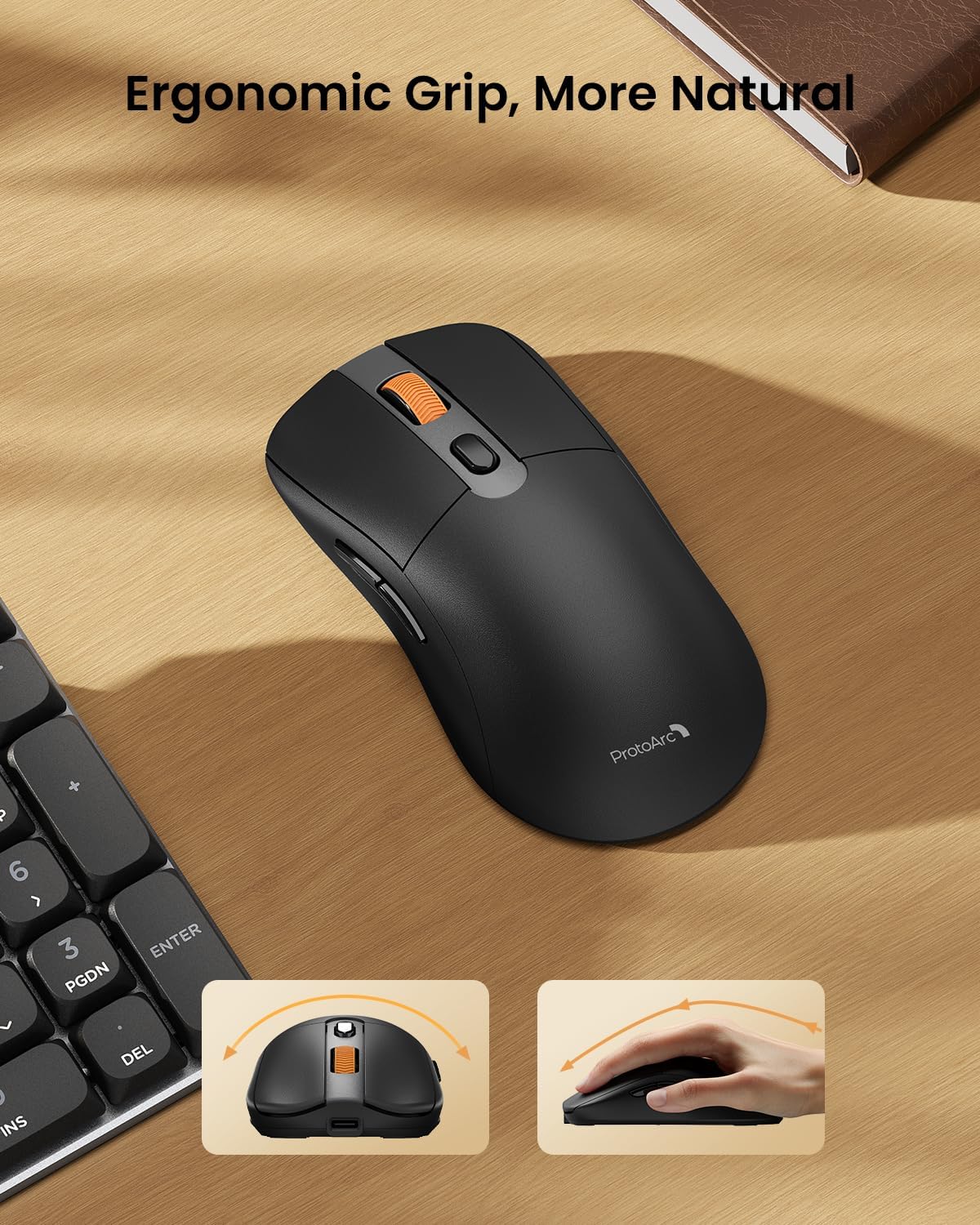
Image: A close-up of the ProtoArc KM310 mouse, illustrating the three adjustable DPI settings (1000, 1600, 2400).
- דפּי אַדזשאַסטמאַנט: Press the DPI switch button (usually located near the scroll wheel) to cycle through the 3 DPI levels (1000/1600/2400) to match your preference for cursor speed and precision.
- נאַוויגאַציע קנעפּלעך: Use the forward and backward buttons on the side of the mouse for quick navigation in web בראַוזערז אָדער file עקספּלאָרערס.
- שטילע קליקן: The mouse features silent click buttons for a quiet working environment.
וישאַלט
- רייניקונג: ניצט אַ ווייכע, טרוקענע שטאָף צו ווישן די קלאַוויאַטור און מויז. פֿאַר שווערע שמוץ, אַ ביסל טרוקןamp מען קען ניצן אַ שטאָף מיט מילדער זייף, און זיכער מאַכן אַז קיין פליסיקייט גייט נישט אַרײַן אין דעם אַפּאַראַט.
- באַטערי זאָרגן: Recharge the devices when the battery indicator is low. Avoid prolonged exposure to extreme temperatures.
- סטאָרידזש: When not in use for extended periods, turn off the devices to conserve battery life. Store the USB receiver inside the mouse to prevent loss.
טראָובלעשאָאָטינג
Keyboard/Mouse Not Turning On or Stopping Working
- קאָנטראָלירן די באַטאַרייע: Ensure both the keyboard and mouse are sufficiently charged. Connect them to a power source using the USB-C cable.
- פארבינדן דיווייסעס:
- For 2.4G connection, ensure the USB receiver is securely plugged in and the devices are set to 2.4G mode.
- For Bluetooth connection, ensure the devices are set to the correct BT channel (BT1 or BT2) and re-pair them through your device's Bluetooth settings.
- פּרוּווט אַ אַנדערש קאַבלע: If charging issues persist, try using a different USB-C cable to rule out a faulty cable.
- ינטערפיראַנס: Move the devices closer to your computer or away from other wireless devices that might cause interference.
- קאָנטאַקט שטיצן: If the issue persists, please contact ProtoArc customer support for further assistance.
ספּעסאַפאַקיישאַנז
| מאָדעל נומער | KM310 |
| סאָרט | פּראָטאָאַרק |
| קאָליר | אָרט גריי |
| קאַנעקטיוויטי טעכנאָלאָגיע | בלועטוט, יו-עס-בי (2.4 דזשי ווירעלעס) |
| ספּעציעלע פֿעיִקייטן | נידעריק פּראָfile Keys, Linear Red Switches, Ergonomic Design, Ultra-Light Mouse, Ergonomic Mouse |
| קאַמפּאַטאַבאַל דעוויסעס | Laptop, Personal Computer, Tablet (Windows 7/8/10, Mac OS X 10.12, Android 4.3 or higher) |
| פּונקט וואָג | 2.31 פונט |
| פּעקל דימענשאַנז | 17.68 X 8.07 X 2.05 אינטשעס |
וואָראַנטי & שטיצן
The ProtoArc KM310 Mechanical Keyboard and Mouse combo comes with a 2-יאָר וואָראַנטי.
For any questions, technical support, or warranty claims, please contact ProtoArc customer service:
- בליצפּאָסט: support@protoarc.com
- טעלעפֿאָן: +1 866-287-8188
אפיציעלע פּראָדוקט ווידעאָ
ווידעא: אפיציעלע פּראָדוקט ווידעא ווייַזונגasing the features and design of the ProtoArc KM310 Aluminum Mechanical Keyboard and Mouse.


