הקדמה
The ONIKUMA X22 Wired Gaming Headset is designed to provide an immersive audio experience for gamers. It features dynamic RGB lighting, a comfortable design, and a clear communication microphone. This manual provides essential information for the proper setup, operation, maintenance, and troubleshooting of your headset.
שליסל פֿעיִקייטן:
- Stunning RGB lighting effects to enhance the gaming atmosphere.
- 50mm dynamic drivers deliver impressive stereo sound.
- Features a 360-degree omnidirectional microphone with active noise reduction for clear sound.
- Convenient inline controls for RGB lighting, microphone mute, and volume adjustment.
- Designed with an adjustable suspended headband and well-ventilated ear cups for comfortable wear.
סעטאַפּ אינסטרוקציעס
Follow these steps to set up your ONIKUMA X22 Gaming Headset:
- פֿאַרבינדט דעם אַודיאָ קאַבל: Plug the 3.5mm audio jack of the headset into the corresponding audio port on your gaming device (PC, console controller, etc.). Ensure the connection is secure.
- Connect the USB Cable (for RGB Lighting): Plug the USB-A connector into an available USB port on your device. This connection powers the RGB lighting feature. The headset will function for audio and microphone without the USB connection, but RGB lighting requires it.
- סטרויערן העאַדבאַנד: Place the headset on your head and adjust the suspended headband for a comfortable fit. The headband is designed to adapt to various head sizes.
- פּאָזיציע מיקראָפאָן: Adjust the flexible microphone boom to position the microphone near your mouth for optimal voice pickup. Ensure it is not obstructing your vision.
- ערשטע סאַונד טשעק: Play some audio or initiate a voice chat to confirm sound output and microphone input are working correctly. Adjust system volume settings as needed.
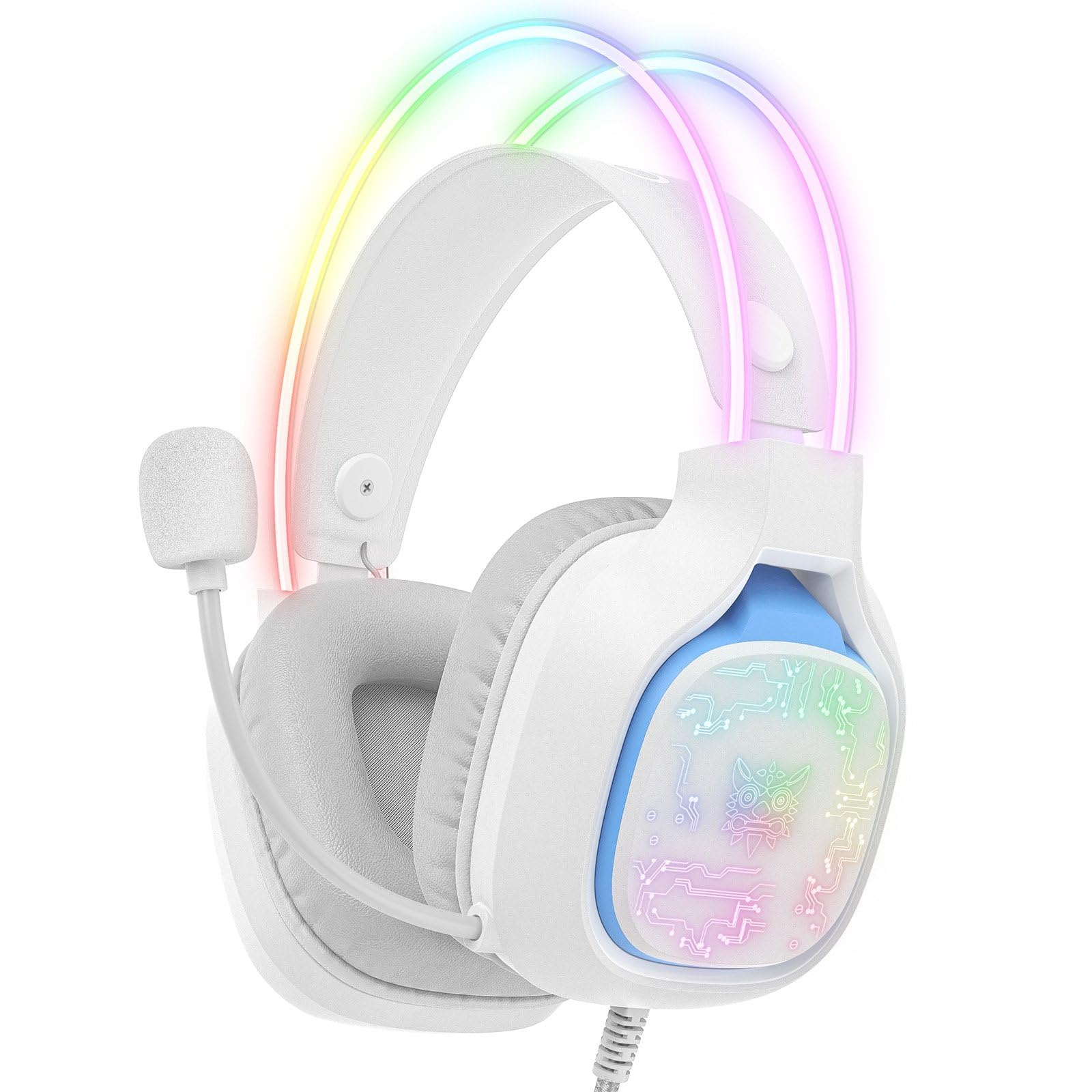
Image: The ONIKUMA X22 Gaming Headset with its 3.5mm audio jack and USB connector, ready for connection to a gaming device. The adjustable headband and microphone are visible.
אַפּערייטינג ינסטראַקשאַנז
The ONIKUMA X22 features convenient inline controls for easy management during use:
- באַנד קאָנטראָל: Locate the volume roller on the inline control unit. Roll it up to increase volume and down to decrease volume.
- מיקראָפאָן שטום: A switch on the inline control unit allows you to quickly mute or unmute the microphone. Slide the switch to the 'Mute' position to disable the microphone, and to the 'Unmute' position to enable it.
- RGB לייטינג קאָנטראָל: If connected via USB, the RGB lighting will activate automatically. Some models may include a button on the inline control to cycle through lighting modes or turn the RGB off/on. Refer to the specific product packaging for detailed RGB control options if available.
For optimal performance, ensure your device's audio settings are configured to use the ONIKUMA X22 as the default playback and recording device.
וישאַלט
Proper maintenance ensures the longevity and performance of your headset:
- רייניקונג: Use a soft, dry cloth to wipe down the ear cups and headband. For stubborn dirt, a slightly damp cloth with mild soap can be used, but ensure no liquid enters the speaker grilles or microphone. Do not use harsh chemicals or abrasive cleaners.
- סטאָרידזש: When not in use, store the headset in a clean, dry place away from direct sunlight and extreme temperatures. Avoid placing heavy objects on the headset.
- קאַבלע זאָרגן: Avoid sharp bends or excessive pulling on the cables. Always grasp the plug, not the cable, when disconnecting.
- אויער קאַפּ פאַרבייַט: If the ear cushions become worn, they may be replaceable. Check the manufacturer's website or contact support for replacement parts.
טראָובלעשאָאָטינג
אויב איר טרעפט פּראָבלעמען מיט אייער כעדסעט, באַזירט זיך אויף די פאלגענדע געוויינטלעכע לייזונגען:
- קיין קול:
- Ensure the 3.5mm audio jack is fully inserted into the device's audio port.
- Check the inline volume control and increase the volume.
- Verify your device's system volume is not muted or set too low.
- באַשטעטיקט אַז די כעדסעט איז אויסגעקליבן ווי די פעליקייט אַודיאָ אַרויסגאַנג מיטל אין אייער אָפּערייטינג סיסטעם ס געזונט סעטטינגס.
- פּרובירט דעם כעדסעט אויף אַן אַנדער מיטל צו אויסשליסן אַ מיטל-ספּעציפֿישן פּראָבלעם.
- מיקראָפאָן איז נישט ארבעטן:
- Ensure the microphone mute switch on the inline control is in the 'Unmute' position.
- Check that the microphone is properly positioned near your mouth.
- Verify the headset microphone is selected as the default input device in your operating system's sound settings and communication applications.
- Adjust the microphone input level in your device's sound settings.
- Test the microphone on another device.
- RGB לייטינג נישט ארבעטן:
- Ensure the USB-A connector is securely plugged into a powered USB port.
- פּרוּווט אַ אַנדערש וסב פּאָרט.
- If there is an RGB control button on the inline unit, press it to cycle through modes or activate the lighting.
- ומבאַקוועם פּאַסיק:
- Adjust the suspended headband to find the most comfortable position.
- Ensure the ear cups are fully covering your ears without excessive pressure.
ספּעסאַפאַקיישאַנז
| שטריך | דעטאַל |
|---|---|
| מאָדעל נומער | X22 |
| דרייווער דיאַמעטער | 50 מם |
| אָפטקייַט ראַנגע | 20 הערץ - 20 קילאָהרץ |
| מיקראָפאָן טיפּ | 360-degree Omnidirectional with Active Noise Reduction |
| קאַנעקטיוויטי | 3.5mm Audio Jack + USB-A (for RGB) |
| קאַבלע לענג | 1.8 מעטער |
| וואָג | 364 גראַמז |
| שיפּינג דימענשאַנז | 23.5 X 19.4 X 11.4 סענטימעטער |
| מעלדונג טאָג | 26 סעפטעמבער 2025 |
וואָראַנטי אינפֿאָרמאַציע
The ONIKUMA X22 Gaming Headset is covered by a standard manufacturer's warranty. The duration and terms of the warranty may vary by region and retailer. Please retain your proof of purchase for warranty claims. For specific details regarding your warranty coverage, refer to the documentation included with your product or visit the official ONIKUMA webפּלאַץ.
קונה שטיצן
For technical assistance, product inquiries, or customer service, please contact ONIKUMA customer support. You can typically find contact information, including email addresses, phone numbers, or support portals, on the official ONIKUMA website. Please have your product model (X22) and purchase details ready when contacting support.
באַאַמטער Webפּלאַץ: www.onikuma.net (ביטע באַמערקן: דאָס איז אַ פּלאַץ האָלדער URLזעט אייער פּראָדוקט פּאַקאַדזשינג פֿאַר די ריכטיקע באַאַמטער webפּלאַץ.)