1. הקדמה
This manual provides detailed instructions for the safe and efficient operation of your Bigme B6 Color Ebook Reader. Please read this manual thoroughly before using the device and retain it for future reference.
פּעקל אינהאַלט
- ביגמע ב6 אי-בוך לייענער
- פּראַטעקטיוו קאַסע
- באַניצער מאַנואַל (דעם דאָקומענט)
- טשאַרדזשינג קאַבלע

Image 1.1: Bigme B6 Color Ebook Reader and included protective case.
2. פּראָדוקט איבערview
Familiarize yourself with the components and features of your Bigme B6 device.
שליסל פֿעיִקייטן
- ווייַז: 6-inch Color E-paper display, 300 PPI resolution.
- פּראַסעסער: Octa-core CPU for responsive performance.
- זכּרון און סטאָרידזש: 4GB RAM and 64GB internal storage, expandable via Micro-SD card (up to 1TB).
- אַפּערייטינג סיסטעם: Android 14, providing access to various applications.
- קאַנעקטיוויטי: Bluetooth and Wi-Fi for wireless communication.
- אַודיאָ: Integrated Hi-Fi Speakers.
- פּלאַן: הינטער-דין פּראָfile at 6.98mm.
- אויג טרייסט: Features Zero Blue Light and Flicker-Free technology, TUV Rheinland certified for reduced eye strain.

בילד 2.1: איבערview of the Bigme B6 Ebook Reader's main features.
3. סעטאַפּ
3.1 ערשט טשאַרדזשינג
Before first use, fully charge your Bigme B6. Connect the device to a power source using the provided charging cable. The charging indicator will show the charging status.
3.2 מאַכט אויף / אַוועק
- To power on: Press and hold the power button until the screen illuminates.
- To power off: Press and hold the power button, then select "Power Off" from the options.
- To sleep/wake: Briefly press the power button.
3.3 נעץ פֿאַרבינדונג (Wi-Fi)
- פֿון דער היים־עקראַן, נאַוויגירט צו סעטטינגס.
- אויסקלייַבן נעץ & אינטערנעט.
- Toggle ווי-פי צו ON.
- אויסקלייבן אייער געוואונטשענע Wi-Fi נעץ פון דער ליסטע.
- אַרייַן די פּאַראָל אויב געבעטן און צאַפּן פאַרבינדן.
3.4 ערשטע סיסטעם קאָנפיגוראַציע
Upon first power-on or after a factory reset, follow the on-screen prompts to select your language, connect to Wi-Fi, and set up your Google account (optional, for app store access).
4. אַפּערייטינג ינסטרוקטיאָנס
4.1 יקערדיק נאַוויגאַציע
- ריר סקרין: Tap to select items, swipe to scroll, pinch to zoom.
- היים פאַרשטעלן: Displays installed applications and widgets.
- אָנזאָג פּאַנעל: סווייפּ אַראָפּ פֿון דער שפּיץ פֿונעם עקראַן צו צוטריטן שנעלע סעטטינגס און נאָטיפיקאַציעס.
- קאָנטראָל צענטער: Access system settings like Wi-Fi, Bluetooth, brightness, and refresh modes.
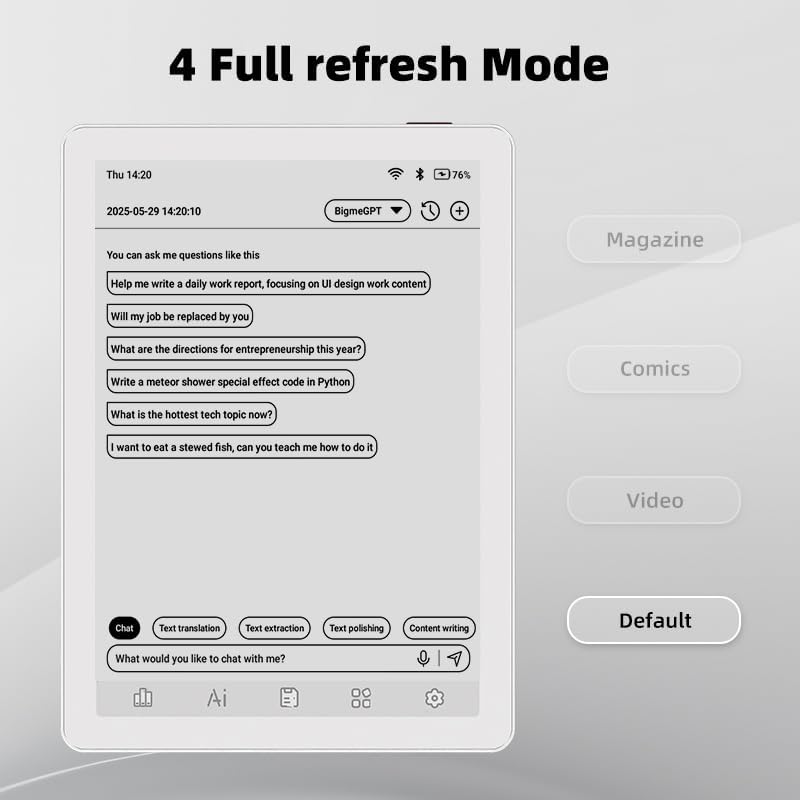
Image 4.1: The Bigme B6 home screen displaying various application icons.

Image 4.2: Accessing the Control Center for quick adjustments to device settings.
4.2 Reading eBooks
The Bigme B6 supports over 19 eBook formats, including PDF, TXT, EPUB, MOBI, and more. You can load books via USB or download them directly through reading applications.
- Open a reading application (e.g., the default reader or a downloaded app like Kindle or Libby).
- Select the book you wish to read from your library.
- Tap the left or right side of the screen to turn pages.
- Tap the center of the screen to access reading options (font size, line spacing, contrast, etc.).
- To highlight text: Press and hold on a word, then drag the selection handles to cover the desired text. Options for highlighting or notes will appear.

Image 4.3: Reading an eBook and highlighting text with color on the Bigme B6.
4.3 אַפּ פאַרוואַלטונג
As an Android 14 device, you can install applications from the Google Play Store or other compatible sources.
- ינסטאָלינג אַפּפּס: עפענען די אַפּ סטאָר icon (Google Play Store) on your home screen, search for the desired app, and follow the installation prompts.
- אַראָפּנעמען אַפּפּס: גיין צו סעטטינגס > אַפּפּס, אויסקלייבן די אַפּ, און צאַפּן נעם אַוועק.
4.4 Audiobooks and Media Playback
The device supports audiobook playback through its built-in Hi-Fi speakers or connected Bluetooth headphones.
- Playing Audiobooks: Use a compatible audiobook application.
- Connecting Bluetooth Headphones: גיין צו סעטטינגס > פארבונדענע דעווייסעס > בלועטוט, enable Bluetooth, and pair with your headphones.

Image 4.4: The Bigme B6 supports audiobooks, allowing for hands-free listening.
4.5 Display Refresh Modes
The Bigme B6 offers multiple refresh modes to optimize display performance for different content types.
- Access refresh modes from the Control Center or Display Settings.
- געוויינטלעכע מאָדעס אַרייַננעמען:
- פעליקייַט: Standard reading mode.
- זשורנאַל: Optimized for images and text in magazines.
- Comics: Enhanced for comic book viewing.
- ווידעא: Provides a smoother refresh rate for video content (note: e-paper displays have limitations for video).

Image 4.5: Selecting from various refresh modes to suit different content types.
5. וישאַלט
5.1 רייניקונג די מיטל
- ניצט אַ ווייכן, לינט-פֿרייע שטאָף צו זאַכט ווישן דעם עקראַן און קערפּער פֿון דעם אַפּאַראַט.
- פֿאַר שווערע פֿלעקן, אַ ביסל דampווישט דעם שטאָף מיט וואַסער אָדער אַ פאַרשטעלן רייניגער ספּעציעל דיזיינד פֿאַר עלעקטראָניק.
- פֿאַרמײַדן ניצן שטרענגע כעמיקאַלן, אַברייסיוו מאַטעריאַלן, אָדער איבערגעטריבענע פֿײַכטקייט.
5.2 באַטערי קער
- לאָדט דאָס אַפּאַראַט רעגולער אויף, אָבער לאָזט עס נישט גאָר אויסגעלאָדן פֿאַר לאַנגע פּעריאָדן.
- Do not expose the device to extreme temperatures, as this can affect battery life.
- Use only the provided or a certified charging cable and adapter.
5.3 סטאָרידזש
When not in use for extended periods, store the device in a cool, dry place, away from direct sunlight and extreme temperatures. It is recommended to charge the device to about 50% before long-term storage.
6. טראָובלעשאָאָטינג
| פּראָבלעם | מעגלעך סיבה | לייזונג |
|---|---|---|
| די מיטל טוט נישט מאַכט אויף. | נידעריגע באַטעריע; אַפּאַראַט פֿאַרפֿרוירן. | Charge the device for at least 30 minutes. Perform a forced restart by holding the power button for 10-15 seconds. |
| Screen is unresponsive or slow. | Temporary software glitch; too many apps running. | Restart the device. Close unnecessary background applications. Check for system updates. |
| קענען ניט פאַרבינדן צו ווי-פי. | אומרעכט פּאַראָל; ראַוטער פּראָבלעם; Wi-Fi דיסייבאַלד. | Ensure Wi-Fi is enabled and the password is correct. Restart your Wi-Fi router. Try connecting to a different network. |
| באַטאַרייע דריינז געשווינד. | High screen brightness; many background apps; frequent Wi-Fi/Bluetooth use. | Reduce screen brightness. Close unused applications. Disable Wi-Fi and Bluetooth when not needed. Adjust refresh mode settings. |
| Applications crash or freeze. | App incompatibility; insufficient memory. | Update the application. Clear the app's cache (Settings > Apps > [App Name] > Storage & cache). If issues persist, uninstall and reinstall the app. |
7. ספּעסאַפאַקיישאַנז
| מאָדעל נאָמען | US-B6 |
| ווייַז | 6-inch Color E-paper, Electronic Ink, 300 PPI |
| אָפּערייטינג סיסטעם | אַנדרויד 14 |
| באַראַן | 4 גיגאבייט |
| אינערלעכער סטאָרידזש | 64 גיגאבייט |
| יקספּאַנדאַבאַל סטאָרידזש | Micro-SD card (up to 1TB support) |
| קאַנעקטיוויטי | בלועטאָאָטה, ווי-פי |
| באַטערי | 1 נישט-סטאַנדאַרט באַטאַרייע (אַרייַנגערעכנט) |
| דימענסיעס (L x B x H) | 5.88" x 4.25" x 0.28" (14.94 ס״מ x 10.8 ס״מ x 0.71 ס״מ) |
| פּונקט וואָג | 6.2 אונסעס (175.77 גראַמז) |
| שטיצט עבאָאָק פאָרמאַץ | PDF, TXT, EPUB, EPUB3, HTML, HTM, AZW3, FB2, DOC, DOCX, MOBI, OEB, CBR, RPC, RTF, DJVU, ZIP |
8. וואָראַנטי און שטיצן
8.1 וואָראַנטי אינפֿאָרמאַציע
Please refer to the warranty card included with your product for specific warranty terms and conditions. The warranty typically covers manufacturing defects for a specified period from the date of purchase.
8.2 קונה שטיצן
For technical assistance, troubleshooting not covered in this manual, or warranty claims, please contact Bigme customer support. Contact details can usually be found on the Bigme official webוועבזייטל אדער אויף דער פּראָדוקט פּאַקאַדזשינג.
איר קענט אויך באַזוכן די Bigme Store on Amazon פֿאַר נאָך פּראָדוקט אינפֿאָרמאַציע און שטיצע רעסורסן.


