1. הקדמה
This manual provides essential information for setting up, operating, and maintaining your Thunderobot Storm 15 4050 Gaming Laptop. Please read this manual thoroughly before using your device to ensure optimal performance and longevity.
2. פּעקל אינהאַלט
באַשטעטיקן אַז אַלע זאכן זענען פאַראַן אין דיין פּראָדוקט פּאַקאַדזשינג:
- Thunderobot Storm 15 4050 Gaming Laptop
- מאַכט אַדאַפּטער און קאַבלע
- באַניצער מאַנואַל (דעם דאָקומענט)
- וואָראַנטי קאַרד
Note: Additional accessories may be included depending on your specific purchase configuration.
3. פיזישע איבערview
3.1. Laptop Exterior
Familiarize yourself with the external components of your laptop.
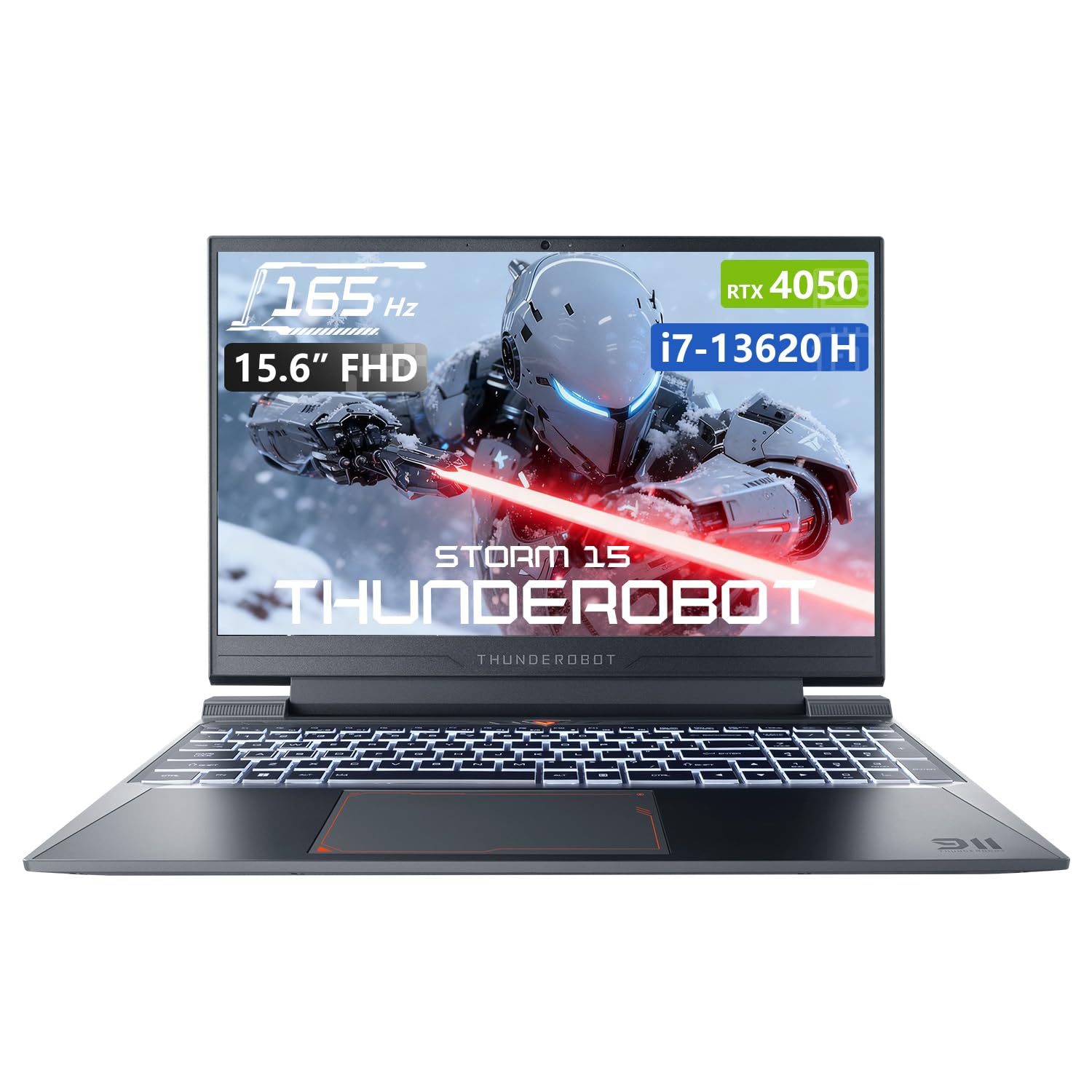
פיגור 3.1: פון אויבן אַראָפּ view of the Thunderobot Storm 15 4050 Gaming Laptop.

Figure 3.2: Open view of the Thunderobot Storm 15 4050 Gaming Laptop, highlighting the keyboard and display.
3.2. פּאָרטן און קאַנעקטאָרס
The Thunderobot Storm 15 4050 is equipped with various ports for connectivity. Refer to the diagram below for port locations and functions.

Figure 3.3: Port layout of the Thunderobot Storm 15 4050 Gaming Laptop.
- יו-עס-בי 3.1 דור 2 טיפ-C: פֿאַר הויך-גיכקייט דאַטן אַריבערפירן און אַרויסווייַזן רעזולטאַט.
- RJ-45 עטהערנעט פּאָרט: פֿאַר אַ דראָטיקער נעץ פֿאַרבינדונג.
- יו-עס-בי 3.1 טיפ-א (x3): פֿאַר פֿאַרבינדן USB דעוויסעס.
- הדמי פּאָרט: פֿאַר פֿאַרבינדן צו עקסטערנע דיספּלייז.
- 3.5mm Combo Jack: For headphones or headsets with a microphone.
- מאַכט אַרייַנשרייַב: פֿאַר קאַנעקטינג די מאַכט אַדאַפּטער.
3.3. קלאַוויאַטור און טאָוטשפּאַד
The laptop features a full-size backlit keyboard with a numeric keypad for enhanced usability. The touchpad supports multi-touch gestures.

פיגורע 3.4: דעטאַילעד view of the backlit keyboard.
4. סעטאַפּ
4.1. ערשטע איינשאַלטונג
- פֿאַרבינדט דעם מאַכט אַדאַפּטער צום לאַפּטאַפּ'ס מאַכט אַרייַנגאַנג פּאָרט און דערנאָך צו אַ מאַכט ווענטיל.
- עפענען די לאַפּטאַפּ דעקל.
- דרוק די מאַכט קנעפּל צו קער אויף די לאַפּטאַפּ.
- פֿאָלגט די אינסטרוקציעס אויף דעם עקראַן צו פֿאַרענדיקן די Windows 11 Home סעטאַפּ.
4.2. קאַנעקטינג צו אַ נעץ
איר קענט זיך פֿאַרבינדן צום אינטערנעץ דורך Wi-Fi אָדער אַ ווייערד עטהערנעט פֿאַרבינדונג.
- ווי-פי: After initial setup, click the Wi-Fi icon in the taskbar, select your network, and enter the password.
- עטהערנעט: פֿאַרבינדט אַן עטערנעט קאַבל פֿון אייער ראַוטער אָדער מאָדעם צום RJ-45 פּאָרט אויף דעם לאַפּטאָפּ.
5. אפערירן דיין לאַפּטאָפּ
5.1. פאָרשטעלונג מאָדעס
The Thunderobot Storm 15 4050 features an Intelligent Control Center allowing you to switch between different performance modes to optimize for various tasks. These modes typically include:
- בערסערק מאָדע: פולע פאָרשטעלונג מעלדונג פֿאַר פאָדערנדיקע אַפּלאַקיישאַנז און גיימינג.
- שפּיל מאָדע: אָפּטימיזירט פֿאַר גלאַט גיימינג פאָרשטעלונג.
- אַודיאָ און ווידעא אָפיס מאָדע: Balances performance with power efficiency for everyday tasks.
Access the Control Center by searching for "Control Center" in the Windows search bar or by using dedicated function keys (if available). באַמערקונג: סיסטעם מאָדע סוויטשינג אין קאָנטראָל צענטער ריקווייערז אַז די מיטל זאָל זיין פארבונדן צו אַ מאַכט מקור.

Figure 5.1: Intelligent Control Center interface.
5.2. קאָאָלינג סיסטעם
The laptop incorporates an advanced Frost Cooling System designed for efficient heat dissipation, crucial during intensive use. This system includes multi-heat-pipe design, high-pressure turbine fans, and high-density copper fins.
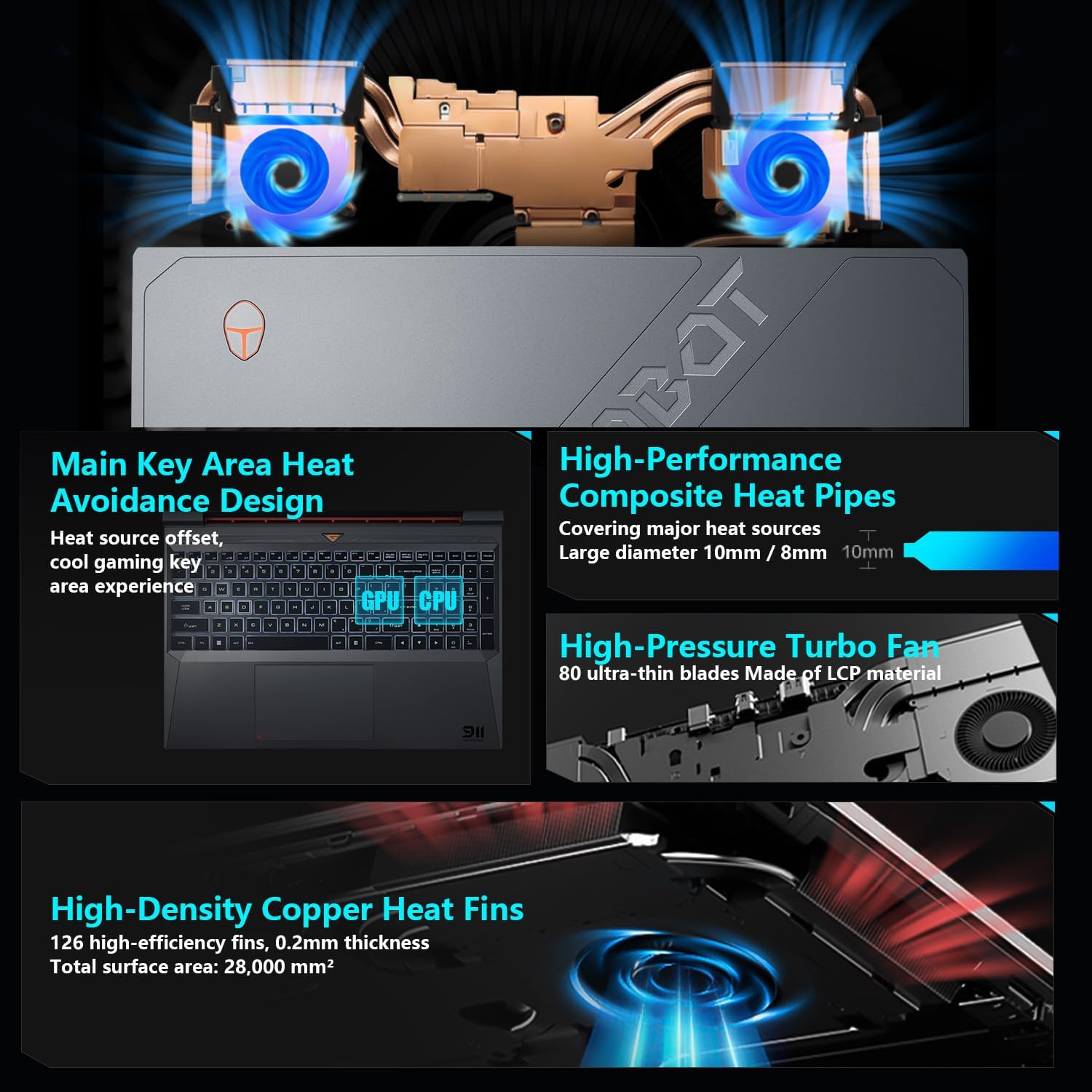
פיגורע 5.2: אינערלעכער view of the Frost Cooling System.
Ensure that the air vents are not obstructed to maintain optimal cooling performance. Fan speed can be adjusted via the Control Center.
5.3. ווייַז סעטטינגס
Your laptop features a 15.6-inch Full HD (1920x1080) display with a 165Hz refresh rate. You can adjust display settings through Windows settings (Right-click on desktop > Display settings) to customize resolution, refresh rate, and color profiles.
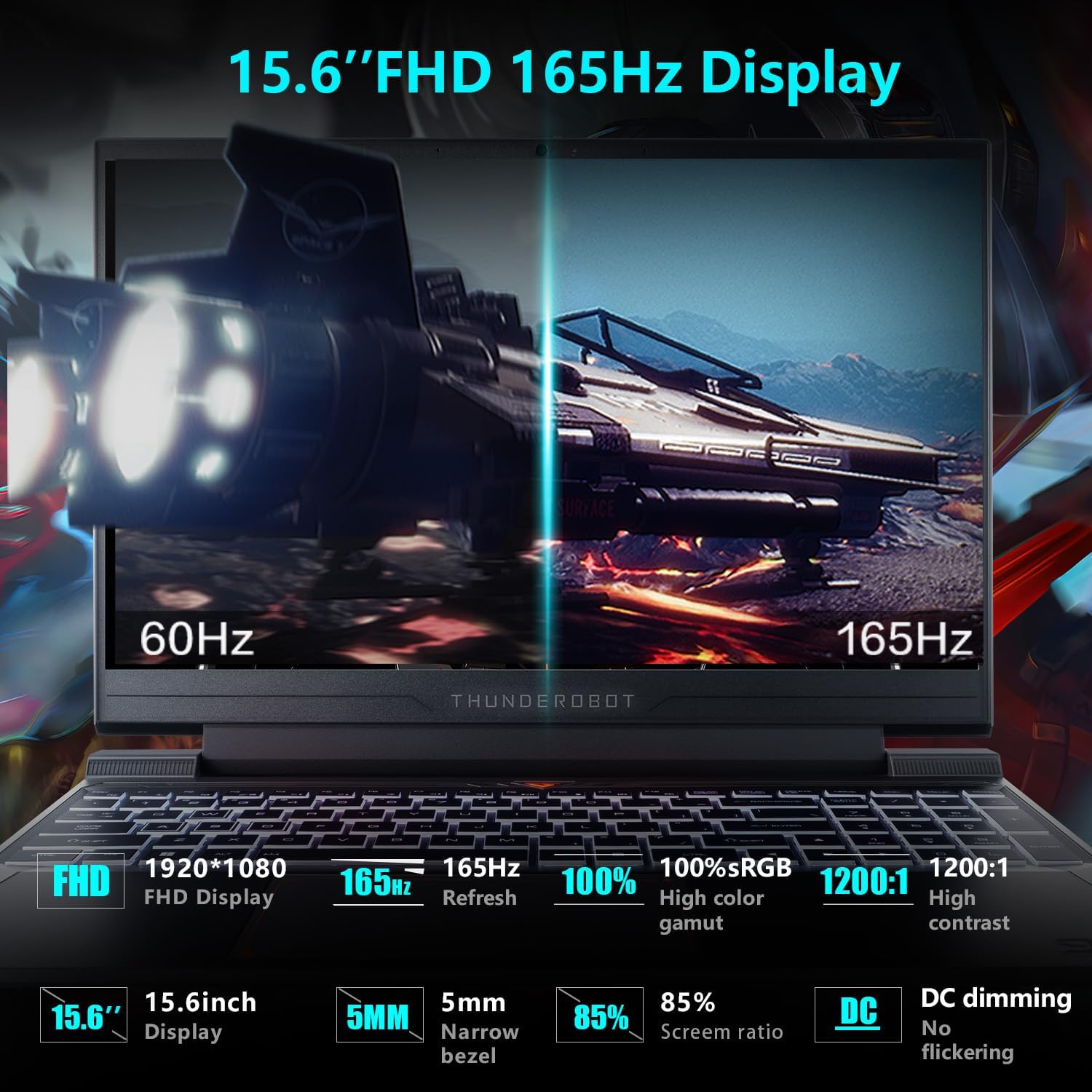
Figure 5.3: Display features of the Thunderobot Storm 15 4050.
5.4. אַודיאָ סיסטעם
The laptop is equipped with a professional sound system for an immersive audio experience. Adjust volume and sound settings through the Windows sound control panel.
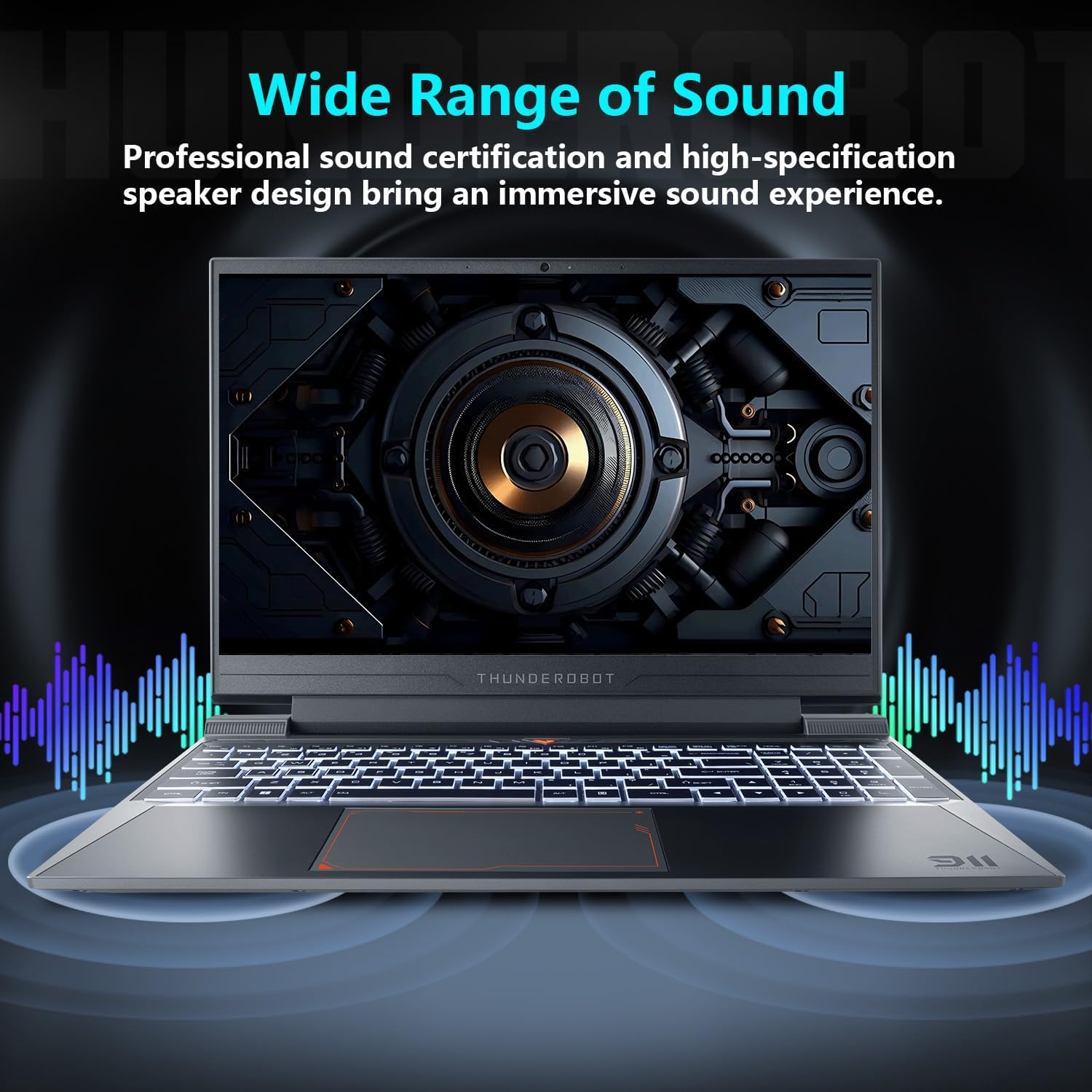
Figure 5.4: Audio system overview.
6. וישאַלט
געהעריגע אויפהאלטונג גאראנטירט די לאנגעוויטי און פאָרשטעלונג פון אייער לאַפּטאַפּ.
- רייניקונג: Use a soft, dry cloth to clean the screen and chassis. For stubborn marks, a slightly damp cloth with a mild cleaning solution can be used, ensuring no liquid enters the device.
- ווענטילאַטיאָן: Regularly check and clean the air vents to prevent dust buildup, which can hinder cooling performance.
- באַטערי זאָרגן: For optimal battery life, avoid consistently discharging the battery completely or keeping it at 100% charge for extended periods.
- ווייכווארג דערהייַנטיקונגען: Keep your operating system and drivers updated to ensure stability and security.
7. טראָובלעשאָאָטינג
די סעקציע באהאנדלט אלגעמיינע פראבלעמען וואס איר קענט באגעגענען.
| פּראָבלעם | מעגלעך סיבה | לייזונג |
|---|---|---|
| דער לאַפּטאָפּ גייט נישט אָן. | Battery depleted, power adapter not connected properly. | Ensure the power adapter is securely connected and the laptop is charging. Try a different power outlet. |
| דער עקראַן בלייבט שוואַרץ נאָך דעם ווי עס ווערט אָנגעצונדן. | External display connected, display driver issue. | Disconnect any external displays. Try pressing Fn + F1 (or the appropriate function key for display toggle) to switch display output. |
| Wi-Fi פֿאַרבינדונג פּראָבלעמען. | Wi-Fi אויסגעלאָשן, אומרעכט פּאַראָל, ראַוטער פּראָבלעם. | Ensure Wi-Fi is enabled in Windows settings. Verify the Wi-Fi password. Restart your router. |
| Laptop is running slow or overheating. | Too many applications running, obstructed vents, outdated drivers. | Close unnecessary applications. Clean air vents. Update drivers. Adjust fan speed in Control Center. |
אויב איר טרעפט פּראָבלעמען וואָס זענען נישט דאָ אויסגערעכנט, אָדער אויב די פֿאָרגעלייגטע לייזונגען לייזן נישט דאָס פּראָבלעם, ביטע קאָנטאַקטירט קונה שטיצע.
8. ספּעסאַפאַקיישאַנז
Detailed technical specifications for the Thunderobot Storm 15 4050 Gaming Laptop:
- מאָדעל: שטורעם 15
- פּראַסעסער: אינטעל קאָר i7-13620H (10 קערנס, 16 פֿעדעם, ביז 4.9 GHz)
- גראַפיקס: NVIDIA GeForce RTX 4050 Laptop GPU (Dedicated)
- ווייַז: 15.6-inch Full HD (1920x1080) 165Hz
- באַראַן: 16GB DDR4 3200MHz
- סטאָרידזש: 1TB PCIe M.2 SSD
- אַפּערייטינג סיסטעם: Windows 11 היים
- ווירעלעסס קאַנעקטיוויטי: 802.11ac Wi-Fi, בלועטוט
- פּאָרץ: USB 3.1 Gen 2 Type-C, 3x USB 3.1 Type-A, HDMI, RJ-45 Ethernet, 3.5mm Combo Jack, Power Input
- קלאַוויאַטור: Full-size Backlit Keyboard with Numeric Keypad
- דימענסיעס: 14.12 X 10.14 X 0.94 אינטשעס
- וואָג: בעערעך 12 פונט
9. וואָראַנטי און שטיצן
Every Thunderobot laptop includes a 12-month warranty, offering expert support, thorough diagnostics, and genuine parts if a repair is needed. We also provide a 90-day warranty on all warranty replacement parts, ensuring hassle-free repairs.
פֿאַר טעכנישע שטיצע, וואָראַנטי קליימז, אָדער סערוויס אָנפֿרעגן, ביטע באַזוכט די אָפֿיציעלע טאַנדעראָבאָט webזייטל אדער קאנטאקט זייער קאסטומער סערוויס דעפארטמענט. האלט אייער קויף קוויטל און גאראנטיע קארטל פאר רעפערענץ.
ווידעא 9.1: א קורצע הקדמהview ווידעא שאָוasing the Thunderobot Storm 15 4050 Gaming Laptop's features and design. This video is provided by the seller and offers a quick visual overview פון די פּראָדוקט.
Video 9.2: Another short preview video highlighting the Thunderobot Storm 15 4050 Gaming Laptop's design elements and user interaction. This video is provided by the seller and offers a quick visual overview פון די פּראָדוקט.


