הקדמה
This manual provides detailed instructions for the installation, operation, and maintenance of your Dragon Touch OB20 4G LTE Cellular Security Camera. This camera offers 4K resolution, 10x optical zoom, solar power, and dual 4G/WiFi connectivity for comprehensive outdoor surveillance.
וואָס איז אין די קעסטל
באַשטעטיקן אַז אַלע קאָמפּאָנענטן זענען פאַראַן אין דער פּאַקעט:
- OB20 Camera
- זונ פּאַנעל
- אייַזערנער וואַנט קלאַמער
- זונ פּאַנעל קלאַמער
- 4G SIM card (pre-installed or included separately)
- טיפּ-C טשאַרדזשינג קאַבלע
- כעקסאַגאָן רענטש
- Screw Packs (screws and wall anchors)
- דרילינג פּאַזישאַנינג סטיקערז
- 64 גיגאבייט מיקראָסד קאַרטל (פאַר-אינסטאַלירט אָדער אַרייַנגערעכנט באַזונדער)
- ינסטרוקטיאָן מאַנואַל (דעם דאָקומענט)
- מאַכט אַדאַפּטער
- שטיין

פּראָדוקט פֿעיִקייטן
4K Resolution with 10x Optical Zoom
The camera features a 4K wide-angle lens for broad coverage and two 10x optical telephoto lenses for detailed long-range viewing. This combination allows for clear identification of objects up to 200 feet away, such as license plates, while maintaining a wide field of view.

Figure 2: 4K Wide-Angle and 10x Optical Zoom Dual 4G LTE and WiFi Connectivity
The OB20 camera supports both 4G LTE (USA ONLY) and 2.4GHz WiFi connectivity. This allows for flexible deployment in various environments, from homes with existing WiFi networks to remote locations without WiFi access, ensuring continuous monitoring.
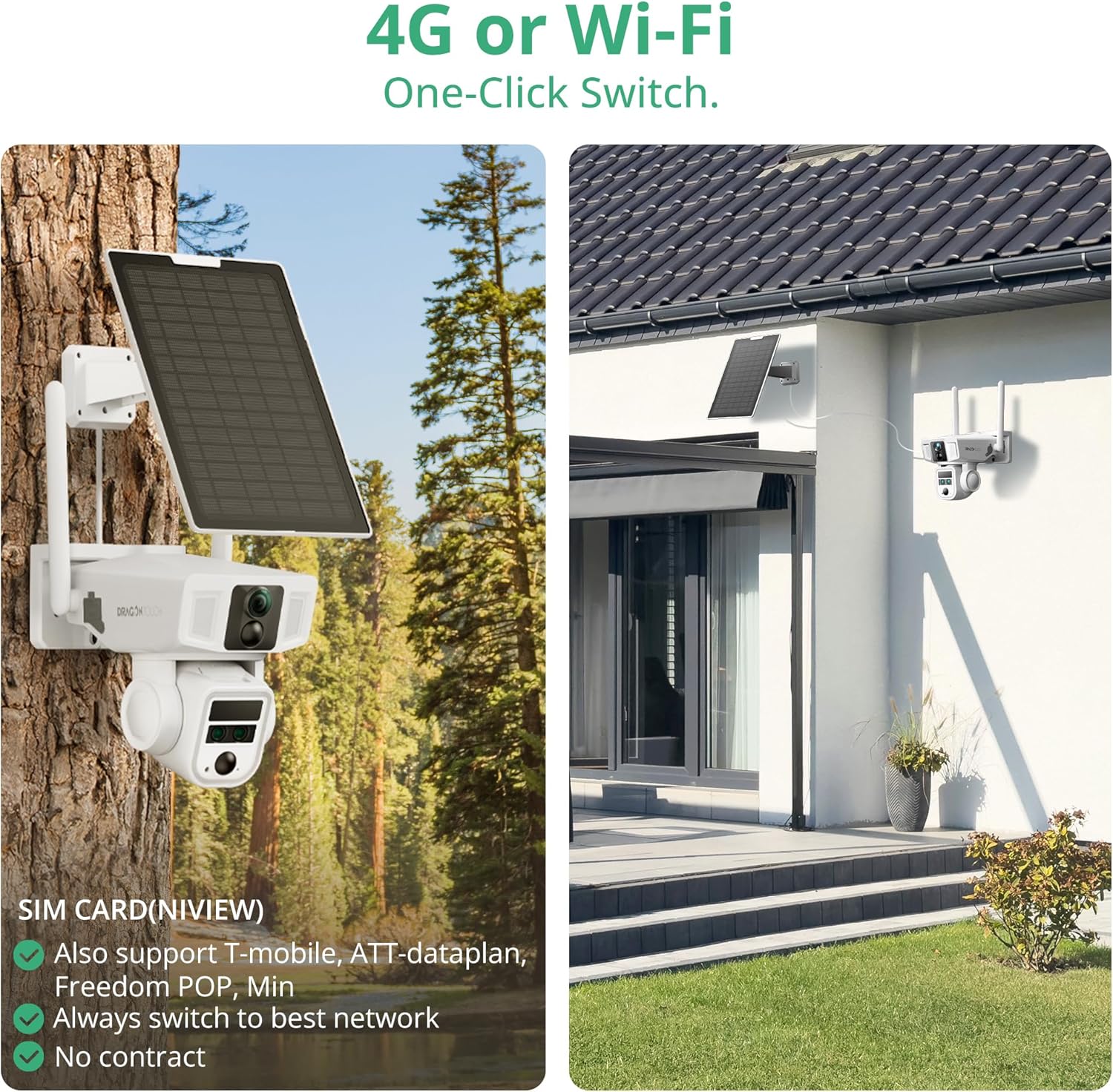
Figure 3: 4G LTE and WiFi Dual Connectivity Solar Powered with 12000mAh Battery
Equipped with a 9W high-efficiency solar panel and a 12000mAh battery, the camera is designed for continuous, self-sufficient operation. This eliminates the need for frequent manual charging, making it ideal for outdoor installations.
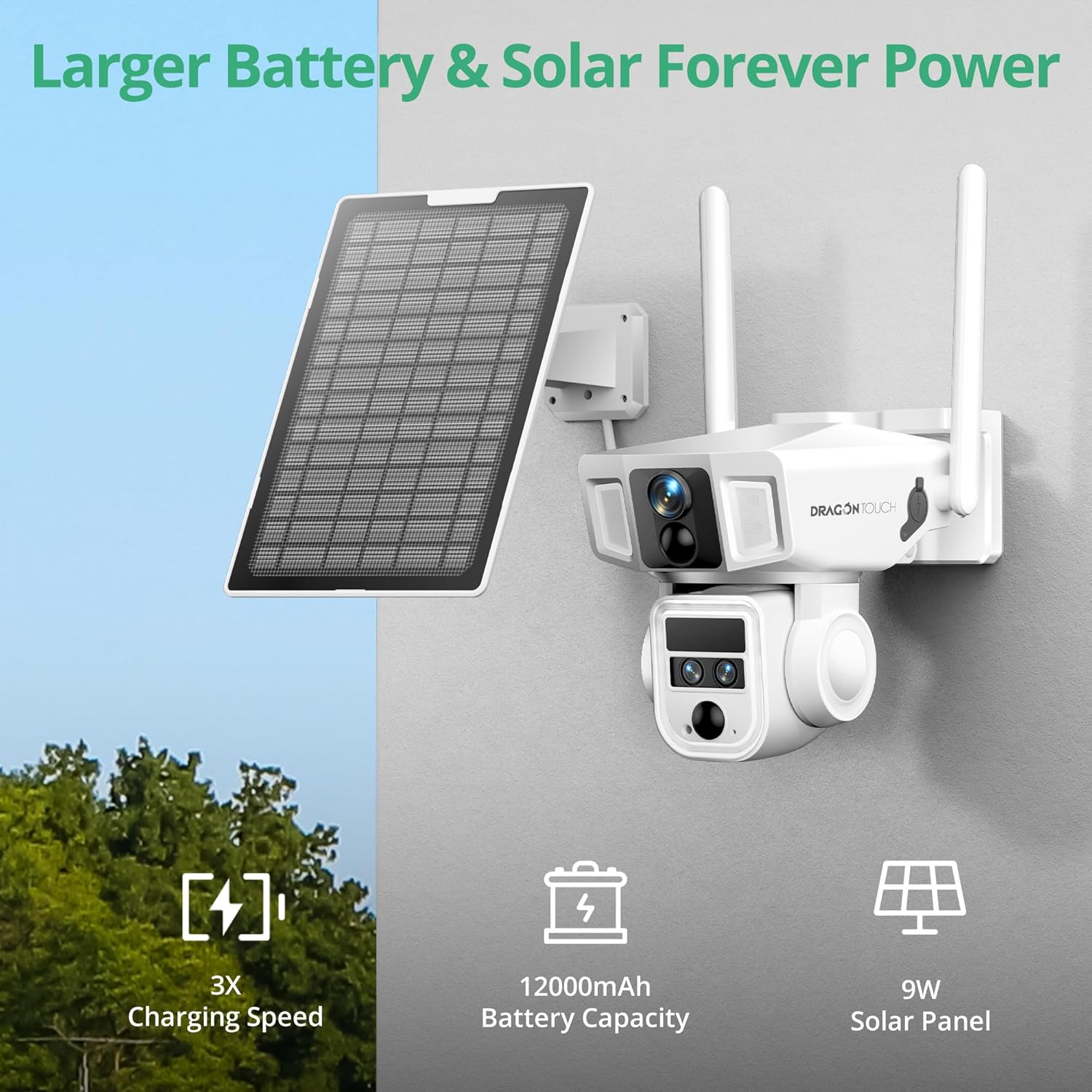
פיגור 4: זונ - ענערגיע סיסטעם 360° Pan and Tilt with AI Tracking
The camera offers 355° horizontal pan and 90° vertical tilt capabilities for comprehensive area coverage. Advanced AI detection identifies people and vehicles, enabling automatic tracking and reducing false alarms.
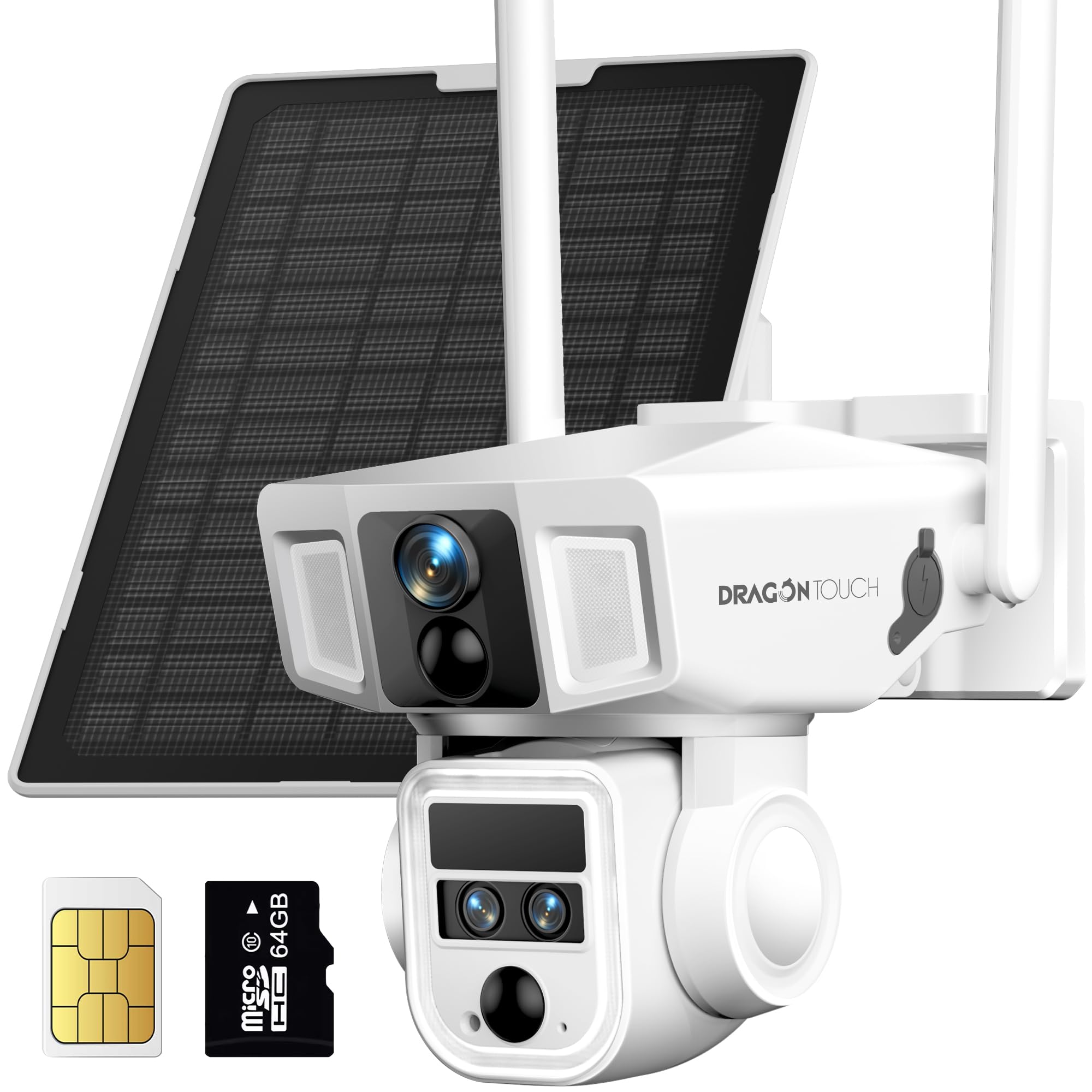
Figure 5: AI Motion Tracking Capabilities Color Night Vision and IP66 Weather Resistance
Equipped with a 200-lumen spotlight and 8 IR lights, the camera provides clear 4K color night vision up to 50 meters. Its IP66 weather-resistant rating ensures reliable operation in various weather conditions, including rain, snow, and dust.

Figure 6: Color Night Vision 
Figure 7: IP66 Weather Resistance Two-Way Audio and Siren Alarm
Communicate with visitors or deter intruders using the integrated two-way audio feature. The camera also includes an AI motion-activated siren alarm for enhanced security.

Figure 8: Two-Way Audio and Siren Alarm לאקאלע און וואָלקן סטאָרידזש אָפּציעס
The camera includes a 64GB MicroSD card, expandable up to 128GB, for local storage. Cloud storage options are also available with a 7-day trial after registration.

פיגור 9: זיכערע לאקאלע סטאָרידזש
סעטאַפּ
1. ערשטע אויפלאָדונג
Before installation, fully charge the camera using the provided Type-C charging cable and power adapter. This ensures the battery has sufficient power for initial setup and solar charging efficiency.
2. סים קאַרטל און מיקראָסד קאַרטל ינסטאַלירונג
Locate the SIM card slot and MicroSD card slot on the camera. Insert the provided 4G SIM card (if not pre-installed) and the 64GB MicroSD card into their respective slots. Ensure they are correctly oriented and securely seated.
3. אַפּ דאַונלאָוד און חשבון רעגיסטראַציע
Download the official Dragon Touch security camera application from your smartphone's app store (iOS or Android). Follow the in-app instructions to create an account and register your device. This typically involves scanning a QR code on the camera.
4. מאָנטירן די קאַמעראַ און זונ פּאַנעל
Choose a suitable outdoor location for mounting the camera and solar panel. Ensure the solar panel receives direct sunlight for most of the day. Use the provided drilling positioning stickers, screws, and brackets to securely attach the camera and solar panel to a wall or pole. Connect the solar panel cable to the camera.

The setup process is designed for quick and simple connection.

אַפּערייטינג ינסטראַקשאַנז
1. לייוו View און פּלייַבאַקק
Access the live feed from your camera through the mobile application. Use the app to pan, tilt, and zoom the camera to adjust the viewing angle. Recorded footage can be accessed and played back from the MicroSD card or cloud storage.
2. באַוועגונג דעטעקציע און וואָרענונגען
Configure motion detection sensitivity and areas within the app. The camera will send instant alerts to your smartphone upon detecting movement. AI tracking will follow detected subjects (people or vehicles) within the camera's range.

3. צוויי-וועג קאָמוניקאַציע
Utilize the two-way audio function in the app to speak through the camera's speaker and listen through its microphone. This allows for real-time interaction with individuals near the camera.

4. נאכט זעאונג מאָדעס
The camera supports both infrared (black and white) and color night vision. The 200-lumen spotlight can be activated manually or automatically upon motion detection to enable color night vision and deter unwanted activity. Ensure the sound and light alarm function is enabled in the app for full deterrent capabilities.

5. Video on Demand
Request 15-second video clips from the mobile app at any time. Continuous recording is not available; videos are captured upon request or motion detection.
6. Sharing Access
The mobile application allows you to share camera access with family members or trusted individuals, enabling multi-user monitoring and collaboration.

וישאַלט
- רייניקונג: ווישט רעגולער אויס די קאַמעראַ לינז און זונ פּאַנעל מיט אַ ווייכן, דamp שטאָף צו באַזייַטיקן שטויב און שמוץ. פֿאַרמייַדן אַברייסיוו רייניגער.
- זונ - פּאַנעל עפיקאַסי: Ensure the solar panel remains free from obstructions (leaves, snow, dirt) to maximize charging efficiency.
- באַטערי געזונט: While solar-powered, occasional manual charging via the Type-C port may be necessary during prolonged periods of low sunlight or heavy usage.
- Firmware דערהייַנטיקונגען: Check the mobile application periodically for available firmware updates to ensure optimal performance and security.
טראָובלעשאָאָטינג
| פּראָבלעם | לייזונג |
|---|---|
| קאַמעראַ פֿאַרבינדט זיך נישט צום נעץ. | Ensure the SIM card has an active data plan (for 4G) or the WiFi signal is strong (for WiFi). Verify correct network credentials in the app. Restart the camera. |
| נעבעך ווידעא קוואַליטעט. | Check network signal strength. Clean the camera lens. Ensure sufficient lighting for optimal image capture. |
| די באַטאַרייע איז נישט טשאַרדזשינג. | Ensure the solar panel is clean and positioned to receive direct sunlight. Check the solar panel cable connection to the camera. If necessary, charge manually with the power adapter. |
| באַוועגונג אַלערץ נישט באַקומען. | Verify motion detection settings and alert schedules in the app. Check app notification permissions on your smartphone. Ensure the camera has a stable network connection. |
| Cannot access recorded footage. | Ensure the MicroSD card is correctly inserted and not full. Check cloud storage subscription status if applicable. |
ספּעסאַפאַקיישאַנז
| שטריך | דעטאַל |
|---|---|
| מאָדעל נאָמען | OB20 |
| ווידעא קאַפּטורע רעסאָלוטיאָן | 4K |
| אָפּטיש פארגרעסער | 10x |
| קאַנעקטיוויטי טעכנאָלאָגיע | Wireless (4G LTE, Wi-Fi 2.4GHz) |
| מאַכט מקור | זונ - געטריבן, 12000mAh באַטאַרייע |
| וועטער קעגנשטעל | IP66 |
| פּאַן / טילט קייט | 355° פּאַן, 90° טילט |
| נאַכט זעאונג | 4K Color Night Vision (up to 50m), 8 IR LEDs, 200-lumen spotlight |
| סטאָרידזש | 64GB MicroSD (included), expandable to 128GB, Cloud Storage option |
| אַודיאָ | 2-וועג אַודיאָ |
| אַי פֿעיִקייטן | AI Tracking, PIR Motion Detection, People/Vehicle Detection |
| דימענסיעס (L X W X H) | 12.6 X 6.3 X 3.35 אינטשעס |
| פּונקט וואָג | 3.31 פונט |
| אַפּערייטינג וואָלtage | 3.7 וואלטס |
| וואָסtage | 10 וואטס |
| ראַם קורס | 30 ראָמען פּער סעקונדע |
| קאָנטראָל מעטאָד | אַפּ |
וואָראַנטי און שטיצן
For warranty information, technical support, or service inquiries, please refer to the official Dragon Touch webזייטל אדער קאנטאקט זייער קאסטומער שטיצע גלייך. האלט אייער קויף קוויטל פאר גאראנטיע קליימס.
Additional protection plans may be available for purchase separately. Please consult the retailer for details on extended warranty options.


