1. הקדמה
The Qubo 3-Channel Dashcam Trio is an advanced vehicle recording system designed to capture comprehensive footage from the front, rear, and interior of your vehicle. Featuring 2K QHD resolution for the front camera and Full HD for the rear and cabin cameras, along with built-in Wi-Fi and GPS, this system provides detailed records of your journeys and incidents. This manual provides essential instructions for installation, operation, maintenance, and troubleshooting to ensure optimal performance of your dashcam.
2. סעטאַפּ
2.1 פּעקל אינהאַלט
איידער די אינסטאַלאַציע, זיכער מאַכן אַז אַלע קאָמפּאָנענטן זענען פאַראַן:
- Qubo 3-Channel Dashcam Main Unit (Front Camera)
- דערציען אַפּאַראַט
- קאַבינע קאַמעראַ
- מאַכט קאַבל (קאַר טשאַרדזשער)
- דערציען אַפּאַראַט קאַנעקשאַן קאַבלע
- Mounting Adhesives/Brackets
- באַניצער מאַנואַל
2.2 סד קאָרט ינסטאַלירונג
The dashcam supports microSD cards up to 1TB. A high-speed V30 rated card is required for reliable recording across all three channels.
- זייט זיכער אז די דאַשקאַם איז אויסגעלאָשן.
- Locate the microSD card slot on the main unit.
- Insert the microSD card with the contacts facing the correct direction until it clicks into place.
- Upon first use or after prolonged use, it is recommended to format the SD card via the Qubo App or dashcam settings.
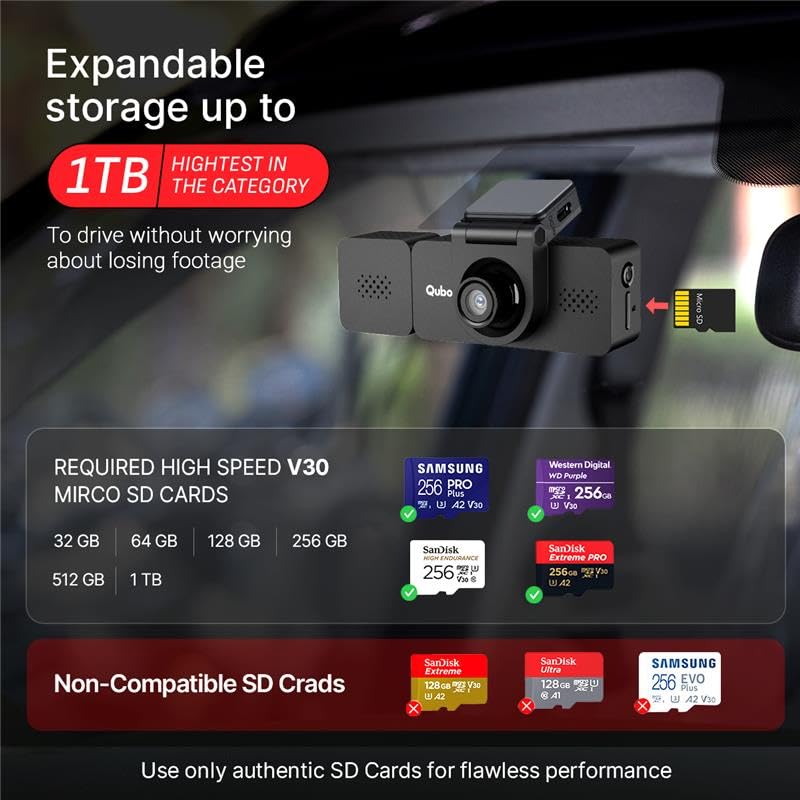
Image: The Qubo 3-Channel Dashcam main unit displaying the microSD card slot and examples of compatible V30 high-speed SD cards, supporting up to 1TB storage.
2.3 מאָנטירן די דאַשקאַם
Mount the dashcam securely to ensure stable footage. The main unit (front camera) typically mounts on the windshield behind the rearview mirror. The rear camera mounts on the rear windshield, and the cabin camera can be integrated with the main unit or mounted separately to cover the interior.
- Clean the mounting surface thoroughly before applying adhesive.
- Ensure the front camera has an unobstructed view פון דעם וועג.
- Position the rear and cabin cameras to cover desired areas without obstructing driver visibility.
- Route cables neatly along the vehicle's trim to avoid interference with driving.

Image: An overhead diagram of a car illustrating the 360-degree coverage provided by the Qubo 3-Channel Dashcam, with individual camera views for front (140°), rear (120°), and cabin (120°).
2.4 מאַכט קאַנעקשאַן
Connect the dashcam to your vehicle's power source using the provided car charger and power cable. The dashcam will typically power on and begin recording automatically when the vehicle starts.
2.5 אַפּ אינסטאַלאַציע און פּערינג
Download the Qubo Pro App from the Google Play Store or Apple App Store to manage your dashcam settings, view לעבן פאָאָtage, and access recordings.
- זוכן פֿאַר 'Qubo Pro' in your device's app store.
- אינסטאלירט די אַפּ און שאַפֿט אַ חשבון אויב געבעטן.
- מאַכט אויף די דאַשקאַם.
- Open the Qubo Pro App and follow the on-screen instructions to connect to your dashcam via Wi-Fi. The dashcam will broadcast a Wi-Fi network for connection.

Image: A smartphone screen displaying the Qubo Pro App interface, showing a live feed from the dashcam, video logs, and options for managing recordings and settings.
3. אַפּערייטינג ינסטרוקטיאָנס
3.1 אָטאַמאַטיק רעקאָרדינג
Once powered on, the Qubo Dashcam Trio automatically begins recording. Footage is saved to the installed microSD card.
3.2 רעקאָרדינג מאָדעס
- Always-On Recording: Continuous recording while the vehicle is in operation.
- Auto-Replace Recording: When the SD card is full, the oldest footage is automatically overwritten by new recordings.
- Auto Save on Impact (G-Sensor): The built-in G-Sensor detects sudden impacts or collisions and automatically locks the corresponding footage to prevent it from being overwritten. These 'Event Files' are stored separately.
- Instant Clip Recording: Use the app or a physical button (if available) to manually save a short clip of current footage.

Image: Screenshots from the Qubo app demonstrating different recording modes: Always-On Recording, Auto-Replace Recording, Auto Save on Impact, and Instant Clip Recording.

Image: A graphic illustrating the Collision Detection G-Sensor feature, where a sudden impact automatically locks critical footagE צו פאַרמייַדן אָווועררייטינג.
3.3 לעבן View און פּלייַבאַקק
איר קענען view לעבן פאָאָtage from all cameras directly on the dashcam's 3.2-inch IPS LCD screen or through the Qubo Pro App on your smartphone. The app also allows you to review recorded videos, download clips, and check trip data.

Image: Diagrams highlighting the Qubo Dashcam's 3.2-inch IPS LCD screen for live viewing, built-in GPS for tracking, and integrated microphone for audio recording.
3.4 GPS Tracking and Trip History
The built-in GPS module records your vehicle's location and speed. This data, along with your trip history, can be reviewed through the Qubo Pro App, providing a comprehensive log of your journeys.
3.5 נאַכט זעאונג
The dashcam features IR Night Vision for the cabin camera and advanced image processing for low-light conditions, ensuring clear recordings even in challenging lighting environments.

Image: A split image demonstrating the Qubo Dashcam's cabin camera view, capturing clear footage of the car's interior with passengers, even in low light conditions.

Image: A still from the dashcam footage demonstrating 2K QHD clarity, clearly capturing a vehicle's license plate on a busy road.
4. וישאַלט
4.1 סד קאָרט פאַרוואַלטונג
- Regularly format your microSD card (e.g., once a month) to maintain optimal performance and prevent data corruption. This can usually be done through the Qubo Pro App or the dashcam's settings menu.
- Replace the microSD card if you notice frequent errors, corrupted files, or a significant decrease in recording quality.
4.2 רייניקונג
- Gently wipe the camera lenses with a soft, lint-free cloth to ensure clear footage. Avoid abrasive materials or harsh chemicals.
- Keep the dashcam unit free from dust and debris.
4.3 פירמוואַרע דערהייַנטיקונגען
Periodically check for firmware updates via the Qubo Pro App. Updates can improve performance, add new features, and resolve known issues. Follow the app's instructions carefully during the update process.
5. טראָובלעשאָאָטינג
If you encounter issues with your Qubo 3-Channel Dashcam Trio, refer to the following common solutions:
- דאַשקאַם גייט נישט אָן: Ensure the power cable is securely connected to both the dashcam and the car's power outlet. Check the car charger for proper function.
- Recording issues (no recording, corrupted fileס): Format the microSD card. If the issue persists, try a new, high-speed V30 rated microSD card. Ensure the card is inserted correctly.
- Wi-Fi קאָנעקטיוויטי פּראָבלעמען: Ensure the dashcam is powered on and within range of your smartphone. Restart both the dashcam and your phone. Re-pair the device through the Qubo Pro App.
- נעבעך ווידעא קוואַליטעט: Clean the camera lenses. Ensure the dashcam is securely mounted and not vibrating excessively. Check if the recording resolution settings are optimal in the app.
- Adhesive issues: Ensure the mounting surface is clean and dry before applying adhesive. For persistent issues, consider using stronger automotive-grade adhesive tape.
- אַפּ ענטפֿערט נישט: Close and reopen the Qubo Pro App. Clear the app's cache or reinstall it if necessary.
5.1 פאַבריק באַשטעטיק
If troubleshooting steps do not resolve the issue, a factory reset may be necessary. Refer to the Qubo Pro App or the dashcam's settings menu for the factory reset option. באַמערקונג: A factory reset will erase all custom settings and may require re-pairing with the app.
6. ספּעסאַפאַקיישאַנז

Image: The Qubo Dashcam Trio positioned on a road, illustrating its robust design and ability to maintain high performance across a wide temperature range (-20°C to 85°C).
| שטריך | דעטאַל |
|---|---|
| מאָדעל נומער | 3C-HCASV031 |
| פראָנט קאַמעראַ האַכלאָטע | 2K QHD |
| דערציען אַפּאַראַט האַכלאָטע | FHD 1080 פּ |
| קאַבין קאַמעראַ רעזאָלוציע | FHD 1080 פּ |
| Front Camera Field of View (פאָוו) | 140° |
| Rear Camera Field of View (פאָוו) | 120° |
| Cabin Camera Field of View (פאָוו) | 120° |
| סטאָרידזש שטיצן | Up to 1TB microSD (V30 required) |
| קאַנעקטיוויטי | איינגעבויט וויי-פיי, איינגעבויט דזשי-פי-עס |
| מאַכט מקור | סופּערקאַפּאַסיטאָר |
| אַפּערייטינג טעמפּעראַטור | -20°C צו 85°C |
| פּראָדוקט דימענשאַנז | 12.57 X 4.29 X 3.8 סענטימעטער |
| פּונקט וואָג | 109 ג |
| פאַבריקאַנט | Hero Electronix Pvt. Ltd. |
7. וואָראַנטי און שטיצן
7.1 וואָראַנטי אינפֿאָרמאַציע
For detailed warranty terms and conditions, please refer to the warranty card included with your product or visit the official Qubo webזייטל. האַלט אייער קויף קוויטל ווי אַ באַווייַז פון קויפן פֿאַר וואָראַנטי קליימז.
7.2 קונה שטיצן
For technical assistance, installation support, or any other inquiries, please contact Qubo customer support:
- Toll-free helpline: 9319095757
- פאַבריקאַנט: Hero Electronix Pvt. Ltd.
- Qubo offers installation and service support across 70+ cities.


