1. הקדמה
Welcome to the user manual for your NIMO N152S 15.6-inch Laptop. This guide provides essential information on setting up, operating, maintaining, and troubleshooting your new device. Please read this manual thoroughly to ensure optimal performance and longevity of your laptop.
2. פּראָדוקט איבערview
2.1 שליסל פֿעיִקייטן
- שטאַרק פאָרשטעלונג: Equipped with an AMD Ryzen 5 3500U processor and integrated Radeon graphics for smooth multitasking and efficient performance.
- יממערסיווע פול הד ווייַז: A 15.6-inch Full HD (1920x1080) IPS display with a 180° wide hinge for vibrant visuals and wide viewינג אַנגלעס.
- שלאַנק און לייטווייט פּלאַן: Crafted with a sleek metal top cover, weighing under 3.7 lbs and measuring just 19.2 mm thin.
- ימפּרוווד קאַנעקטיוויטי: Features 2 USB-A, 2 USB-C (full function PD/DP/Data), HDMI, MicroSD, and a 3.5mm audio jack.
- אויסברייטערבאַר זכּרון און סטאָרידזש: Supports up to 32GB DDR4 RAM and M.2 PCIe 3.0 x4 SSD for future-proof upgrades.
- Smart Security & Comfort: Includes a fingerprint reader on the touchpad, a backlit keyboard for low-light use, and dual microphones.
2.2 קאָמפּאָנענט לעגיטימאַציע
Familiarize yourself with the various components of your NIMO N152S laptop as illustrated below.

פיגורע 2.1: פראָנט view of the NIMO N152S laptop, showcasing its sleek design and key features like Windows 11, 32GB RAM, 1TB SSD, Full HD display, AMD Ryzen 5, Type-C PD Charger, Backlit Keyboard, and Fingerprint Reader.

Figure 2.2: Illustration of the AMD Ryzen 5 processor, detailing its specifications including 4 Cores, 8 Threads, 15W Power Consumption, and 3.7 GHz Turbo Boost, indicating its capability for daily tasks and light gaming.

Figure 2.3: The NIMO laptop screen showcasing a vivid Full HD (1920x1080) IPS display, highlighting features like bright view and eye protection, with an 85% screen-to-body ratio.

פיגורע 2.4: דעטאַילעד view of the NIMO laptop's expanded connectivity options, labeling ports such as Type-C (Charge Only), USB 3.0, HDMI, Type-C (Full Function), Charge LED, Micro SD Reader, USB 2.0, USB 3.0, Headphone Combo, and Kensington Lock.
3. ערשט סעטאַפּ
3.1 Charging the Laptop
Before first use, fully charge your NIMO laptop. Connect the provided 65W Type-C PD charger to the USB-C charging port on the laptop and then to a power outlet. The charge LED indicator will illuminate to confirm charging.

Figure 3.1: The 65W Type-C PD Charger, designed for universal compatibility with laptops, tablets, and smartphones, simplifying your charging needs compared to multiple chargers.
3.2 איינשטעלן צום ערשטן מאָל
- עפענען די לאַפּטאַפּ דעקל.
- דריק דעם מאַכט קנעפּל וואָס געפינט זיך אויף דער קלאַוויאַטור.
- פֿאָלגט די אינסטרוקציעס אויף דעם עקראַן צו פֿאַרענדיקן די ערשטע סעטאַפּ פֿון Windows 11, אַרייַנגערעכנט שפּראַך אויסוואַל, נעץ פֿאַרבינדונג און באַניצער חשבון שאַפונג.
4. Operating Your NIMO Laptop
4.1 אײַנשטעלן/אויסשטעלן און שלאָף מאָדע
- מאַכט אויף: דרוק די מאַכט קנעפּל.
- שאַט אַראָפּ: דריקט דעם אָנהייב קנעפּל, דערנאָך מאַכט > שאַט דאַון.
- שלאָפן מאָדע: מאַכט צו דעם דעקל אָדער גיט דעם אָנהייב קנעפּל, דערנאָך מאַכט > שלאָף.
4.2 ניצן די קלאַוויאַטור און טאָוטשפּאַד
Your NIMO laptop features a full-sized keyboard with a numeric keypad and a responsive touchpad.
- באַקלייט קלאַוויאַטור: דרוק Fn + F10 (or the key with the backlight icon) to toggle the keyboard backlight on/off or adjust brightness levels.
- טאָוטשפּאַד: Supports multi-touch gestures for navigation. Refer to Windows settings for customization.
- נומעריק קיפּאַד: Use the dedicated numeric keypad for efficient data entry.

Figure 4.1: The NIMO laptop keyboard, emphasizing its backlit keys, integrated touchpad, fingerprint reader, and numeric keypad, designed for comfortable typing in various lighting conditions.
4.3 פינגערפּרינט לייענער
The integrated fingerprint reader on the touchpad provides quick and secure access to your laptop.
- גיי צו ווינדאָוס סעטטינגס > אַקאַונטס > לאָגין אָפּציעס.
- Set up Windows Hello Fingerprint.
- Follow the on-screen prompts to register your fingerprints.
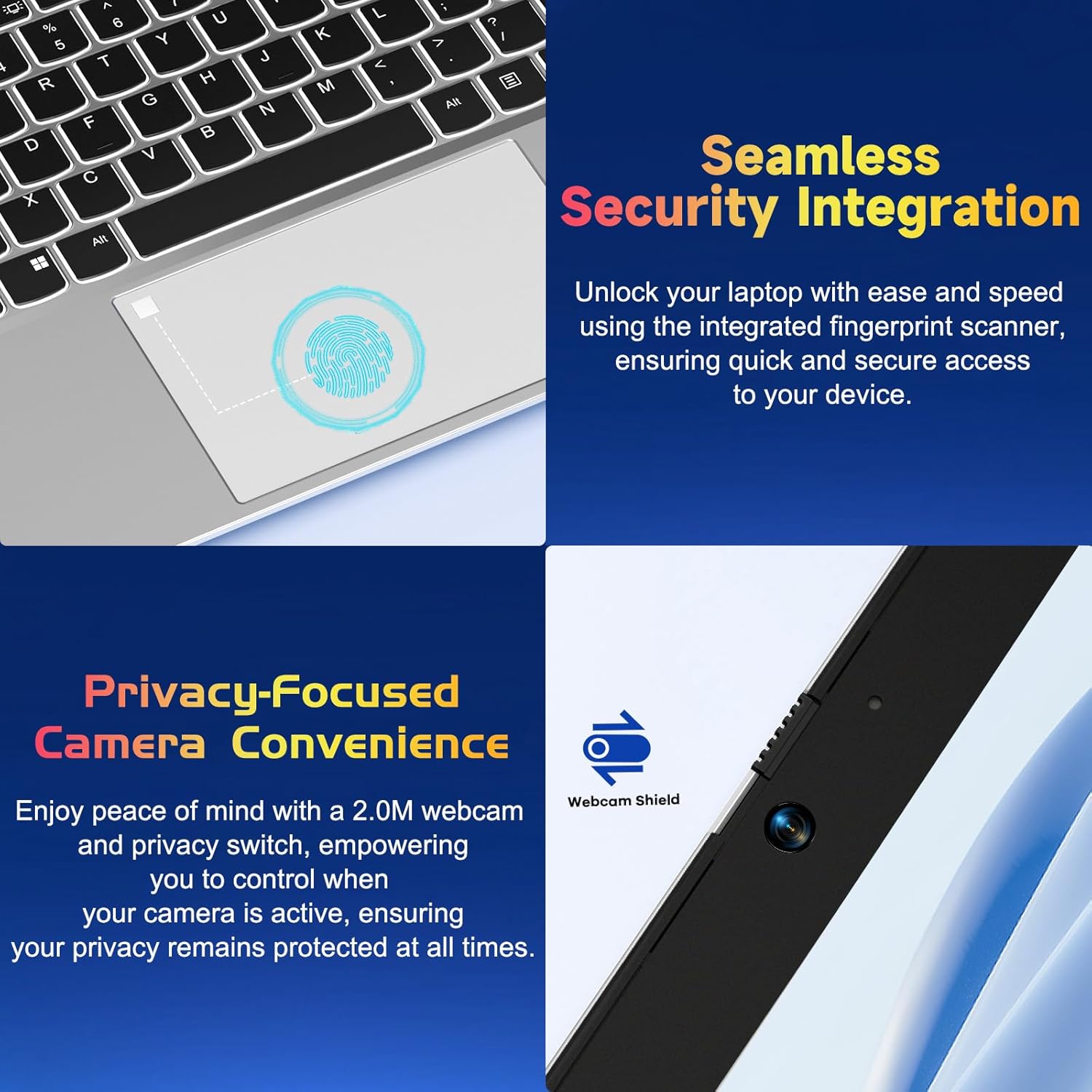
פיגורע 4.2: נאָענט-אַרויף view of the NIMO laptop's touchpad, highlighting the integrated fingerprint scanner for seamless security integration, alongside the privacy-focused webcam with a physical shield.
4.4 קאַנעקטינג פּעריפעראַלס
Your laptop offers various ports for connecting external devices:
- USB-A פּאָרץ: פֿאַר פֿאַרבינדן נאָרמאַלע USB דעוויסעס ווי מײַז, קלאַוויאַטורן אָדער עקסטערנע דרייווז.
- USB-C פּאָרץ: Two full-function USB-C ports support Power Delivery (PD), DisplayPort (DP), and data transfer. One is dedicated for charging.
- הדמי פּאָרט: פאַרבינדן צו עקסטערנע מאָניטאָרן אָדער פּראָיעקטאָרן.
- מיקראָסד קאַרטל לייענער: Insert a MicroSD card for additional storage or data transfer.
- 3.5 מם אַודיאָ דזשאַק: פֿאַר כעדפאָונז אָדער עקסטערנע רעדנערס.
4.5 Webקאַם פּריוואַטקייט
דער לאַפּטאָפּ כולל אַ 2.0MP webcam with a physical privacy shield. Slide the shield to cover the camera lens when not in use to ensure your privacy.
5. וישאַלט און קער
- רייניקונג: ניצן אַ ווייך, לינט-פֿרייַ שטאָף אַ ביסל דampened with water or a screen cleaner to clean the display and exterior. Avoid harsh chemicals.
- ווייכווארג דערהייַנטיקונגען: רעגולער אַפּדייט אייער Windows אָפּערייטינג סיסטעם און דרייווערס צו ענשור אָפּטימאַל פאָרשטעלונג און זיכערהייט.
- באַטערי זאָרגן: כדי צו פארלענגערן די לעבן פון די באַטעריע, זאָל מען אויסמיידן עקסטרעמע טעמפּעראַטורן און פּרובירן צו האַלטן די באַטעריע אָפּצאָל צווישן 20% און 80% ווען מעגלעך.
- סטאָרידזש: האַלט דעם לאַפּטאָפּ אין אַ קיל, טרוקן אָרט אַוועק פון דירעקט זונשייַן און עקסטרעמע טעמפּעראַטורן.
6. טראָובלעשאָאָטינג
די סעקציע באהאנדלט אלגעמיינע פראבלעמען וואס איר קענט באגעגענען מיט אייער NIMO לעפטאפ.
| אַרויסגעבן | מעגלעך לייזונג |
|---|---|
| דער לאַפּטאָפּ גייט נישט אָן. | Ensure the laptop is charged. Connect the charger and wait a few minutes before attempting to power on again. If unresponsive, perform a hard reset by holding the power button for 15 seconds. |
| דער עקראַן איז ליידיק אָדער פליקערט. | Try adjusting the screen brightness (Fn + F5/F6). If connected to an external monitor, ensure the cable is secure. Restart the laptop. |
| די קלאַוויאַטור באַקלייט אַרבעט נישט. | Press Fn + F10 (or the key with the backlight icon) to cycle through backlight settings. Ensure the function keys are enabled. |
| Fingerprint reader not recognized. | Ensure your finger is clean and dry. Re-register your fingerprint in Windows Hello settings if the issue persists. |
| Wi-Fi פֿאַרבינדונג פּראָבלעמען. | Check if Wi-Fi is enabled (Fn + F12 or Windows settings). Restart your router and laptop. Update Wi-Fi drivers if necessary. |
| דער לאַפּטאָפּ אַרבעט שטייט. | Close unnecessary applications. Check Task Manager for resource-intensive processes. Ensure Windows and drivers are up to date. Consider running a disk cleanup. |
7. טעכניש ספּעסאַפאַקיישאַנז
| שטריך | באַשרייַבונג |
|---|---|
| סאָרט | נימאָ |
| מאָדעל נאָמען | NIMO N152S |
| נומער מאָדעל נומער | נימאָ נ152 |
| פאַרשטעלן גרייס | 15.6 אינטשעס |
| מאַקסימום סקרין האַכלאָטע | 1920 רענטגענ 1080 פּיקסעלס (פול הד) |
| פּראַסעסער | AMD Ryzen 5 3500U (3.7 GHz) |
| באַראַן | 32 גיגאבייט DDR4 (3200 מעגהערץ) |
| שווער דרייוו | 1024 גיגאבייט ססד (סאליד סטעיט) |
| גראַפיקס קאָופּראַסעסער | AMD Integrated graphics |
| אָפּערייטינג סיסטעם | Windows 11 |
| ווירעלעסס טיפּ | 802.11abg |
| נומער פון וסב 2.0 פּאָרץ | 1 |
| דורכשניטלעך באַטאַרייע לעבן | 5 שעה |
| פּונקט וואָג | 3.8 פונט |
| פּראָדוקט דימענשאַנז | 14.07 X 8.98 X 0.76 אינטשעס |
| קאָליר | קלאַסיש זילבער |
| דערציען Webקאַם האַכלאָטע | 2 מפּ |
| מאַכט מקור | באַטאַרייע פּאַוערד |
| באַטעריז | 1 ליטהיום פּאָלימער באַטעריז פארלאנגט (אַרייַנגערעכנט) |
8. גאַראַנטיע און קונה שטיצע
8.1 וואָראַנטי אינפֿאָרמאַציע
Your NIMO N152S laptop comes with a comprehensive warranty:
- 90-טאָג פריי צוריקקער פּאָליטיק: You may return your NIMO laptop for any reason within 90 days of purchase.
- 2 יאָר וואָראַנטי: All NIMO products are covered by a 2-year warranty for after-sales support.

Figure 8.1: NIMO's commitment to customer satisfaction, featuring a 90-day free return policy and a 2-year warranty for reliable support.
8.2 קונה שטיצן
For any product-related questions, technical assistance, or warranty claims, please contact our U.S.-based support team:
- באַזוכט דעם אָפֿיציעלן NIMO webזייטל פֿאַר שטיצע רעסורסן און קאָנטאַקט אָפּציעס.
- זעט אייערע קויפן דאקומענטן פאר ספעציפישע קאנטאקט דעטאלן.
Our team is dedicated to providing professional and high-quality customer service to resolve any issues you may encounter.


