1. הקדמה
א דאנק פארן קויפןasing the ECHTPower PC Controller. This manual provides detailed instructions for setting up, operating, and maintaining your controller. Please read this manual thoroughly before use to ensure optimal performance and longevity of your device.

Image 1.1: ECHTPower PC Controller and Charging Dock.
2. פּראָדוקט איבערview
The ECHTPower PC Controller is a versatile gaming peripheral designed for a superior gaming experience across multiple platforms. It features advanced Hall effect joysticks for precise control, customizable RGB lighting, and multiple connectivity options.
שליסל פֿעיִקייטן:
- טשאַרדזשינג דאָק: Convenient wireless charging and storage for the 2.4G receiver.
- Hall Effect Sticks: Provides precise, drift-free control and enhanced durability.
- מולטי-פּלאַטפאָרם קאַמפּאַטאַבילאַטי: Supports PC, Steam Deck, Switch, Android, and iOS devices.
- פלעקסאַבאַל קאַנעקטיוויטי: Offers 2.4G wireless, Bluetooth, and wired connection modes.
- RGB לייטינג: Customizable LED lighting around the analog sticks with 9 color options and various modes.
- הויך פּאָללינג קורס: 1000Hz polling rate for minimal input lag, especially in wired mode.
- TURBO פונקציע: Adjustable rapid-fire settings for enhanced gameplay.
- ווייבריישאַן אַדזשאַסטמאַנט: Four levels of adjustable vibration feedback for immersive gaming.
- לאנג באַטאַרייע לעבן: Equipped with an 800mAh battery for extended play sessions.

Image 2.1: Hall Effect Joysticks provide precise and durable input.

Image 2.2: The controller features durable silicone physical buttons.
3. פּעקל אינהאַלט
ביטע טשעק די פּאַקעט פֿאַר די פאלגענדע זאכן:
- ECHTPower PC Controller (Model: EP01DZ)
- טשאַרדזשינג דאָק
- 2.4G וסב ופנעמער
- וסב-C טשאַרדזשינג קאַבלע
- באַניצער מאַנואַל
4. סעטאַפּ
4.1 טשאַרדזשינג די קאָנטראָללער
The controller comes with a charging dock for convenient wireless charging. To charge:
- Connect the USB-C charging cable to the charging dock and a power source (e.g., PC USB port, USB wall adapter).
- Place the controller onto the charging dock. Ensure the charging contacts align.
- The LED indicator on the dock will illuminate to show charging status. The controller's battery indicator will also show charging progress.
The controller has an 800mAh battery and features overcharge protection to safeguard the battery during prolonged charging.
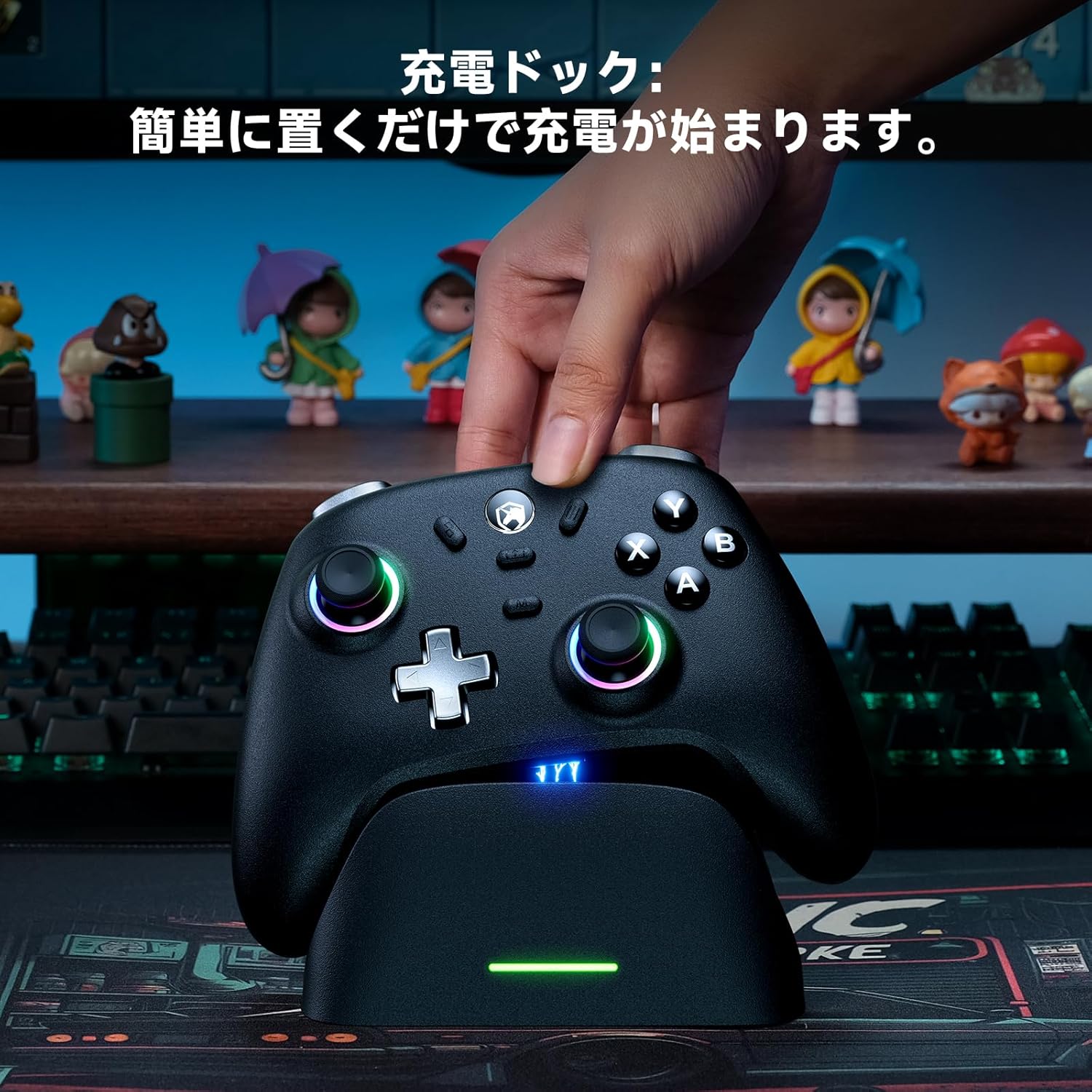
Image 4.1: Place the controller on the dock to begin charging.

Image 4.2: The charging dock also provides convenient storage for the 2.4G USB receiver.
4.2 קאַנעקטינג די קאָנטראָללער
The controller supports three connection modes: 2.4G Wireless, Bluetooth, and Wired.

Image 4.3: The controller is compatible with PC, Steam Deck, Switch, Android, and iOS.
4.2.1 2.4G Wireless Connection (PC, Android TV, Laptop)
- Locate the 2.4G USB receiver, typically stored in the charging dock.
- Plug the 2.4G USB receiver into an available USB port on your PC, Android TV, or laptop.
- On the back of the controller, slide the mode switch to the '2.4G' position.
- The controller will automatically connect to the receiver. The indicator light on the controller will stabilize once connected.

Image 4.4: Connecting the controller to a PC via 2.4G wireless.
4.2.2 Bluetooth Connection (Android, iOS, Tablet, Steam Deck)
- On the back of the controller, slide the mode switch to the 'BT' (Bluetooth) position.
- The controller's indicator light will flash, indicating it is in pairing mode.
- On your device (Android, iOS, Tablet, Steam Deck), go to Bluetooth settings and search for new devices.
- Select 'ECHTPower Controller' (or similar name) from the list to pair.
- The controller's indicator light will become solid once successfully paired.

Image 4.5: Bluetooth connectivity for mobile and portable devices.
4.2.3 Switch Connection (Nintendo Switch, Switch Lite, Switch OLED)
- On the back of the controller, slide the mode switch to the 'NS' (Switch) position.
- On your Nintendo Switch console, go to 'Controllers' > 'Change Grip/Order'.
- דריק און האַלט דעם פּערינג קנעפּל אויף דעם קאָנטראָללער ביז די אינדיקאַטאָר ליכט בליצן שנעל.
- The Switch will detect the controller, and the indicator light will become solid once connected.

Image 4.6: Connecting the controller to a Nintendo Switch console.
4.2.4 Wired Connection (PC, Android TV, Steam Deck)
- Connect the USB-C charging cable to the controller's USB-C port.
- Connect the other end of the USB-C cable to an available USB port on your PC, Android TV, or Steam Deck.
- The controller will be automatically recognized as a wired device.

Image 4.7: Wired connection provides a stable and low-latency gaming experience.
5. אַפּערייטינג ינסטרוקטיאָנס
5.1 RGB לייטינג אַדזשאַסטמענט
The controller features customizable RGB lighting around the analog sticks. You can adjust the colors and lighting modes:
- קאָליר אָפּציעס: קלייַבט פֿון 9 פֿאַרשידענע קאָלירן.
- לייטינג מאָדעס:
- איין קאָליר מאָדע: Fix the LED to your preferred color.
- ברידינג מאָדע: LEDs gradually change colors.
- Rainbow Flow Mode: LEDs cycle through colors dynamically.
- אויסגעלאשן: Turn off the RGB lighting.
- Refer to the specific button combinations in the quick start guide for detailed instructions on changing colors and modes.

Image 5.1: Customize the RGB lighting to your preference.
5.2 טורבאָ פֿונקציע
The TURBO function allows for rapid-fire input. It supports both continuous rapid-fire (hold button) and held rapid-fire (button presses without holding).
- Activating TURBO: Press the 'TURBO' button and the desired action button simultaneously.
- Adjusting TURBO Speed: The TURBO speed can be adjusted in 3 stages. Refer to the quick start guide for specific button combinations to cycle through speeds (e.g., 8 shots/s, 16 shots/s, 21 shots/s).
- TURBO Hold: Some buttons may support a 'TURBO Hold' feature, allowing continuous rapid-fire without holding the button down.
- Deactivating TURBO: Repeat the activation step or refer to the quick start guide for specific deactivation methods.

Image 5.2: The TURBO function offers three adjustable rapid-fire speeds.
5.3 ווייבריישאַן אַדזשאַסטמאַנט
The controller features adjustable vibration feedback for enhanced immersion.
- The vibration intensity can be adjusted through 4 levels (0%, 30%, 60%, 100%).
- Refer to the quick start guide for the specific button combination to cycle through vibration intensities.

Image 5.3: Adjust vibration feedback for a personalized gaming experience.
6. וישאַלט
To ensure the longevity and optimal performance of your ECHTPower PC Controller, follow these maintenance guidelines:
- רייניקונג: Use a soft, dry cloth to clean the controller. Avoid using harsh chemicals, solvents, or abrasive materials, as these can damage the surface.
- סטאָרידזש: Store the controller in a cool, dry place away from direct sunlight and extreme temperatures. When not in use, placing it on the charging dock can help keep it organized and charged.
- באַטערי זאָרגן: Avoid fully discharging the battery frequently. For long-term storage, charge the controller to about 50% to prolong battery life.
- ויסמיידן טראפנס: באַשיצן דעם קאָנטראָללער פֿון פֿאַלן און קלאַפּן, וואָס קענען שעדיקן אינעווייניקסטע קאָמפּאָנענטן.
- פליסיק ויסשטעלן: Keep the controller away from liquids. If it comes into contact with liquid, power it off immediately and allow it to dry completely before attempting to use it again.
7. טראָובלעשאָאָטינג
If you encounter issues with your ECHTPower PC Controller, please refer to the following common solutions:
7.1 קאָנטראָללער פֿאַרבינדט זיך נישט
- טשעק מאָדע סוויטש: Ensure the mode switch on the back of the controller is set to the correct position (2.4G, BT, or NS) for your intended device.
- ריפּער: For Bluetooth or Switch connections, try deleting the controller from your device's paired list and re-pairing it.
- 2.4G ריסיווער: For 2.4G connection, ensure the USB receiver is securely plugged into the device and try a different USB port.
- באַטערי מדרגה: A low battery can prevent connection. Charge the controller fully.
- ווייערד קשר: If wireless connection fails, try connecting the controller via the USB-C cable to confirm basic functionality.
7.2 Input Lag or Unresponsive Controls
- ינטערפיראַנס: For wireless connections, ensure there are no strong sources of interference (e.g., Wi-Fi routers, other wireless devices) nearby.
- דיסטאַנסע: Ensure the controller is within the effective range of your device.
- ווייערד מאָדע: For competitive gaming or to eliminate wireless lag, use the wired connection mode. The controller supports a 1000Hz polling rate in wired mode for optimal responsiveness.
- Hall Effect Sticks: The Hall effect joysticks are designed to prevent drift. If you experience issues, ensure the controller's firmware is up to date (if applicable, check the manufacturer's webפּלאַץ).

Image 7.1: The 1000Hz polling rate ensures minimal latency for responsive gameplay.
7.3 Controller Not Charging
- Cable and Power Source: Ensure the USB-C cable is properly connected to both the charging dock and a working power source. Try a different cable or power adapter.
- Dock Alignment: Verify that the controller is correctly seated on the charging dock and the charging contacts are aligned.
- דירעקט קשר: Try charging the controller directly via the USB-C cable without the dock to rule out a dock issue.
If these steps do not resolve your issue, please contact ECHTPower customer support for further assistance.
8. ספּעסאַפאַקיישאַנז
| שטריך | באַשרייַבונג |
|---|---|
| מאָדעל נומער | EP01DZ |
| קאַנעקטיוויטי | 2.4G ווירעלעס, בלועטוט, ווייערד (USB-C) |
| קאַמפּאַטאַבילאַטי | PC, Steam Deck, Switch, Android, iOS |
| באַטאַרייע קאַפּאַציטעט | 800 מאַה ליטהיום-יאָן |
| טשאַרדזשינג צייט | בעערעך 2.5 שעה |
| באַניץ צייט | ביז 15 שעה (אפהענגיק פון באַניץ) |
| פּאָללינג קורס | 1000Hz (wired connection) |
| דימענשאַנז | 16.6 X 14.2 X 8.3 סענטימעטער |
| וואָג | 440 ג |
| Age Target | אַלע צייטן |
9. וואָראַנטי און שטיצן
ECHTPower products are designed with quality and customer satisfaction in mind. For warranty information, technical support, or any product-related inquiries, please refer to the contact information provided with your purchase or visit the official ECHTPower webפּלאַץ.
ביטע האַלטן דיין דערווייַז פון קויפן פֿאַר וואָראַנטי קליימז.


