1. הקדמה
This manual provides essential information for the safe and efficient use of your Fujitsu FMVF75K1BA FMV Desktop F 23.8-inch PC. Please read this manual thoroughly before operating the device and retain it for future reference. This desktop PC is designed for general computing tasks, featuring a 23.8-inch Full HD display, an Intel Core i7 processor, 16GB of RAM, and a 512GB storage drive, running Windows 11 Home.
2. זיכערקייַט אינפֿאָרמאַציע
אָבסערווירן די פאלגענדע זיכערהייט מיטלען צו פאַרמייַדן שעדיקן צו די פּראָדוקט און ענשור באַניצער זיכערהייט:
- מאַכט צושטעלן: ניצט נאָר דעם מאַכט אַדאַפּטער וואָס קומט מיטן אַפּאַראַט. מאַכט זיכער אַז די מאַכט אַוטלעט איז ריכטיק געערדט.
- ווענטילאַטיאָן: Do not block ventilation openings. Maintain adequate space around the PC for proper airflow to prevent overheating.
- סוויווע: Avoid exposing the PC to extreme temperatures, humidity, dust, or direct sunlight. Operate in a stable, dry environment.
- פליסיקייט און פרעמדע אביעקטן: Keep liquids and foreign objects away from the PC. If liquid enters the device, immediately disconnect power and contact support.
- סערוויס: Do not attempt to service the PC yourself. Refer all servicing to qualified service personnel.
- רייניקונג: טרענט אפ דעם עלעקטרישן שנור איידער איר רייניגט. ניצט א ווייכן, טרוקענעם טוך. ניצט נישט קיין פליסיקע אדער אייראזאל רייניגער.
3. פּעקל אינהאַלט
באַשטעטיקן אַז אַלע זאכן זענען פאַראַן אין פּעקל:
- Fujitsu FMVF75K1BA FMV Desktop F 23.8-inch PC
- מאַכט אַדאַפּטער און מאַכט שנור
- קלאַוויאַטור
- מויז
- שנעלע אָנהייב גייד (אויב אַרייַנגערעכנט)
- וואָראַנטי קאָרט (אויב אַרייַנגערעכנט)
4. פּראָדוקט איבערview
The Fujitsu FMVF75K1BA is an all-in-one desktop PC featuring a 23.8-inch display. Key components include the integrated display, CPU, memory, storage, and various input/output ports.
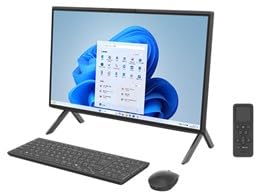
פיגורע 4.1: פראָנט view of the Fujitsu FMVF75K1BA FMV Desktop F PC. This image shows the integrated display and the sleek design of the all-in-one unit.
4.1 פראָנט פּאַנעל
- ווייַז: 23.8-inch Full HD (1920x1080) screen.
- מאַכט קנעפּל: Located typically on the bottom right or side of the display bezel.
- Webקאַם: Integrated at the top center of the display.
4.2 Rear/Side Panels
- וסב פּאָרץ: For connecting peripherals like keyboard, mouse, external drives.
- הדמי פּאָרט: For connecting an external monitor or TV.
- לאַן פּאָרט: פֿאַר אַ דראָטיקער נעץ פֿאַרבינדונג.
- אַודיאָ דזשעקס: For headphones, microphone, or external speakers.
- מאַכט אַרייַנשרייַב: פֿאַר קאַנעקטינג די מאַכט אַדאַפּטער.
5. סעטאַפּ
גיי די סטעפּס פֿאַר ערשט סעטאַפּ:
- אַנפּאַק: Carefully remove the PC and all accessories from the packaging.
- שטעלע: Place the PC on a stable, flat surface with adequate ventilation space around it.
- פֿאַרבינדן קלאַוויאַטור און מויז: Plug the USB keyboard and mouse into the available USB ports on the PC.
- פאַרבינדן מאַכט: Connect the power adapter to the power input port on the PC, then plug the power cord into a grounded electrical outlet.
- מאַכט אויף: דרוק די מאַכט קנעפּל צו קער אויף די פּיסי.
- ערשטע ווינדאָוס סעטאַפּ: פֿאָלגט די אינסטרוקציעס אויף דעם עקראַן צו פֿאַרענדיקן די ערשטע סעטאַפּ פֿון Windows 11 Home, אַרייַנגערעכנט שפּראַך, ראַיאָן, נעץ פֿאַרבינדונג און שאַפונג פֿון באַניצער אַקאַונט.
6. אַפּערייטינג ינסטרוקטיאָנס
6.1 טורנינג אויף / אַוועק
- צו אָנהייבן: דרוק די מאַכט קנעפּל.
- צו פאַרמאַכן אַראָפּ: דריקט דעם "Start" קנעפל, דערנאך "Power", און סעלעקטירט "Shut down".
- צו ריסטאַרט: דריקט דעם "Start" קנעפל, דערנאך "Power", און סעלעקטירט "Restart".
- צו שלאפן: דריקט דעם "Start" קנעפל, דערנאך "Power", און סעלעקטירט "Sleep".
6.2 קאַנעקטינג צו אַ נעץ
- ווייערד קשר: Connect an Ethernet cable from your router/modem to the LAN port on the PC.
- דראָטלאָזע פֿאַרבינדונג (Wi-Fi):
- דריקט דעם Wi-Fi בילדל אין דער טאַסקבאַר.
- אויסקלייבן אייער געוואונטשענע Wi-Fi נעץ פון דער ליסטע.
- אַרייַן דעם נעץ זיכערהייט שליסל (פּאַראָל) אויב געבעטן.
- Click "Connect". The PC supports IEEE802.11ax (Wi-Fi 6E) for high-speed wireless connectivity.
6.3 Using Microsoft Office + 365
Your PC comes with Microsoft Office + 365. Follow the on-screen instructions upon first launch of any Office application (e.g., Word, Excel) to activate your subscription. An internet connection and a Microsoft account are typically required for activation.
7. וישאַלט
7.1 רייניקונג
- פאַרשטעלן: ניצט אַ ווייכע, לינט-פֿרייע שטאָף ספּעציעל דיזיינד פֿאַר עלעקטראָניק. פֿאַר שווערע פֿלעקן, ווישט לײַכט.ampווישט דעם שטאָף מיט וואַסער אָדער אַ פאַרשטעלן רייניגער. שפּריצט נישט רייניגער גלייך אויפן פאַרשטעלן.
- שאַסי: Wipe the exterior surfaces with a soft, dry cloth. Avoid abrasive materials or harsh chemicals.
- ווענטילאַטיאָן: Periodically check and gently clean the ventilation openings to prevent dust buildup, which can impede airflow.
7.2 ווייכווארג דערהייַנטיקונגען
Regularly update your Windows operating system and drivers to ensure optimal performance and security. Windows Update typically handles this automatically, but you can manually check by going to סעטטינגס > ווינדאָוס אַפּדייט.
7.3 דאַטאַ באַקקופּ
עס איז שטארק רעקאמענדירט צו רעגולער באַקאַפּן אייערע וויכטיקע דאַטן צו אַן עקסטערנאַל דרייוו אָדער וואָלקן סטאָרידזש צו פאַרמייַדן דאַטן אָנווער.
8. טראָובלעשאָאָטינג
| פּראָבלעם | מעגלעך סיבה | לייזונג |
|---|---|---|
| דער פּיסי גייט נישט אָן. | Power cable loose, power outlet issue, power adapter fault. | קאָנטראָלירט אַלע שטראָם פֿאַרבינדונגען. פּרוּווט אַן אַנדער שטראָם אַוטלעט. מאַכט זיכער אַז דער שטראָם אַדאַפּטער אַרבעט. |
| קיין אַרויסווייַזונג אויף דעם עקראַן. | PC is off, display brightness too low, external monitor not connected (if applicable). | Ensure PC is on. Adjust display brightness. If using an external monitor, check its power and cable connection. |
| קענען ניט פאַרבינדן צו ווי-פי. | Incorrect password, Wi-Fi adapter off, router issue, out of range. | Verify Wi-Fi password. Check if Wi-Fi is enabled in Windows settings. Restart your router. Move closer to the router. |
| PC is running slow. | Too many programs open, low disk space, malware, outdated drivers. | Close unnecessary applications. Free up disk space. Run a virus scan. Update Windows and drivers. |
9. ספּעסאַפאַקיישאַנז
| מאָדעל נאָמען | FMVF75K1BA |
| סאָרט | פודזשיצו |
| ווייַז | 23.8-אינטש, 1920x1080 רעזאָלוציע |
| פּראַסעסער | Intel Core i7 |
| באַראַן | 16 גיגאבייט |
| סטאָרידזש | 512 גיגאבייט |
| אָפּערייטינג סיסטעם | Windows 11 היים |
| ווירעלעסס לאַן | IEEE802.11ax (Wi-Fi 6E compatible)/ac/a/b/g/n |
| פּאָרץ | USB, HDMI, LAN, Audio Jacks (specific number and type may vary) |
10. וואָראַנטי און שטיצן
Your Fujitsu FMVF75K1BA PC is covered by a manufacturer's warranty. Please refer to the warranty card included in your package for specific terms and conditions, including the warranty period and coverage details.
For technical support, service, or warranty claims, please contact Fujitsu customer support through their official website or the contact information provided in your warranty documentation. Have your model number (FMVF75K1BA) and serial number ready when contacting support.
אָנליין שטיצן: באַזוכט די אָפֿיציעלע Fujitsu שטיצע webזייטל פֿאַר דרייווערס, אָפֿט געשטעלטע פֿראַגעס, און ווייטערדיקע הילף.


