1. זיכערקייַט אינפֿאָרמאַציע
Read all instructions carefully before using the device. Keep this manual for future reference. Follow all warnings and instructions marked on the product.
- שטעלט נישט דעם מאָניטאָר אויף אַן אומסטאַבילן וואָגן, שטאַנד אָדער טיש.
- דו זאלסט נישט פאַרשפּאַרן ווענטאַליישאַן אָופּאַנינגז.
- דו זאלסט נישט נוצן לעבן וואַסער.
- דו זאלסט נישט שטעלן שווער אַבדזשעקץ אויף די מאַכט שנור.
- ניצט נאָר דעם מאַכט אַדאַפּטער וואָס ווערט צוגעשטעלט דורך דעם פאַבריקאַנט.
- נעמט ארויס דעם מאָניטאָר בעת בליץ-שטורעמס אדער ווען ער ווערט נישט גענוצט פאר לאַנגע פּעריאָדן.
- אָפּשיקן אַלע סערוויסעס צו קוואַלאַפייד סערוויס פּערסאַנעל.
2. וואָס איז אין דער קעסטל
באַשטעטיקן אַז אַלע קאָמפּאָנענטן זענען פאַראַן איידער איר גייט ווייטער מיט דער סעטאַפּ.
- מאָניטאָר
- מאַכט קאַבלע
- הדמי 2.1 קאַבלע
- DisplayPort קאַבלע
3. סעטאַפּ
3.1 צוזאַמענשטעלן דעם שטאַנד
The monitor stand is designed for tool-free assembly. Follow these steps:
- צוטשעפּען די שטיין באַזע צו די שטיין האַלדז.
- Secure the monitor panel to the assembled stand.

3.2 קאַנעקטינג קאַבלעס
Connect the necessary cables to the monitor and your computer/console.
- מאַכט: פאַרבינדן די מאַכט קאַבלע צו די מאָניטאָר און אַ מאַכט ווענטיל.
- ווידעא ינפּוט: Use the provided HDMI 2.1 cable or DisplayPort cable to connect the monitor to your graphics card or console.
- וסב כאַב: Connect a USB upstream cable from your PC to the monitor to enable the integrated USB hub.
- אַודיאָ: Connect headphones to the 4-pole headphone jack for audio output.

4. אָפּעראַציע
4.1 מאַכט אויף / אַוועק
Press the joystick button located on the bottom of the monitor to power it on or off.
4.2 אויף-סקרין דיספּליי (OSD) מעניו נאַוויגאַציע
Use the joystick button to navigate the OSD menu. Push the joystick in to select, and move it up/down/left/right to browse options.
- שפּיל אַדזשאַסטמענט: Configure game-specific settings like Game Mode, Adaptive-Sync, Black Stabilizer, Response Time, and Crosshair.
- בילד סטרויערן: אַדזשאַסטירן העלקייט, קאָנטראַסט, שאַרפֿקייט, גאַמאַ און קאָליר טעמפּעראַטור.
- געזונט: Control audio settings.
- אַרייַנשרייַב: Select the input source (HDMI 1, HDMI 2, DisplayPort).
- אַלגעמיינע: Access general monitor settings.

4.3 Dual Mode Functionality
The monitor supports a unique Dual Mode, allowing you to switch between high-resolution and high-refresh-rate settings:
- 4K UHD (3840 x 2160) at 180Hz: Ideal for graphically intensive games and detailed content.
- Full HD (1920 x 1080) at 360Hz: Optimized for competitive gaming where ultra-responsive gameplay is critical.
Switch between modes using the dedicated hotkey or through the OSD menu.
5. שליסל פֿעיִקייטן
- 27-inch 4K UHD IPS Display: Delivers crisp 3840 x 2160 resolution with wide viewינג אַנגלעס און פּינטלעך פארבן.
- צוויי מאָדע: Seamlessly switch between 4K UHD at 180Hz and Full HD at 360Hz for optimized gaming experiences.
- 1ms (GtG) רעאַקציע צייט: Minimizes motion blur and ghosting for sharp, clear visuals during fast-paced action.
- NVIDIA G-SYNC קאָמפּאַטיבל און AMD FreeSync פּרעמיום: זיכערט טרער-פֿרייע און שטאַמל-פֿרייע גאַמעפּלייַ דורך סינקראָניזירן די מאָניטאָר'ס רעפֿרעש קורס מיט דיין GPU'ס ראַם קורס.
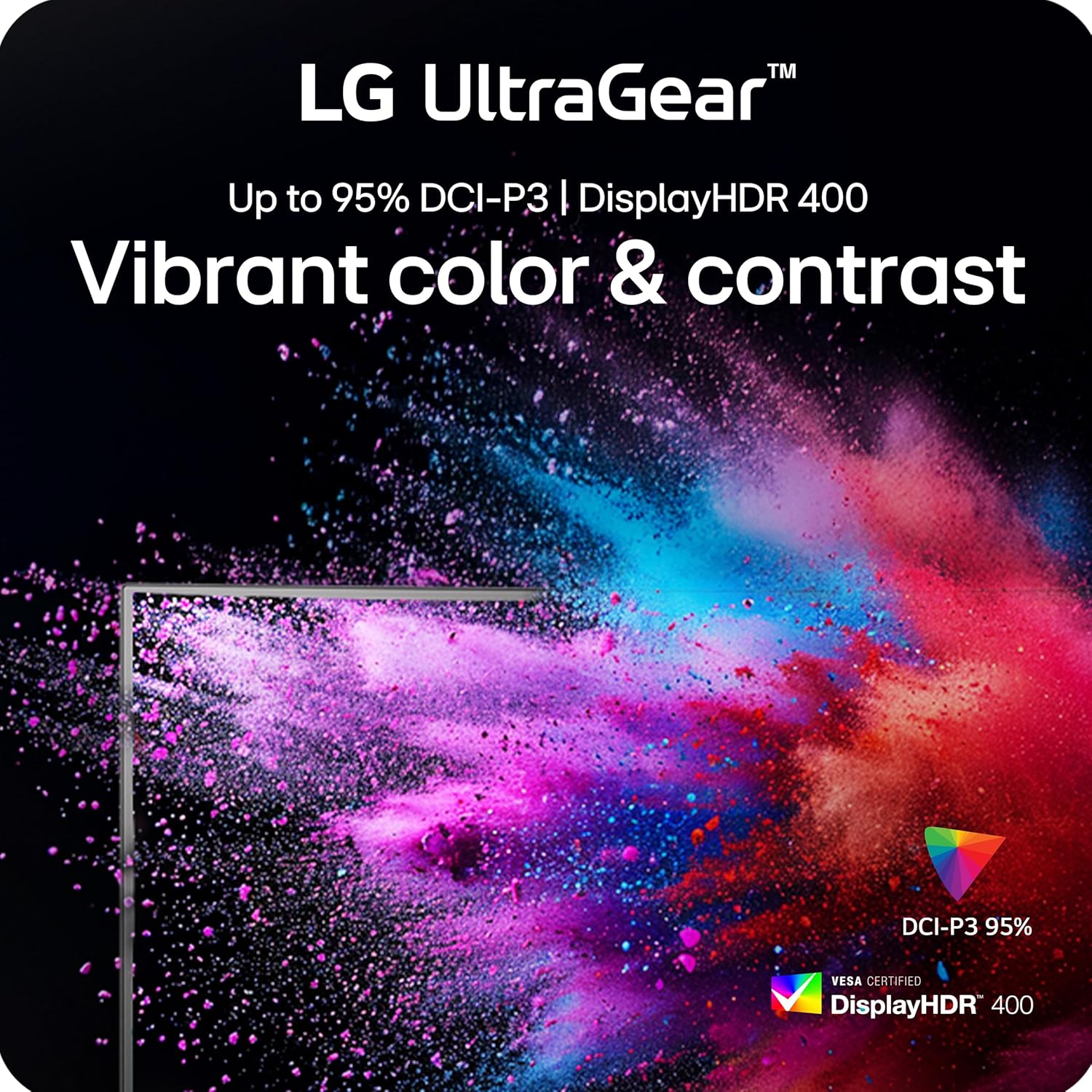
- וועסאַ דיספּליי HDR 400: Provides enhanced contrast and vibrant colors for a more immersive visual experience.
- דינאמישע אקציע סינק (DAS): Reduces input lag for real-time action and quick responses.
- שוואַרץ סטאַביליזער: Enhances visibility in dark scenes, allowing you to spot enemies more easily.
- קראָסכער פֿעיִטשער: Provides an on-screen crosshair for improved aiming precision in first-person shooter games.
- 4-Pole Headphone Jack & DTS HP:X: Offers immersive 3D audio and combines stereo audio with mic input for clear communication.
- ערגאָנאָמיק שטיין: Features adjustable height, tilt, swivel, and pivot for personalized viewאין טרייסט.




5.1 אפיציעלע פּראָדוקט ווידעאָס
LG UltraGear Gaming Monitors Feature - FreeSync Premium
Video: This video from LG Electronics explains the benefits of AMD FreeSync Premium technology in LG UltraGear gaming monitors, demonstrating how it eliminates screen tearing and stuttering for smoother gameplay.
LG UltraGear Gaming Monitors Feature - DisplayHDR 400
Video: This video from LG Electronics highlights the VESA DisplayHDR 400 feature in LG UltraGear gaming monitors, showcasing how it enhances contrast and color vibrancy for a more dynamic visual experience.
LG UltraGear - Gaming UI
Video: This video from LG Electronics demonstrates the Gaming UI features of LG UltraGear monitors, including Crosshair, Black Stabilizer, and Dynamic Action Sync, designed to enhance gameplay.
6. וישאַלט
6.1 רייניקונג די מאָניטאָר
- שטענדיק אָפּשטויסן די מאָניטאָר איידער רייניקונג.
- ניצן אַ ווייך, לינט-פֿרייַ שטאָף לייטלי דampגעוואשן מיט וואַסער אָדער אַ מילד, נישט-אַברייזיוו רייניגער.
- שפריצט נישט רייניגער גלייך אויפן עקראַן.
- Avoid using alcohol, ammonia, or abrasive cleaners, as they may damage the screen surface.
6.2 סטאָרידזש
- האַלט דעם מאָניטאָר אין אַ קיל, טרוקן אָרט אַוועק פון דירעקט זונשייַן און עקסטרעמע טעמפּעראַטורן.
- If storing for an extended period, use the original packaging to protect the monitor from dust and physical damage.
7. טראָובלעשאָאָטינג
| פּראָבלעם | מעגלעך סיבה | לייזונג |
|---|---|---|
| קיין מאַכט | שטראָם קאַבל נישט פארבונדן אדער פּראָבלעם מיט שטראָם אַוטלעט. | זיכער מאַכן אַז דער מאַכט קאַבל איז זיכער פארבונדן צום מאָניטאָר און אַ אַרבעטנדיקן מאַכט אַוטלעט. קאָנטראָלירט דעם מאַכט אַדאַפּטער. |
| קיין בילד אויף פאַרשטעלן | אומרעכטע אינפוט מקור אויסגעקליבן אדער ווידעא קאבל נישט פארבונדן. | Select the correct input source via the OSD menu. Verify the HDMI or DisplayPort cable is securely connected to both the monitor and the source device. |
| עקראַן פליקערט אָדער טרערט | Adaptive Sync (G-Sync/FreeSync) is not enabled or incompatible settings. | Ensure NVIDIA G-SYNC or AMD FreeSync Premium is enabled in both the monitor's OSD settings and your graphics card control panel. Update graphics drivers. |
| Blurry text or image | Incorrect resolution or sharpness settings. | Set the display resolution to its native 3840 x 2160. Adjust the sharpness setting in the OSD menu (recommended between 50-75). |
| קיין אַודיאָ | Headphones not connected or audio settings incorrect. | Ensure headphones are properly connected to the 4-pole jack. Check audio output settings on your computer/console and the monitor's OSD. |
8. ספּעסאַפאַקיישאַנז
| שטריך | דעטאַל |
|---|---|
| פאַרשטעלן גרייס | 27 אינטשעס |
| טאַפליע טיפּ | IPS |
| געבוירן האַכלאָטע | 3840 רענטגענ 2160 (4K UHD) |
| Max Refresh Rate (UHD) | 180 הז |
| Max Refresh Rate (FHD) | 360 הז |
| ענטפער צייט | 1ms (GtG) |
| אַדאַפּטיוו סינק | NVIDIA G-SYNC קאָמפּאַטיבל, AMD FreeSync Premium |
| HDR שטיצן | VESA DisplayHDR 400 |
| קאָליר גאַמע | Up to 95% DCI-P3 |
| קאַנעקטיוויטי | 2x HDMI 2.1, 1x DisplayPort 1.4, USB Upstream, 2x USB Downstream, 4-pole Headphone Jack |
| ערגאָנאָמיקס | Height, Tilt, Swivel, Pivot Adjustable |
| דימענשאַנז (LxWxH) | 8.7 X 24.2 X 21 אינטשעס |
| וואָג | 16.3 פונט |
9. וואָראַנטי & שטיצן
פֿאַר דעטאַלירטע וואָראַנטי אינפֿאָרמאַציע און טעכנישע שטיצע, ביטע זען די באַאַמטער LG webזייטל אדער קאנטאקטירן LG קאסטומער סערוויס.
- אָנליין שטיצן: באַזוכן די LG אפיציעל Webפּלאַץ for product registration, manuals, software downloads, and FAQs.
- קונה סערוויס: Contact LG customer support for assistance with product issues or inquiries.
Additional protection plans may be available for purchase. Please check with your retailer for options.