1. זיכערקייַט אינפֿאָרמאַציע
Please read all instructions carefully before using this monitor. Keep this manual for future reference.
- שטעלט נישט אויס דעם מאָניטאָר צו רעגן אָדער פייכטקייט כּדי צו פאַרמייַדן פייער אָדער עלעקטרישע קלאַפּן.
- עפֿנט נישט דעם מאָניטאָר casinז. עס זענען נישטאָ קיין טיילן וואָס דער באַניצער קען סערוויסן אינעווייניק. לאָזט איבער אַלע סערוויסינג צו קוואַליפֿיצירטע פּערסאָנעל.
- שטעלט דעם מאָניטאָר אויף אַ סטאַבילער, גלאַטער ייבערפלאַך כּדי צו פאַרהיטן אַז ער זאָל נישט פאַלן.
- זיכער מאַכן אַז די ווענטילאַציע אַרום דעם מאָניטאָר איז ריכטיק. בלאָקירט נישט די ווענטילאַציע עפענונגען.
- ניצט נאָר דעם מאַכט אַדאַפּטער וואָס ווערט צוגעשטעלט מיטן מאָניטאָר.
- טרענט ארויס דעם שטראָם־שטעקן פֿון דער אַוטלעט אויב דער מאָניטאָר וועט נישט געניצט ווערן פֿאַר אַ לענגערער צײַט.
2. פּעקל אינהאַלט
באַשטעטיקן אַז אַלע זאכן זענען פאַראַן אין דיין פּעקל:
- CRUA 34-inch Ultrawide Gaming Monitor
- מאָניטאָר שטאַנד (באַזע און האַלדז)
- מאַכט אַדאַפּטער און קאַבלע
- HDMI קאַבלע
- דיספּלייפּאָרט (DP) קאַבל
- באַניצער מאַנואַל
- שרויפן פֿאַר שטאַנד פֿאַרזאַמלונג
3. סעטאַפּ
3.1 צוזאַמענשטעלן דעם שטאַנד
- נעמט פֿאָרזיכטיק אַרויס דעם מאָניטאָר פֿון זײַן פּאַקעט, און האַלט עס באַשיצט אויף אַ ווייכער ייבערפֿלאַך.
- באַפעסטיקט דעם שטאַנד האַלדז צום מאָניטאָר'ס הינטערשטן פּאַנעל מיט די צוגעשטעלטע שרויפן.
- Connect the stand base to the stand neck and secure it with the designated screw.
- שטעלט דעם צוזאַמענגעשטעלטן מאָניטאָר אויף אַ סטאַבילן טיש.
The monitor stand allows for tilt adjustment to find your optimal viewינג ווינקל.
3.2 וואַנט מאָונטינג (אָפּציאָנאַל)
This monitor supports VESA wall mounting (75x75mm). To wall mount:
- אַראָפּנעמען דעם שטאַנד פֿון מאָניטאָר אויב עס איז שוין אַטאַטשט.
- Attach a compatible VESA 75x75mm wall mount bracket (not included) to the monitor's rear panel using appropriate screws.
- פֿאָלגט די אינסטרוקציעס וואָס זענען צוגעשטעלט מיט אייער וואַנט מאָונט פֿאַר אַ זיכערע אינסטאַלאַציע.

בילד: הינטערשטע view of the monitor highlighting the 75x75mm wall mount area and various input ports.
3.3 קאַנעקטינג צו אַ מיטל
Connect your computer or gaming console to the monitor using one of the available ports:
- דיספּלייפּאָרט (DP 1.4): For optimal performance, especially for high refresh rates and FreeSync.
- HDMI (HDMI 1.4 x2): Compatible with most devices.
פֿאַרבינדט דעם מאַכט אַדאַפּטער צום מאָניטאָר'ס גלייכשטראָם אַרייַנגאַנג און דערנאָך שטעקט עס אַרײַן אין אַ מאַכט ווענטיל.
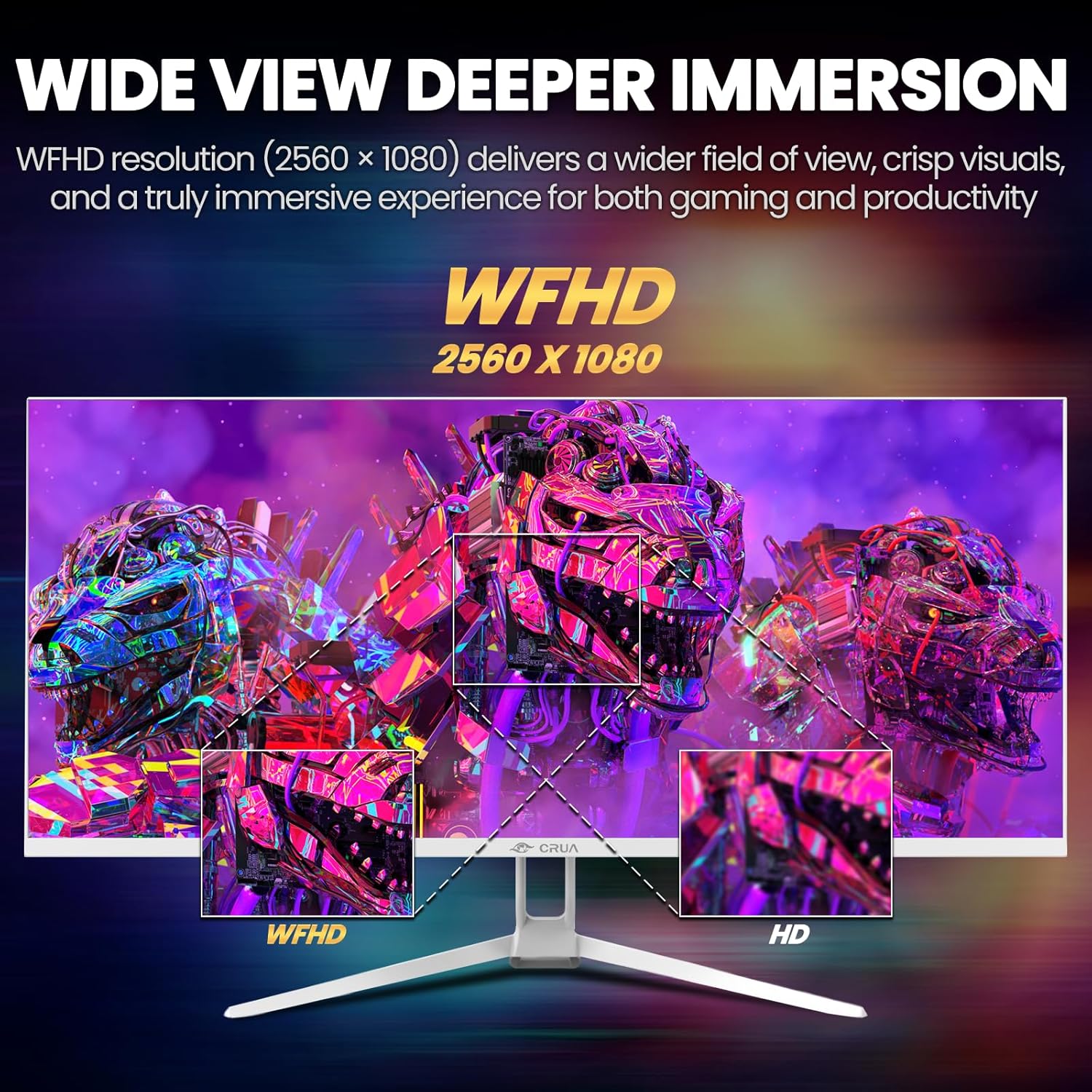
Image: A detailed diagram illustrating the monitor's connectivity options, including two HDMI 1.4 ports, one DisplayPort 1.4, an audio output, a USB charging port, and the DC power input.
4. אַפּערייטינג ינסטרוקטיאָנס
4.1 מאַכט אויף / אַוועק
Press the power button, typically located on the bottom or rear of the monitor, to turn it on or off. The power indicator light will illuminate when the monitor is on.
4.2 אויף-סקרין ווייַז (אָסד) מעניו
The OSD menu allows you to adjust various monitor settings. Access it by pressing the OSD menu button (often a joystick-like button or a set of dedicated buttons) on the monitor.
- נאַוויגאַציע: Use the OSD buttons or joystick to navigate through the menu options.
- סעלעקציע: דריק דעם אויסקלייב קנעפל צו אריינגיין אין א אונטער-מעניו אדער באשטעטיגן א שטעלונג.
- אַרויסגאַנג: Use the exit button to go back or close the OSD menu.
4.3 בילד סעטטינגס
Adjust visual parameters for optimal viewינג:
- ברייטקייט: קאָנטראָלירט די אַלגעמיינע ליכטיקייט פֿון דעם עקראַן.
- קאַנטראַסט: אַדזשאַסטיד די חילוק צווישן ליכט און טונקל געביטן.
- קאָליר טעמפּעראַטור: Selects preset color modes (e.g., Warm, Cool, User).
- בלוי ליכט פילטער: רעדוצירט בלוי ליכט אויסשטראַלונג צו מינאַמייז אויג שפּאַנונג בעשאַס פּראַלאָנגד נוצן.
- אַספּעקט פאַרהעלטעניש: Set to 21:9 for ultrawide content or other options as needed.

Image: The CRUA ultrawide monitor showcasing its 21:9 aspect ratio, demonstrating how it provides more horizontal screen space compared to a standard 16:9 display.
4.4 אַודיאָ סעטטינגס
The monitor includes built-in speakers. Adjust volume through the OSD menu or your connected device. An external audio output port is also available for headphones or external speakers.
4.5 AMD פריסינק
To enable AMD FreeSync for tear-free gaming, ensure your graphics card supports FreeSync and that it is enabled in your graphics card's control panel. Then, activate FreeSync within the monitor's OSD menu.

Image: A visual comparison demonstrating the effect of AMD FreeSync, showing a torn image when FreeSync is off and a smooth image when FreeSync is on, highlighting the 120Hz refresh rate.
5. וישאַלט
5.1 רייניקן דעם עקראַן
- קער אַוועק די מאָניטאָר און אָפּשטעקן די מאַכט שנור.
- ניצן אַ ווייך, לינט-פֿרייַ שטאָף לייטלי דampאָפּגעווישט מיט וואַסער אָדער אַ ספּעציעלן עקראַן רייניגער.
- Wipe the screen gently. Do not press hard or use abrasive cleaners.
5.2 אַלגעמיינע קער
- האַלט דעם מאָניטאָר אַוועק פון דירעקטער זון, היץ קוועלער און צו פיל שטויב.
- פֿאַרמײַדט צו שטעלן שווערע זאַכן אויף דעם מאָניטאָר אָדער זײַנע קאַבלען.
- Do not spray cleaning liquids directly onto the monitor.
6. טראָובלעשאָאָטינג
אויב איר טרעפט פּראָבלעמען מיט אייער מאָניטאָר, זעט די פאלגענדע געוויינטלעכע פּראָבלעמען און לייזונגען:
| פּראָבלעם | מעגלעך לייזונג |
|---|---|
| קיין בילד אויף פאַרשטעלן | Ensure power cable is securely connected and the monitor is turned on. Check video cable (HDMI/DP) connections to both monitor and computer. Select the correct input source via the OSD menu. |
| Image is flickering or unstable | Check video cable connections. Ensure your graphics card drivers are up to date. If using FreeSync, try disabling it temporarily to see if the issue persists. Adjust refresh rate in your computer's display settings. |
| קיין געזונט פון געבויט-אין ספּיקערז | Increase volume via the OSD menu and your computer's sound settings. Ensure the correct audio output device is selected on your computer. Check if the audio cable (if used) is properly connected. |
| קאָלאָרס דערשייַנען פאַלש | Reset picture settings to factory defaults via the OSD menu. Adjust color temperature and individual RGB values if available. |
אויב די פראבלעם בלייבט נאך פרובירן די לייזונגען, ביטע קאנטאקטירט CRUA קאסטומער סופארט.
7. ספּעסאַפאַקיישאַנז
Key technical specifications for the CRUA 34-inch Ultrawide Gaming Monitor (Model CR340AU):
| שטריך | באַשרייַבונג |
|---|---|
| פאַרשטעלן גרייס | 34 אינטשעס |
| טאַפליע טיפּ | IPS |
| האַכלאָטע | 2560 x 1080 (WFHD) |
| אַספּעקט פאַרהעלטעניש | 21:9 |
| דערפרישן קורס | 120 הז |
| ענטפער צייט | (Not specified in provided data, typical for IPS is 1-5ms GTG) |
| ברייטנאַס | 350 סי / מ² |
| קאָליר גאַמע | 120% sRGB |
| קאָליר דעפּט | 8-ביט (16.7 מיליאָן קאָלירן) |
| Viewאין אַנגלעס | 178° (האָריזאָנטאַל/ווערטיקאַל) |
| אַדאַפּטיוו סינק | AMD FreeSync |
| קאַנעקטיוויטי | 2x HDMI 1.4, 1x DisplayPort 1.4, Audio Out, USB Charging, DC Power Input |
| געבויט-אין ספּיקערז | יא |
| וואנט בארג | VESA 75x75מם |
| פּראָדוקט דימענשאַנז | 9.4 X 24.13 X 17.47 אינטשעס |
| פּונקט וואָג | 14.92 פונט |
8. וואָראַנטי און שטיצן
CRUA provides high-quality computer monitors and customer service. For any questions or support needs regarding your CRUA 34-inch Ultrawide Gaming Monitor, please contact CRUA customer support.
Refer to your purchase documentation or the official CRUA webזייטל פֿאַר ספּעציפֿישע וואָראַנטי טערמינען און קאָנטאַקט אינפֿאָרמאַציע.


