1. הקדמה
א דאנק פארן קויפןasing the Z-Edge 27-inch 4K UHD IPS Monitor, Model S274K. This monitor is designed to provide a high-quality visual experience for both professional and gaming applications, featuring a 3840x2160 resolution, 120Hz refresh rate, and 1ms response time. This manual provides essential information for setting up, operating, and maintaining your monitor to ensure optimal performance and longevity.

Image: Visual comparison demonstrating the clarity of 4K UHD (3840x2160) resolution compared to QHD (2560x1440) and FHD (1920x1080) on the Z-Edge monitor.
2. זיכערקייַט אינפֿאָרמאַציע
ביטע ליינט אלע אינסטרוקציעס קערפול איידער איר ניצט דעם פראדוקט. האלט דעם מאנואל פאר שפעטערדיגע רעפערענץ.
- שטעלט נישט אויס דעם מאָניטאָר צו רעגן, פייכטקייט, אדער עקסטרעמע טעמפּעראַטורן.
- זיכער מאַכן אַז די ווענטילאַציע אַרום דעם מאָניטאָר איז ריכטיק. בלאָקירט נישט די ווענטילאַציע עפענונגען.
- ניצט נאָר דעם מאַכט אַדאַפּטער וואָס ווערט צוגעשטעלט מיטן מאָניטאָר.
- ויסמיידן פּלייסינג שווער אַבדזשעקץ אויף די מאַכט שנור.
- טרענט ארויס דעם שטראָם־שטעקן פֿון דער אַוטלעט אויב דער מאָניטאָר וועט נישט געניצט ווערן פֿאַר אַ לענגערער צײַט.
- פרובירט נישט צו סערוויסן דעם מאָניטאָר אַליין. לאָזט איבער אַלע סערוויסינג צו קוואַליפֿיצירטע פּערסאָנעל.
3. פּעקל אינהאַלט
באַשטעטיקן אַז אַלע זאכן זענען פאַראַן אין דיין פּעקל:
- Z-Edge 27-inch 4K UHD Monitor
- מאָניטאָר שטאַנד (באַזע און האַלדז)
- מאַכט אַדאַפּטער
- HDMI קאַבלע
- באַניצער מאַנואַל (דעם דאָקומענט)
- שרויפן פֿאַר שטאַנד פֿאַרזאַמלונג
4. מאָניטאָר איבערview
4.1 פראָנט View
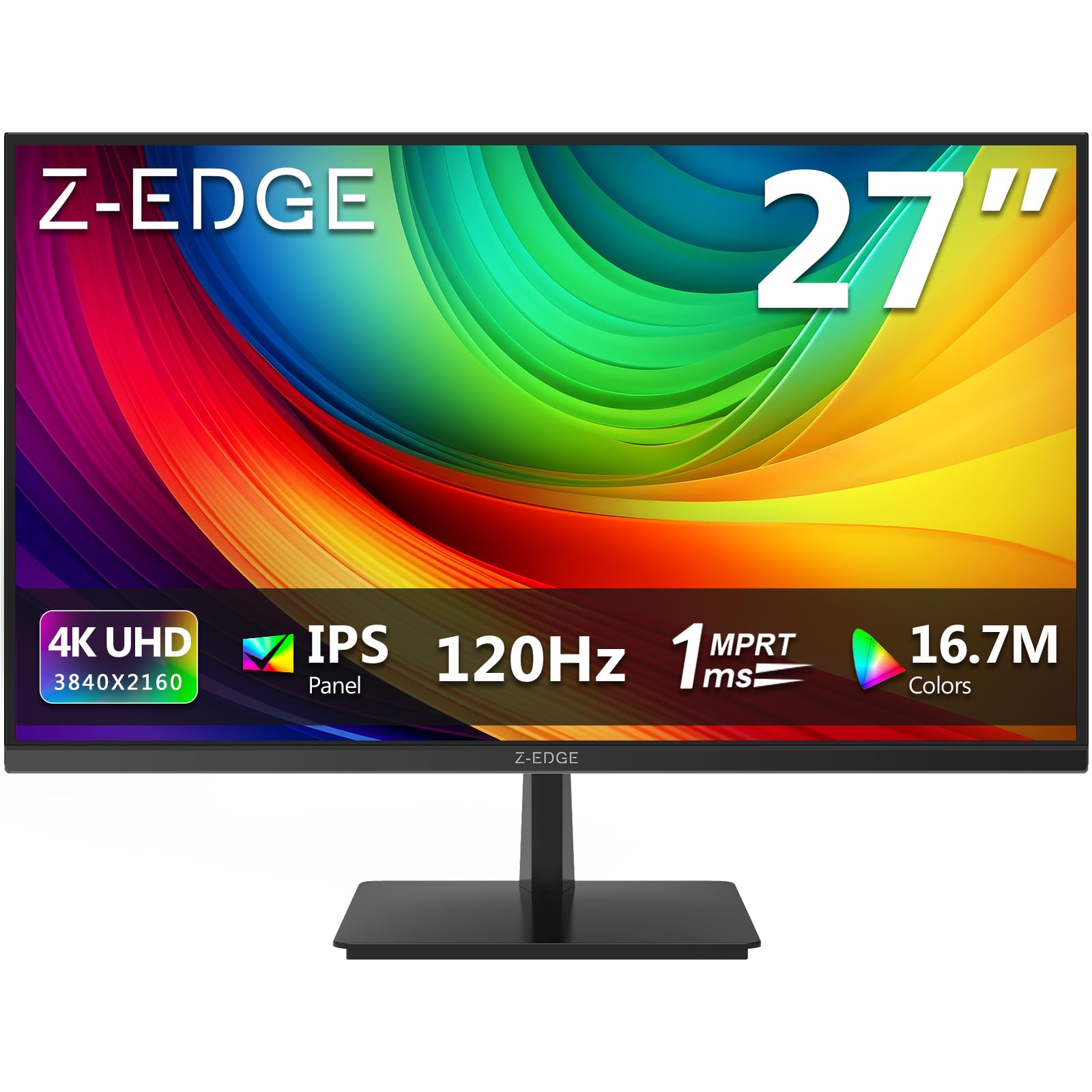
בילד: פראָנט view of the Z-Edge 27-inch 4K UHD monitor. This image shows the monitor displaying a vibrant scene, highlighting its slim bezels and overall design.
4.2 דערציען View און פּאָרטן

בילד: הינטערשטע view of the Z-Edge 27-inch 4K UHD monitor. This image illustrates the monitor's connectivity options, including HDMI and DisplayPort inputs, and the VESA mounting pattern.
בנימצא פּאָרץ:
- DC 12V: מאַכט אַרייַנשרייַב פּאָרט.
- HDMI 1/2 (2.0): Two HDMI input ports for connecting various devices.
- DP 1/2 (1.4): Two DisplayPort input ports for high-resolution connections.
- אַודיאָ אָוט: 3.5mm audio jack for connecting external speakers or headphones.

בילד: דעטאַלירט view of the monitor's input ports. This diagram clearly labels each port, including DC 12V power, two HDMI 2.0, two DisplayPort 1.4, and an audio output.
5. סעטאַפּ
5.1 שטאַנד פֿאַרזאַמלונג
- נעמט פֿאָרזיכטיק אַרויס דעם מאָניטאָר פֿון זײַן פּאַקעט, האַלטנדיק דעם עקראַן באַשיצט.
- באַפעסטיקט דעם שטאַנד האַלדז צום מאָניטאָר טאַפליע מיט די צוגעשטעלטע שרויפן.
- Connect the stand base to the stand neck, securing it with the remaining screws.
- שטעלט דעם צוזאַמענגעשטעלטן מאָניטאָר אויף אַ סטאַבילער, גלאַטער ייבערפלאַך.
Alternatively, the monitor supports VESA 100x100mm mounting for wall mounts or monitor arms. Ensure the VESA mount is rated for the monitor's weight.
5.2 קאַנעקטינג צו אַ מיטל
Connect your computer, game console, or other compatible device to the monitor using either an HDMI or DisplayPort cable.
- For 4K resolution at 120Hz, use a DisplayPort 1.4 cable or an HDMI 2.0 cable.
- Insert one end of the cable into the corresponding port on your device and the other end into an available HDMI or DP port on the monitor.
5.3 מאַכט קאַנעקשאַן
- Connect the power adapter to the DC 12V port on the monitor.
- צאַפּן די מאַכט אַדאַפּטער אין אַ מאַכט ווענטיל.
6. אַפּערייטינג ינסטרוקטיאָנס
6.1 פּאַוערינג אויף / אַוועק
דריק דעם מאַכט קנעפּל וואָס געפינט זיך אויפן מאָניטאָר צו עס אנצינדן אָדער אויסלעשן. די מאַכט אינדיקאַטאָר ליכט וועט זיך אָנצינדן ווען דער מאָניטאָר איז אנגעצינדן.
6.2 OSD מעניו נאַוויגאַציע
The On-Screen Display (OSD) menu allows you to adjust various monitor settings. Use the control buttons (usually located on the back or bottom of the monitor) to navigate the menu.
- דריק א קנעפל צו עפענען דעם OSD מעניו.
- Use the directional buttons to move between options.
- דריק דעם אויסקלייב קנעפל צו באשטעטיגן אן אויסוואל אדער אריינגיין אין א אונטער-מעניו.
- Press the exit button to close the OSD menu.
6.3 בילד סעטטינגס
Adjust display characteristics to your preference:
- ברייטקייט: אַדזשאַסטירן די אַלגעמיינע לומינאַנס פון דעם עקראַן.
- קאַנטראַסט: Modify the difference between light and dark areas.
- קאָליר טעמפּעראַטור: Select from preset modes (e.g., Warm, Cool, User) or adjust RGB values manually.
- אַספּעקט פאַרהעלטעניש: Choose between Full, 4:3, or 16:9.
6.4 גיימינג פֿעיִטשערס

Image: Visual representation of the difference between 120Hz and 60Hz refresh rates, illustrating how 120Hz provides a smoother and more fluid visual experience, especially for fast-paced content.
- FreeSync / Adaptive Sync: Enable this feature in the OSD menu and on your graphics card settings to synchronize the monitor's refresh rate with your GPU's frame rate, reducing screen tearing and stuttering.
- ענטפער צייט (MPRT): Adjust for faster pixel response, beneficial for fast-paced gaming.

Image: Visual demonstration of FreeSync technology. The left side shows screen tearing and stuttering when FreeSync is off, while the right side displays smooth, fluid motion with FreeSync enabled.
6.5 אַרייַנשרייַב סעלעקציע
If you have multiple devices connected, use the OSD menu or a dedicated input select button to switch between HDMI 1, HDMI 2, DP 1, and DP 2 inputs.
7. וישאַלט
7.1 רייניקונג די מאָניטאָר
- שטענדיק ארויסנעמען דעם מאָניטאָר פֿון דער עלעקטרישער אַוטלעט איידער איר רייניגט.
- ניצן אַ ווייך, לינט-פֿרייַ שטאָף אַ ביסל דampאָפּגעווישט מיט וואַסער אָדער אַ מילד, נישט-אַברייסיוו פאַרשטעלן רייניגער.
- שפריצט נישט רייניגער גלייך אויפן עקראַן.
- Avoid using alcohol-based cleaners, ammonia, or abrasive materials.
7.2 אַלגעמיינע קער
- האַלט דעם מאָניטאָר אַוועק פון דירעקט זונשייַן און היץ קוועלער.
- לייגט נישט קיין שווערע אביעקטן אויפן מאָניטאָר אדער זיינע קאַבלען.
- ויסמיידן רירנדיק די פאַרשטעלן מיט שאַרף אַבדזשעקץ.
8. טראָובלעשאָאָטינג
| פּראָבלעם | מעגלעך סיבה | לייזונג |
|---|---|---|
| קיין בילד אויף פאַרשטעלן |
|
|
| בילד איז פארשוואומען אדער פארדרייט |
|
|
| Screen tearing or stuttering (gaming) |
|
|
| No audio from headphones/speakers |
|
|
9. ספּעסאַפאַקיישאַנז
| שטריך | דעטאַל |
|---|---|
| סאָרט | ז-עדזש |
| מאָדעל נומער | S274K |
| פאַרשטעלן גרייס | 27 אינטשעס |
| טאַפליע טיפּ | IPS |
| האַכלאָטע | 4K UHD (3840 x 2160 פּיקסעלס) |
| דערפרישן קורס | 120 הז |
| ענטפער צייט | 1ms MPRT |
| אַספּעקט פאַרהעלטעניש | 16:9 |
| ברייטנאַס | 250 סי / מ² |
| קאַנטראַסט פאַרהעלטעניש | 1000:1 |
| קאָליר סופּפּאָרט | 1.07 Billion Colors (99% sRGB) |
| Viewינג אַנגלע | 178° (H/V) |
| קאַנעקטיוויטי | 2x HDMI 2.0, 2x DisplayPort 1.4, Audio Out |
| ספּעציעלע פֿעיִקייטן | Adjustable Tilt (-5°~15°), FreeSync, Flicker-Free, Ultra Slim Bezel |
| VESA קאַמפּאַטאַבילאַטי | 100x100מם |
| מאַכט קאַנסאַמשאַן | 32 וואט |
| ענערגיע עפעקטיווקייַט קלאַס | ו (EPREL לינק) |

Image: Key display specifications including IPS Panel technology, 250 nits brightness, support for 16.7 million colors, and a 1000:1 contrast ratio.
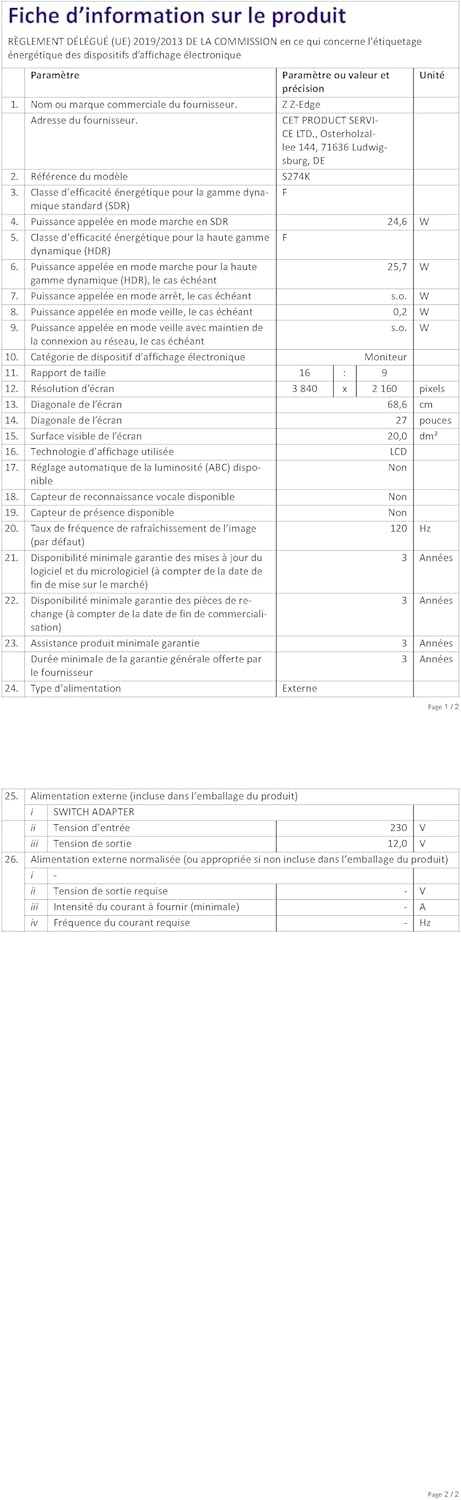
Image: EU Energy Label for the Z-Edge S274K monitor, indicating an energy efficiency class of F and energy consumption of 25 kWh per 1000 hours.
10. וואָראַנטי און שטיצן
10.1 פאַבריקאַנט'ס גאַראַנטיע
This Z-Edge monitor comes with a 1-יאָר פאַבריקאַנט ס וואָראַנטי פֿון דעם קויפֿדאַטום. די וואָראַנטי דעקט חסרונות אין מאַטעריאַלן און אַרבעט אונטער נאָרמאַלן באַנוץ. עס דעקט נישט קיין שאָדן פֿאַראורזאַכט דורך אומרעכטן באַנוץ, אומגליקן, נישט-אָטעריזירטע מאָדיפֿיקאַציעס, אָדער עקסטערנע סיבות.
For warranty claims, please retain your proof of purchase.
10.2 קונה שטיצן
If you encounter any issues not covered in the troubleshooting section or require further assistance, please contact Z-Edge customer support. Refer to the official Z-Edge webזייטל פֿאַר די מערסט אַרויף-צו-דאַטע קאָנטאַקט אינפֿאָרמאַציע און שטיצע רעסורסן.


