1. זיכערקייַט אינפֿאָרמאַציע
Read all safety information before using your device to ensure safe and proper use. Keep this manual for future reference.
- Do not use the device in environments with extreme temperatures.
- פֿאַרמײַדט אויסשטעלן דעם אַפּאַראַט צו וואַסער אָדער איבעריקע פֿײַכטקייט.
- Use only OPPO-approved chargers, batteries, and accessories.
- דו זאלסט נישט פּרווון צו דיסאַסעמבאַל, פאַרריכטן אָדער מאָדיפיצירן די מיטל זיך.
- Maintain a safe distance from medical implants when using the device.
- אַוועקוואַרפן דאָס אַפּאַראַט און זײַן באַטאַרייע פֿאַראַנטוואָרטלעך לויט די לאָקאַלע רעגולאַציעס.
2. פּעקל אינהאַלט
באַשטעטיקט אַז אייער פּראָדוקט פּאַקעט כּולל די פאלגענדע זאכן:
- OPPO Reno 14 F 5G CPH2743 Smartphone
- וסב טיפּע- C קאַבלע
- מאַכט אַדאַפּטער
- סים עדזשעקטאָר טול
- שנעל אָנהייב גייד
- Safety Guide (this document)
- שוץ־קעסטל (קען זיין אַנדערש לויט ראַיאָן)
3. דיווייס איבערview
Familiarize yourself with the physical features of your OPPO Reno 14 F 5G CPH2743.
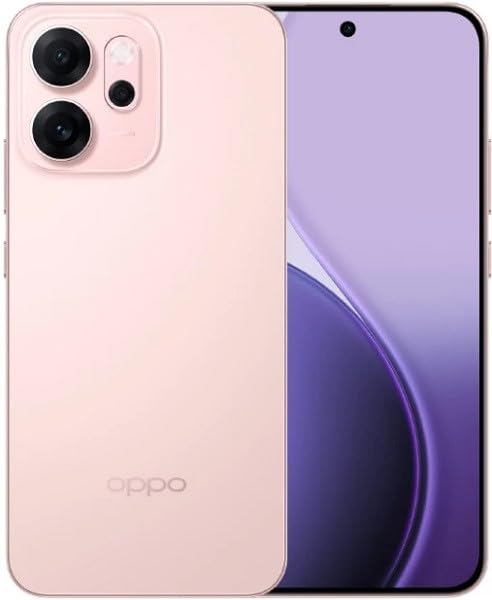
פיגור 3.1: פאָרנט און הינטן view of the OPPO Reno 14 F 5G CPH2743 smartphone. This image displays the device in its glossy pink finish, highlighting the screen, camera module, and side buttons.
- פראָנט אַפּאַראַט: געפינען זיך ביים שפּיץ פונעם עקראַן.
- עאַרפּיעסע: For calls, located above the display.
- באַנד קנעפּלעך: On the left side, for adjusting media and call volume.
- מאַכט קנעפּל: אויף דער רעכטער זייט, צו אנצינדן/אויסלעשן דעם אפאראט און פארשפארן/אנשליסן דעם עקראן.
- סים קאָרט טאַץ: Located on the side, requires the SIM ejector tool to open.
- וסב טיפּ-C פּאָרט: אין אונטן, פֿאַר טשאַרדזשינג און דאַטן אַריבערפירן.
- רעדנער: At the bottom, for audio output.
- מיקראָפאָן: At the bottom, for voice input.
- הינטערשטע קאַמעראַ מאָדול: On the back, contains multiple lenses and flash.
4. סעטאַפּ
4.1. אינסטאַלירן סים קאַרטלעך
- געפינט די סים קארטל טאַץ אויף דער זייט פון אייער דעווייס.
- שטעקט אריין דעם סים אויסווארף געצייג אין דעם קליינעם לאך לעבן דעם טרעי און דריקט פעסט ביז דער טרעי קומט ארויס.
- לייגט אריין אייערע נאַנאָ-סים קאַרטלעך אין די באַשטימטע סלאָץ אויף דער טאַץ, און מאַכט זיכער אַז די גאָלדענע קאָנטאַקטן זאָלן קוקן אַראָפּ. די דעווייס שטיצט דואַל סים פאַנגקשאַנאַליטעט.
- פֿאָרזיכטיק צוריקשטעלן דעם טאַץ אין דעם אַפּאַראַט ביז עס קליקט אַרײַן אין פּלאַץ.
4.2. פּאָווערינג אויף / אויסגעלאשן
- צו מאַכט אויף: Press and hold the Power button on the right side until the OPPO logo appears.
- צו מאַכט אַוועק: Press and hold the Power button, then tap "Power off" on the screen. Alternatively, swipe down from the top of the screen to open the notification panel, then tap the power icon and select "Power off".
- צו ריסטאַרט: Press and hold the Power button, then tap "Restart" on the screen.
4.3. ערשט קאָנפיגוראַטיאָן
ביים ערשטן מאָל אנצינדן, פאָלגט די אינסטרוקציעס אויפן עקראַן צו סעטאַפּן אייער מיטל:
- אויסקלייַבן דיין שפּראַך און געגנט.
- פאַרבינדן צו אַ Wi-Fi נעץ.
- Review and accept the End User License Agreement.
- לאָג אַרײַן מיט אײַער גוגל אַקאַונט אָדער שאַפֿט אַ נײַעם.
- שטעלט אויף דעם עקראַן שלאָס (PIN, מוסטער, פּאַראָל, פינגערפּרינט, פּנים אַנטפּלעקן).
- צוריקשטעלן דאַטן פֿון אַ פֿריִערדיקן מיטל (אַפּציאָנאַל).
- קאָנפיגורירן אַנדערע סעטטינגס ווי געבעטן.
5. אַפּערייטינג דיין מיטל
5.1. יקערדיק נאַוויגאַציע
- צאַפּן: רירט דעם עקראַן איין מאָל צו עפֿענען אַן אַפּ, אויסקלײַבן אַן אייטעם, אָדער דריקן אַ קנעפּל.
- ריר און האלט: דריק און האלט אן אייטעם צו צוקומען צו נאָך אָפּציעס אדער עס צו באַוועגן.
- לאַקכענען: שלעפּט אייער פינגער אַריבער דעם עקראַן צו סקראָלן, טוישן סקרינז, אָדער אָפּוואַרפן נאָוטאַפאַקיישאַנז.
- קניפּ: ניצט צוויי פינגער צו פארגרעסערן אדער פארקלענערן בילדער, מאפעס, אדער web בלעטער.
5.2. מאכן קאַללס
- עפענען די טעלעפאָן אַפּ.
- צאַפּן אויף דיאַלפּאַד בילדל.
- Enter the phone number or select a contact from your קאָנטאַקט רשימה.
- צאַפּן אויף רופן קנעפּל צו אָנהייבן דעם רוף.
5.3. שיקט אַרטיקלען
- עפענען די אַרטיקלען אַפּ.
- צאַפּן אויף אָנהייב שמועסן or נייַ אָנזאָג בילדל.
- אַרייַן די טעלעפאָן נומער פון דעם באַקומער אָדער סעלעקטירן פון קאָנטאַקטן.
- טיפּ דיין אָנזאָג אין די טעקסט פעלד.
- צאַפּן אויף שיקן קנעפּל.
5.4. אינטערנעט קאַנעקטיוויטי
- ווי-פי: גיין צו סעטטינגס> Wi-Fi, צינד אן Wi-Fi, און אויסקלייבן א נעץ צו פארבינדן.
- מאָביל דאַטן: גיין צו Settings > Mobile Network, and ensure "Mobile data" is enabled.
5.5. קאַמעראַ פונקציעס
עפענען די אַפּאַראַט app to capture photos and videos.
- צאַפּן אויף לאָדן קנעפּל צו נעמען אַ פאָטאָ.
- Swipe left or right to switch between camera modes (e.g., Photo, Video, Portrait, Night).
- צאַפּן אויף באַשטימען קאַמעראַ איקאן צו טוישן צווישן פראנט און הינטערשטע קאַמעראַס.
5.6. אַפּפּליקאַטיאָנס
- ינסטאַלירן אַפּפּס: ניצן די Google פּלייַ סטאָר to download and install new applications.
- פאַרוואַלטן אַפּפּס: גיין צו Settings > Apps > App management צו view, uninstall, or force stop applications.
6. וישאַלט
6.1. רייניקן דיין דעווייס
- ניצט אַ ווייכן, לינט-פֿרייע שטאָף צו זאַכט ווישן דעם עקראַן און קערפּער פֿון דעם אַפּאַראַט.
- פֿאַרמײַדן ניצן שטרענגע כעמיקאַלן, אַברייסיוו רייניגער, אָדער קאַמפּרעסט לופט.
- זיכער מאַכן אַז קיין פליסיקייט זאָל נישט אַרייַן אין די פּאָרץ אָדער עפענונגען.
6.2. ווייכווארג דערהייַנטיקונגען
Regularly check for and install software updates to improve device performance, security, and introduce new features.
- גיין צו סעטטינגס > וועגן דעם מיטל > אַרויף צו דאַטע (or similar path depending on ColorOS version).
- Follow the on-screen instructions to download and install any available updates. Ensure your device is sufficiently charged and connected to Wi-Fi before updating.
6.3. באַטערי קער
- Avoid fully discharging the battery frequently. Charge it before it drops too low.
- Do not expose the device to extreme heat or cold, as this can degrade battery life.
- Use the original charger and cable for optimal charging performance and safety.
- אויב דער מיטל וועט נישט ווערן גענוצט פאר א לענגערע צייט, לאדנט עס אויף צו בערך 50% איידער איר לייגט עס אוועק.
7. טראָובלעשאָאָטינג
די סעקציע באהאנדלט אלגעמיינע פראבלעמען וואס איר קענט באגעגענען מיט אייער אפאראט.
| פּראָבלעם | לייזונג |
|---|---|
| די מיטל איז נישט קער אויף. | Ensure the battery is charged. Connect the charger and wait a few minutes before attempting to power on. If unresponsive, perform a force restart by holding the Power button and Volume Up button simultaneously for about 10 seconds. |
| קענען ניט פאַרבינדן צו ווי-פי. | Check if Wi-Fi is enabled in Settings. Restart your router and the phone. Forget the network and try reconnecting. Ensure you are entering the correct password. |
| שלעכט נעץ סיגנאַל אָדער קיין סערוויס. | Check if SIM cards are properly inserted. Try restarting the device. Ensure "Mobile data" is enabled in Settings. If the issue persists, contact your network provider. |
| אַפּפּס קראַשן אָדער פרירן. | Clear the cache and data for the problematic app (Settings > Apps > App management > [App Name] > Storage usage). Update the app to the latest version. If the issue continues, uninstall and reinstall the app. |
| באַטאַרייע דריינז געשווינד. | Check battery usage in Settings to identify power-hungry apps. Reduce screen brightness, disable unnecessary features like GPS or Bluetooth when not in use. Close background apps. |
8. ספּעסאַפאַקיישאַנז
Key technical specifications for the OPPO Reno 14 F 5G CPH2743.
| שטריך | דעטאַל |
|---|---|
| מאָדעל נאָמען | Oppo Reno 14 F 5G CPH2743 |
| סאָרט | OPPO |
| זכּרון סטאָרידזש קאַפּאַסיטי | 256 גיגאבייט |
| ראַם זכּרון אינסטאַלירט גרייס | 12 גיגאבייט |
| סעליאַלער טעכנאָלאָגיע | 5G |
| קאַנעקטיוויטי טעכנאָלאָגיע | 5G, 4G, 3G, 2G |
| סים קאַרטל סלאָט צאָל | צווייענדיק סים |
| פאָרם פאַקטאָר | שיווערשטיין |
| קאָליר | ראָזעווע |
9. וואָראַנטי און שטיצן
Your OPPO Reno 14 F 5G CPH2743 is covered by a limited warranty. The specific terms and conditions of the warranty may vary by region and retailer.
- וואָראַנטי אינפֿאָרמאַציע: Refer to the warranty card included in your product package or visit the official OPPO website for detailed warranty terms.
- טעכניש שטיצן: For technical assistance, troubleshooting beyond this manual, or service requests, please contact OPPO customer support. Contact details can typically be found on the official OPPO website or in the "Support" section of your device's settings.
- אָנליין רעסורסן: Visit the official OPPO webפּלאַץ (www.oppo.com) for FAQs, software downloads, and additional support resources.


