1. פּראָדוקט איבערview
The NETUM Q900 is a robust handheld mobile computer designed for demanding environments such as warehousing, logistics, and asset tracking. It integrates an Android 14 operating system with a high-performance barcode scanning engine, offering reliable data capture and processing capabilities.

פיגורע 1.1: פראָנט און צוריק view of the NETUM Q900 device, showcasing its ergonomic design and integrated scanner.
שליסל פֿעיִקייטן:
- הויך פאָרשטעלונג: Powered by an octa-core MT8781 processor and Android 14, with 4GB RAM and 64GB storage (expandable).
- יממערסיווע ווייַז: 5.99-inch HD IPS touchscreen with multi-touch support.
- Advanced Barcode Scanning: Equipped with a Honeywell HS7 scan engine for 1D and 2D barcodes.
- Industrial-Grade Rugged Design: IP67 rated for water and dust resistance, drop-tested from 1.5 meters.
- גלאבאלע קאנעקטיוויטי: Supports global 4G LTE (dual SIM), Wi-Fi 5 (dual band), Bluetooth 5.2, and full GNSS.
- לאנג באַטאַרייע לעבן: 5000mAh battery providing up to 13.5 hours of operation, with quick charging via USB-C or optional docking cradle.
- מאָדולאַר עקספּאַנסיע: Optional modules include UHF RFID, NFC, fingerprint reader, and a scan handle.
2. סעטאַפּ גייד
2.1. פּעקל אינהאַלט
באַשטעטיקט אַז די פאלגענדע זאכן זענען אַרייַנגערעכנט אין דיין פּעקל:
- NETUM Q900 Mobile Computer
- וסב-C טשאַרדזשינג קאַבלע
- מאַכט אַדאַפּטער
- שנעל אָנהייב גייד
- (Optional) Docking Cradle, Hand Strap, other modules
2.2. באַטאַרייע ייַנמאָנטירונג און טשאַרדזשינג
- געפינט דעם דעקל פונעם באַטעריע־אָפּטייל אויף דער הינטערשטער זייט פונעם אַפּאַראַט.
- Open the cover and insert the 5000mAh battery, ensuring the contacts align correctly.
- פאַרבייַטן די באַטאַרייע אָפּטייל דעקן סיקיורלי.
- Connect the USB-C cable to the device's charging port and the power adapter. Plug the adapter into a wall outlet.
- Allow the device to charge fully before first use. A full charge typically takes less than 4 hours.

פיגורע 2.1: Illustration of the 5000mAh battery, highlighting its long-lasting power for extended use.
2.3. ערשטע איינשטראָם און גרונטלעכע קאָנפיגוראַציע
- דריק און האלט דעם פּאַוער קנעפּל ביז די דעווייס ווייברירט און דער עקראַן צינדט זיך אָן.
- Follow the on-screen prompts to complete the initial Android 14 setup, including language selection, Wi-Fi connection, and Google account setup.
- Ensure the device is connected to a stable Wi-Fi network or has a 4G LTE connection for updates and application downloads.
3. אַפּערייטינג ינסטרוקטיאָנס
3.1. טאָוטשסקרין נאַוויגאַציע
The Q900 features a responsive 5.99-inch HD IPS touchscreen. Navigate the Android interface using standard touch gestures: tap, swipe, pinch-to-zoom, and long-press.
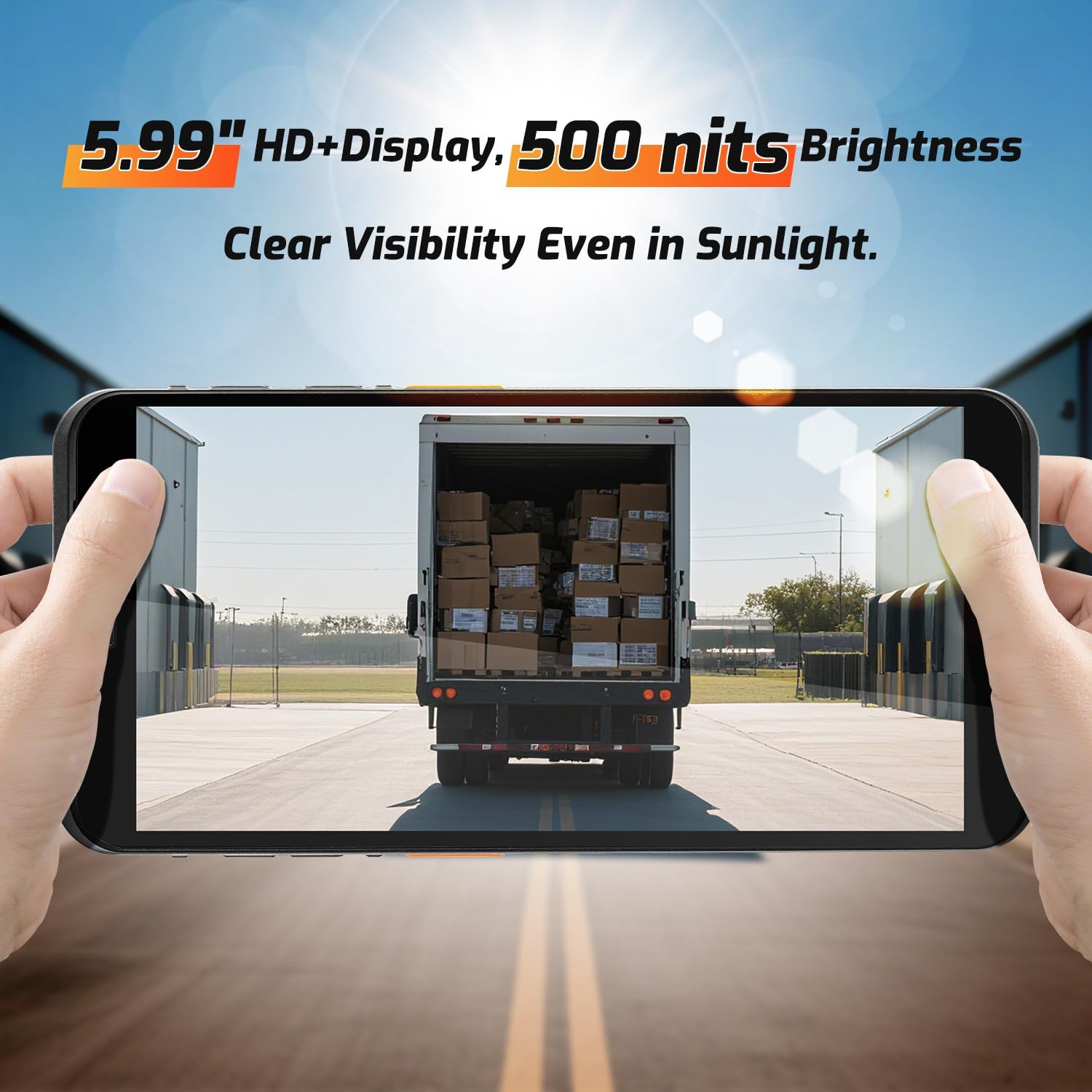
פיגורע 3.1: The 5.99-inch HD+ display offers clear visibility even in bright sunlight, enhancing outdoor usability.
3.2. באַרקאָד סקאַנינג
The integrated Honeywell HS7 scan engine allows for rapid and accurate capture of 1D and 2D barcodes.
- Open the scanning application or an application that supports barcode input.
- ריכט דעם סקאַנער פֿענצטער (וואָס געפֿינט זיך בײַם שפּיץ פֿונעם אַפּאַראַט) צו דעם באַרקאָד.
- Press one of the dedicated scan buttons (typically on the side of the device) to activate the laser/imager.
- Ensure the barcode is within the scanning range (approximately 5cm to 2m+ for long-range scanning) and centered in the aiming pattern.
- A successful scan will typically be indicated by an audible beep and/or a visual confirmation on the screen.

פיגורע 3.2: The Honeywell HS7 engine efficiently scans various barcode types, including damaged or difficult-to-read codes.
ווידעא 3.1: Demonstration of the NETUM Q900's barcode scanning capabilities, including long-range scanning and DPM code recognition.
3.3. קאַמעראַ יוז
The Q900 is equipped with an 8MP front camera and a 13MP rear camera for documentation and image capture.
- עפֿנט די קאַמעראַ אַפּליקאַציע פֿון דער היים־עקראַן אָדער אַפּ־שוך.
- Select between front and rear cameras as needed.
- Tap the screen to focus and press the shutter button to capture photos or videos.

פיגורע 3.3: Location of the 8MP front camera, 13MP rear camera, and NFC module on the NETUM Q900.
3.4. NFC פונקציאָנאַליטעט
The device supports NFC for short-range wireless communication, enabling applications like contactless payments, data exchange, and access control.
- Ensure NFC is enabled in the device settings (Settings > Connected devices > Connection preferences > NFC).
- Hold the device near an NFC tag or compatible reader to initiate communication.
- Follow on-screen prompts for specific NFC applications.
4. וישאַלט
4.1. רייניקונג די מיטל
- ניצן אַ ווייך, לינט-פֿרייַ שטאָף אַ ביסל דampened with water or a mild screen cleaner to wipe the display and exterior.
- פֿאַרמײַדן ניצן שטרענגע כעמיקאַלן, אַברייסיוו רייניגער, אָדער אַעראָסאָל ספּרײַס.
- זיכער מאַכן אַז אַלע פּאָרץ זענען טרוקן איידער איר לאָדן אָדער קאַנעקטינג אַקסעסאָריעס.
4.2. באַטערי קער
- כּדי צו מאַקסימיזירן די לעבנסדויער פון די באַטעריע, זאָל מען אויסמייַדן עקסטרעמע טעמפּעראַטורן.
- If the device will not be used for an extended period, charge the battery to about 50% before storage.
- The battery is user-replaceable; refer to Section 2.2 for installation instructions.
4.3. ווייכווארג דערהייַנטיקונגען
קאָנטראָלירט און אינסטאַלירט רעגולער ווייכווארג דערהייַנטיקונגען צו ענשור אָפּטימאַלע פאָרשטעלונג, זיכערהייט און צוטריט צו נייַע פֿעיִקייטן.
- גיין צו סעטטינגס> סיסטעם> סיסטעם דערהייַנטיקן.
- פֿאָלגט די אינסטרוקציעס אויף דעם עקראַן צו דאַונלאָודן און ינסטאַלירן אַלע בנימצא דערהייַנטיקונגען.
- Ensure the device has sufficient battery charge and a stable internet connection during updates.
5. טראָובלעשאָאָטינג
| פּראָבלעם | מעגלעך סיבה | לייזונג |
|---|---|---|
| די מיטל טוט נישט מאַכט אויף. | נידעריגע באַטעריע; דעפעקטיווע באַטעריע; פּראָבלעם מיטן מאַכט קנעפּל. | Charge the device for at least 30 minutes. Ensure battery is correctly installed. Contact support if issue persists. |
| באַרקאָד סקאַנער אַרבעט נישט. | Scanner application not open; barcode damaged; incorrect scanning distance. | Open the scanning application. Ensure barcode is clean and within optimal range. Check scanner settings. |
| קענען ניט פאַרבינדן צו ווי-פי. | אומרעכט פּאַראָל; אַרויס פון קייט; ראַוטער פּראָבלעם. | Verify Wi-Fi password. Move closer to the router. Restart the router and device. |
| טאָוטשסקרעען ניט ריספּאַנדאַבאַל. | Software glitch; physical damage; wet screen. | Restart the device. Ensure screen is dry and clean. If damaged, contact support. |
6. ספּעסאַפאַקיישאַנז
| שטריך | דעטאַל |
|---|---|
| מאָדעל נומער | PDA Q900 |
| אָפּערייטינג סיסטעם | אַנדרויד 14 |
| פּראַסעסער | Octa-core MT8781 |
| באַראַן | 4 גיגאבייט |
| סטאָרידזש | 64GB (expandable via microSD up to 1TB) |
| ווייַז | 5.99" HD IPS Touchscreen |
| באַרקאָדע ענגינע | Honeywell HS7 (1D/2D Scanning) |
| דערציען אַפּאַראַט | 13MP |
| פראָנט אַפּאַראַט | 8MP |
| באַטערי | 5000mAh (up to 13.5 hours working time) |
| קאַנעקטיוויטי | 4G LTE (Dual SIM), Wi-Fi 5 (Dual Band), Bluetooth 5.2, GNSS (GPS, GLONASS, Galileo, Beidou), NFC |
| האַרטקייט שאַץ | IP67 (Water and Dust Resistant), 1.5m Drop-tested |
| דימענשאַנז | 0.71 X 2.6 X 6.61 אינטשעס (18 X 66 X 168 מם) |
| פּונקט וואָג | 12.3 אונסעס (348 גראַמז) |
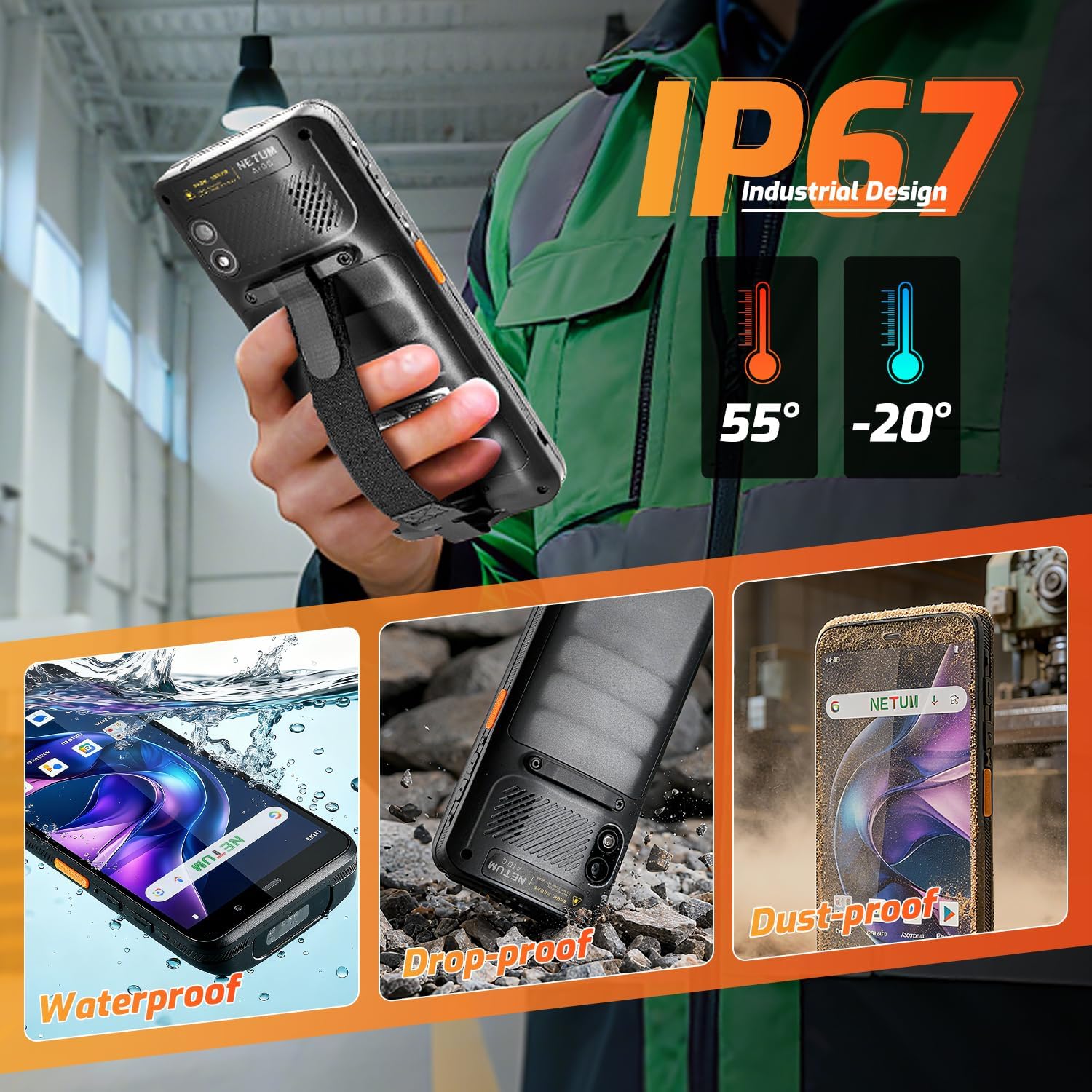
פיגורע 6.1: The NETUM Q900's IP67 rating ensures protection against water, dust, and drops, making it suitable for harsh environments.
7. וואָראַנטי און שטיצן
NETUM פּראָדוקטן זענען דיזיינד פֿאַר פֿאַרלעסלעכקייט און פאָרשטעלונג. פֿאַר וואָראַנטי אינפֿאָרמאַציע, טעכנישע שטיצע, אָדער סערוויס פֿראַגעס, ביטע זען די וואָראַנטי קאַרטל אַרייַנגערעכנט מיט דיין פּראָדוקט אָדער באַזוכן די באַאַמטער NETUM webפּלאַץ.
האַלט אייער קויף קוויטל ווי אַ באַווייַז פון קויפן פֿאַר וואָראַנטי קליימז.


