1. הקדמה
די מאַנואַל גיט פולשטענדיקע אינסטרוקציעס פֿאַר די שוואַרץview Wave9C SIM-free smartphone. The Wave9C combines a sleek design with powerful performance, running on the latest Android 15 with Doke AI integration. It features a 6.56-inch high-definition display, a long-lasting 5000mAh battery, and IP54 dust and water resistance, making it suitable for various environments. This guide will help you understand its features, set up your device, and troubleshoot common issues.
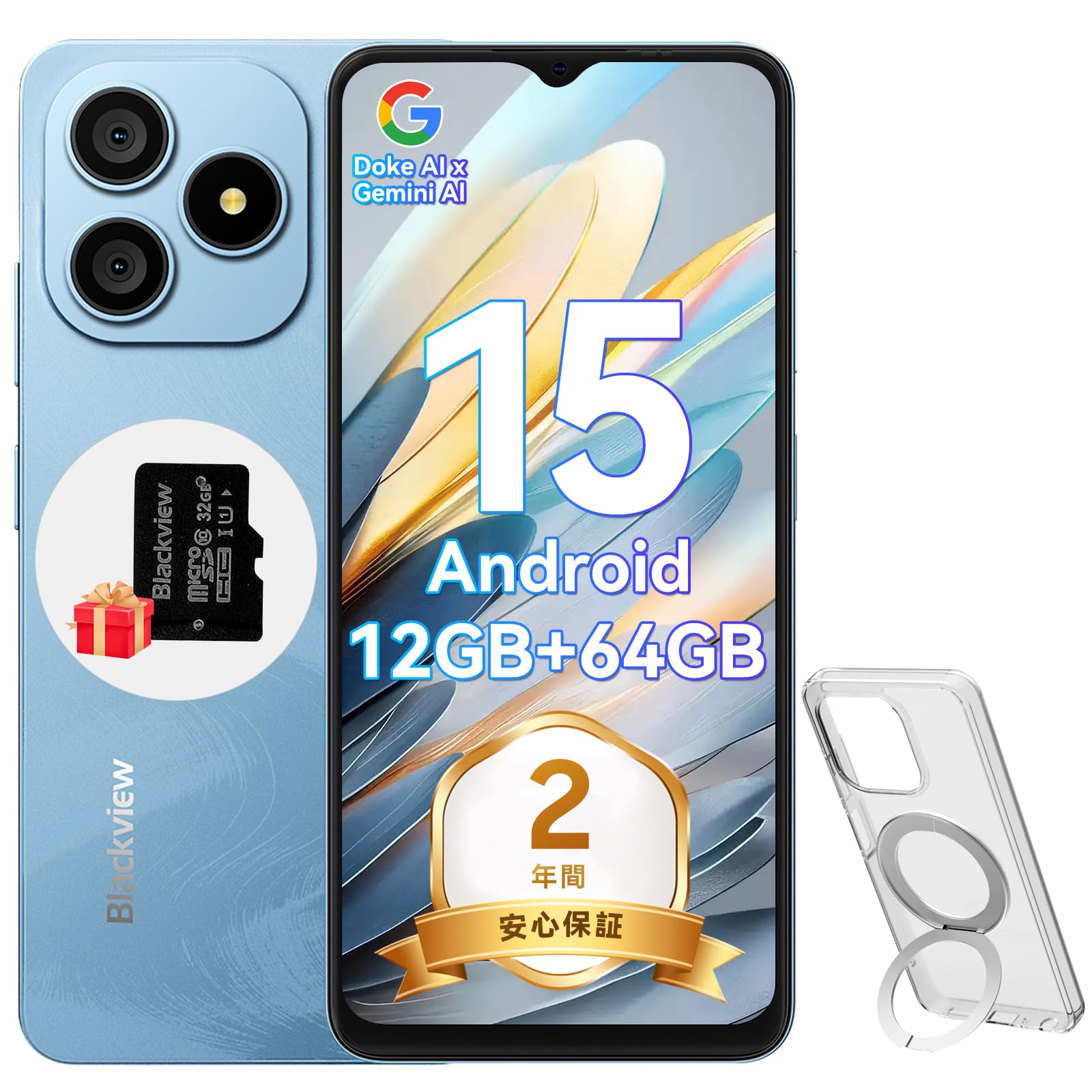
Figure 1.1: Blackview Wave9C Smartphone
2. פּעקל אינהאַלט
ביטע אָפּהאַקן דאָס קעסטל פֿאַר די פֿאָלגנדיקע זאַכן:
- שוואַרץview Wave9C Smartphone Body
- עקראַן פּראָטעקטאָר (פאַר-אַפּליקירט אָדער אַרייַנגערעכנט)
- Protective Phone Case (with stand)
- TF Card (32GB)
- מאַכט אַדאַפּטער
- וסב קאַבלע
- ינסטראַקשאַנז מאַנואַל
- סים עדזשעקטאָר שפּילקע

פיגור 2.1: איינגעשלאסענע אַקסעסאָריעס
3. סעטאַפּ
3.1. סים קאַרטל און TF קאַרטל אינסטאַלאַציע
די שווארצעview Wave9C supports dual SIM cards and a TF card for expandable storage. Before inserting, ensure your SIM card's frequency bands are compatible with the device (2G: B2/B3/B5/B8; 3G: B1/B2/B; 4G: B1/B3/B7/B8/B19/B20/B40/B41). After insertion, you may need to configure APN settings for mobile data.
- געפינט די SIM טאַץ אויף דער זייט פון דעם מיטל.
- שטעקט אריין דעם סים ארויסווארף שטיפט אין דעם קליינעם לאך לעבן דעם טאץ צו עס עפענען.
- Place your Nano-SIM cards and the TF card into the designated slots on the tray. Ensure they are correctly oriented.
- פֿאָרזיכטיק שטופּ צוריק דעם טאַץ אין דעם אַפּאַראַט ביז עס איז גלייך.

Figure 3.1: SIM and TF Card Tray
3.2. ערשטע איינשאַלטונג
Press and hold the Power button located on the side of the device until the Blackview logo appears. Follow the on-screen prompts to complete the initial setup, including language selection, Wi-Fi connection, and Google account setup.
4. אַפּערייטינג ינסטרוקטיאָנס
4.1. דיווייס איבערview און שליסל פֿעיִקייטן
Video 4.1: Blackview Wave9C Product Overview. This video demonstrates key features such as face unlock, AI applications, the integrated kickstand case, AI live photo functionality, and the smile shutter camera feature.
4.2. ווייַז פֿעיִקייטן
The Wave9C features a 6.56-inch HD+ display with a high screen-to-body ratio of 94.94% and 600 nits brightness for clear visibility even in bright conditions. The 720x1612 resolution ensures a smooth visual experience for games and videos.

פיגור 4.2: דיספּליי ספּעסיפיקאַציעס
To reduce eye strain during prolonged use, the device offers three eye-friendly modes:
- נאַכט מאָדע: Adjusts the display to warmer colors for comfortable viewאין נידעריק ליכט.
- טונקל מאָדע: Changes the system interface to a dark theme, reducing glare.
- לייענען מאָדע: Optimizes the screen for reading, similar to an e-reader.

Figure 4.3: Eye Protection Modes
4.3. פאָרשטעלונג און סטאָרידזש
די שווארצעview Wave9C is powered by an Unisoc T603 Octa-core CPU, ensuring smooth multitasking and gaming. It comes with 12GB RAM (4GB physical + 8GB expandable virtual RAM) and 64GB of internal storage, which can be expanded up to 2TB using a TF card. This ample storage allows for saving numerous photos, videos, and applications.

Figure 4.4: Processor and Memory

Figure 4.5: Storage and RAM Expansion
4.4. באַטערי מאַנאַגעמענט
Equipped with a 5000mAh large-capacity battery, the Wave9C provides extended usage, supporting up to 21 hours of talk time or 5 hours of video playback/gaming. It features 10W fast charging via a convenient Type-C port, allowing for quick recharges. Advanced battery features include AI night charge protection and AI power-saving modes to optimize battery life. The device also supports OTG reverse charging, allowing it to charge other devices.

פיגור 4.6: באַטעריע לעבן און טשאַרדזשינג
4.5. AI Features and DokeOS 4.2
די שווארצעview Wave9C runs on DokeOS 4.2, based on Android 15, offering a seamless and personalized user experience with enhanced privacy and convenience. It integrates Doke AI, featuring ChatGPT for various smart functions:
- Voice Activation & Recognition: Enhanced privacy and hands-free operation.
- Smart QA: Quick answers to your questions.
- Global Smart Control: Control various device functions with voice commands.
- Screen Content Support: Get instant solutions and information based on what's displayed on your screen.

Figure 4.7: Doke AI Capabilities
DokeOS 4.2 also includes several system-level optimizations:
- אַטאָמיזירטע זכּרון 2.0: Improves memory utilization for smoother performance.
- EasyShare: Facilitates quick and easy file ייַנטיילונג.
- Smart Preload: Anticipates app usage for faster launching.
- Clipboard Auto-Clear: Enhances privacy by automatically clearing clipboard content.
- Private Space & App Lock: Secure your personal data and applications.

Figure 4.8: DokeOS 4.2 System Features
4.6. Integrated AI Applications
The Wave9C comes with several pre-installed AI-powered applications to enhance your daily experience:
- היי דאָקי אַפּ: Integrates top AI models for AI chat, image generation, and online search.
- ImageX אַפּ: Offers AI photo editing features like AI photo animation, background replacement, and skin correction.
- VidGen אַפּ: Enables AI video editing, allowing you to create videos from text or images.
- סאַונדלע אַפּ: Assists with AI music creation, offering playlist management and supporting 11 music styles, including text-to-music conversion.

Figure 4.9: Hi Doki App

Figure 4.10: ImageX App

Figure 4.11: VidGen App

Figure 4.12: Soundle App
4.7. קאַמעראַ פֿעיִקייטן
Capture every moment with the Wave9C's camera system. It features a 13MP rear camera and an 8MP front camera, capable of recording 1080P Full HD videos.
- פּאָרטרעט מאָדע: Creates a depth effect, blurring the background to highlight the subject.
- פיל ליכט: Enhances lighting for selfies and portraits.
- Smile Shutter: Automatically captures photos when a smile is detected.
- Smart Camera Control: Use the volume keys as a shutter button or to zoom.

Figure 4.13: Camera Overview

פיגור 4.14: קאַמעראַ מאָדעס

Figure 4.15: Smart Camera Controls
4.8. זיכערהייַט פֿעיִקייטן
די שווארצעview Wave9C offers convenient and secure access with its face recognition feature. Simply look at your device to unlock it quickly, eliminating the need for passwords and adding speed to your daily life.

Figure 4.16: Face Recognition
4.9. קאַנעקטיוויטי
The Wave9C supports multiple global positioning systems, including GPS, GLONASS, Galileo, and BeiDou, ensuring accurate and stable navigation. It also features Bluetooth, USB, and Wi-Fi connectivity for seamless communication and data transfer.

Figure 4.17: Multi-System GPS Support
4.10. ספּעציעלע פֿעיִקייטן
- קינדער מאָדע: Set usage time limits to manage screen time for children.
- Senior Mode: Features large icons and text for easier readability and simplified operation, ideal for elderly users.
- IP54 שטויב און וואַסער קעגנשטעל: Enjoy reliable performance without worrying about dust or splashes.
- Wet Touch Technology: Operate the screen comfortably even with wet hands.
- Integrated Stand Case: The included protective case features a built-in stand for hands-free viewing.
- גוגל לענס: Utilize Google Lens for instant information retrieval, text translation, product identification, and exploring nearby places by simply pointing your camera.
- סמאַרט-ק רעדנער: Delivers crystal-clear audio and rich sound for streaming podcasts, games, and music.

Figure 4.18: Kids Mode and Senior Mode

Figure 4.19: IP54 Water Resistance and Wet Touch

Figure 4.20: Google Lens Integration

Figure 4.21: Smart-K Speaker
5. וישאַלט
To ensure the longevity and optimal performance of your Blackview Wave9C, follow these maintenance guidelines:
- רייניקונג: Regularly wipe the screen and body with a soft, lint-free cloth. Avoid using harsh chemicals or abrasive materials.
- טעמפּעראַטור: Avoid exposing the device to extreme temperatures (hot or cold) or direct sunlight for extended periods.
- סטאָרידזש: When not in use for a long time, store the device in a cool, dry place.
- ווייכווארג דערהייַנטיקונגען: האַלט די ווייכווארג פון אייער מיטל אַרויף-צו-דאַטע צו נוצן די לעצטע פֿעיִקייטן, זיכערהייט פּאַטשאַז און פאָרשטעלונג פֿאַרבעסערונגען.
6. טראָובלעשאָאָטינג
If you encounter any issues with your Blackview Wave9C, try the following basic troubleshooting steps:
- מיטל ניט ריספּאַנדינג: דריק און האלט דעם פּאַוער קנעפּל פֿאַר בערך 10-15 סעקונדעס צו צווינגען אַ ריסטאַרט.
- אַפּ קראַשט: Clear the cache and data of the problematic app in Settings > Apps. If the issue persists, uninstall and reinstall the app.
- די באַטאַרייע איז געשווינד ויסגעשעפּט: Check battery usage in Settings > Battery to identify power-hungry apps. Adjust screen brightness and use power-saving modes.
- קאָנעקטיוויטי פּראָבלעמען (Wi-Fi/Bluetooth): Toggle Wi-Fi or Bluetooth off and on. Restart your device or the router/paired device.
- Network Issues (SIM): Ensure the SIM card is correctly inserted. Check your APN settings. Contact your mobile carrier if necessary.
- פאַבריק באַשטעטיק: As a last resort, you can perform a factory reset (Settings > System > Reset options > Erase all data). ווארענונג: דאָס וועט אויסמעקן אַלע דאַטן אויף דיין מיטל. מאַכט אַ באַקאַפּ פון וויכטיקע דאַטן איידער איר גייט ווייטער.
אויב די טריט לייזן נישט דעם פראבלעם, ביטע זעט די וואראנטי און שטיצע סעקציע פאר ווייטערדיגע הילף.
7. ספּעסאַפאַקיישאַנז
| שטריך | באַשרייַבונג |
|---|---|
| מאָדעל נומער | WAVE9C |
| ווייַז גרייס | 6.56 אינטשעס |
| האַכלאָטע | 720 X 1612 |
| ברייטנאַס | 600 ניץ |
| אָפּערייטינג סיסטעם | Android 15 (DokeOS 4.2) |
| פּראַסעסער | Unisoc T603 Octa-core CPU |
| באַראַן | 12 גיגאבייט (4 גיגאבייט פיזיש + 8 גיגאבייט אויסברייטבאר) |
| אינערלעכער סטאָרידזש | 64 גיגאבייט |
| יקספּאַנדאַבאַל סטאָרידזש | ביז 2TB דורך TF קאַרטל |
| באַטאַרייע קאַפּאַציטעט | 5000 מאַה |
| טשאַרדזשינג | 10W שנעלע טשאַרדזשינג (טיפּ-C) |
| דערציען אַפּאַראַט | 13MP |
| פראָנט אַפּאַראַט | 8MP |
| וואַסער / שטויב קעגנשטעל | IP54 |
| קאַנעקטיוויטי | בלועטוט, יו-עס-בי, וויי-פיי |
| נאַוויגאַציע | גפּס, GLONASS, Galileo, BeiDou |
| דימענשאַנז | 17.8 X 9 X 5.7 סענטימעטער |
| וואָג | 440 ג |
8. וואָראַנטי און שטיצן
שוואַרץview גיט א 2 יאָר וואָראַנטי for the Wave9C smartphone. In case of any product issues, our customer service team is available online 24 hours a day and aims to provide support within 12 hours, including return and exchange services.
קאָנטאַקט מעטהאָדס:
- On the product page, click the store name "PTablet" below the "Add to Cart" button, then click "Ask a question" in the upper right corner to send an email.
- Alternatively, go to your Amazon account > Order History > Problem with order > Contact Seller.

Figure 8.1: Blackview קונה שטיצן


