הקדמה
א דאנק פארן קויפןasing the Matbip Multi-Platform Wireless Gaming Controller. This controller is designed to enhance your gaming experience across various platforms, including Nintendo Switch, Android, iOS, and PC. It features advanced functions such as TURBO burst, macro programming, customizable RGB lighting, and HD vibration, providing precise control and immersive feedback. Please read this manual carefully before use to ensure proper operation and to fully utilize all features.
פּראָדוקט איבערview
Familiarize yourself with the various components and buttons of your Matbip controller.
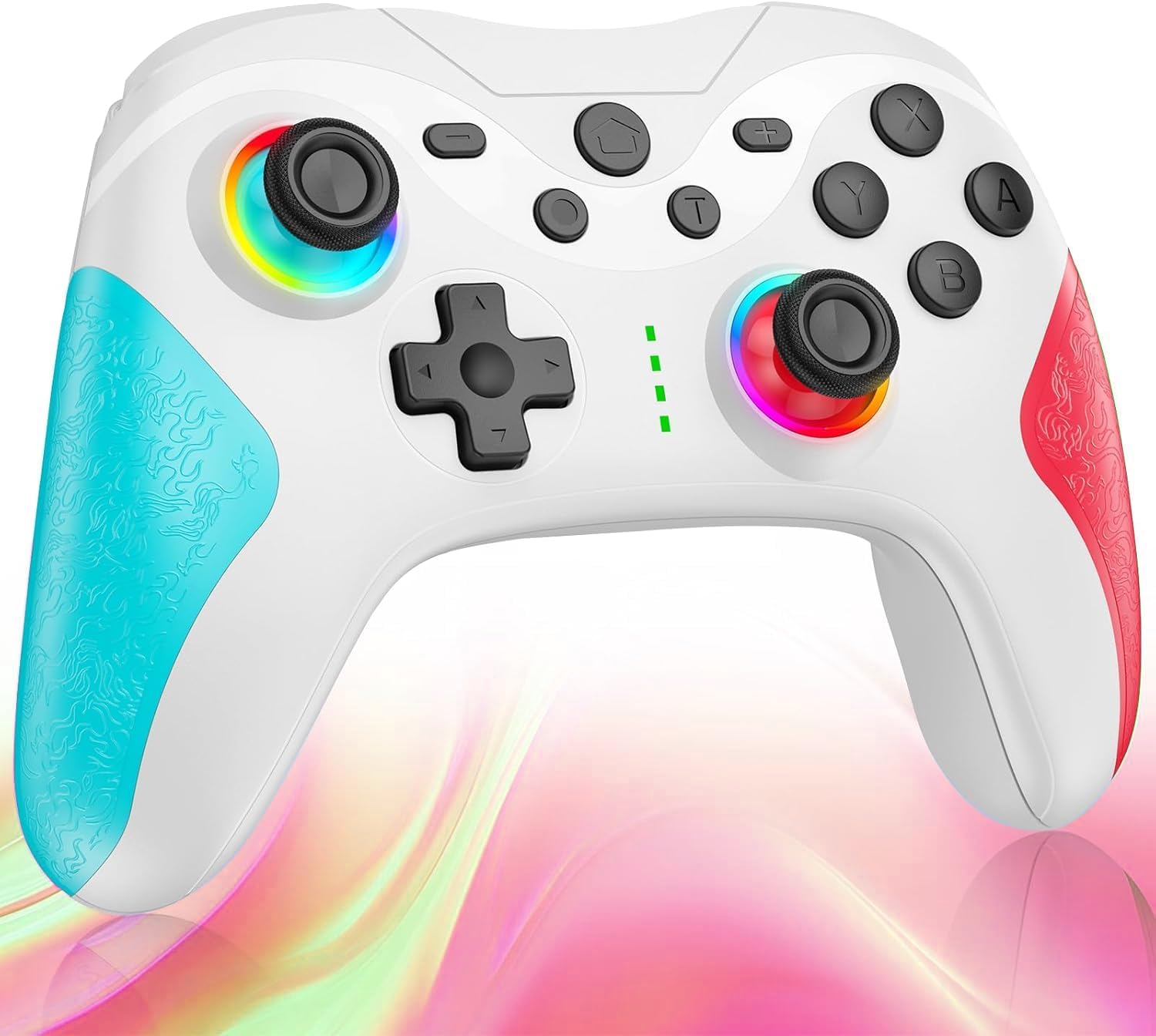
בילד: פראָנט view of the Matbip Multi-Platform Wireless Gaming Controller. It features a white body with blue textured grips on the left and red textured grips on the right. The joysticks are illuminated with a rainbow RGB light. Standard buttons (A, B, X, Y), a D-pad, and central function buttons (Home, Plus, Minus, T) are visible.
שליסל קאַמפּאָונאַנץ:
- Left/Right Joysticks: For directional control, with customizable RGB lighting.
- ד-פּאַד: פֿאַר פּינקטלעכער ריכטונג־איינגאַב.
- Action Buttons (A/B/X/Y): Standard gaming input buttons.
- Shoulder Buttons (L/R/ZL/ZR): Top-mounted trigger and bumper buttons.
- Back Buttons: Additional programmable buttons on the rear for strategic gameplay.
- היים קנעפּל: קערט צוריק צום סיסטעם היים עקראַן.
- Plus (+) / Minus (-) Buttons: System-specific function buttons.
- T Button (TURBO): Activates and manages the TURBO burst function.
- טשאַרדזשינג פּאָרט: USB-C פּאָרט פֿאַר טשאַרדזשינג.
- ינדיקאַטאָר לייץ: ווײַזן פֿאַרבינדונג סטאַטוס און באַטאַרייע מדרגה.
סעטאַפּ
1. אויפלאָדן דעם קאָנטראָללער
Before first use, fully charge the controller. Connect the provided USB-C cable to the controller's charging port and the other end to a USB power source (e.g., console, PC, or USB wall adapter). The indicator lights will show charging status and turn off when fully charged.
2. פּערינג מיט דעוויסעס
The controller supports Bluetooth wireless connection across multiple platforms.
פֿאַר נינטענדאָו סוויטש:
- On the Switch HOME Menu, select קאָנטראָללער > טוישן גריפּ / סדר.
- דריקן און האַלטן די היים קנעפּל on the Matbip controller for 3-5 seconds until the indicator lights flash rapidly.
- Once paired, the indicator light(s) on the controller will remain solid.
For Android/iOS Devices:
- געבן בלועטאָאָטה אויף דיין אַנדרויד אָדער יאָס מיטל.
- דריקן און האַלטן די היים קנעפּל on the Matbip controller for 3-5 seconds until the indicator lights flash rapidly.
- On your device's Bluetooth settings, select the controller (e.g., "Matbip Controller") from the list of available devices to pair.
פֿאַר פּיסי (ווינדאָוס):
- Ensure your PC has Bluetooth enabled. Go to סעטטינגס > דיווייסאַז > בלועטאָאָטה און אנדערע דעוויסעס.
- דריקט לייג בלועטאָאָטה אָדער אנדערע מיטל > בלועטאָאָטה.
- דריקן און האַלטן די היים קנעפּל on the Matbip controller for 3-5 seconds until the indicator lights flash rapidly.
- Select the controller from the list of devices to pair.
אַפּערייטינג ינסטראַקשאַנז
טורבאָ בערסט פונקציע:
The TURBO function allows for rapid, automatic button presses, ideal for combat games.
- צו אַקטיווירן טורבאָ: דריקן און האַלטן די ה קנעפּל, then press the desired action button (e.g., A, B, X, Y, L, R, ZL, ZR). The button will now continuously activate when held down.
- צו סטרויערן TURBO גיכקייַט: בשעת האלטן די ה קנעפּל, מאַך די right joystick up or down to cycle through 3 different burst speeds.
- צו דעאקטיוויזירן טורבא: דריקן און האַלטן די ה קנעפּל, then press the same action button again.
מאַקראָו פֿונקציע:
Program a sequence of button presses to a single back button for complex actions.
- Specific instructions for macro programming will be detailed in the full manual. Generally, this involves entering a programming mode, pressing the sequence, and assigning it to a back button.
קוסטאָמיזאַבלע RGB לייטינג:
The joysticks feature 9-color RGB lighting to enhance your gaming atmosphere.
- To change RGB color/mode: Press a specific button combination (e.g., T + Left Joystick click) to cycle through different colors and lighting effects.
HD Vibration Adjustment:
Adjust the intensity of the HD vibration feedback to your preference (4 levels).
- To adjust vibration: Press a specific button combination (e.g., T + D-Pad Up/Down) to cycle through the 4 vibration levels.
גיראָ סענסאָר:
The high-precision gyro sensor enables intuitive motion control in supported games.
- The gyro sensor is automatically active when connected to a compatible device (e.g., Nintendo Switch) and used in games that support motion controls.
Sleep Wake-up Function:
The controller supports waking up your Nintendo Switch console from sleep mode.
- When the Switch is in sleep mode, simply press the היים קנעפּל on the controller to wake it up and reconnect.
וישאַלט
Proper maintenance ensures the longevity and optimal performance of your controller.
- רייניקונג: ניצט אַ ווייכע, טרוקענע שטאָף צו ווישן דעם קאָנטראָללער. פֿאַר שווערע שמוץ, אַ ביסל ווייכער מאַכןampווייקט דעם שטאָף מיט וואַסער. ניצט נישט קיין שאַרפע כעמיקאַלן אדער אַברייסיוו רייניקונגסמיטלען.
- סטאָרידזש: האַלט דעם קאָנטראָללער אין אַ קיל, טרוקן אָרט אַוועק פון דירעקט זונשייַן, עקסטרעמע טעמפּעראַטורן און הומידיטי.
- באַטערי זאָרגן: Avoid fully discharging the battery frequently. If storing for a long period, charge the controller to about 50% every few months.
- ויסמיידן טראפנס: באַשיצן דעם קאָנטראָללער פֿון פֿאַלן און קלאַפּן, וואָס קענען שעדיקן אינעווייניקסטע קאָמפּאָנענטן.
טראָובלעשאָאָטינג
If you encounter issues with your controller, please refer to the following common solutions:
| פּראָבלעם | מעגלעך לייזונג |
|---|---|
| דער קאָנטראָללער צינדט זיך נישט אָן. | Ensure the controller is charged. Connect it to a power source using the USB-C cable. |
| Controller does not pair. | Ensure Bluetooth is enabled on your device. Make sure the controller is in pairing mode (flashing lights). Try restarting both the controller and the device. |
| Input lag or disconnection. | Ensure there are no strong wireless interferences nearby. Move closer to the device. Re-pair the controller. |
| קנעפּלעך אדער דזשויסטיקס רעאַגירן נישט. | Try resetting the controller (refer to the full manual for reset instructions, usually a small pinhole button). Ensure no debris is obstructing the buttons. |
| ווייבריישאַן אַרבעט נישט. | Check if vibration is enabled in the game or system settings. Adjust the vibration intensity on the controller. |
ספּעסאַפאַקיישאַנז
| שטריך | דעטאַל |
|---|---|
| פּראָדוקט דימענשאַנז | 10 X 15 X 6.5 סענטימעטער |
| וואָג | 300 ג |
| קאַנעקטיוויטי | בלועטאָאָטה ווירעלעסס |
| קאַמפּאַטאַבילאַטי | Nintendo Switch, Android, iOS, PC (Windows) |
| ספּעציעלע פֿעיִקייטן | TURBO Burst, Macro Function, 9-Color RGB Lighting, 4-Level HD Vibration, Gyro Sensor, Back Buttons, Sleep Wake-up |
| ASIN | B0FHWRK7CQ |
| מעלדונג טאָג | יולי 16, 2025 |
וואָראַנטי און שטיצן
Matbip is committed to providing high-quality products and customer satisfaction. This product comes with a standard manufacturer's warranty. For detailed warranty information, please refer to the documentation included with your purchase or contact Matbip customer support.
If you require further assistance, have questions, or encounter issues not covered in this manual, please contact our customer support team. A Japanese instruction manual is included with the product to ensure ease of use for first-time users.
קאָנטאַקט אינפֿאָרמאַציע: Please refer to the packaging or the official Matbip webזייטל פֿאַר די מערסט אַרויף-צו-דאַטע קונה שטיצע קאָנטאַקט דעטאַילס.


