1. הקדמה
Thank you for choosing the DDPAI MINI PRO Dash Cam. This manual provides detailed instructions for the installation, operation, and maintenance of your device. The DDPAI MINI PRO is designed to capture high-quality footage of your journeys, offering features such as 2K resolution, advanced night vision, G-sensor for emergency recording, and seamless app control for convenient management of your recordings.
2. פּראָדוקט פֿעיִקייטן
- 1296P HD Recording: Captures clear front-road footage at 2304×1296p @ 25fps, ensuring details like number plates and road signs are visible.
- Super Night Vision: Equipped with 5 sets of HD optical lenses and an F2.0 large aperture, enhancing low-light performance for clear and detailed footage in dimly lit environments.
- 330° ראָטירבאַרע לינז: Offers flexible installation options, allowing the camera to record either inside or outside the vehicle, providing a wider range of footage.
- אַפּ קאָנטראָל: Seamlessly operate the dash cam using the "DDPAI" app (Android/iOS) to view לעבן פאָאָtage, playback recordings, adjust settings, and download/share videos.
- 24/7 Parking Monitor with G-Sensor: Functions as a security guard for your parked car. The built-in G-sensor triggers recording during collisions or movement, using low-power mode to protect the car battery.
- Built-in Super Capacitor: Provides high tolerance for extreme temperatures and a prolonged lifespan, offering reliable performance in various climates.
- סימלאַס לופּ רעקאָרדינג: Continuously records video footage in a loop, overwriting the oldest footage once the memory card or storage space becomes full.
- Emergency Accident Lock: Automatically saves and locks video footage in the event of an accident or other emergency situation, preventing it from being overwritten.
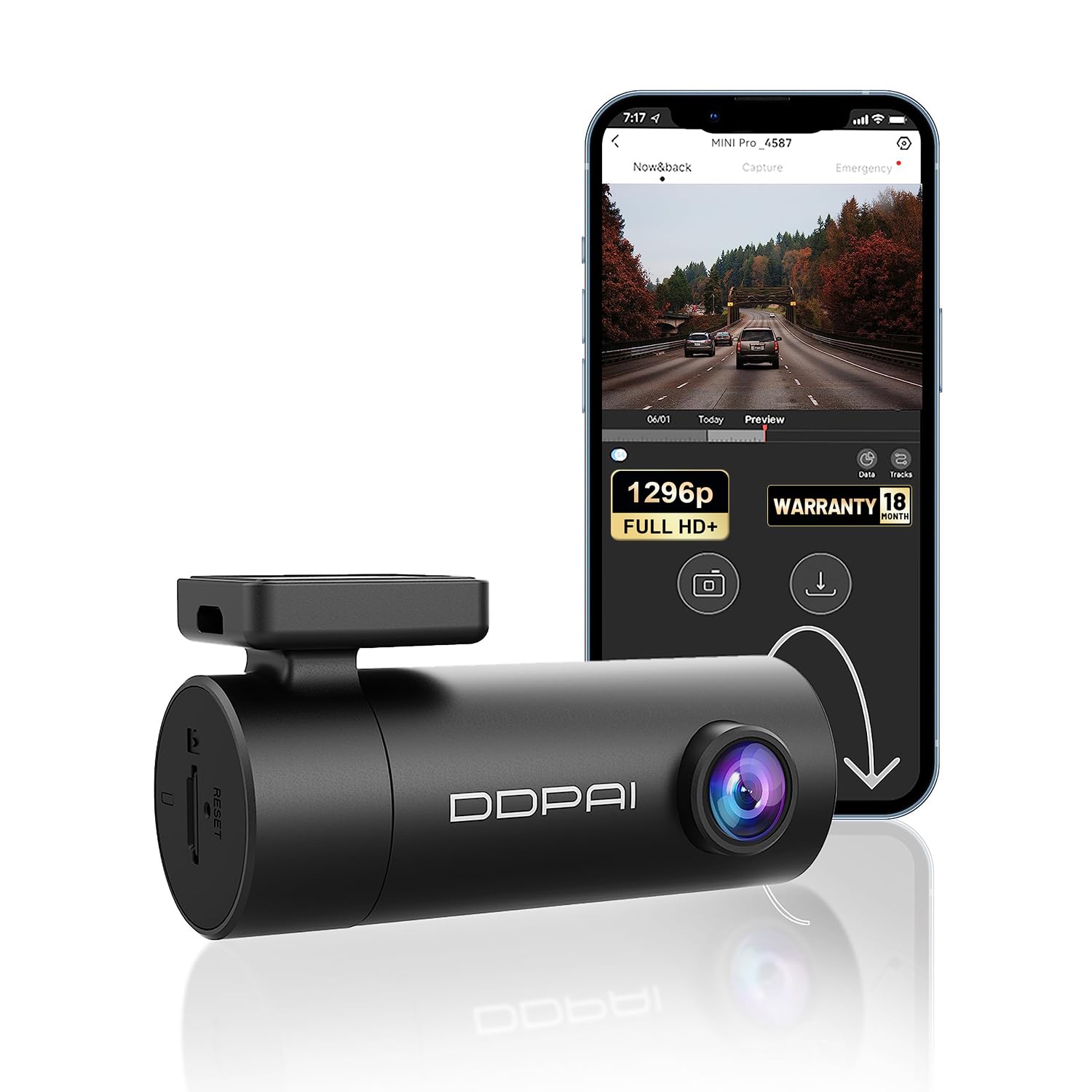
Image: Comparison showing the superior clarity of 1296P UHD resolution over 1080P, highlighting details like license plates.

בילד: דעטאַלירט view of the dash cam's lens system, emphasizing its Super Night Vision capabilities with 5 HD optical lenses and F2.0 aperture for enhanced low-light recording.

Image: The DDPAI MINI PRO Dash Cam showcasing its 330° rotatable lens, allowing for versatile recording angles inside or outside the car.

Image: A smartphone displaying the DDPAI app interface, connected to the dash cam via Wi-Fi, illustrating options to preview, share, and download footage.

Image: An illustration depicting two cars, with one highlighted to show the G-Sensor activating recording during an emergency event, ensuring critical footage איז געראַטעוועט.

Image: A visual representation of the Super Capacitor, emphasizing its benefits for better long-term storage, longer service life, and resilience in more extreme weather conditions.
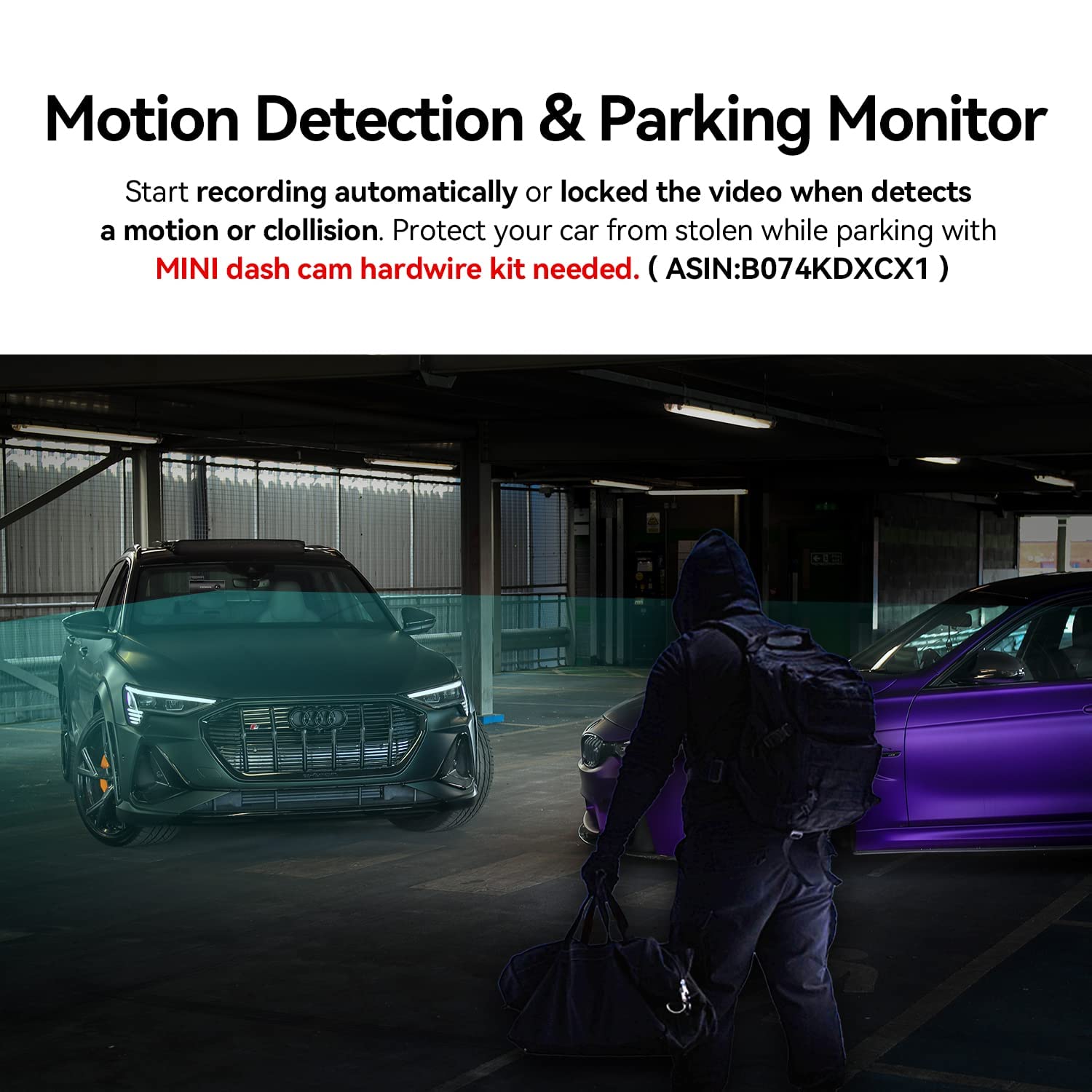
Image: A circular diagram showing the seamless loop recording process, where new footage overwrites the oldest files when the SD card is full, ensuring continuous recording.
3. פּעקל אינהאַלט
Ensure all items are present in the package before proceeding with installation:
- DDPAI MINI Pro Dash Cam
- עלעקטראָסטאַטיק סטיקער
- Power Supply Cable (9.84ft) with Car Charger
- 3M סטיקער (x2)
- ייַנמאָנטירונג טול
- User Manual Package Box

Image: A visual representation of the DDPAI MINI Pro Dash Cam and all its included accessories, such as the electrostatic sticker, power cable, 3M stickers, installation tool, and user manual.
4. אויפשטעלן און אינסטאַלירן
Follow these steps to properly install your DDPAI MINI PRO Dash Cam in your vehicle:
- צוטשעפּען דאַש קאַם: Securely attach the dash cam to the windshield using the provided 3M adhesive. Ensure it is placed in an optimal installation area, typically near the rearview mirror, to avoid obstructing your view.
- פאַרבינדן מאַכט קאַבלע: Connect the power cable to the dash cam.
- Hide the Wire: Carefully route and hide the power cable along the edges of the windshield and dashboard to maintain a tidy interior and prevent interference with driving.
- Plug into Power Socket: Plug the car charger into your vehicle's cigarette power socket.
Video: This tutorial demonstrates the step-by-step installation process for the DDPAI MINI PRO Dash Cam, including attaching the camera, connecting the power cable, hiding the wires, and plugging it into the car's power socket.
5. App Control & Operation
The DDPAI app provides full control over your dash cam. Follow these steps to connect and use the app:
- Download DDPAI App: Scan the QR code provided in the product packaging or search for "DDPAI" in the Google Play Store (Android) or Apple App Store (iOS) to download the app.
- Power On Dash Cam: Ensure your dash cam is powered on.
- געבן בלועטאָאָטה: קער אויף בלועטאָאָטה אויף דיין רירעוודיק טעלעפאָן.
- Launch App & Add Device: Open the DDPAI App and tap "+ Add a device". Select your dash cam's device name (e.g., DDPAI_N5Dual_XXXX) from the detected Bluetooth device list.
- Authorize Connection: Press the function button on the dash cam to authorize the connection.
- Wi-Fi קאַנעקשאַן: Follow the on-screen instructions to perform the Wi-Fi connection. Tap "Go to connection", navigate to WLAN settings, select your dash cam's Wi-Fi network, and paste the password directly into the edit box, then tap "Join".
- מיטל צובינד: Once connected, you can enter the "Device" interface to view the device album, set up device settings, or enter the preview צובינד.
- View דאַונלאָודיד Files: Tap "Local album" to view downloaded videos, photos, and emergency files.
- Preview צובינד: Tap on the area outlined by the dotted line on the device interface to enter the preview interface directly. Here you can preview לעבן פאָאָtage from the front or rear camera, take pictures, playback videos, download video files, און view data and tracks.
- מיטל סעטטינגס: Access device settings to adjust speaker volume, local voice control, ADAS intelligent assistant reminders, preview display, rear lens image flip, recording resolution, microphone recording, timestamp, display speed, and capture sensitivity.
Video: This tutorial guides you through connecting your DDPAI Dash Cam to the app via Bluetooth and Wi-Fi, and demonstrates various app functions including live preview, accessing recorded files, and adjusting device settings.
6. וישאַלט
To ensure optimal performance and longevity of your DDPAI MINI PRO Dash Cam, consider the following maintenance tips:
- ריין די לענס: Regularly clean the camera lens with a soft, lint-free cloth to ensure clear video recording. Avoid abrasive materials that could scratch the lens.
- טשעק SD קארטל: Periodically check the status of your SD card. Format the card monthly to prevent data corruption and ensure smooth loop recording. Replace the SD card if it shows signs of wear or error.
- Firmware דערהייַנטיקונגען: Keep the dash cam's firmware updated through the DDPAI app to benefit from new features and performance improvements.
- זיכער מאָונטינג: Ensure the dash cam remains securely mounted to the windshield. Re-apply the 3M adhesive if necessary to prevent vibrations that could affect video quality.
7. טראָובלעשאָאָטינג
If you encounter any issues with your DDPAI MINI PRO Dash Cam, refer to the following common troubleshooting steps:
- דאַש קאַם גייט נישט אָן:
- Check if the power cable is securely connected to both the dash cam and the car charger.
- Ensure the car charger is properly inserted into the cigarette power socket and the vehicle's ignition is on.
- Test the power socket with another device to confirm it is functional.
- אַפּ קשר ישוז:
- Verify that Bluetooth is enabled on your phone and the dash cam is powered on.
- Ensure you have selected the correct dash cam device in the DDPAI app.
- If Wi-Fi connection fails, double-check the Wi-Fi password.
- Restart both your phone and the dash cam, then try connecting again.
- נעבעך ווידעא קוואַליטעט:
- רייניקט די קאַמעראַ לענס צו באַזײַטיקן יעדן שמוץ אָדער פֿלעקן.
- זיכער מאַכן אַז די פּראַטעקטיוו פילם איז אַוועקגענומען געוואָרן פֿון דער לענס.
- Check the recording resolution settings in the DDPAI app; ensure it is set to 1296P for optimal quality.
- סד קאָרט ערראָרס:
- Format the SD card using the DDPAI app.
- Ensure you are using a high-speed (Class 10 or U3 recommended) and genuine SD card.
- If errors persist, try a different SD card.
8. ספּעסאַפאַקיישאַנז
| שטריך | באַשרייַבונג |
|---|---|
| סאָרט | DDPAI |
| מאָדעל נאָמען | Mini PRO |
| פּראָדוקט דימענשאַנז | 10 X 12 X 3 סענטימעטער |
| פּונקט וואָג | 300 ג |
| ווידעא קאַפּטורע רעסאָלוטיאָן | 1296 פּ |
| פאַקטיש Viewינג אַנגלע | 140 דיגריז |
| קאַנעקטיוויטי טעכנאָלאָגיע | ווי-פי |
| ספּעציעלע שטריך | אַפּ קאָנטראָל |
| קאַמפּאַטאַבאַל דעוויסעס | אויטאָ, טראָק, מאָטאָציקל |
| ווייַז טיפּ | לקד |
| באַטעריז אַרייַנגערעכנט | ניין |
| באַטעריז פארלאנגט | ניין |
| קאָנטראָל מעטאָד | אַפּ |
| קאָליר | שוואַרץ |
9. וואָראַנטי & שטיצן
DDPAI is committed to providing high-quality products and excellent customer service.
- וואָראַנטי: Your DDPAI MINI PRO Dash Cam comes with an 18-month warranty from the date of purchase. Please retain your proof of purchase for warranty claims.
- צוריקקער פּאָליטיק: A 7-day return policy is applicable for defects.
- קונה שטיצן: For any questions, technical assistance, or warranty inquiries, please contact our customer support team.
בליצפּאָסט: servicecenter@ddpai.com

Image: Details of DDPAI's after-sale service, including an 18-month warranty, 7-day return policy, and contact information for customer support.


