1. הקדמה
This user manual provides detailed instructions for the Bemi Cognita Tab 6+ E-Reader. Please read this manual carefully before using your device to ensure proper operation and to maximize your reading experience. Keep this manual for future reference.
1.1 פּעקל אינהאַלט
- Bemi Cognita Tab 6+ E-Reader
- וסב טשאַרדזשינג קאַבלע
זיכער מאַכן אַז אַלע זאכן זענען דאָ און אין גוטן צושטאַנד ביים אויספּאַקן די קעסטל.
2. דיווייס איבערview
Familiarize yourself with the physical components of your Bemi Cognita Tab 6+ E-Reader.

פיגורע 2.1: פראָנט view of the Bemi Cognita Tab 6+ E-Reader. The device features a 6-inch E-Ink display with the Bemi logo and model name visible. The screen is designed to mimic paper for a comfortable reading experience.

פיגורע 2.2: פראָנט און צוריק view of the Bemi Cognita Tab 6+ E-Reader. This image highlights the device's thin design and the textured back cover, which provides a secure grip.

פיגורע 2.3: זייַט view of the Bemi Cognita Tab 6+ E-Reader, illustrating the location of the power button and a small LED indicator. This button is used for turning the device on/off and waking it from sleep.
2.1 שליסל קאָמפּאָנענטן:
- 6-inch E-Ink Touchscreen: Glare-free display for comfortable reading.
- מאַכט קנעפּל: Located on the side for turning the device on/off and sleep/wake.
- וסב- C פּאָרט: פֿאַר טשאַרדזשינג און דאַטן אַריבערפירן.
- מיקראָסד קאָרט שפּעלטל: Expandable storage up to 256GB.
- Side Control Buttons: For page turning and navigation.
- SMARTlight: Adjustable front light for reading in various conditions.
3. סעטאַפּ
3.1 ערשט טשאַרדזשינג
Before first use, fully charge your Bemi Cognita Tab 6+ E-Reader. Connect the provided USB cable to the device's USB-C port and the other end to a compatible USB power adapter (not included) or a computer's USB port.
- א פולע אויפלאדונג נעמט געווענליך בערך 2-3 שעה.
- די טשאַרדזשינג אינדיקאַטאָר ליכט וועט ווייַזן דעם טשאַרדזשינג סטאַטוס.
3.2 פּאַוערינג אויף / אַוועק
- צו מאַכט אויף: Press and hold the Power button (refer to Figure 2.3) for a few seconds until the screen activates.
- צו מאַכט אַוועק: Press and hold the Power button until a power-off menu appears, then select "Power Off".
- צו שלאפן/אויפוואכן: Briefly press the Power button to put the device into sleep mode or wake it up.
3.3 ווי-פי קאַנעקשאַן
Connecting to Wi-Fi allows you to download books, transfer files, and access online services.
- From the home screen, tap the סעטטינגס בילדל.
- אויסקלייַבן ווי-פי.
- טויש דעם Wi-Fi סוויטש צו On.
- The device will scan for available networks. Select your desired network from the list.
- אַרייַן די פּאַראָל אויב געבעטן, און דאַן צאַפּן פאַרבינדן.
3.4 ערשט קאַנפיגיעריישאַן
Upon first power-on, you may be guided through initial setup steps, including language selection and time zone settings. Follow the on-screen prompts.
4. אַפּערייטינג ינסטרוקטיאָנס
4.1 נאַוויגירן דעם צובינד
The Bemi Cognita Tab 6+ features a touch-sensitive E-Ink screen and physical side buttons for navigation.
- ריר דזשעסטשערז: Tap to select, swipe to scroll, pinch to zoom (where supported).
- זייַט קנעפּלעך: Use the physical buttons on the side to turn pages forward or backward during reading.
- ג-סענסאָר: The device automatically rotates the screen orientation based on how you hold it, accommodating both right and left-handed users.
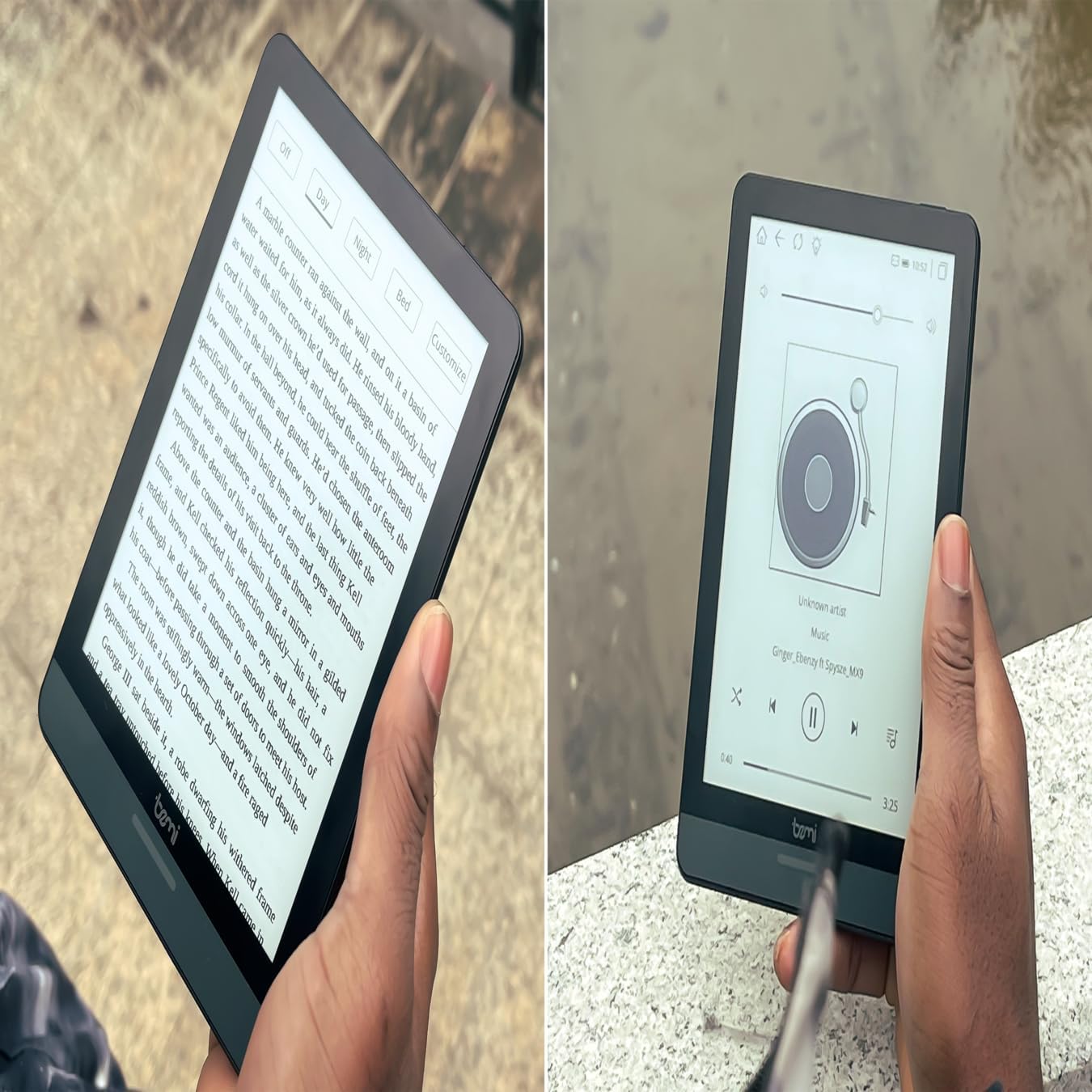
פיגורע 4.1: User holding the Bemi Cognita Tab 6+ E-Reader while reading. The image shows the clear text display on the E-Ink screen, highlighting the device's readability.
4.2 לייענען ביכער
To open and read a book:
- From the home screen, tap on the ביבליאָטעק or ביכער בילדל.
- Browse your collection or use the search function to find a book.
- Tap on the book cover to open it.
- Use the touch screen or side buttons to turn pages.
4.3 Adjusting SMARTlight
The SMARTlight feature allows you to adjust both the brightness and color temperature of the screen's front light.
- During reading, tap the center of the screen to bring up the reading menu.
- קוקן פֿאַר די ליכט or SMARTlight בילדל.
- Adjust the sliders for brightness (intensity) and color temperature (warm to cool) to your preference.
4.4 טראַנספערינג Files
You can transfer e-books and other supported files to your device via Wi-Fi or USB cable.
- דורך Wi-Fi: If your device supports cloud services or direct Wi-Fi transfer, follow the specific application instructions.
- דורך וסב קאַבלע:
- Connect your E-Reader to a computer using the provided USB cable.
- The device will appear as a removable storage drive on your computer.
- Drag and drop your desired files (e.g., EPUB, PDF, MOBI) into the appropriate folders on the E-Reader (e.g., "Books" folder).
- אַרויסוואַרפן דאָס דעווייס זיכער פֿון אייער קאָמפּיוטער איידער איר אָפּטיילט דעם קאַבל.
4.5 Using MicroSD Card
To expand storage, insert a microSD card (up to 256GB) into the designated slot.
- Gently insert the microSD card with the gold contacts facing down until it clicks into place.
- צו אַרויסנעמען, שטופּ די קאַרטל לײַכט אַרײַן ביז זי שפּרינגט אַרויס.
- Files on the microSD card will be accessible through the device's file manager or library.
5. וישאַלט
5.1 רייניקונג די מיטל
- ניצט אַ ווייכן, לינט-פֿרייע שטאָף צו זאַכט ווישן דעם עקראַן און קערפּער פֿון דעם אַפּאַראַט.
- פֿאַר שווערע פֿלעקן, אַ ביסל דampווישט דעם שטאָף מיט וואַסער אָדער אַ פאַרשטעלן רייניגער ספּעציעל דיזיינד פֿאַר עלעקטראָניק.
- פֿאַרמײַדן ניצן שטרענגע כעמיקאַלן, אַברייסיוו מאַטעריאַלן, אָדער איבערגעטריבענע פֿײַכטקייט.
5.2 באַטערי קער
- כדי צו פארלענגערן די לעבן פון די באַטעריע, זאָל מען נישט אָפט אויסלאָדן די באַטעריע גאָר.
- האַלט דעם אַפּאַראַט אין אַ קיל, טרוקן אָרט ווען נישט אין באַנוץ פֿאַר לענגערע פּעריאָדן.
- Charge the device regularly, even if not used, to prevent deep discharge.
5.3 סטאָרידזש
When not in use, store your E-Reader in a protective case to prevent scratches and damage to the screen.
6. טראָובלעשאָאָטינג
If you encounter issues with your Bemi Cognita Tab 6+, refer to the following common solutions:
| פּראָבלעם | לייזונג |
|---|---|
| די מיטל איז נישט קער אויף. | Ensure the battery is charged. Connect the device to a power source for at least 30 minutes. If it still doesn't turn on, try a hard reset by holding the power button for 10-15 seconds. |
| דער עקראַן איז פֿאַרפֿרוירן אָדער רעאַגירט נישט. | Perform a soft reset by holding the power button for 5-7 seconds until the device restarts. If the issue persists, try a hard reset. |
| קענען ניט פאַרבינדן צו ווי-פי. | Check if Wi-Fi is enabled in settings. Verify the Wi-Fi password. Restart your E-Reader and your Wi-Fi router. Ensure you are within range of the Wi-Fi signal. |
| Books are not appearing in the library. | פאַרזיכערן די files are in a supported format (e.g., EPUB, PDF). If transferred via USB, ensure they are in the correct folder. Try refreshing the library or restarting the device. |
| באַטאַרייע דריינז געשווינד. | Reduce screen brightness. Turn off Wi-Fi and Bluetooth when not in use. Close background applications. Ensure the device is not constantly searching for networks. |
7. ספּעסאַפאַקיישאַנז
| שטריך | דעטאַל |
|---|---|
| מאָדעל נאָמען | Bemi Cognita Tab 6+ |
| פאַרשטעלן גרייס | 6 Inches (E-Ink Carta, 1024x758, 212 ppi) |
| אינערלעכער זכּרון | 32 גיגאבייט |
| יקספּאַנדאַבאַל סטאָרידזש | MicroSD card slot, up to 256 GB |
| קאַנעקטיוויטי | ווי-פי, בלועטאָאָטה |
| אָפּערייטינג סיסטעם | אַנדרויד 8.1 |
| מענטש צובינד אַרייַנשרייַב | Touchscreen, Side Control Buttons |
| ספּעציעלע פֿעיִקייטן | Adjustable SMARTlight, G-Sensor for auto-rotation, Glare-Free & Eye-Friendly E-Ink Display |
| דימענסיעס (בעערעך) | 7 מם גרעב |
| אַרייַנגערעכנט קאַמפּאָונאַנץ | וסב קאַבלע |
8. וואָראַנטי און שטיצן
8.1 וואָראַנטי אינפֿאָרמאַציע
Your Bemi Cognita Tab 6+ E-Reader comes with a standard manufacturer's warranty. Please refer to the warranty card included in your product packaging or visit the official Bemi webזייטל פֿאַר דעטאַלירטע תּנאים און באַדינגונגען וועגן וואָראַנטי קאַווערידזש און געדויער.
אפציאָנעלע שוץ פלענער קענען זיין בנימצא פֿאַר פֿאַרלענגערטע קאַווערידזש. ביטע טשעק מיט דיין הענדלער פֿאַר פרטים.
8.2 קונה שטיצן
For technical assistance, troubleshooting beyond this manual, or warranty claims, please contact Bemi customer support:
- Webפּלאַץ: www.bemi-electronics.com
- בליצפּאָסט: Refer to the Bemi webוועבזייטל פֿאַר קאָנטאַקט אימעיל.
- טעלעפֿאָן: Refer to the Bemi website for contact phone numbers.
When contacting support, please have your device model (Cognita Tab 6+) and purchase information ready.


