1. הקדמה
This manual provides detailed instructions for the setup, operation, and maintenance of your Dierya M1 Wireless Gaming Mouse. Please read this manual thoroughly before using the product to ensure proper functionality and to maximize your user experience.

Figure 1: Dierya M1 Wireless Gaming Mouse and 2.4G USB Receiver.
2. פּראָדוקט פֿעיִקייטן
- 24,000 DPI אָפּטישער סענסאָר: Adjustable DPI range from 200 to 24,000, with 6 preset levels (400-6400 DPI). Features a 125-1000 Hz polling rate, 300 IPS tracking speed, and 35G acceleration.
- טריי-מאָד קאַנעקטיוויטי: Supports ultra-fast 2.4 GHz wireless (1000 Hz polling rate), energy-efficient Bluetooth 5.2 (125 Hz polling rate), and stable USB-C wired connection (1000 Hz polling rate).
- עקסטענדעד באַטאַרייע לעבן: Equipped with a 1000 mAh battery, providing up to 180 hours of use in ECO mode or 48 hours with RGB lighting enabled. Fully recharges in approximately 1 hour via USB-C. Includes an automatic power-saving mode after 1-5 minutes of inactivity.
- לייכט און ערגאָנאָמיש פּלאַן: Weighs 90g with a breathable honeycomb shell. Symmetrical design (125x63x41 mm) suitable for various grip styles.
- דוראַבאַל קאַמפּאָונאַנץ: Features Huano switches rated for 20 million clicks and 100% PTFE feet for smooth gliding.
- פּראָגראַממאַבלע קנעפּלעך: Six customizable buttons for macros and reassignments.
- דינאַמישע RGB לייטינג: 13 integrated dynamic RGB lighting effects with 16.8 million customizable colors.
- סיסטעם קאַמפּאַטאַבילאַטי: Compatible with Windows, macOS, Linux, and Chrome OS.
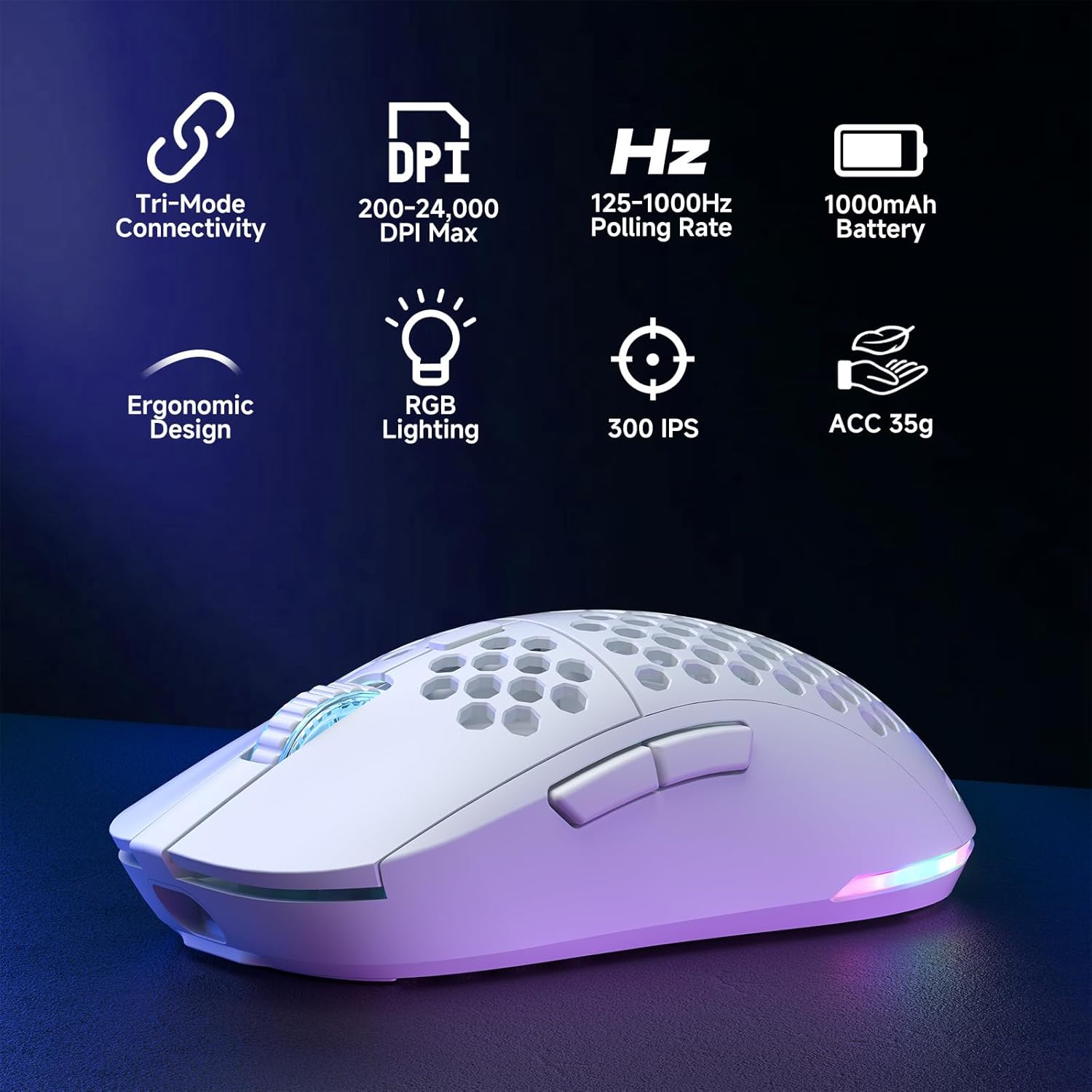
Figure 2: Key features of the Dierya M1 Wireless Gaming Mouse.
3. פּראָדוקט דיאַגראַמע און קאָמפּאָנענטן
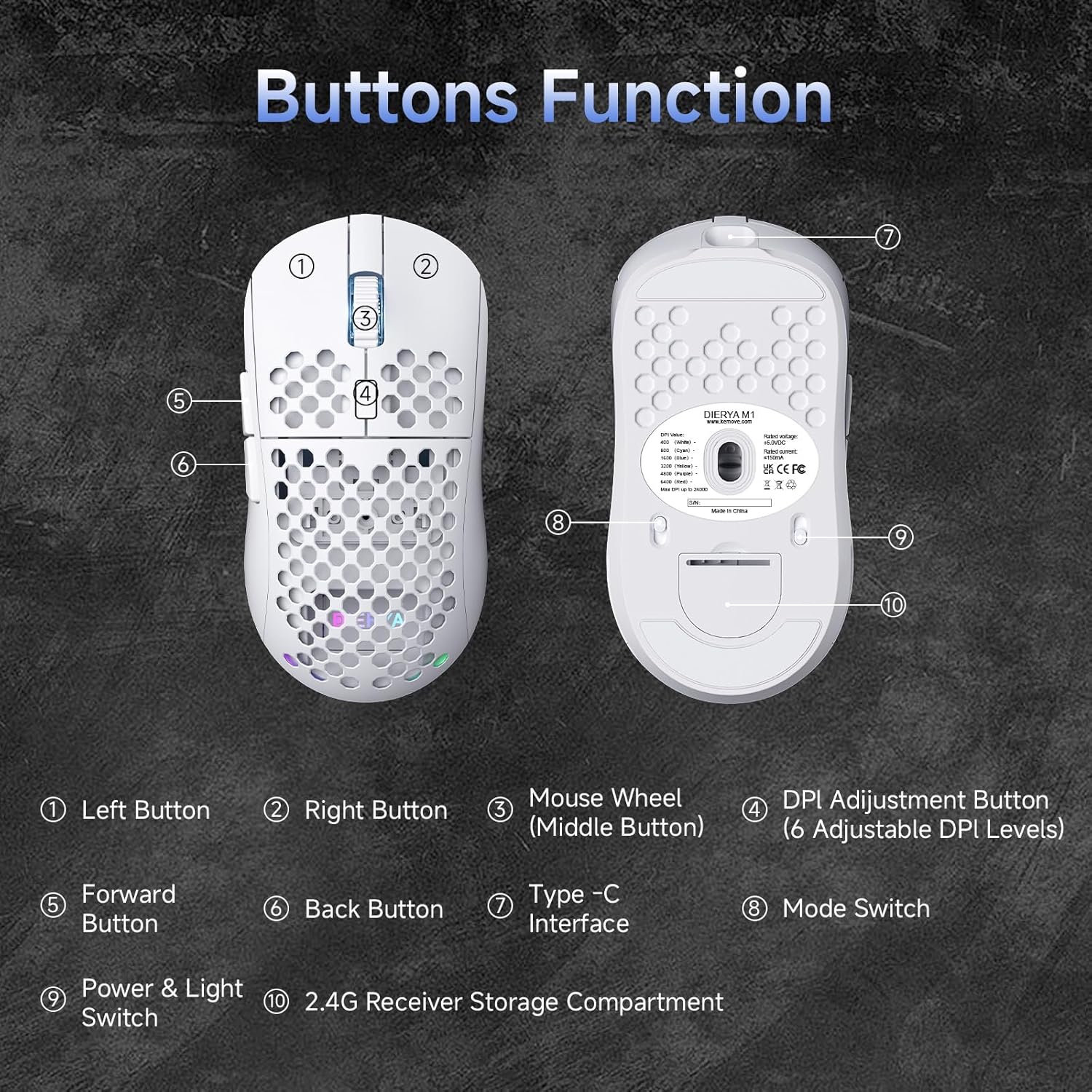
פיגורע 3: אויבן און דנאָ view of the Dierya M1 mouse with labeled components.
- לינקס קנעפּל
- רעכט קנעפּל
- Mouse Wheel (Middle Button)
- DPI Adjustment Button (6 Adjustable DPI Levels)
- פאָרויס קנעפּל
- צוריק קנעפּל
- טיפּ-C צובינד
- Mode Switch (2.4G / Bluetooth / Wired)
- Power & Light Switch
- 2.4G Receiver Storage Compartment
4. סעטאַפּ און קאַנעקשאַן
The Dierya M1 mouse offers three connection modes: 2.4 GHz Wireless, Bluetooth 5.2, and USB-C Wired.

פיגורע 4: איבערview פון די דריי פֿאַרבינדונג מאָדעס.
4.1. 2.4 GHz דראָטלאָזע פֿאַרבינדונג
- Locate the 2.4G USB receiver in the storage compartment on the bottom of the mouse.
- צאַפּן די וסב ופנעמער אין אַ בנימצא וסב פּאָרט אויף דיין קאָמפּיוטער.
- Set the mode switch on the bottom of the mouse to the '2.4G' position.
- די מויז זאָל זיך אויטאָמאַטיש פֿאַרבינדן.
4.2. בלועטוט 5.2 פֿאַרבינדונג
- Set the mode switch on the bottom of the mouse to the 'Bluetooth' position.
- אויף אייער קאָמפּיוטער אָדער מיטל, עפֿנט די בלועטוט סעטטינגס.
- זוכן פֿאַר new devices and select 'Dierya M1' from the list.
- גיי קיין פּראַמפּס אויף דעם עקראַן צו פאַרענדיקן דעם פּערינג פּראָצעס.
4.3. USB-C ווייערד קאַנעקשאַן
- Connect the provided USB-C cable to the Type-C interface on the front of the mouse.
- פֿאַרבינדט דעם אַנדערן עק פֿונעם USB-C קאַבל צו אַ פֿאַראַן USB פּאָרט אויף אײַער קאָמפּיוטער.
- Set the mode switch on the bottom of the mouse to the 'Wired' position.
- די מויז וועט פונקציאָנירן ווי אַ דראָטיקע מויז און וועט זיך אויפלאָדן סיימאַלטייניאַסלי.
5. אַפּערייטינג ינסטרוקטיאָנס
5.1. דפּי אַדזשאַסטמאַנט
The DPI Adjustment Button (4) on the top of the mouse allows you to cycle through preset DPI levels. Each DPI level is indicated by a specific color on the scroll wheel LED for a few seconds after adjustment.
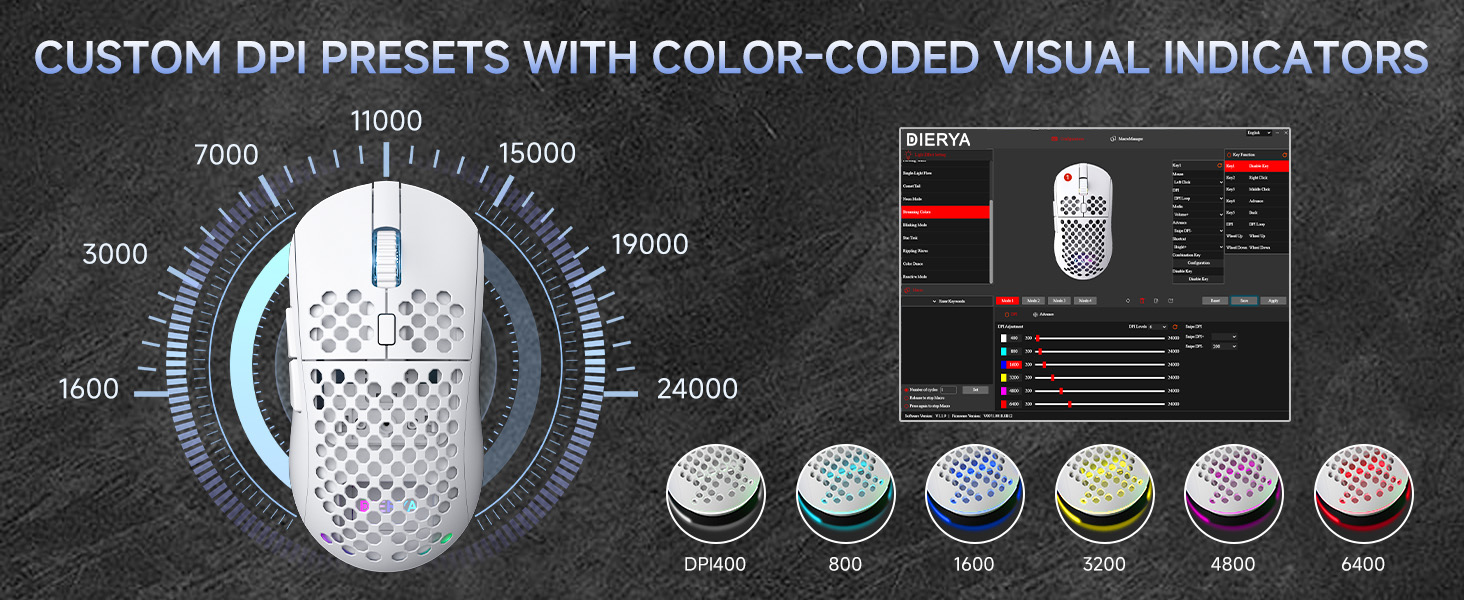
Figure 5: DPI levels and their corresponding scroll wheel LED colors.
- Press the DPI button to switch between 6 preset DPI levels.
- Default presets: 400 DPI (Red), 800 DPI (Green), 1600 DPI (Blue), 3200 DPI (Yellow), 4800 DPI (Purple), 6400 DPI (Cyan).
- For custom DPI settings and a wider range (200-24,000 DPI), use the M1 Driver Software (Windows only).
5.2. RGB לייטינג קאָנטראָל
The mouse features 13 dynamic RGB lighting effects. You can control the lighting directly on the mouse or customize it further with the software.
- To cycle through RGB effects: Press and hold the DPI Adjustment Button (4) for 3 seconds.
- To turn RGB lighting On/Off: Use the Power & Light Switch (9) on the bottom of the mouse.
- For advanced customization of colors and effects, use the M1 Driver Software (Windows only).
5.3. פּראָגראַמירבאַרע קנעפּלעך
The Dierya M1 has 6 programmable buttons (Left, Right, Middle, DPI, Forward, Back). These buttons can be customized for various functions, macros, or key reassignments using the M1 Driver Software.
6. Charging and Battery Management
The Dierya M1 mouse is equipped with a 1000 mAh rechargeable battery.

Figure 6: Charging the Dierya M1 mouse and battery life indicators.
- טשאַרדזשינג: Connect the mouse to your computer using the provided USB-C cable. The mouse will charge while in wired mode or when connected to a power source. A full charge takes approximately 1 hour.
- באַטאַרייע לעבן: Expect up to 180 hours of use in ECO mode (RGB off) and up to 48 hours with RGB lighting enabled.
- מאַכט שפּאָרן: The mouse automatically enters a power-saving sleep mode after 1-5 minutes of inactivity. This duration can be adjusted via the M1 Driver Software.
- נידעריק באַטערי ינדיקאַטאָר: The RGB lighting or a specific LED will indicate when the battery is low. Charge the mouse promptly to avoid interruption.
7. M1 Driver Software (Windows Only)
The M1 Driver Software allows for advanced customization of your mouse settings. This software is currently available for Windows operating systems only.

Figure 7: M1 Driver Software interface.
7.1. ווייכווארג פֿעיִקייטן
- שליסל אַסיינמאַנט: Customize the function of all 6 buttons.
- מאַקראָו עדיטאָר: שאַפֿן און צוטיילן קאָמפּלעקסע מאַקראָס.
- דפּי אַדזשאַסטמאַנט: Fine-tune DPI settings from 200 to 24,000 in increments.
- פּאָללינג קורס: Adjust the polling rate (125-1000 Hz).
- RGB קוסטאָמיזאַטיאָן: Personalize lighting effects, colors, and brightness.
- שלאָף צייט: Configure the automatic power-saving sleep mode duration.
- פּראָfile פאַרוואַלטונג: Save and load different profileס פֿאַר פֿאַרשידענע אַפּליקאַציעס אָדער שפּילערייַ.
7.2. ינסטאַלירונג
Download the latest M1 Driver Software from the official Dierya website. Follow the on-screen instructions to install the software on your Windows computer.
8. וישאַלט
- רייניקונג: ניצט אַ ווייכע, טרוקענע שטאָף צו רייניקן די מויז. פֿאַר שווערע שמוץ, אַ ביסל טרוקןamp מען קען ניצן אַ שטאָף, אַזוי אַז קיין פליסיקייט זאָל נישט אַרײַנגיין אין דער מויז.
- סטאָרידזש: האַלט די מויז אין אַ קיל, טרוקן אָרט אַוועק פון דירעקט זונשייַן און עקסטרעמע טעמפּעראַטורן.
- באַטערי זאָרגן: Avoid fully discharging the battery frequently. For long-term storage, charge the mouse to about 50% and store it in a cool, dry place.
9. טראָובלעשאָאָטינג
- מויז ענטפערט נישט:
- מאַכן זיכער אַז די מויז איז פּאַוערד אויף.
- Check the connection mode switch (2.4G, Bluetooth, Wired) is set correctly.
- פֿאַר 2.4G, זאָרגט אַז דער USB ופנעמער איז זיכער אײַנגעשטעקט.
- For Bluetooth, re-pair the device.
- Try connecting via USB-C cable to check if it works in wired mode.
- Charge the mouse; the battery might be depleted.
- פאַרהאַלטונג אָדער ינטערמיטאַנט פֿאַרבינדונג:
- Ensure the mouse is within range of the receiver/device (for wireless connections).
- רעדוצירן אריינמישונג פון אנדערע וויירלעס דעווייסעס.
- פאַרזיכערן די באַטאַרייע איז גענוג באפוילן.
- Update mouse drivers if available (Windows only).
- RGB לייטינג ארבעט נישט:
- Check the Power & Light Switch (9) on the bottom of the mouse.
- Ensure the mouse is not in ECO mode or a low-power state.
- If using the software, verify RGB settings.
- DPI אַדזשאַסטמענט אַרבעט נישט:
- Ensure you are pressing the correct DPI Adjustment Button (4).
- If using custom settings, check the M1 Driver Software.
10. ספּעסאַפאַקיישאַנז
| שטריך | באַשרייַבונג |
|---|---|
| סאָרט | דיעריאַ |
| מאָדעל נאָמען | M1 |
| קאָליר | ווייַס |
| קאַנעקטיוויטי טעכנאָלאָגיע | 2.4GHz ווירעלעס, בלועטוט 5.2, USB-C מיט ווייערס |
| סענסאָר טעכנאָלאָגיע | אָפּטיש |
| DPI קייט | 200 - 24,000 DPI |
| פּאָללינג קורס | 125-1000 הז |
| טראַקינג ספּיד | 300 יפּס |
| אַקסעלעריישאַן | 35G |
| נומער פון קנעפּלעך | 6 (פּראָגראַמירבאר) |
| סוויטשיז | Huano (20 Million Clicks) |
| פֿיס מאַטעריאַל | 100% פּטפע |
| באַטאַרייע קאַפּאַציטעט | 1000 mAh (ליטיום-יאָן) |
| באַטעריע לעבן (עקאָ מאָדע) | אַרויף צו 180 שעה |
| Battery Life (RGB Mode) | אַרויף צו 48 שעה |
| טשאַרדזשינג צייט | בעערעך. 1 שעה |
| וואָג | 90 גראַמז |
| דימענשאַנז | 125 X 63 X 41 מם |
| אַפּערייטינג סיסטעם קאַמפּאַטאַבילאַטי | Windows, macOS, Linux, Chrome OS |
11. וואָראַנטי און שטיצן
The Dierya M1 Wireless Gaming Mouse comes with a 1-יאָר פאַבריקאַנט וואָראַנטי. די וואָראַנטי קאָווערס חסרונות אין מאַטעריאַלס און ווערקמאַנשיפּ אונטער נאָרמאַל נוצן.
For warranty claims, technical support, or further inquiries, please contact Dierya customer service through the official website or your point of purchase. Please have your product model number (M1) and proof of purchase ready when contacting support.


