1. פּראָדוקט איבערview
The UGREEN USB AXE5400 WiFi 6E Adapter is designed to provide high-speed, stable wireless connectivity for your PC. Featuring tri-band technology (6GHz, 5GHz, and 2.4GHz), it ensures optimal performance for various online activities, from 8K streaming to gaming. Its high-gain adjustable antennas and included extension cable enhance signal penetration and coverage, while WPA3-SAE encryption offers robust network security. This adapter is compatible with Windows 10 and Windows 11 operating systems.

Image: UGREEN USB AXE5400 WiFi 6E Adapter with its dual antennas extended, showcasinג זײַן קאָמפּאַקטן דיזײַן.
2. סעטאַפּ גייד
Follow these steps to install and set up your UGREEN USB AXE5400 WiFi 6E Adapter:
2.1 ייַזנוואַרג ינסטאַלירונג
- פאַרבינדן די אַדאַפּטער: Insert the UGREEN USB AXE5400 WiFi 6E adapter into an available USB 3.0 port on your computer. For optimal signal reception, use the included 1-meter extension cable to position the adapter in an area with better signal strength. Adjust the antennas to a vertical position or angle them for best performance.

Image: The UGREEN USB AXE5400 WiFi 6E Adapter connected to a laptop via its extension cable, with antennas adjusted for optimal signal.
2.2 Driver Installation (Windows 10/11)
The driver software for Windows 10/11 is preloaded on the Wi-Fi 6E USB adapter, eliminating the need for a CD-ROM drive or manual download from a webפּלאַץ. גיי די סטעפּס:
- אויטאָמאַטישע דרייווער אינסטאַלאַציע: Once the adapter is connected, a pop-up notification should appear in the bottom right corner of your screen. Click on this notification to initiate the driver installation. The system will automatically install the necessary drivers.
- Manual Driver Installation (if pop-up doesn't appear): If the pop-up does not appear, open "This PC" or "My Computer" and locate the drive associated with the adapter (it may appear as a CD Drive). Double-click the executable file (e.g., "WiFiAutoInstallSetupU353.exe" or similar) to run the driver installer.
- גאַנץ ינסטאַלירונג: Follow the on-screen prompts to complete the driver installation. This process typically takes a few minutes.
- ריסטאַרט דיין קאָמפּיוטער: After the driver is successfully installed, restart your computer to ensure all changes take effect.
2.3 פֿאַרבינדן זיך צו Wi-Fi נעץ
After restarting your computer, you can connect to your Wi-Fi network:
- צוטריט נעץ סעטטינגס: Click the network icon (usually a Wi-Fi symbol) in the lower right corner of your desktop (taskbar).
- אויסקלייַבן נעץ: From the list of available networks, select the Wi-Fi network you wish to connect to.
- אַרייַן פּאַראָל: Enter the network security key (Wi-Fi password) when prompted, then click "Next" or "Connect".
- פֿאַרבונדן: Your computer should now connect to the Wi-Fi network. The network status will update to "Connected".
2.4 Setup Videos
Driver Installation and Wi-Fi Connection Guide
Video: A step-by-step guide demonstrating how to connect the WiFi6 USB adapter, download and install drivers from the official website, and connect to a Wi-Fi network on a Windows PC.
UGREEN AX1800 USB WiFi 6 Adapter Setup Overview
ווידעא: אן איבערview of the UGREEN AX1800 USB WiFi 6 Adapter, highlighting its easy setup, dual-band adaptive switching, and stable performance. Note: This video is for a similar UGREEN product (AX1800) but demonstrates general setup ease.
BrosTrend BE6500 Wi-Fi 7 USB Adapter Setup Guide
Video: A setup guide for a BrosTrend Wi-Fi 7 USB adapter, showing how to connect the adapter, install preloaded drivers, and connect to a Wi-Fi network. The process is similar to the UGREEN AXE5400 adapter.
3. אָפּעראַציע
The UGREEN USB AXE5400 WiFi 6E Adapter provides advanced features for an enhanced wireless experience:
3.1 Tri-Band Connectivity
This adapter supports three distinct frequency bands:
- 6GHz באַנד: Offers ultra-low latency and superior anti-interference with a massive 160MHz bandwidth, ideal for VR, 8K streaming, and high-performance gaming.
- 5GHz באַנד: Provides high speeds up to 2402Mbps, suitable for demanding tasks like HD video streaming and online gaming.
- 2.4GHz באַנד: Delivers speeds up to 574Mbps, excellent for general internet use, web browsing, and connecting devices over longer distances.
The adapter intelligently switches between these bands to maintain a consistently high-speed and stable connection based on network conditions and device requirements.
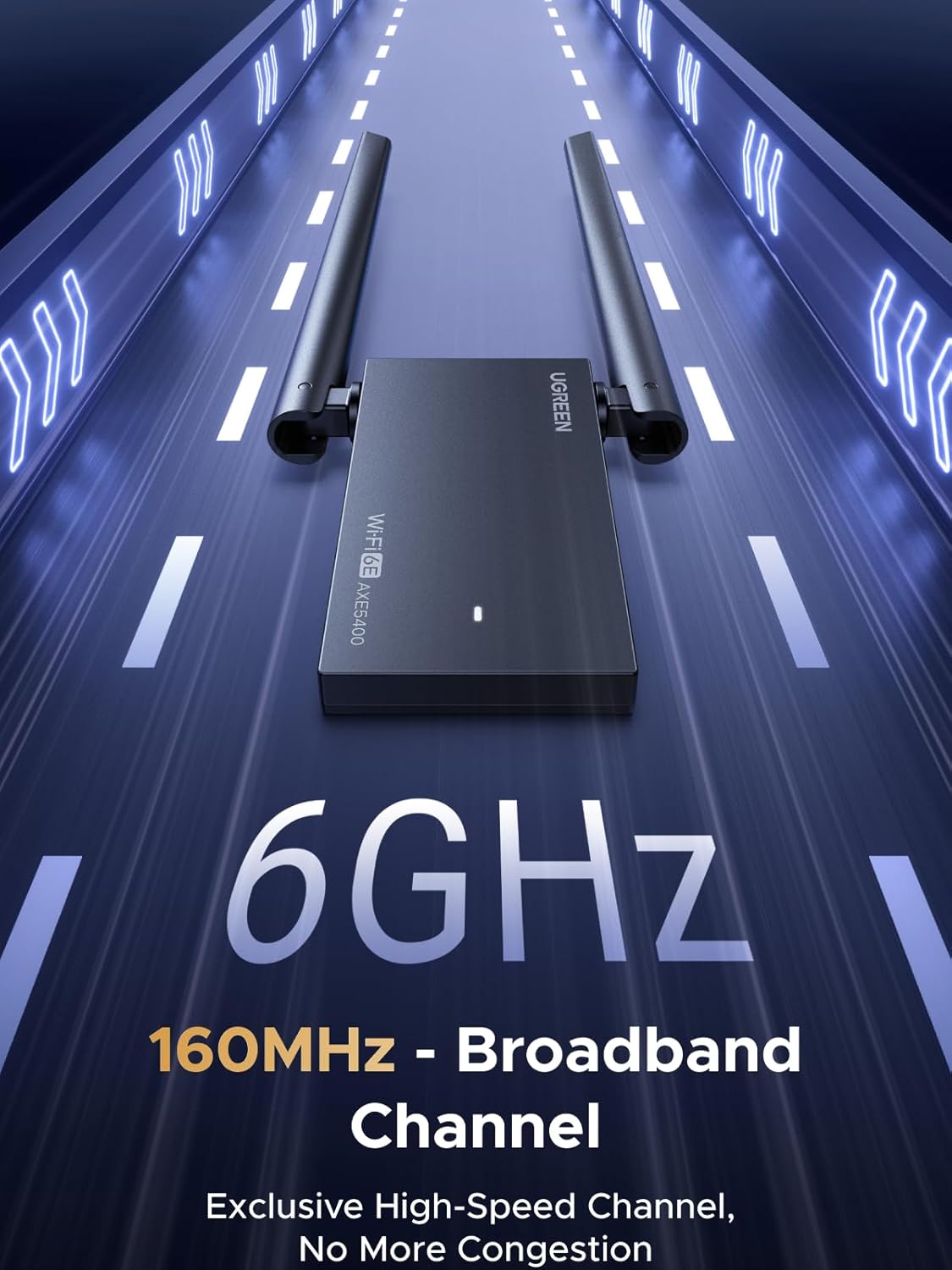
Image: The UGREEN USB AXE5400 WiFi 6E Adapter emphasizing its 6GHz 160MHz broadband channel for high-speed, low-congestion connectivity.

Image: Visual representation of the adapter's performance, showing smooth 8K streaming and low-latency gaming experiences.
3.2 וסב 3.0 צובינד
The adapter utilizes a USB 3.0 interface, supporting 5Gbps high-speed transmission. This ensures efficient handling of large file downloads and instant connections, maximizing your network's potential.
3.3 Enhanced Signal and Coverage
Equipped with high-gain adjustable Wi-Fi antennas and a 1-meter extension cable, the adapter allows for flexible placement to achieve the best signal. You can freely adjust the antenna angles to optimize signal strength and improve penetration through walls, ensuring comprehensive coverage throughout your home or office.

Image: A diagram illustrating how the high-gain dual antennas improve signal penetration and coverage across different rooms.
3.4 WPA3 Security
The UGREEN AXE5400 supports advanced WPA3-SAE encryption technology. This provides secure network connectivity, effectively resisting network threats and ensuring the absolute safety of your sensitive data and privacy.

Image: A graphic depicting the WPA3-SAE "Super Shield" feature, highlighting its role in protecting Wi-Fi security, preventing file transfer leakage, and ensuring payment security.
3.5 קאַמפּאַטאַבילאַטי
This USB Wi-Fi adapter is exclusively compatible with Windows 10 and Windows 11 operating systems. It does not support macOS, Linux, or older Windows versions (Windows 8/8.1/7/XP).
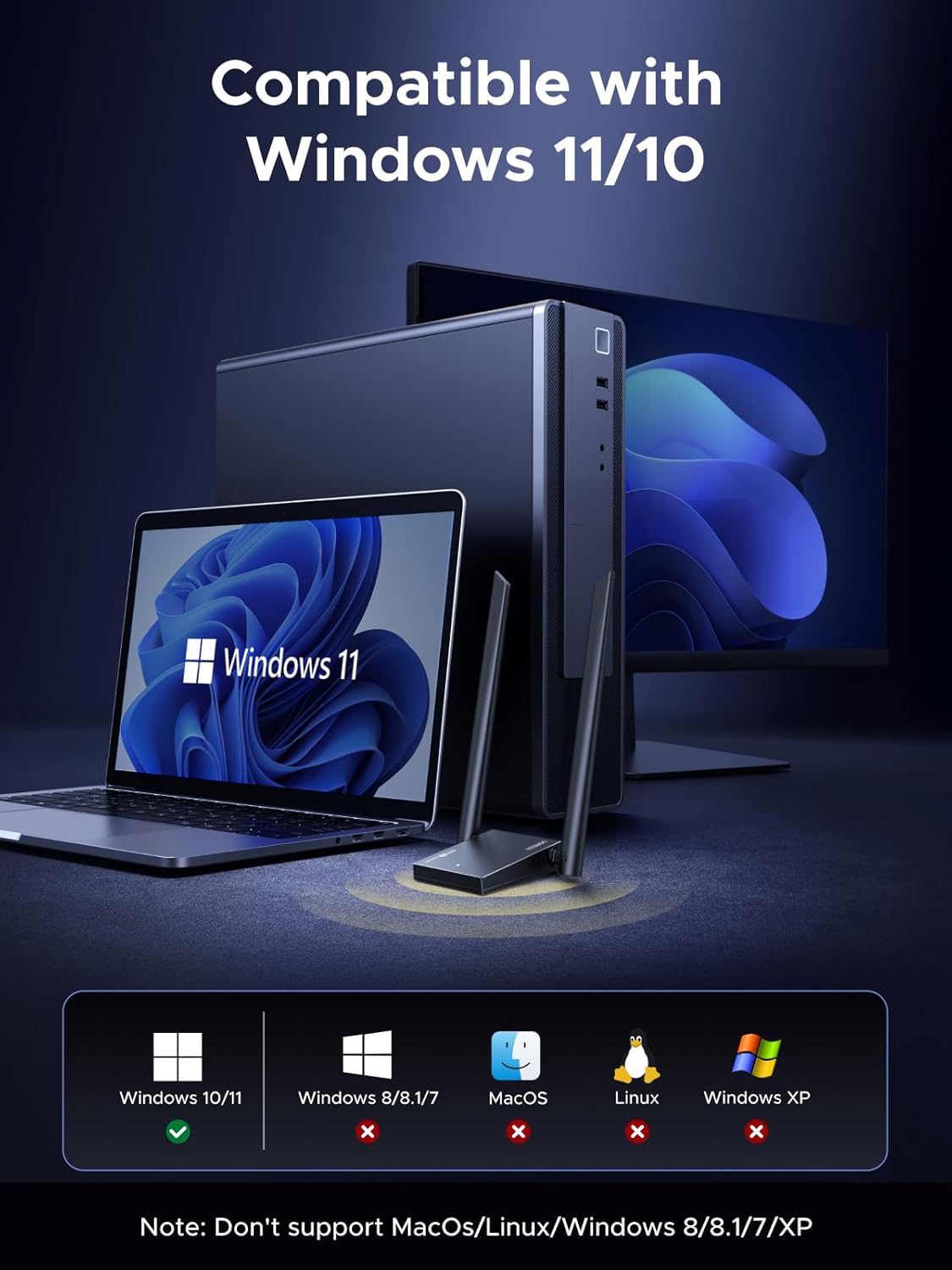
Image: A visual representation confirming the adapter's compatibility with Windows 11 and Windows 10, while explicitly stating non-compatibility with other operating systems.
4. וישאַלט
To ensure the longevity and optimal performance of your UGREEN USB AXE5400 WiFi 6E Adapter, consider the following maintenance tips:
- האַלטן דריווערס דערהייַנטיקט: טשעקט פּעריִאָדיש דעם UGREEN באַאַמטער webזייטל פֿאַר די לעצטע דרייווער דערהייַנטיקונגען צו ענשור קאַמפּאַטאַבילאַטי און פאָרשטעלונג פֿאַרבעסערונגען.
- געהעריק אָרט: Avoid placing the adapter in enclosed spaces or near heat sources to prevent overheating. Ensure adequate airflow around the device.
- ריין דזשענטלי: ניצט אַ ווייכע, טרוקענע שטאָף צו רייניקן דעם אַדאַפּטער. פֿאַרמייַדט ניצן פֿליסיקע רייניגער אָדער אַברייסיוו מאַטעריאַלן.
- באַשיצן פון גשמיות שעדיקן: Handle the adapter with care. Avoid dropping it or subjecting it to excessive force, which could damage the internal components or antennas.
- זיכער קשר: Ensure the USB connection is secure and free from dust or debris.
5. טראָובלעשאָאָטינג
If you encounter issues with your UGREEN USB AXE5400 WiFi 6E Adapter, try the following troubleshooting steps:
- קיין Wi-Fi פֿאַרבינדונג:
- זיכער מאַכן אַז דער אַדאַפּטער איז זיכער אַרייַנגעשטעקט אין אַ USB 3.0 פּאָרט.
- Verify that the drivers are correctly installed (check Device Manager). Reinstall if necessary.
- Check if Wi-Fi is enabled in your computer's network settings.
- ריסטאַרט דיין קאָמפּיוטער און ראַוטער.
- סלאָו ספּידז:
- Ensure you are connected to the 6GHz or 5GHz band for optimal speed, if your router supports it.
- Adjust the adapter's antennas and reposition the adapter using the extension cable to improve signal strength.
- קוק פֿאַר ינטערפיראַנס פון אנדערע עלעקטראָניש דעוויסעס.
- Update your router's firmware and adapter drivers to the latest versions.
- Perform a speed test to confirm actual speeds.
- אָפטע דיסקאַנעקשאַנז:
- Ensure the adapter is not too far from your Wi-Fi router.
- Check for physical obstructions that might be blocking the signal.
- Verify that your router's channels are not congested (you might need to change channels in your router settings).
- Disable any power-saving features for the USB port in Device Manager.
- אַדאַפּטער נישט דערקענט:
- פרובירט אריינצושטעקן דעם אדאפטער אין אן אנדערן USB פארט.
- Check Device Manager for any unknown devices or devices with error symbols.
- Reinstall the drivers as described in the Setup Guide.
6. ספּעסאַפאַקיישאַנז
| שטריך | דעטאַל |
|---|---|
| סאָרט | UGREEN |
| מאָדעל | 75917 |
| ייַזנוואַרג צובינד | וסב 3.0 |
| דאַטאַ אַריבערפירן קורס | 2400 Megabits Per Second (Total AXE5400: 6GHz 2402Mbps + 5GHz 2402Mbps + 2.4G 574Mbps) |
| דאַטאַ לינק פּראָטאָקאָל | וסב |
| קאַמפּאַטאַבאַל דעוויסעס | דעסקטאָפּ, לאַפּטאָפּ |
| קאַמפּאַטאַבאַל אַפּערייטינג סיסטעם | Windows 10, Windows 11 (6GHz band requires Windows 11) |
| אַנטענע טיפּ | High-gain adjustable dual antennas |
| זיכערהייט פּראָטאָקאָל | WPA3-SAE |
| געשפּרייט קאַבלע | 1-meter included |
| קאָליר | שוואַרץ |
| פּעקל דימענשאַנז | 22.9 רענטגענ 11.1 רענטגענ 2.9 סענטימעטער; 190 ג |
7. וואָראַנטי & שטיצן
For detailed warranty information and technical support, please refer to the official UGREEN webזייטל אדער קאנטאקט זייער קאסטומער סערוויס גלייך. האלט אייער קויף קוויטל פאר גאראנטיע טענות.


