1. פּראָדוקט איבערview
The Thunderobot Storm 15 4050 is a high-performance gaming laptop designed for demanding applications and immersive gaming experiences. It features a 15.6-inch Full HD display with a 165Hz refresh rate, an Intel Core i7-13620H processor, and NVIDIA GeForce RTX 4050 graphics. This laptop is equipped with 32GB DDR4 RAM and a 1TB PCIe M.2 SSD for fast boot times and efficient multitasking.
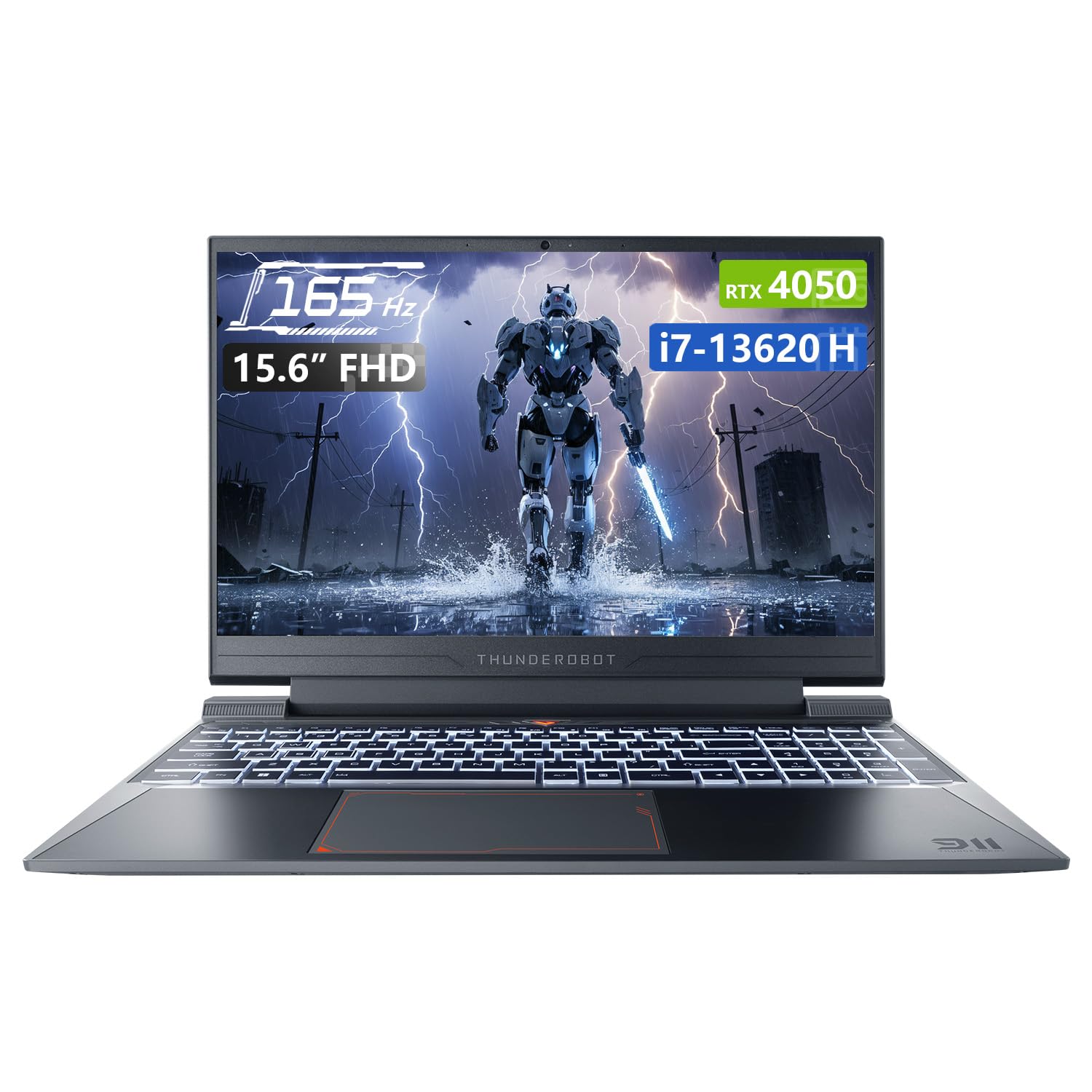
Image: Thunderobot Storm 15 4050 Gaming Laptop, front view with screen on.
שליסל פֿעיִקייטן:
- הויך-גיכקייט זכּרון און סטאָרידזש: 32GB DDR4 RAM and 1TB PCIe M.2 SSD for quick boot times and seamless multitasking.
- שטאַרק פאָרשטעלונג: Intel Core i7-13620H processor and NVIDIA GeForce RTX 4050 GPU for fast processing and stunning visuals.
- 165Hz FHD Display: 15.6-inch screen with a 165Hz refresh rate for ultra-smooth motion and clear visuals.
- עפעקטיוו קאָאָלינג סיסטעם: Frost Cooling System with dual heat pipes, an 80-blade turbine fan, and 126 copper fins for stable performance.
- קאַנעקטיוויטי: USB-A, USB-C, HDMI, RJ-45, and Wi-Fi for comprehensive peripheral support.
- באַקלייט קלאַוויאַטור: RGB backlit keyboard with a numeric pad for enhanced usability.

Image: Diagram illustrating the performance capabilities of the RTX 4050 GPU and Intel Core i7-13620H CPU.
2. סעטאַפּ גייד
2.1 אויספּאַקן דעם קעסטל און ערשטן איינשטראָם
- פֿאָרזיכטיק אַרויסנעמען דעם לאַפּטאָפּ און אַלע אַקסעסאָריעס פֿון דער פּאַקאַדזשינג.
- פֿאַרבינדט דעם מאַכט אַדאַפּטער צום לאַפּטאַפּ'ס מאַכט אַרייַנגאַנג פּאָרט און דערנאָך צו אַ מאַכט ווענטיל.
- עפֿנט דעם דעקל פֿונעם לאַפּטאָפּ און דריק דעם "פּאַוער" קנעפּל, וואָס געפֿינט זיך געוויינטלעך העכער דער קלאַוויאַטור אָדער אויף דער זײַט.
- פֿאָלגט די אינסטרוקציעס אויף דעם עקראַן צו פֿאַרענדיקן די ערשטע Windows 11 Home סעטאַפּ.
2.2 קאַנעקטינג פּעריפעראַלס
The Thunderobot Storm 15 offers various ports for connecting external devices.

Image: Diagram showing the various ports and slots on the Thunderobot Storm 15 laptop.
- USB דעוויסעס: Connect external mice, keyboards, or storage devices to the available USB 3.1 Type-A or USB 3.1 Gen 2 Type-C ports.
- פונדרויסנדיק ווייַז: ניצט דעם HDMI פּאָרט צו פאַרבינדן אַן עקסטערנעם מאָניטאָר אָדער טעלעוויזיע.
- נעץ קאַנעקשאַן: For a stable wired internet connection, plug an Ethernet cable into the RJ-45 Ethernet port.
- אַודיאָ: Connect headphones or external speakers to the 3.5mm Combo Audio Jack.
3. אַפּערייטינג ינסטרוקטיאָנס
3.1 מאַכט מאַנאַגעמענט
- מאַכט אויף: דרוק די מאַכט קנעפּל.
- שלאָפן מאָדע: מאַכט צו דעם דעקל אָדער סעלעקטירט 'שלאָף' פֿון די ווינדאָוז סטאַרט מעניו.
- שאַט אַראָפּ: אויסקלייבן 'אויסשליסן' פון די ווינדאָוס סטאַרט מעניו.
- ריסטאַרט: אויסקלייבן 'ריסטאַרט' פֿון די ווינדאָוס סטאַרט מעניו.
3.2 קלאַוויאַטור פאַנגקשאַנז
The laptop features a full-size backlit keyboard with a numeric pad.

בילד: נאָענט-אַרויף view of the Thunderobot Storm 15's full-size backlit keyboard.
- באַקלייט קאָנטראָל: Use the dedicated function keys (Fn + [key]) to adjust keyboard backlight brightness or toggle it on/off.
- נומעריק בלאַט: The integrated numeric pad allows for efficient data entry.
- פֿונקציע קיז: Utilize the Fn key in combination with F1-F12 for various system controls like volume, screen brightness, and Wi-Fi toggle.
3.3 ווייַז סעטטינגס
The 15.6-inch FHD display supports a 165Hz refresh rate.

Image: The 15.6-inch FHD 165Hz display of the Thunderobot Storm 15 laptop.
- דערפרישן קורס: To ensure optimal gaming performance, verify the display refresh rate is set to 165Hz in Windows Display Settings.
- ברייטקייט: Adjust screen brightness using the dedicated function keys or through Windows Display Settings.
3.4 אַודיאָ סעטטינגס
The laptop features professional sound certification and high-specification speakers.

Image: Laptop displaying sound waves, indicating wide range audio capabilities.
- באַנד קאָנטראָל: Adjust volume using the function keys or the Windows volume mixer.
- פונדרויסנדיק אַודיאָ: Connect headphones or external speakers to the 3.5mm combo jack for private listening or enhanced audio output.
3.5 Using the Control Center
The Control Center software allows you to customize performance modes, fan speed, and lighting settings.

Image: Screenshots of the Thunderobot Control Center interface, showing performance modes, fan adjustment, and lighting settings.
- פאָרשטעלונג מאָדעס: Switch between 'Berserk mode' (full performance), 'Game mode' (speed and smooth), and 'Audio and video office' (battery life optimized) based on your needs.
- פאָכער אַדזשאַסטמאַנט: Manually adjust fan speeds for optimal cooling or quieter operation.
- לייטינג סעטטינגס: Customize the RGB keyboard backlight effects and colors.
- באַמערקונג: System mode switching in Control Center requires the device to be connected to a power source.
4. וישאַלט
4.1 רייניקן דעם לאַפּטאָפּ
- פאַרשטעלן: ניצן אַ ווייך, לינט-פֿרייַ שטאָף לייטלי דampגעוואשן מיט וואַסער אָדער אַ פאַרשטעלן רייניגער. פֿאַרמייַדן שטרענגע כעמיקאַליעס.
- קלאַוויאַטור און שאַסי: Use a soft cloth to wipe surfaces. A can of compressed air can remove dust from between keys and vents.
- ווענץ: Regularly check and clean the cooling vents to prevent dust buildup, which can hinder airflow and lead to overheating.

Image: Diagram illustrating the highly efficient air cooling system of the Thunderobot Storm 15.
4.2 ווייכווארג און דרייווער דערהייַנטיקונגען
- ווינדאָוס דערהייַנטיקונגען: קאָנטראָלירט רעגולער פֿאַר און אינסטאַלירט ווינדאָוז דערהייַנטיקונגען צו ענשור סיסטעם פעסטקייט און זיכערהייט.
- דרייווער דערהייַנטיקונגען: Keep graphics drivers (NVIDIA) and other system drivers updated for optimal performance and compatibility. Visit the Thunderobot support webוועבזייטל אדער NVIDIA'ס אפיציעלע webפּלאַץ פֿאַר די לעצטע דריווערס.
4.3 באַטערי קער
- פֿאַרמײַדט אָפֿט גאָר אויסצולאָדן די באַטעריע.
- האַלט דעם לאַפּטאָפּ אין אַ קיל, טרוקן אָרט אויב עס ווערט נישט גענוצט פֿאַר לענגערע צייטן.
- For prolonged use while plugged in, consider using battery management software (if available) to limit charging to 80% to extend battery lifespan.
5. טראָובלעשאָאָטינג
5.1 קיין מאַכט / טוט זיך נישט אָן
- זיכער מאַכן אַז דער מאַכט אַדאַפּטער איז זיכער פארבונדן צו ביידע דעם לאַפּטאַפּ און אַ אַרבעטנדיקן מאַכט ווענטיל.
- באַשטעטיקן אַז די עלעקטרישע ווענטיל אַרבעט דורך אַרײַנשטעקן אַן אַנדער דעוויס.
- If the battery is completely drained, allow the laptop to charge for at least 15-30 minutes before attempting to power it on.
5.2 ווייַז ישוז
- בלאַנק פאַרשטעלן: Try connecting an external monitor to check if the issue is with the laptop's display or the graphics card.
- פליקערנדיק/פארדרייטע בילד: דערהייַנטיקט אייערע גראַפיק דרייווערס. אַדזשאַסטירט די דיספּליי רעפרעש קורס אין די ווינדאָוז סעטטינגס.
- טונקל פאַרשטעלן: Adjust brightness using function keys or Windows settings.
5.3 פאָרשטעלונג פאַרהאַלטונג
- Check the Control Center to ensure the laptop is in an appropriate performance mode (e.g., 'Game mode' or 'Berserk mode') when running demanding applications.
- נאָענט ומנייטיק הינטערגרונט אַפּלאַקיישאַנז.
- Ensure the cooling vents are clear and the laptop is not overheating.
- Update drivers, especially graphics drivers.
5.4 פּראָבלעמען מיט אַודיאָ
- Check volume levels in Windows and ensure speakers are not muted.
- Verify that the correct audio output device is selected in Windows Sound Settings.
- דערהייַנטיקן אַודיאָ דרייווערס.
- If using external audio devices, ensure they are properly connected.
6. ספּעסאַפאַקיישאַנז
| שטריך | באַשרייַבונג |
|---|---|
| מאָדעל נאָמען | שטורעם 15 |
| פאַרשטעלן גרייס | 15.6 אינטשעס |
| פאַרשטעלן האַכלאָטע | 1920 x 1080 פּיקסעלס (FHD) |
| מאַקסימום סקרין האַכלאָטע | 1920x1080 פּיקסעלס |
| פּראַסעסער | אינטעל קאָר i7-13620H (4.9 GHz) |
| באַראַן | 32 גיגאבייט DDR4 (3200 מעגהערץ) |
| שווער דרייוו | 1 טב פּיסי-איי-סי-עי עם.2 ססד |
| גראַפיקס קאָופּראַסעסער | NVIDIA GeForce RTX 4050 לאַפּטאַפּ גפּו |
| אָפּערייטינג סיסטעם | Windows 11 היים |
| ווירעלעסס טיפּ | 801.11ac (Wi-Fi) |
| וסב 3.0 פּאָרץ | 3 |
| ספּעציעלע שטריך | Backlit Keyboard, Numeric Keypad |
| פּונקט וואָג | 12 פונט |
| פּראָדוקט דימענשאַנז | 14.12 X 10.14 X 0.94 אינטשעס |
7. וואָראַנטי און שטיצן
יעדער טאַנדעראָבאָט לאַפּטאַפּ כולל אַ 12-חודש וואָראַנטי, offering expert support, thorough diagnostics, and genuine parts if a repair is needed. Additionally, a 90-טאָג וואָראַנטי ווערט צוגעשטעלט אויף אלע גאראנטיע פארטרעטער טיילן, וואס גאראנטירט א פראבלעם-פרייע פארריכטונגען. אייער פולשטענדיגע צופרידנהייט איז אונזער צוזאג.

Image: Graphic detailing Thunderobot's warranty and service commitment.
For technical support, warranty claims, or further assistance, please visit the official Thunderobot support webפּלאַץ אָדער קאָנטאַקט זייער קונה דינסט.