1. הקדמה
די שווארצעview Tab20WIFI is a 10.1-inch Android 15 tablet designed for versatile use, from entertainment to productivity. It features a vibrant HD+ IPS display, a powerful quad-core processor, and ample storage with expansion capabilities. This manual provides essential information for setting up, operating, maintaining, and troubleshooting your device.

די שווארצעview Tab20WIFI tablet offers a 10.1-inch display, WiFi 5 connectivity, Android 15, 12GB RAM + 64GB storage, a 6600mAh battery, and Widevine L1 support.
2. סעטאַפּ
2.1 פּעקל אינהאַלט
איידער איר הייבט אן, זיכערט זיך אז אלע זאכן זענען פאראן אין פעקל:
- שוואַרץview Tab20WIFI Tablet
- טיפּ- C וסב קאַבלע
- 10 וו מאַכט אַדאַפּטער
- עקראַן פּראָטעקטאָר (פאַר-אַפּליקירט אָדער אַרייַנגערעכנט)
- פּראַטעקטיוו קאַסע
- באַניצער מאַנואַל
2.2 ערשט טשאַרדזשינג
It is recommended to fully charge the tablet before first use. Connect the provided Type-C USB cable to the tablet's charging port and the 10W power adapter to a wall outlet. The charging indicator will show the battery status.
2.3 מאַכט אויף / אַוועק
- צו מאַכט אויף: Press and hold the Power Button located on the side of the tablet until the Blackview logo appears on the screen.
- צו מאַכט אַוועק: Press and hold the Power Button until the power options menu appears. Select "Power Off" and confirm.
- צו ריסטאַרט: Press and hold the Power Button until the power options menu appears. Select "Restart" and confirm.
2.4 ערשט קאַנפיגיעריישאַן
ביים ערשטן מאָל אנצינדן, פאָלגט די אינסטרוקציעס אויפן עקראַן צו סעטאַפּן אייער טאַבלעט:
- אויסקלייַבן דיין בילכער שפּראַך.
- פאַרבינדן צו אַ Wi-Fi נעץ.
- לאָג אַרײַן מיט אײַער גוגל אַקאַונט אָדער שאַפֿט אַ נײַעם.
- Review און אָננעמען די תּנאים און באַדינגונגען.
- Set up screen lock (PIN, pattern, password, or Face Unlock).
2.5 סטאָרידזש יקספּאַנשאַן
The tablet supports up to 1TB TF (microSD) card expansion. To insert a TF card:
- Locate the Micro SD slot on the side of the tablet.
- פֿאָרזיכטיק אַרײַנשטעלן די TF קאַרטל אין דעם שפּאַלט ביז עס קליקט אַרײַן אין פּלאַץ.
- The tablet will detect the new storage. You may be prompted to format it for use as portable or internal storage.

The tablet features 12GB RAM (4GB physical + 8GB virtual) and 64GB internal storage, expandable up to 1TB with a TF card (not included).
3. אפערירן די טאַבלעט
3.1 Display and Touch Interaction
The tablet features a 10.1-inch HD+ IPS display with an 800x1280 resolution and 149 PPI, offering clear visuals. It supports 10-point multi-touch and a 120Hz sampling rate for responsive interaction.
3.2 נאַוויגאַציע און צובינד
Your tablet runs on Android 15. Navigate using gestures or on-screen buttons:
- היים פאַרשטעלן: סווייפּ לינקס אָדער רעכטס צו אַקסעס פאַרשידענע היים סקרינז.
- אַפּ שופלאָד: לאַקכענען אַרויף פֿון די דנאָ פון דעם עקראַן צו view אַלע אינסטאַלירן אַפּלאַקיישאַנז.
- נאָטיפיקאַציעס און שנעלע סעטטינגס: Swipe down from the top of the screen to access notifications and quick settings toggles (Wi-Fi, Bluetooth, brightness, etc.).
3.3 קאַנעקטיוויטי
The tablet supports 5G Wi-Fi and Bluetooth 5.0 for wireless connections.
- ווי-פי: גיין צו סעטטינגס > נעץ און אינטערנעט > Wi-Fi צו פֿאַרבינדן זיך צו פֿאַראַן נעטוואָרקס.
- בלועטאָאָטה: גיין צו סעטטינגס > פארבונדענע דעווייסעס > בלועטוט to pair with Bluetooth devices like headphones, keyboards, or mice.

Bluetooth 5.0 allows connection to various external devices such as keyboards, mice, styluses, USB drives, headsets, and speakers.
3.4 קאַמעראַס
The tablet is equipped with an 8MP rear camera and a 5MP front camera. Open the Camera app to capture photos and videos.
- צאַפּן דעם שאַטער קנעפּל צו נעמען אַ פאָטאָ.
- טוישט צווישן פראָנט און הינטערשטע קאַמעראַס ניצנדיק די קאַמעראַ ייקאַן.
- Explore different modes like video, portrait, or panorama if available.
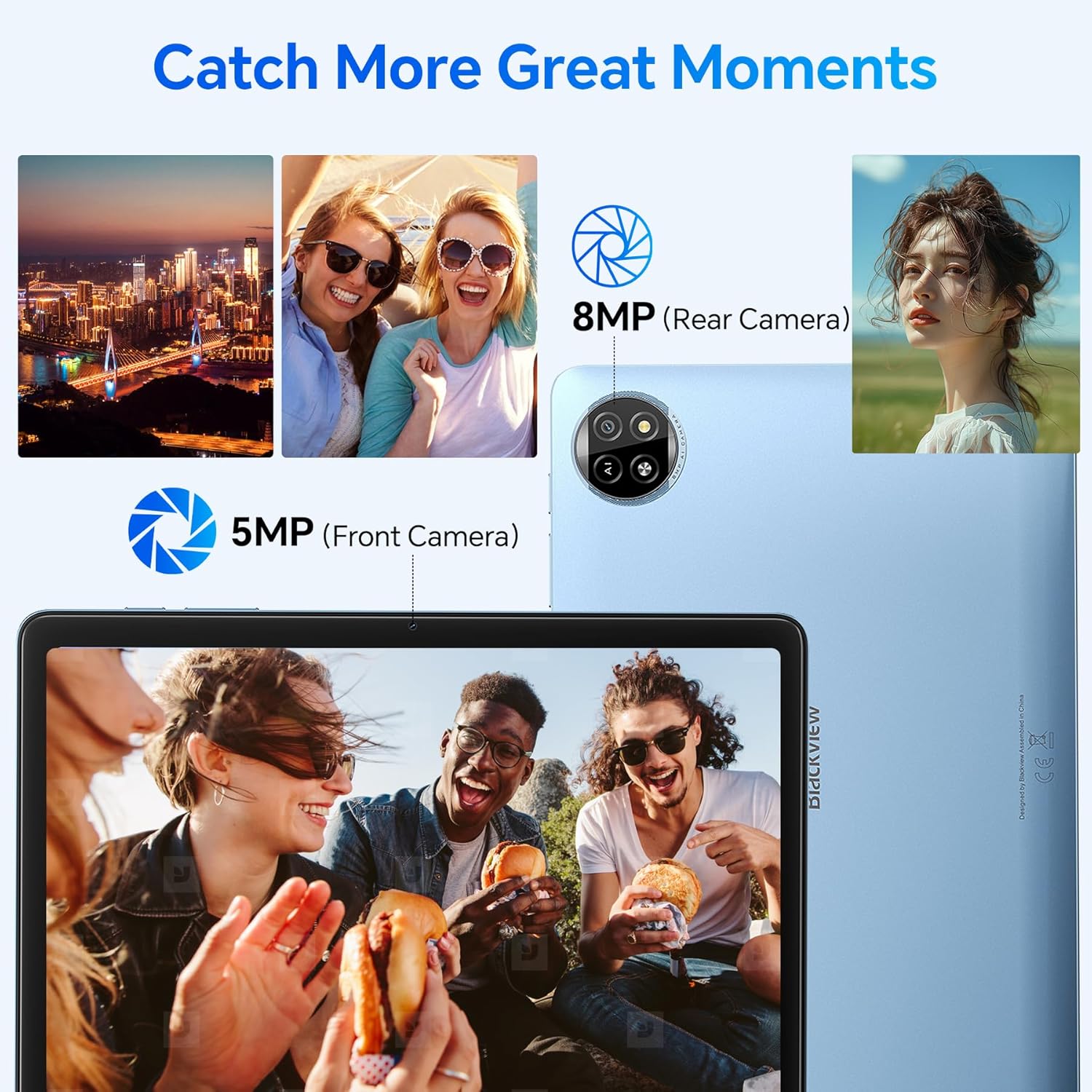
The tablet features an 8MP rear camera and a 5MP front camera for capturing moments.
3.5 פּנים ופשליסן
Set up Face Unlock for convenient and secure access to your tablet.
- גיין צו Settings > Security & privacy > Device unlock > Face unlock.
- גיי די ינסטראַקשאַנז אויף דעם עקראַן צו פאַרשרייַבן דיין פּנים.
- Once set up, simply look at the front camera to unlock your device.
3.6 Apps and Features
- ינסטאָלינג אַפּפּס: דאַונלאָוד און ינסטאַלירן אַפּליקאַציעס פֿון גוגל פּליי סטאָר.
- שפּאַלט-סקרין פונקציע: To use two apps simultaneously, open one app, then swipe up from the bottom of the screen and hold to access recent apps. Drag one app to the top or side of the screen, then select another app for the remaining space.

The split-screen function allows you to boost productivity by using two applications simultaneously.
- Casting Screen: Share your tablet's screen to a compatible smart TV or display. Go to Settings > Connected devices > Connection preferences > Cast and select your desired device.

Utilize the casting screen feature to display your tablet's content on a larger screen.
- וויידוויין L1 שטיצע: Enjoy high-quality streaming from platforms like Netflix, YouTube, HBO, and Prime Video due to Widevine L1 certification.

Widevine L1 support ensures high-quality streaming experiences for various media platforms.
- Doke AI: The tablet integrates Doke AI, powered by advanced AI models, to provide intelligent services such as smart assistance, content generation, and image processing.

Doke AI offers intelligent services through applications like Hi Doki, Soundle, VidGen, and ImageX.
4. וישאַלט
4.1 באַטערי קער
The tablet is equipped with a 6600mAh Lithium Polymer battery. To maximize battery life:
- ויסמיידן עקסטרעם טעמפּעראַטורעס.
- לאָזט נישט די באַטאַרייע זיך רעגולער גאָר אויסליידיקן.
- Use the provided charger and cable for optimal charging.
- שליסט נישט גענוצטע אַפּליקאַציעס וואָס לויפן אין הינטערגרונט.
- שטעל די ליכטיקייט פון דעם עקראַן צו אַ באַקוועמען לעוועל.

The 6600mAh battery provides approximately 7 hours of web browsing, 6 hours of video playback, 6 hours of gaming, 22 hours of audio playback, and 6 days of standby time.
4.2 רייניקונג
צו רייניקן אייער טאַבלעט:
- ניצן אַ ווייך, לינט-פֿרייַ שטאָף.
- פֿאַר שווערע פֿלעקן, אַ ביסל דampווישט דעם שטאָף מיט וואַסער אָדער אַ פאַרשטעלן רייניגער דיזיינד פֿאַר עלעקטראָניק.
- פֿאַרמײַדן שטרענגע כעמיקאַלן, אַברייסיוו מאַטעריאַלן, אָדער איבערגעטריבענע פֿײַכטקייט.
4.3 ווייכווארג דערהייַנטיקונגען
קאָנטראָלירט און אינסטאַלירט רעגולער ווייכווארג דערהייַנטיקונגען צו ענשור אָפּטימאַלע פאָרשטעלונג, זיכערהייט און צוטריט צו נייַע פֿעיִקייטן. גייט צו סעטטינגס > סיסטעם > סיסטעם דערהייַנטיקונג.
5. טראָובלעשאָאָטינג
Here are solutions for common issues you might encounter:
| אַרויסגעבן | מעגלעך לייזונג |
|---|---|
| טאַבלעט טוט זיך נישט אָן | זיכער מאַכן אַז די באַטאַרייע איז אויפגעלאָדן. פֿאַרבינדט דעם טשאַרדזשער און וואַרט אַ פּאָר מינוט איידער איר פּרוּווט עס ווידער אָנצוצינדן. אויב עס רעאַגירט נישט, דריקט און האַלט דעם מאַכט קנעפּל פֿאַר 10-15 סעקונדעס צו צווינגען אַ ריסטאַרט. |
| ווי-פי קשר ישוז | Check if Wi-Fi is enabled in Quick Settings or Settings. Restart your Wi-Fi router. Forget the network and reconnect. Ensure you are within range of the Wi-Fi signal. |
| לאַנגזאַמע פאָרשטעלונג אָדער אַפּפּס קראַשינג | Close unused background apps. Clear cache for problematic apps (Settings > Apps > [App Name] > Storage & cache > Clear cache). Restart the tablet. Ensure sufficient storage space is available. |
| די פאַרשטעלן איז ניט ריספּאַנדאַבאַל | Restart the tablet. Ensure the screen is clean and free of debris. If the issue persists, a factory reset might be necessary (back up data first). |
| באַטאַרייע דריינז געשווינד | Reduce screen brightness. Disable Wi-Fi/Bluetooth when not in use. Close power-intensive apps. Check battery usage in Settings to identify draining apps. |
If these solutions do not resolve your issue, please refer to the Warranty & Support section for further assistance.
6. ספּעסאַפאַקיישאַנז
Detailed technical specifications for the Blackview Tab20WIFI tablet:
| שטריך | דעטאַל |
|---|---|
| מאָדעל נאָמען | Tab20WIFI |
| נומער מאָדעל נומער | T310 |
| אָפּערייטינג סיסטעם | אַנדרויד 15 |
| פאַרשטעלן גרייס | 10.16 אינטשעס |
| מאַקסימום סקרין האַכלאָטע | 800x1280 פּיקסעלס |
| באַראַן | 4GB (expandable with 8GB virtual RAM) |
| Flash Memory Size (ROM) | 64 גיגאבייט |
| יקספּאַנדאַבאַל סטאָרידזש | ביז 1TB דורך TF קאַרטל |
| ווירעלעסס טיפּ | 802.11ax (5G WiFi), Bluetooth 5.0 |
| באַטערי טיפּ | 6600 מאַה ליטהיום פּאָלימער |
| דורכשניטלעך באַטאַרייע לעבן | 8 hours (average use) |
| פּונקט וואָג | 2.57 פונט |
| פּראָדוקט דימענשאַנז | 12 X 6 X 0.5 אינטשעס |
| קאָליר | גרוי |

פיזיש איבערview of the Blackview Tab20WIFI, detailing component locations.
7. וואָראַנטי & שטיצן
7.1 שווארצעview Two-Year Warranty Support
שוואַרץview products undergo strict quality control from design to production. The Blackview Tab20WIFI tablet comes with a 24-month free repair warranty and lifetime technician support.

שוואַרץview provides a two-year warranty and lifetime technical support for its products.
7.2 קאָנטאַקט שטיצע
For technical assistance, warranty claims, or any product-related inquiries, please contact Blackview customer support through their official channels. Refer to the packaging or the official Blackview webפּלאַץ פֿאַר קאָנטאַקט אינפֿאָרמאַציע.


