הקדמה
Welcome to the DIERYA M1 Wireless Gaming Mouse user manual. This guide provides detailed instructions for setting up, operating, and maintaining your new mouse. Please read this manual thoroughly to ensure proper use and to maximize your gaming and productivity experience.
פּעקל אינהאַלט
באַשטעטיקן אַז אַלע זאכן זענען פאַראַן אין דיין פּעקל:
- M1 ווירעלעסס מאַוס
- Nylon USB-A to C Cable
- באַניצער מאַנואַל
פּראָדוקט איבערview
The DIERYA M1 mouse features a lightweight, ergonomic design with multiple programmable buttons and versatile connectivity options.

בילד באַשרייַבונג: אַן איבערהויפּט view of the black DIERYA M1 wireless gaming mouse, showcasing its honeycomb shell design and RGB lighting. A small USB receiver is positioned to the right of the mouse.
מויז קאַמפּאָונאַנץ

בילד באַשרייַבונג: An overhead and underside view of the DIERYA M1 mouse with various components labeled. These include the Left Button, Right Button, Mouse Wheel (Middle Button), DPI Adjustment Button (6 Adjustable DPI Levels), Forward Button, Back Button, Type-C Interface, Power & Light Switch, and 2.4G Receiver Storage Compartment. The mouse features a honeycomb shell design.
- לינקס קנעפּל: נאָרמאַלע לינקס-קליק פונקציע.
- רעכט קנעפּל: נאָרמאַלע רעכט-קליק פונקציע.
- Mouse Wheel (Middle Button): Scroll and middle-click function.
- DPI אַדזשאַסטמענט קנעפּל: גייט דורך פאָרגעשטעלטע DPI לעוועלס.
- פֿאָרווערטס קנעפּל: נאַוויגירט פאָרויס אין web בראַוזערז אָדער אַפּליקאַציעס.
- צוריק קנעפּל: נאַוויגירט צוריק אין web בראַוזערז אָדער אַפּליקאַציעס.
- טיפּ-C צובינד: פֿאַר דראָטיקער פֿאַרבינדונג און טשאַרדזשינג.
- Power & Light Switch: Controls power and RGB lighting.
- 2.4G Receiver Storage Compartment: Located on the underside for storing the USB dongle.
סעטאַפּ
The DIERYA M1 mouse offers three connectivity modes: 2.4GHz Wireless, Bluetooth 5.2, and USB-C Wired.

בילד באַשרייַבונג: An illustration demonstrating the three connectivity modes of the M1 mouse: Bluetooth 5.2 pairing with a smartphone, 2.4GHz Wireless with a USB dongle connected to a laptop, and USB-C Wired connection to a laptop. Polling rates for each mode are indicated.
1. 2.4GHz ווירעלעס פֿאַרבינדונג
- Locate the 2.4G USB receiver in the storage compartment on the underside of the mouse.
- שטעקט אריין דעם USB ריסיווער אין א פאראן USB-A פארט אויף אייער קאמפיוטער.
- Turn on the mouse using the Power & Light Switch.
- The mouse will automatically connect to the receiver. The polling rate in this mode is 1000Hz.
2. בלועטוט 5.2 פֿאַרבינדונג
- Turn on the mouse using the Power & Light Switch.
- Press and hold the dedicated connectivity mode button (refer to the product's specific button combination if not a dedicated button) to switch to Bluetooth mode. The LED indicator will show the active connection.
- On your device (PC, Mac, Laptop, iPad), go to Bluetooth settings and search for "DIERYA M1".
- Select the mouse to pair. The polling rate in Bluetooth mode is 125Hz.
- The mouse supports dual-device pairing in Bluetooth mode. Refer to the software for managing multiple Bluetooth connections.
3. USB-C ווייערד קאַנעקשאַן
- Connect the provided USB-A to C cable to the Type-C interface on the front of the mouse.
- צאַפּן די וסב-א סוף פון די קאַבלע אין אַ בנימצא וסב פּאָרט אויף דיין קאָמפּיוטער.
- The mouse will function immediately as a wired mouse. This mode also charges the mouse. The polling rate in wired mode is 1000Hz.
אַפּערייטינג ינסטראַקשאַנז
דפּי אַדזשאַסטמאַנט
The mouse features a dedicated DPI adjustment button to cycle through six preset DPI levels: 400, 800, 1600, 3200, 4800, and 6400. The scroll wheel LED and RGB lighting strip provide instant color-coded feedback for the current DPI setting.
בילד באַשרייַבונג: An image illustrating the DPI range from 200 to 24,000 and the corresponding scroll wheel LED colors for preset DPI levels (400, 800, 1600, 3200, 4800, 6400). The image also shows a software interface for advanced DPI customization.
RGB לייטינג
The DIERYA M1 mouse features 16.8 million color RGB lighting with 13 vibrant effects, including Breath, Static, Flow, and Starlight. These can be customized via the dedicated driver software.
פּראָגראַממאַבלע קנעפּלעך
All six buttons on the DIERYA M1 mouse are fully programmable. Use the dedicated driver software to assign macros, remap functions, and customize button actions.
באַטערי מאַנאַגעמענט
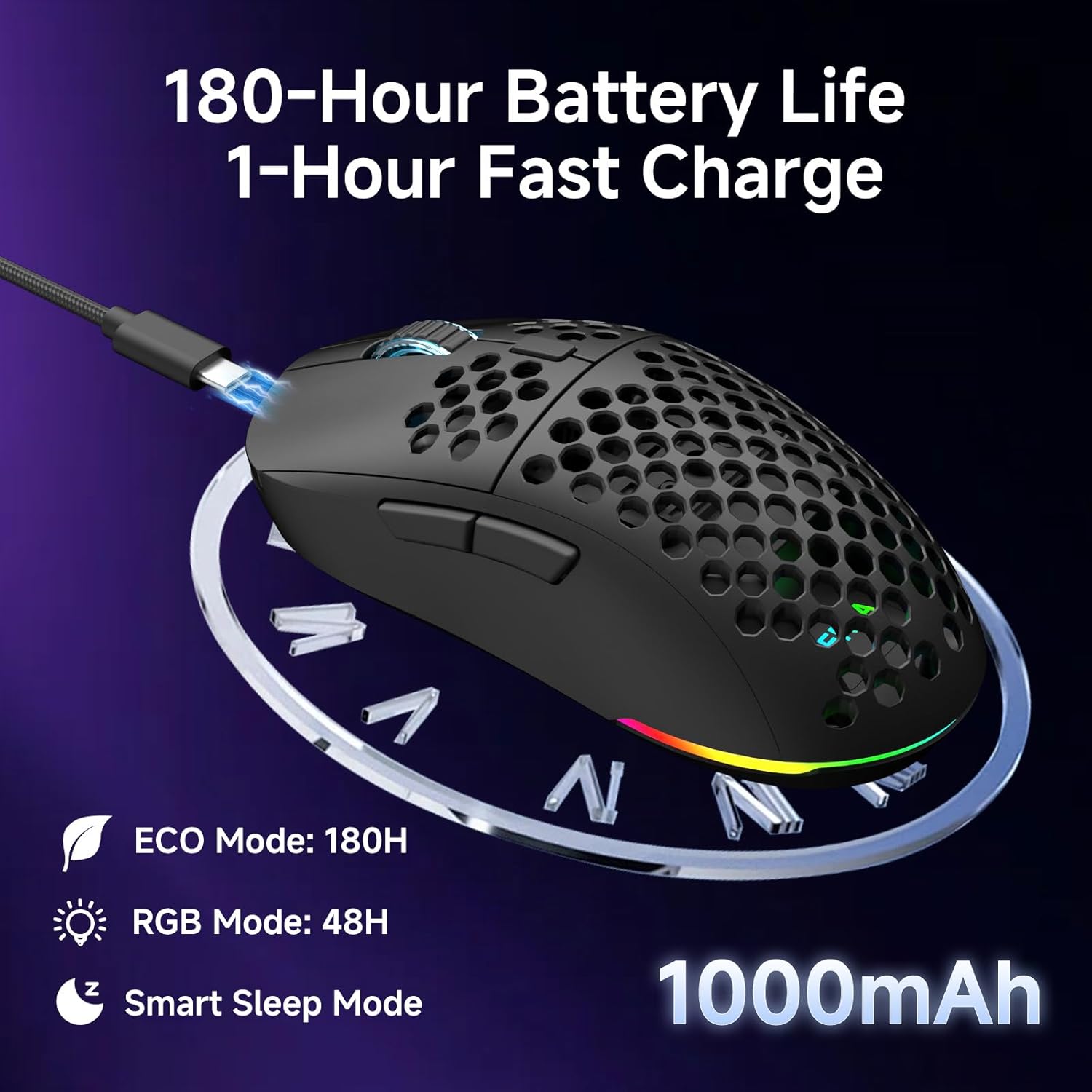
די מויז איז אויסגעשטאַט מיט אַ 1000mAh ריטשאַרדזשאַבאַל באַטאַרייע.
- באַטאַרייע לעבן: Up to 180 hours in ECO mode, or 48 hours with full RGB lighting.
- טשאַרדזשינג: Fast USB-C charging allows a full charge in approximately 1 hour.
- Smart Sleep Modes: The mouse enters intelligent sleep modes after 1 and 5 minutes of inactivity to conserve power. These timers can be customized via software.

בילד באַשרייַבונג: An image showing the DIERYA M1 mouse connected via USB-C for charging, highlighting its 1000mAh battery, 180-hour ECO mode battery life, 48-hour RGB mode battery life, and smart sleep mode feature.
ווייכווארג און דרייווער ינסטאַלירונג
קוסטאָמיזאַטיאָן ווייכווארג
To unlock the full potential of your DIERYA M1 mouse, including DPI customization (up to 24,000 DPI), report rate adjustment (125-1000Hz), button remapping, macro creation, RGB lighting effects, and sleep timer settings, download and install the dedicated driver software.
The software allows you to define every detail and save up to 4 device profiles.
Visit the official DIERYA website for the latest software download: www.dierya.com/support (עקסampדער לינק, דער פאקטישער לינק קען זיין אנדערש).

בילד באַשרייַבונג: A screenshot of the DIERYA M1 mouse driver software interface, showing options for key assignment, DIY macros, customizable RGB lighting, DPI adjustment, report rate adjustment, and profile loading.
וישאַלט
רייניקונג און קער
- Regularly clean the mouse with a soft, dry cloth.
- פֿאַר שווערן שמוץ, אַ ביסל דampווישט דעם שטאָף מיט וואַסער אָדער אַ מילדער רייניקונג לייזונג. פֿאַרמייַדט שטרענגע כעמיקאַליעס.
- טונקט נישט אריין די מויז אין וואסער אדער קיין שום פליסיקייטן.
- Keep the PTFE feet clean to ensure smooth gliding.
סטאָרידזש
- When not in use, store the 2.4G USB receiver in its dedicated compartment on the underside of the mouse.
- האַלט די מויז אין אַ קיל, טרוקן אָרט אַוועק פון דירעקט זונשייַן און עקסטרעמע טעמפּעראַטורן.
טראָובלעשאָאָטינג
פּראָסט ישוז און סאַלושאַנז
- מויז ענטפערט נישט:
- מאַכן זיכער אַז די מויז איז פּאַוערד אויף.
- קאָנטראָלירט די באַטאַרייע מדרגה און לאָדנט אויף אויב נייטיק.
- For 2.4GHz wireless, ensure the USB receiver is securely plugged in.
- For Bluetooth, ensure the mouse is paired and selected in your device's Bluetooth settings.
- Try connecting via USB-C wired mode to confirm functionality.
- ריסטאַרט דיין קאָמפּיוטער.
- פארשפעטיקונג אדער אומשטענדלעכע באוועגונג:
- Ensure the mouse is within range of the receiver (for 2.4GHz) or your device (for Bluetooth).
- קוק פֿאַר ינטערפיראַנס פון אנדערע וויירליס דעוויסעס.
- רייניקט דעם אָפּטישן סענסאָר אויף דער אונטערשטער זײַט פֿון דער מויז.
- זייט זיכער אַז די מויז ווערט גענוצט אויף אַ פּאַסיקער ייבערפלאַך (נישט שטאַרק רעפלעקטיוו אָדער טראַנספּאַרענט).
- Update mouse drivers via the software.
- DPI טוישט זיך נישט:
- דריק פעסט דעם DPI אַדזשאַסטמענט קנעפּל.
- Ensure the mouse software is installed and running correctly if custom DPI settings are configured.
- RGB לייטינג ארבעט נישט:
- Check the Power & Light Switch position.
- פאַרזיכערן די באַטאַרייע האט גענוג אָפּצאָל.
- Adjust lighting settings through the driver software.
ספּעסאַפאַקיישאַנז
טעכניש דעטאַילס
| שטריך | דעטאַל |
|---|---|
| מאָדעל | M1 |
| קאַנעקטיוויטי | 2.4GHz ווירעלעס, בלועטוט 5.2, USB-C מיט ווייערס |
| DPI קייט | 200 - 24,000 DPI |
| פּאָללינג קורס | 125-1000 הז |
| טראַקינג ספּיד | 300 יפּס |
| אַקסעלעריישאַן | 35G |
| באַטאַרייע קאַפּאַציטעט | 1000 מאַה |
| באַטערי לעבן | Up to 180 hours (ECO mode), 48 hours (RGB on) |
| טשאַרדזשינג צייט | בעערעך. 1 שעה |
| וואָג | 90 גראַמז |
| דימענשאַנז | 125 X 63 X 41 מם |
| סוויטשיז | Huano Micro Switches (20 million clicks) |
| פֿיס | PTFE |
| RGB לייטינג | 16.8 Million Colors, 13 Effects |
| פּראָגראַממאַבלע קנעפּלעך | 6 |
| קאַמפּאַטאַבילאַטי | PC, Mac, Laptop, iPad, Chromebook |
וואָראַנטי און שטיצן
פּראָדוקט וואָראַנטי
DIERYA products typically come with a limited warranty. Please refer to the warranty card included in your package or visit the official DIERYA webזייטל פֿאַר דעטאַלירטע וואָראַנטי טערמינען און באַדינגונגען. האַלט דיין באַווייַז פון קויפן פֿאַר וואָראַנטי קליימז.
קונה שטיצן
If you encounter any issues or have questions regarding your DIERYA M1 Wireless Gaming Mouse, please contact DIERYA customer support.
- Webפּלאַץ: www.dierya.com/support (עקסampדער לינק, דער פאקטישער לינק קען זיין אנדערש)
- בליצפּאָסט: זעט די פּראָדוקט פּאַקאַדזשינג אָדער webזייטל פֿאַר שטיצע אימעיל אַדרעס.
When contacting support, please provide your product model (M1) and a detailed description of the issue.


