1. סעטאַפּ
1.1 ונבאָקסינג
Carefully remove the OnePlus Pad 3 Smart Keyboard from its packaging. The box contains the keyboard unit and a user guide with safety and warranty information.

Figure 1: OnePlus Pad 3 Smart Keyboard in its retail packaging.

Figure 2: The keyboard unit after removal from the box.
1.2 Attaching the Keyboard
Align your OnePlus Pad 3 tablet with the magnetic connector on the keyboard. The tablet will snap securely into place, establishing a physical and power connection via the Pogo pin connector.

Figure 3: OnePlus Pad 3 tablet attached to the Smart Keyboard, ready for use.
1.3 Initial Connection and Firmware Update
Upon first attachment, the keyboard will automatically connect to your OnePlus Pad 3. A firmware update may be prompted; ensure you complete this update for optimal performance. If the on-screen keyboard appears when the physical keyboard is attached, navigate to Settings > Additional settings > Keyboard & input method > Physical keyboards > OnePlus Magnetic Keyboard and disable the 'Use on-screen keyboard' option.
2. אָפּעראַציע
2.1 Keyboard Layout and Touchpad
The Smart Keyboard features a full six-row layout with tactile keys for a comfortable typing experience. It includes a large precision touchpad (8640mm²) that supports multi-gesture input for enhanced navigation.
2.2 ווינקל אַדזשאַסטמאַנט
The keyboard allows for five levels of angle adjustment, ranging from 110° to 160°, providing flexibility for various viewing and typing preferences.
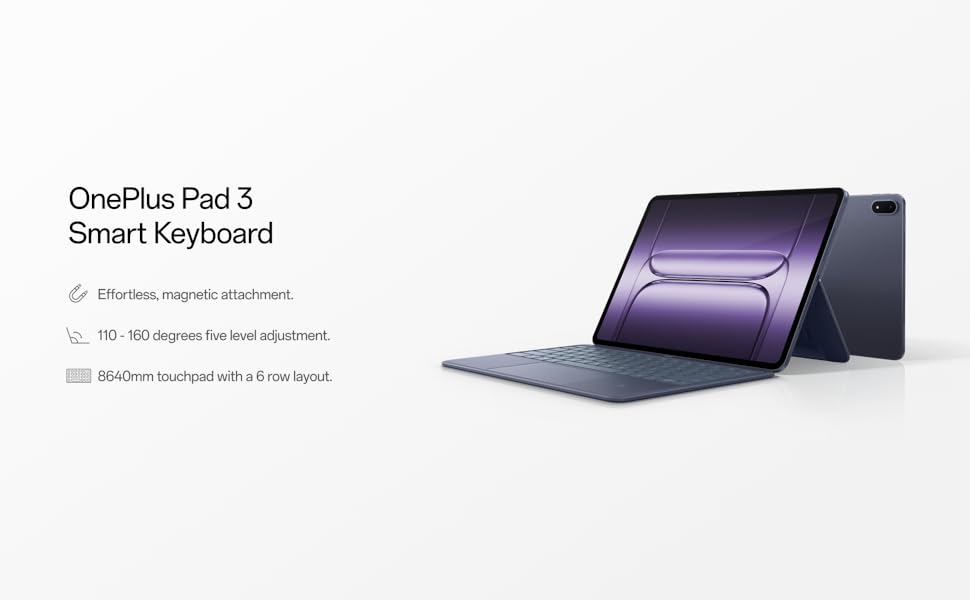
Figure 4: The keyboard offers multiple viewווינקלען פֿאַר באַניצער קאָמפאָרט.
2.3 ספּעציעלע פֿעיִקייטן
- דעדיקירטער קינסטלעכער אינטעליגענץ שליסל: Access integrated AI features with a dedicated key.
- NFC Support: Utilize one-touch NFC for fast file transfers and seamless screen projection from your phone to the tablet.
3. וישאַלט
3.1 רייניקונג
To clean the keyboard, gently wipe the surfaces with a soft, damp cloth. Avoid using harsh chemicals or abrasive materials that could damage the finish or electronic components. Ensure no liquid enters the keys or touchpad.
3.2 סטאָרידזש
When not in use, fold the keyboard to protect both the tablet screen and the keyboard keys. Store the device in a cool, dry place away from direct sunlight and extreme temperatures.
4. טראָובלעשאָאָטינג
4.1 קלאַוויאַטור רעאַגירט נישט
- קוק די קשר: Ensure the tablet is securely attached to the magnetic connector on the keyboard.
- Restart Tablet: A simple restart of your OnePlus Pad 3 can resolve minor connectivity issues.
- Firmware דערהייַנטיקן: Verify that the keyboard's firmware is up to date via the tablet's settings.
- אויף-סקרין קלאַוויאַטור: Confirm that the 'Use on-screen keyboard' option is disabled in Settings > Additional settings > Keyboard & input method > Physical keyboards.
4.2 Touchpad Issues
- רייניקן טאָוטשפּאַד: Ensure the touchpad surface is clean and free of debris.
- Software Glitch: Restarting the tablet can often resolve unresponsive touchpad behavior.
5. ספּעסאַפאַקיישאַנז
| שטריך | דעטאַל |
|---|---|
| סאָרט | אָנעפּלוס |
| מאָדעל נומער | OPK2413 |
| פּונקט וואָג | 1.47 פונט |
| פּראָדוקט דימענשאַנז | 11.4 X 8.2 X 0.3 אינטשעס |
| קאָליר | בלוי |
| מאַכט מקור | Battery Powered (charged via Pogo pin connector from tablet) |
| קאַמפּאַטאַבאַל דעוויסעס | OnePlus פּאַד 3 |
| קאַנעקטיוויטי טעכנאָלאָגיע | Bluetooth (for pairing, physical connection for power/data) |
| קלאַוויאַטור באַשרייַבונג | מעטשאַניקאַל |
| מאַטעריאַל | פּלאַסטיק |
| אַרייַנגערעכנט קאַמפּאָונאַנץ | USB-C to USB-C Cable (for tablet charging, not keyboard directly) |
6. וואָראַנטי און שטיצן
For detailed warranty information and technical support, please refer to the user guide included in the product packaging or visit the official OnePlus support webזייטל. האַלט דיין קויפן באַווייַז פֿאַר וואָראַנטי קליימז.


