הקדמה
Thank you for choosing the SABLUTE Multi-Device Wireless Keyboard and Mouse Combo. This manual provides detailed instructions for setting up, operating, maintaining, and troubleshooting your new device. Please read this manual carefully before use to ensure optimal performance and longevity of your product.

Image: The SABLUTE Wireless Keyboard and Mouse Combo displayed on a desk, connected to a laptop, tablet, and smartphone, highlighting its multi-device compatibility.
פּעקל אינהאַלט
- SABLUTE וויירלעס קלאַוויאַטור
- SABLUTE Wireless Mouse
- USB Receiver (for 2.4GHz connection)
- וסב טשאַרדזשינג קאַבלע
- באַניצער מאַנואַל
סעטאַפּ און קאַנעקשאַן
טשאַרדזשינג די דעוויסעס
Before initial use, ensure both the keyboard and mouse are fully charged. Use the provided USB charging cable to connect them to a power source (e.g., computer USB port, USB wall adapter).
- Charging time: Approximately 4.5 hours for full charge.
- Battery life: Keyboard up to 460 hours (no backlight), Mouse up to 50 hours (no backlight).
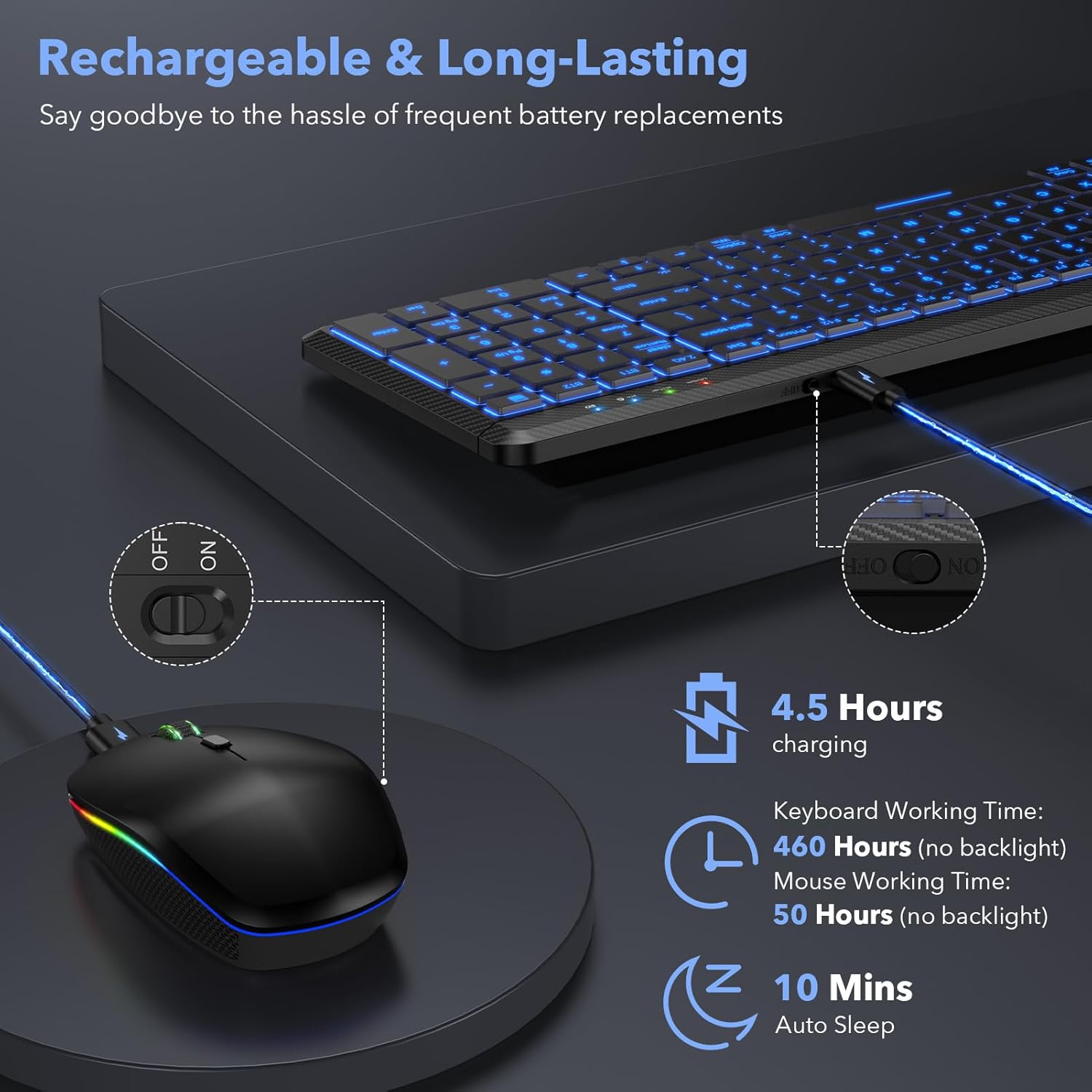
Image: The keyboard and mouse connected to a charging cable, illustrating the rechargeable feature.
Connecting to Devices (Multi-Mode)
The combo supports three connection methods: 2.4GHz USB receiver, Bluetooth 3.0 (BT1), and Bluetooth 5.0 (BT2). You can connect up to three devices simultaneously and switch between them.
- 2.4GHz USB Connection:
א. שטעקט אריין דעם USB ריסיווער אין א פאראן USB פארט אויף אייער קאמפיוטער.
b. Turn on the keyboard and mouse. They should automatically connect to the 2.4GHz channel. - בלועטוט קאנעקשאן (BT1/BT2):
a. Turn on the keyboard and mouse.
b. On the keyboard, press Fn + BT1 or Fn + BT2 to select the desired Bluetooth channel. The indicator light will flash.
c. On your device (Mac, iOS, Android, iPad, etc.), go to Bluetooth settings and search for 'SABLUTE Keyboard' or 'SABLUTE Mouse'.
d. Select the device to pair. Once paired, the indicator light will stop flashing.
e. Repeat for the other Bluetooth channel if connecting a third device.

Image: A visual representation of the keyboard and mouse connected to a laptop, tablet, and smartphone, demonstrating the 2.4GHz, BT1, and BT2 connection options.
באַשטימען צווישן קאָננעקטעד דעוויסעס
To switch between connected devices on the keyboard, simply press Fn + 2.4G, Fn + BT1, אָדער Fn + BT2.
Video: Demonstrates the multi-device switching functionality of the SABLUTE Wireless Keyboard, showing how to seamlessly transition between different connected devices.
אַפּערייטינג ינסטראַקשאַנז
Keyboard Backlight Control
The keyboard features 7-color backlighting with 3 brightness levels.
- אַדזשאַסטינג ברייטנאַס: דרוק Fn + שיפט to cycle through 3 brightness levels.
- Changing Backlight Color: דרוק Fn + אַרייַן to switch between the 7 available backlight colors.
- Turning Off Backlight: פאָרזעצן דרינגלעך Fn + שיפט until the backlight turns off, or simply turn off the keyboard when not in use to conserve battery.

Image: The keyboard displaying various backlight colors and illustrating the key combinations for adjusting brightness and changing colors.
שטיל אָפּעראַציע
Both the keyboard and mouse are designed for quiet operation, reducing noise by over 95% compared to traditional peripherals. This allows for a more focused working environment.

Image: A visual representation emphasizing the quiet operation of the keyboard and mouse, suitable for undisturbed work or rest.
Comfortable Typing Experience
The keyboard features slightly concave, ultra-thin keycaps designed to conform to your fingertips, reducing strain during extended typing sessions. The ergonomic design provides a comfortable 6-degree tilt.
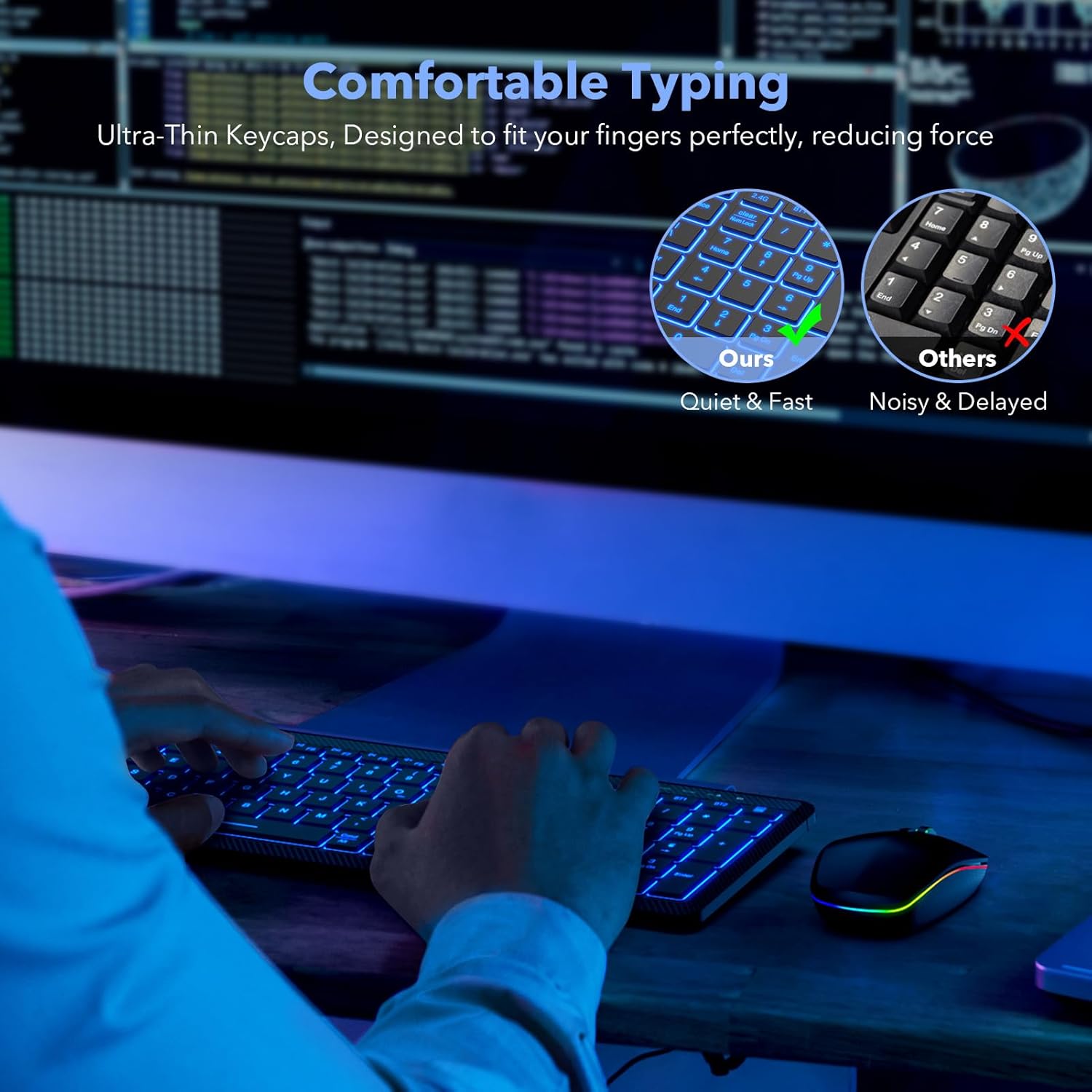
בילד: א נאָענטע בילד view of the keyboard's keycaps and its ergonomic profile, highlighting the comfortable typing experience.
מויז פֿעיִקייטן
The RGB silent mouse offers:
- 3 Tracking Speeds: Adjustable DPI settings for precise control.
- 3 Connection Modes: 2.4GHz, Bluetooth 3.0, and Bluetooth 5.0.
- 15 לייטינג מאָדעס: קאַסטאַמייזאַבאַל RGB לייטינג יפעקץ.
- קריקאָנלאָדלעך פּלאַן: געבויט-אין 650 מאַה באַטאַרייע.

Image: The SABLUTE RGB rechargeable mouse with its key features such as tracking speed, connection modes, and lighting modes visually indicated.
וישאַלט
רייניקונג
The keyboard is designed to be waterproof and dustproof, as well as spill-resistant. To clean, gently wipe the surfaces with a soft, damp שטאָף. ויסמיידן ניצן האַרב קעמיקאַלז אָדער אַברייסיוו מאַטעריאַלס.
באַטערי מאַנאַגעמענט
The devices feature an energy-saving management system:
- אַוטאָ שלאָף: After 10 minutes of inactivity, the keyboard and mouse will enter auto-sleep mode to conserve power.
- וועקן זיך: Press any key or click the mouse to wake the devices.

Image: The keyboard and mouse illustrating their power-saving features, including auto-sleep and long battery life.
טראָובלעשאָאָטינג
- אַפּאַראַט פֿאַרבינדט זיך נישט:
a. Ensure the keyboard and mouse are charged.
b. Verify the correct connection mode (2.4G, BT1, BT2) is selected on the keyboard.
c. For Bluetooth, ensure your device's Bluetooth is enabled and the devices are in pairing mode.
d. Try restarting your device and the keyboard/mouse. - באַקלייט אַרבעט נישט אָדער איז טונקל:
a. Ensure the keyboard is charged.
ב. דרוק Fn + שיפט צו סטרויערן ברייטנאַס לעוועלס.
c. The backlight may automatically turn off in low battery situations. - Keys sticking or unresponsive:
a. Ensure the keyboard is clean and free from debris.
b. If the issue persists, contact customer support. - Mouse cursor erratic or unresponsive:
a. Ensure the mouse is charged.
b. Check the mouse's optical sensor for any obstructions.
c. Try adjusting the tracking speed.
ספּעסאַפאַקיישאַנז
| שטריך | דעטאַל |
|---|---|
| סאָרט | SABLUTE |
| מאָדעל | B0FB39YF43 |
| קאָליר | שוואַרץ |
| קאַנעקטיוויטי טעכנאָלאָגיע | Bluetooth (3.0, 5.0), 2.4GHz USB |
| ספּעציעלע פֿעיִקייטן | Lightweight, Backlit (7 colors, 3 brightness), Waterproof & Dustproof, Spill Resistant, Silent Click Mouse |
| קאַמפּאַטאַבאַל דעוויסעס | Laptop, Smartphone, Tablet (MacBook Pro/Air, iPad, iMac, iOS, Android, Ipad, Windows) |
| קלאַוויאַטור באַטאַרייע קאַפּאַציטעט | 1500 מאַה |
| מויז באַטערי קאַפּאַסיטי | 650 מאַה |
| Keyboard Working Time (no backlight) | אַרויף צו 460 שעה |
| Mouse Working Time (no backlight) | אַרויף צו 50 שעה |
| אַוטאָ שלאָף פֿונקציע | 10 מינוט פון ינאַקטיוויטי |
| פּונקט וואָג | 1.9 פונט |
| פּעקל דימענשאַנז | 15.24 X 6.34 X 2.48 אינטשעס |
וואָראַנטי און שטיצן
SABLUTE is committed to providing quality products and customer satisfaction. Your product is covered by the following:
- 90 טעג פאַרבייַט: פֿאַר יעדע פּראָדוקציע חסרון.
- 360 Days Manufacturer Warranty: קאָווערס חסרונות אין מאַטעריאַלס און ווערקמאַנשיפּ.
- Brand Care: דעדאַקייטאַד קונה סערוויס.
For technical support or warranty claims, please contact us:
- טעלעפאָן (יו. עס.): 1-888-905-9607
- אַפּערייטינג שעה: Monday - Friday, 9:00 AM - 1:00 PM PST and 2:00 PM - 6:00 PM PST
- בליצפּאָסט: (ביטע זעט די פּראָדוקט פּאַקאַדזשינג אָדער באַאַמטער website for email contact)

Image: SABLUTE customer support details, including response time, replacement policy, manufacturer warranty, and contact number.


