1. וויכטיק סאַפעטי אינפֿאָרמאַציע
Please read this section carefully before using your Veidoo W40 tablet to ensure safe and proper operation. Keep this manual for future reference.
אַלגעמיינע פּריקאָשאַנז
- פֿאַרמײַדט אויסשטעלן די טאַבלעט צו עקסטרעמע טעמפּעראַטורן, דירעקטע זונשײַן, אָדער הויכע פֿײַכטקייט.
- Do not drop, bend, or puncture the tablet.
- Keep the tablet away from water and other liquids. If it gets wet, power it off immediately and allow it to dry completely before use.
- Use only accessories approved by Veidoo. Unauthorized accessories may damage the tablet or pose safety risks.
- Do not attempt to disassemble, repair, or modify the tablet yourself. Contact customer support for assistance.
באַטערי סאַפעטי
- The tablet contains a non-removable lithium-ion battery. Do not attempt to replace it yourself.
- דו זאלסט נישט ויסשטעלן די באַטאַרייע צו פייַער אָדער עקסטרעם היץ.
- Dispose of the tablet and its battery responsibly, following local regulations.
טשאַרדזשינג סאַפעטי
- Charge the tablet using the provided USB-C cable and a compatible power adapter.
- Do not charge the tablet in damp באדינגונגען.
- Unplug the charger when the tablet is fully charged or not in use.
2. פּראָדוקט איבערview
The Veidoo W40 is an 11-inch Android tablet designed for versatile use, featuring an Octa-Core processor, ample storage, and modern connectivity options.
שליסל פֿעיִקייטן
- ווייַז: 11-inch In-Cell HD Touch Screen with 1280x800 resolution.
- פּראַסעסער: 2.0 GHz Octa-Core processor for smooth performance.
- זכּרון און סטאָרידזש: 8GB RAM (4GB + 4GB expandable) and 128GB internal storage, expandable up to 1TB via MicroSD card.
- אַפּערייטינג סיסטעם: אַנדרויד 14.
- קאַמעראַס: 2MP front camera and 5MP rear camera.
- קאַנעקטיוויטי: WiFi 6 (802.11ax) and Bluetooth 5.0.
- באַטערי: 5000 מאַה קאַפּאַציטעט.

Image: Veidoo W40 Tablet configuration summary, highlighting key features like Android 14, 11-inch In-Cell display, 1280x800 resolution, Octa-Core processor, 8GB RAM, 128GB ROM, 5000mAh battery, WiFi 6, Bluetooth 5.0, and dual cameras.
3. וואָס איז אין דער קעסטל
The standard package for your Veidoo W40 tablet typically includes the following items:
- Veidoo W40 11-inch Android Tablet
- וסב-C טשאַרדזשינג קאַבלע
- מאַכט אַדאַפּטער
- באַניצער מאַנואַל
באַמערקונג: אינהאַלט קען זיין אַ ביסל אַנדערש לויט דער געגנט אָדער הענדלער.
4. אָנהייבן (סעטאַפּ)
4.1 אויפלאָדן די טאַבלעט
- Connect the USB-C cable to the tablet's charging port.
- פֿאַרבינדט דעם אַנדערן עק פֿונעם USB-C קאַבל צום מאַכט אַדאַפּטער.
- צאַפּן די מאַכט אַדאַפּטער אין אַ וואַנט ווענטיל.
- לאָזט דעם טאַבלעט זיך גאָר אויפלאָדן איידער איר ניצט עס צום ערשטן מאָל. דער באַטעריע אינדיקאַטאָר אויפן עקראַן וועט ווײַזן דעם אויפלאָדן סטאַטוס.
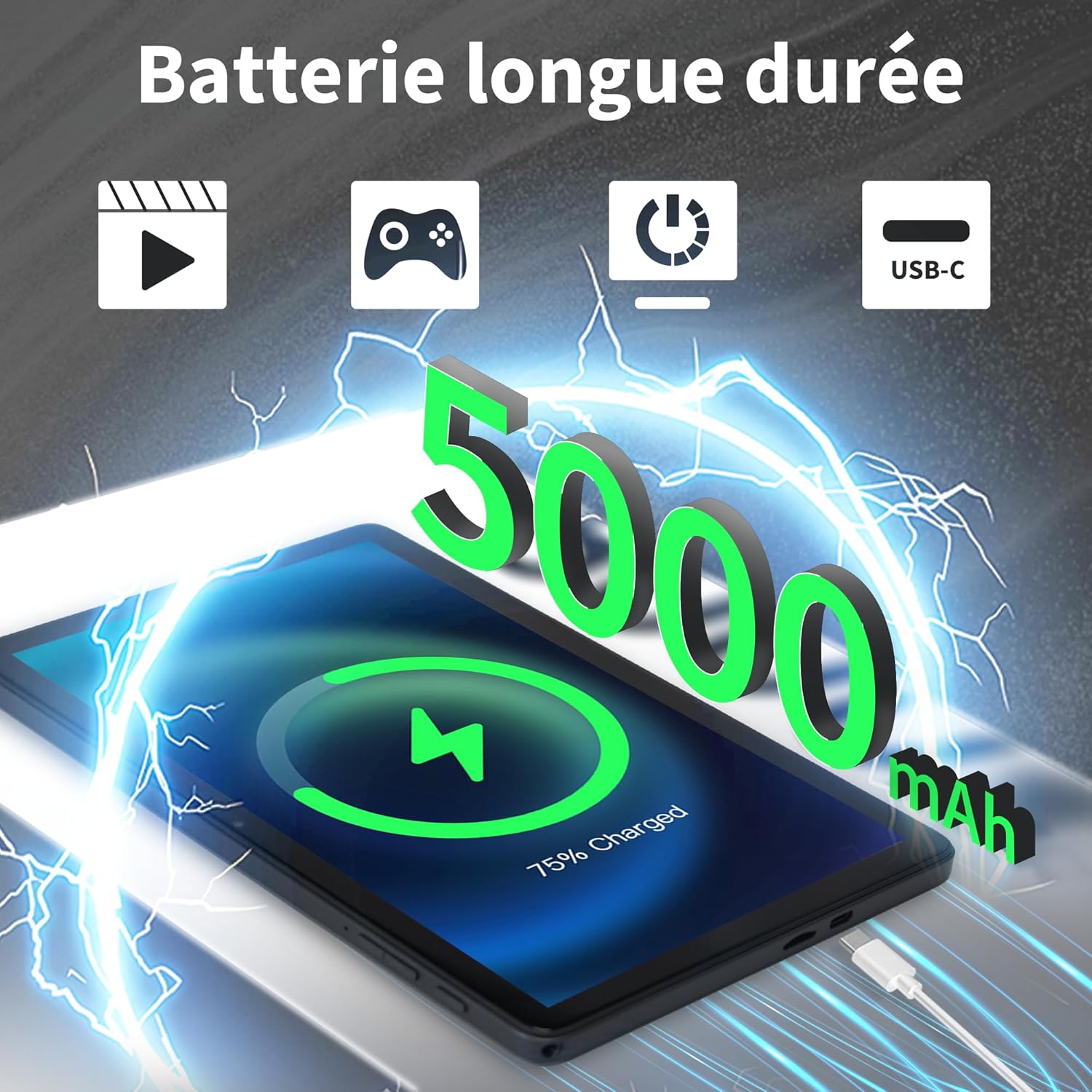
Image: Veidoo W40 Tablet connected to a USB-C charger, showing the battery icon and 5000mAh capacity.
4.2 פּאַוערינג אויף / אַוועק
- צו מאַכט אויף: Press and hold the Power button until the Veidoo logo appears on the screen.
- צו מאַכט אַוועק: דריק און האלט דעם פּאַוער קנעפּל ביז דער פּאַוער אָפּציעס מעניו דערשיינט. סעלעקטיר "אויסלאָשן" און באַשטעטיק.
- צו ריסטאַרט: פֿון די מאַכט אָפּציעס מעניו, סעלעקטירן "ריסטאַרט" און באַשטעטיקן.
4.3 ערשטע סעטאַפּ וויזאַרד
ביים ערשטן מאָל אנצינדן, וועט די טאַבלעט אייך פירן דורך אַן ערשטן סעטאַפּ פּראָצעס:
- אויסקלייַבן דיין בילכער שפּראַך.
- פאַרבינדן צו אַ Wi-Fi נעץ.
- אָננעמען די טערמינען און באדינגונגען.
- לאָג אַרײַן מיט אײַער גוגל אַקאַונט אָדער שאַפֿט אַ נײַעם. דאָס איז נייטיק צו דאַונלאָודן אַפּפּס פֿון גוגל פּליי סטאָר.
- Set up screen lock (PIN, pattern, or password) and other security features.
- Review און סטרויערן אנדערע סעטטינגס ווי געבעטן.
4.4 אריינשטעלן א מיקראָSD קאַרטל
The tablet supports expandable storage up to 1TB using a MicroSD card.
- געפינט דעם MicroSD קאַרטל שפּעלטל אויף דער זייט פון דער טאַבלעט.
- שטעקט אײַן די MicroSD קאַרטל פֿאָרזיכטיק אין דעם שפּאַלט מיט די גאָלדענע קאָנטאַקטן אַראָפּ ביז עס קליקט אַרײַן אין פּלאַץ.
- The tablet will detect the card and may prompt you to format it for use as portable or internal storage. Follow the on-screen instructions.
5. יקערדיק אָפּעראַציע
5.1 ריר דזשעסטשערז
- צאַפּן: Touch the screen once to select an item or open an app.
- ריר און האלט: Press and hold an item to access contextual menus or drag items.
- לאַקכענען: שלעפּט אייער פינגער אַריבער דעם עקראַן צו סקראָלן דורך בלעטער אָדער רשימות.
- קניפּ: ניצט צוויי פינגער צו פארגרעסערן אדער פארקלענערן בילדער און web בלעטער.
5.2 קאַנעקטינג צו Wi-Fi
- גיין צו סעטטינגס > נעץ און אינטערנעט > ווי-פי.
- טוישן Wi-Fi On.
- אויסקלייבן אייער געוואונטשענע Wi-Fi נעץ פון דער ליסטע.
- אַרייַן די פּאַראָל אויב געבעטן און צאַפּן פאַרבינדן.
5.3 קאַנעקטינג צו בלועטאָאָטה דעוויסעס
- גיין צו סעטטינגס > קאָננעקטעד דעוויסעס > קאַנעקשאַן פּרעפֿערענצן > בלועטאָאָטה.
- באַשטימען בלועטאָאָטה On.
- מאַכן זיכער אַז דיין בלועטאָאָטה מיטל איז אין פּערינג מאָדע.
- אויסקלייבן דעם דעווייס פון דער ליסטע פון פאַראַן דעווייסעס און נאָכפאָלגן אַלע אינסטרוקציעס אויף דעם עקראַן צו פאַרענדיקן די פּערינג.
5.4 ניצן די קאַמעראַס
די טאַבלעט פֿאַרמאָגט אַ 2MP פֿראָנט קאַמעראַ און אַ 5MP הינטערשטע קאַמעראַ.
- עפענען די אַפּאַראַט אַפּ.
- צאַפּן אויף די קאַמעראַ ייקאַן צו באַשטימען צווישן פראָנט און הינטערשטע קאַמעראַס.
- צאַפּן דעם שאַטער קנעפּל צו נעמען אַ פאָטאָ אָדער אָנהייבן/אָפּשטעלן ווידעאָ רעקאָרדינג.
- Access photos and videos in the Gallery app.

Image: Tablet cameras (2MP front, 5MP rear) with example photos, demonstrating its capability to capture moments.
5.5 פאַרוואַלטן סטאָרידזש
The tablet comes with 128GB of internal storage and supports up to 1TB expandable storage.
- גיין צו סעטטינגס > סטאָרידזש צו view סטאָרידזש באַניץ.
- You can free up space by uninstalling unused apps, deleting old photos/videos, or moving files to a MicroSD card.

Image: Tablet storage illustration, showing how photos, videos, and music can be stored on the 128GB ROM and expanded with 8GB RAM.
5.6 Installing/Uninstalling Apps
- ינסטאַלירן אַפּפּס: עפענען די Google פּלייַ סטאָר אַפּ, זוכט פֿאַר דיין געוואונטשענע אַפּ, און צאַפּן ינסטאַלירן.
- נעם אַוועק אַפּפּס: Touch and hold the app icon on the home screen or app drawer, then drag it to "Uninstall" or select "App info" and tap "Uninstall". Alternatively, go to סעטטינגס > אַפּפּס > select the app > נעם אַוועק.

Image: Tablet in use for various activities such as watching movies, playing games, working, and video calls, demonstrating its versatility.
6. וישאַלט און קער
6.1 רייניקן די טאַבלעט
- ניצט אַ ווייכן, לינט-פֿרייע שטאָף צו רייניקן דעם עקראַן און קערפּער פֿון דער טאַבלעט.
- פֿאַר שווערע פֿלעקן, אַ ביסל דampווישט דעם שטאָף מיט וואַסער אָדער אַ פאַרשטעלן רייניגער דיזיינד פֿאַר עלעקטראָניק.
- פֿאַרמײַדן ניצן שטרענגע כעמיקאַלן, אַברייסיוו רייניגער, אָדער אַעראָסאָל ספּרײַס.
6.2 באַטעריע אָפּטימיזאַציע
To maximize battery life (5000mAh):
- רעדוצירן פאַרשטעלן ברייטנאַס.
- אויסלעשן Wi-Fi און בלועטוט ווען נישט אין באניץ.
- שליסן הינטערגרונט אַפּפּס.
- Enable battery saver mode in Settings.
- Avoid extreme temperatures during charging and use.
6.3 ווייכווארג דערהייַנטיקונגען
קאָנטראָלירט און אינסטאַלירט רעגולער ווייכווארג דערהייַנטיקונגען צו ענשור אָפּטימאַלע פאָרשטעלונג און זיכערהייט.
- גיין צו סעטטינגס > סיסטעם > סיסטעם דערהייַנטיקן.
- Follow the on-screen instructions to check for and install any available updates.
6.4 פאַבריק באַשטעטיק
A factory reset will erase all data from your tablet and restore it to its original factory settings. Back up important data before proceeding.
- גיין צו סעטטינגס > סיסטעם > באַשטעטיק אָפּציעס.
- אויסקלייַבן מעקן אַלע דאַטן (פאַבריק באַשטעטיק).
- באַשטעטיקט אייער באַשלוס און אַרייַן אייער PIN/פּאַטערן/פּאַראָל אויב געבעטן.
7. טראָובלעשאָאָטינג
If you encounter issues with your Veidoo W40 tablet, try the following solutions:
טאַבלעט טוט זיך נישט אן
- Ensure the tablet is sufficiently charged. Connect it to a power source and wait a few minutes before attempting to power on.
- דריק און האלט דעם פּאַוער קנעפּל פֿאַר 10-15 סעקונדעס צו צווינגען אַ ריסטאַרט.
Wi-Fi קאַנעקשאַן ישוז
- זייט זיכער אז Wi-Fi איז ענייבאַלד אין סעטטינגס.
- ריסטאַרט דיין Wi-Fi ראַוטער.
- פארגעסט די נעץ אין די טאַבלעט סעטטינגס און פארבינדט זיך ווידער.
- זייט זיכער אז איר זענט אין דער רייך פון די Wi-Fi סיגנאַל.
Slow Performance or App Crashes
- שליסט נישט גענוצטע הינטערגרונט אַפּליקאַציעס.
- Clear the cache of problematic apps (Settings > Apps > [App Name] > Storage & cache > Clear cache).
- ריסטאַרט די טאַבלעט.
- זיכער מאַכן אַז גענוג סטאָרידזש פּלאַץ איז בנימצא.
- Check for system and app updates.
פאַרשטעלן ניט ריספּאַנדינג
- Restart the tablet by holding the Power button.
- זיכער מאַכן אַז דער עקראַן איז ריין און פריי פון שמוץ.
8. ספּעסאַפאַקיישאַנז
Below are the technical specifications for the Veidoo W40 11-inch Android Tablet:
| שטריך | באַשרייַבונג |
|---|---|
| מאָדעל | W40 |
| ווייַז גרייס | 11 אינטשעס |
| פאַרשטעלן האַכלאָטע | 1280 x 800 pixels (In-Cell HD Touch Screen) |
| פּראַסעסער | 2.0 GHz Octa-Core (Allwinner) |
| באַראַן | 8GB (4GB + 4GB Expand) |
| אינערלעכער סטאָרידזש (ראַם) | 128 גיגאבייט |
| יקספּאַנדאַבאַל סטאָרידזש | ביז 1TB דורך MicroSD קאַרטל |
| אָפּערייטינג סיסטעם | אַנדרויד 14 |
| פראָנט אַפּאַראַט | 2MP |
| דערציען אַפּאַראַט | 5MP |
| ווי-פי | וויי-פיי 6 (802.11ax) |
| בלועטאָאָטה | בלועטאָאָטה 5.0 |
| באַטאַרייע קאַפּאַציטעט | 5000 מאַה |
| דימענשאַנז (LxWxH) | 9.57 X 6.34 X 0.31 אינטשעס |
| וואָג | 1.13 פונט |
| קאָליר | גרוי |

Image: Octa-Core processor illustration, highlighting the 2.0 GHz speed and performance benefits.
9. וואָראַנטי און שטיצן
וואָראַנטי אינפֿאָרמאַציע
Your Veidoo W40 tablet is covered by a standard manufacturer's warranty. Please refer to the warranty card included in your package or visit the official Veidoo webזייטל פֿאַר דעטאַלירטע תּנאים און באַדינגונגען וועגן וואָראַנטי קאַווערידזש, געדויער, און פאָדערונג פּראָצעס.
קונה שטיצן
If you require technical assistance, have questions about your product, or need to report an issue, please contact Veidoo customer support. For inquiries, you may consult via email. Contact details are typically available on the official Veidoo webזייטל אדער דורך אייער קויפן פּלאַטפאָרמע.


