QCOQ Smart Air Tracker Tag באַניצער מאַנואַל
מאָדעל: TX03
1. הקדמה
The QCOQ Smart Air Tracker Tag is a compact and lightweight Bluetooth object finder designed to help you locate your valuable items quickly and efficiently. Certified for use with Apple's Find My network, it offers precise proximity tracking, global location capabilities, and essential features like a left-behind reminder and lost mode. This manual provides detailed instructions for setup, operation, and maintenance to ensure optimal performance of your device.
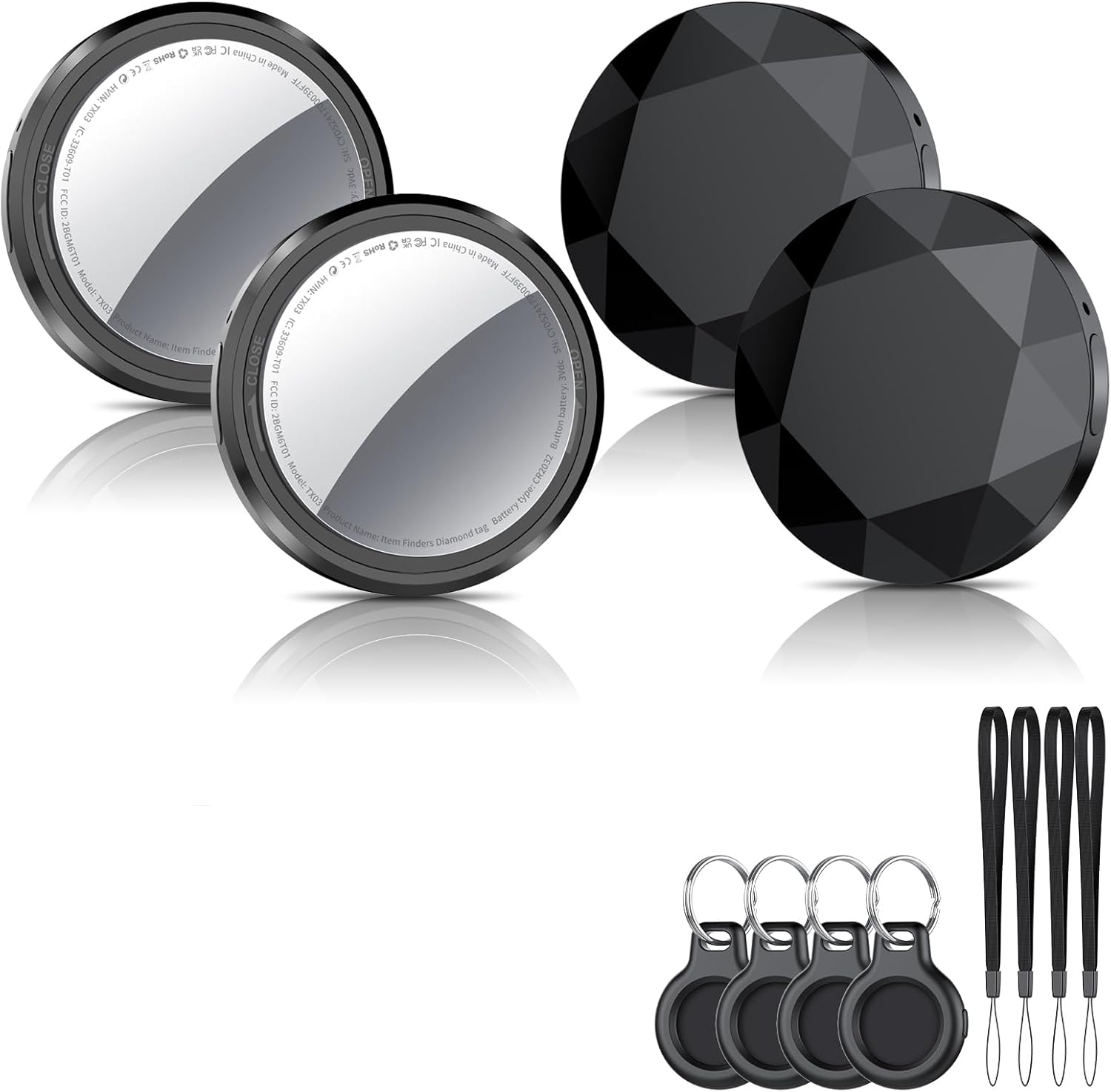
The QCOQ Smart Air Tracker Tag package contents.
2. פּעקל אינהאַלט
Upon opening your QCOQ Smart Air Tracker Tag package, you should find the following items:
- 4 x QCOQ Air Tracker Tags
- 4 x Mini Black Silicone Protective Cases
- 4 x Black Lanyards
- 4 x Keyrings
- 1 x באַניצער מאַנואַל
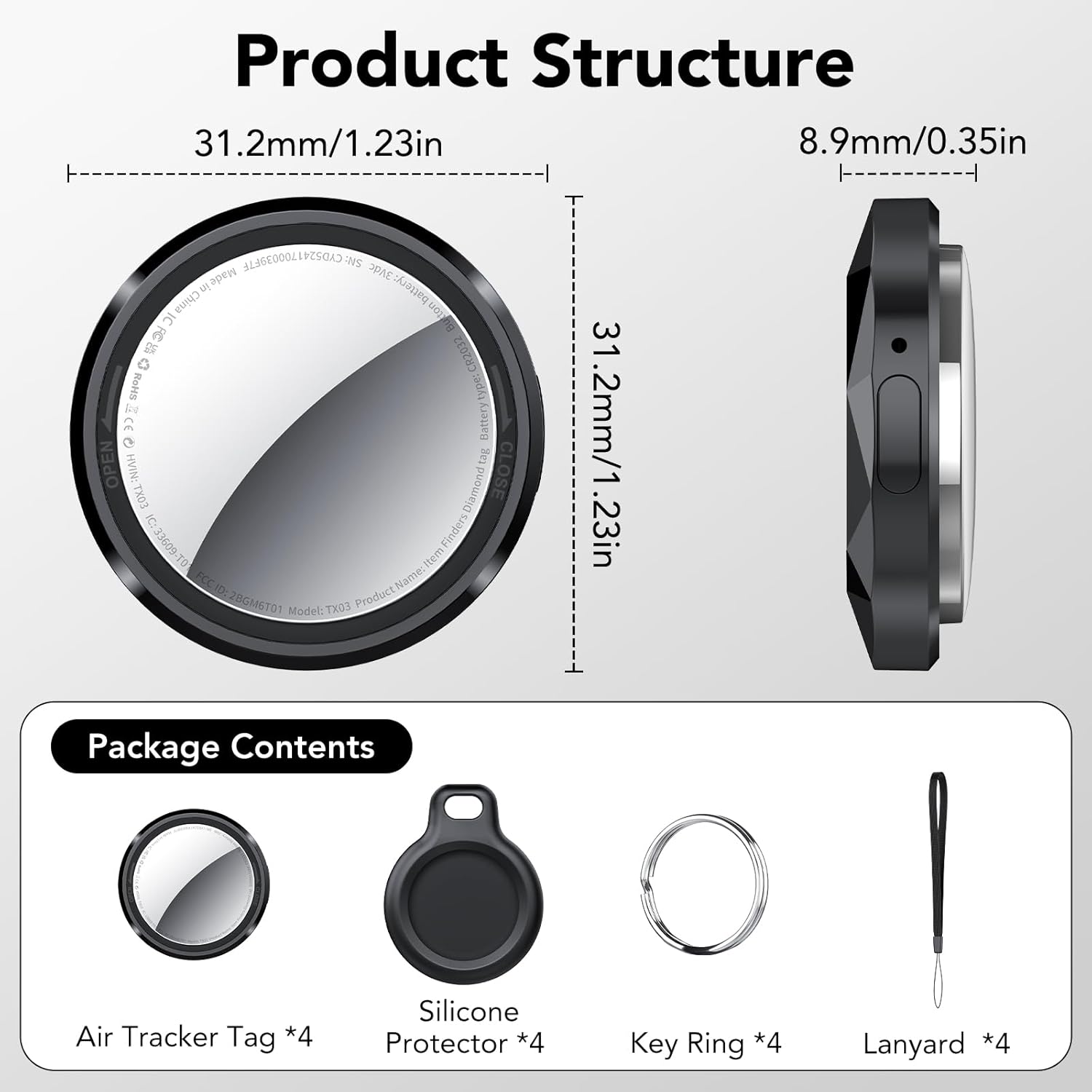
Product dimensions and package contents.
3. סעטאַפּ
Follow these steps to set up your QCOQ Smart Air Tracker Tag with your iOS device:
- מאַכט אויף: Hold the button on the tracker for 2 seconds until you hear a "Di" sound. This confirms activation.
- Enable Bluetooth and Find My: On your iPhone or iPad, ensure Bluetooth is enabled and the Find My app is accessible.
- לייג צו א נייעם אייטעם: Open the Find My app. Navigate to the "Items" tab. Tap "Add New Item" and then select "Other Supported Item". Note: This is not for adding an AirTag.
- פאַרבינדן: Bring the QCOQ tracker close to your iPhone. The app will search for and display "Diamond tag". Tap "Connect" and follow the on-screen prompts until the setup is complete.
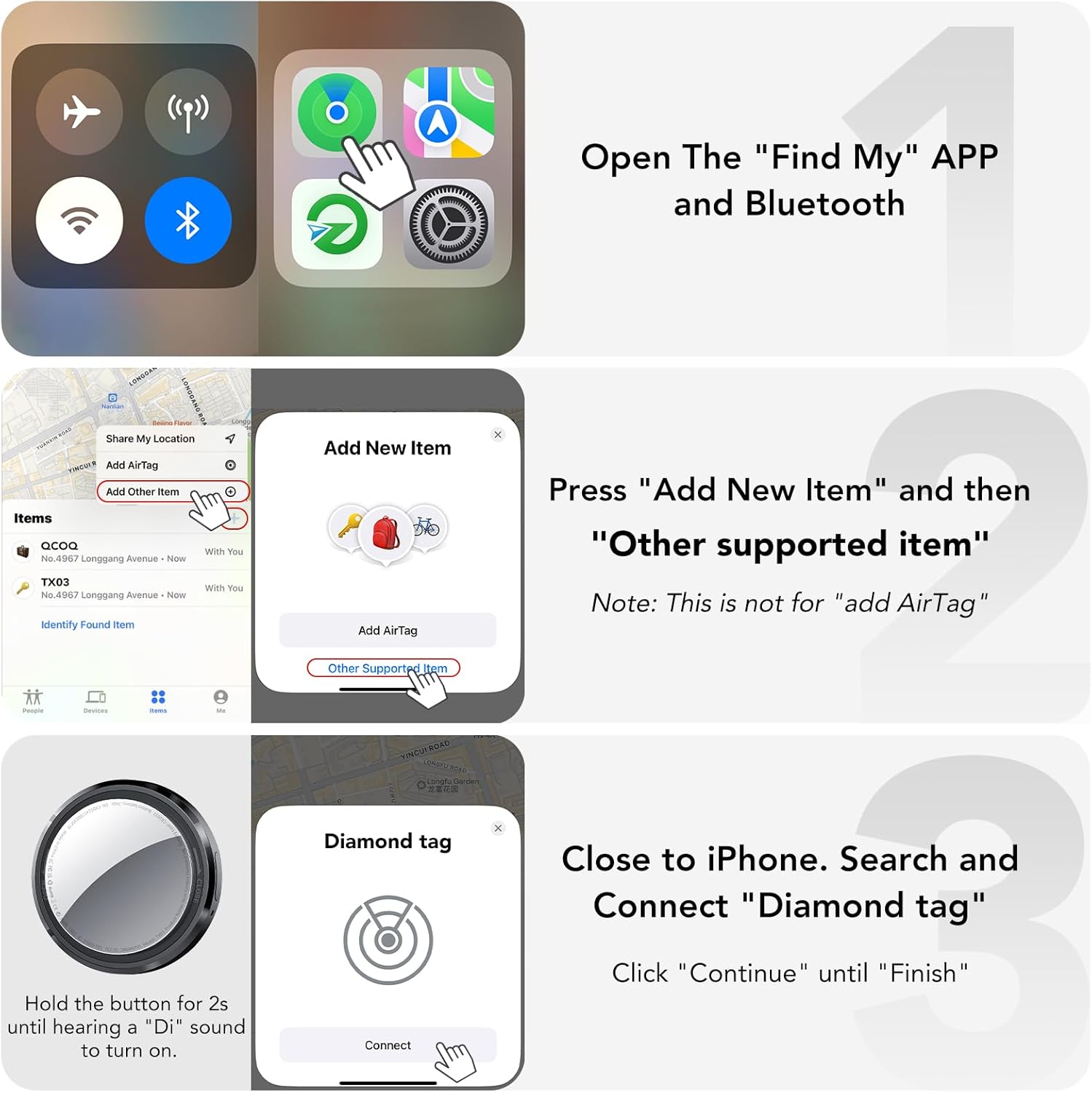
Visual guide for initial pairing.

Detailed steps for powering on, off, resetting, and connecting.
4. אַפּערייטינג ינסטרוקטיאָנס
4.1. Proximity Tracking (Play Sound)
When your item is nearby but out of sight, you can use the Find My app to make the tracker emit a sound. The QCOQ tracker features a built-in speaker with a maximum volume of 100dB, making it loud enough to locate your item even if it's hidden under cushions or in another room.
- עפֿענען די געפֿינען מיין אַפּ.
- Select the QCOQ tracker associated with your item.
- Tap "Play Sound" to activate the alarm.

Locating items using the 100dB sound.
4.2. Remote Tracking (Map Navigation)
For items that are further away, the QCOQ tracker leverages the Apple Find My network. Millions of Apple devices anonymously relay location data, allowing you to track your item globally. You can view its last known location on a map and get directions to it.
- עפֿענען די געפֿינען מיין אַפּ.
- Select the QCOQ tracker.
- View its location on the map. You can also select "Directions" for navigation.

Finding items using map navigation.
4.3. איבערגעלאָזענע דערמאָנונג
Receive instant notifications if you leave your tracked item behind. This feature helps prevent loss by alerting you when the distance between your device and the tracker exceeds the effective Bluetooth range.
- In the Find My app, select your QCOQ tracker.
- Enable "Notify When Left Behind" in the settings.
- You can also customize a circular geofence radius; alerts will not activate if the tracker remains within these designated safe zones.

Notification for left-behind items.
4.4. פארלוירענער מאָדע
If an item is truly lost, activate Lost Mode in the Find My app. This allows anyone who finds your QCOQ tracker to securely access your contact information (e.g., phone number or email) by tapping their NFC-enabled smartphone to the tracker. All data is encrypted for privacy.
- In the Find My app, select your QCOQ tracker.
- Select "Lost Mode" and follow the prompts to enter your contact information.
- Note: When Lost Mode is active, your tracker is locked and cannot be paired with a new device.
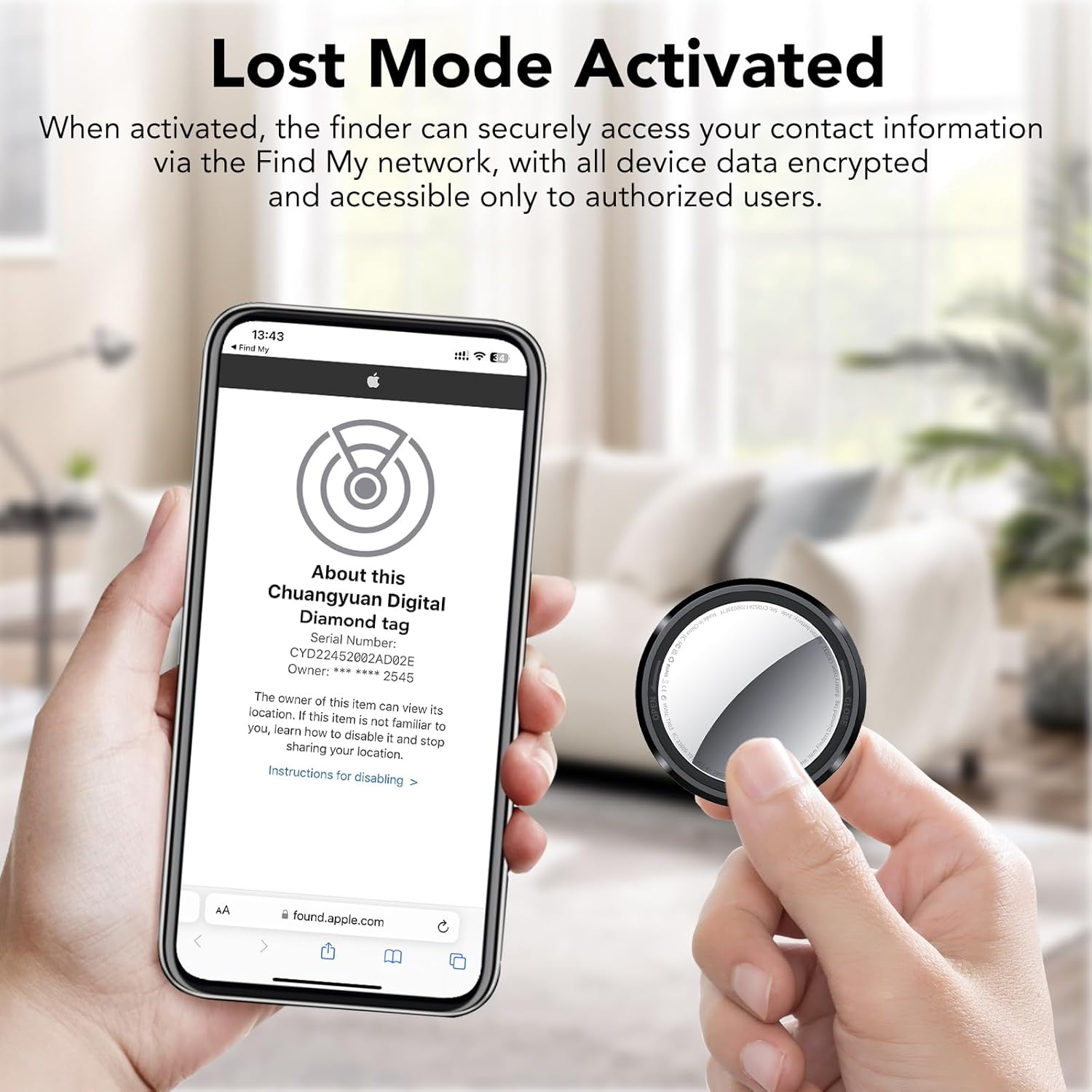
Activating Lost Mode.

Steps to activate Lost Mode.

Steps for a finder to check contact information.
4.5. Item Sharing
You can share the location of your QCOQ tracker with up to 5 other users through the Find My app. This is useful for families or groups who need to track shared items.
- In the Find My app, select your QCOQ tracker.
- Select "Share This Item" and invite other users.
- System Requirements: iOS 17, iPadOS 17, macOS 14 or later.
4.6. Siri Compatibility
You can use Siri to help locate your items. Simply say, "Hey Siri, where are my keys?" (or the name you assigned to your tracker) if the item is nearby, and Siri will prompt the tracker to play a sound.

Using Siri to find your items.
4.7. פּריוואַטקייט פּראַטעקשאַן
The QCOQ Smart Air Tracker Tag is MFi certified and adheres strictly to Apple's Find My network technical specifications. Location data is transmitted anonymously and encrypted end-to-end. Neither Apple nor QCOQ can access your identity or location information.
5. וישאַלט
5.1. באַטערי פאַרבייַט
The QCOQ Smart Air Tracker Tag uses a replaceable CR2032 coin cell battery, offering up to 365 days of battery life. To replace the battery:
- Gently rotate the stainless steel cover of the battery compartment counter-clockwise to remove it.
- Insert a new CR2032 battery with the positive (+) side facing upwards.
- Align the cover with the compartment and gently press it down.
- Rotate the cover clockwise to securely tighten it.

טריט פֿאַר באַטאַרייע פאַרבייַט.
6. טראָובלעשאָאָטינג
- Tracker not connecting: Ensure Bluetooth is on, the tracker is powered on, and within range. Try resetting the tracker by holding the button for 5 seconds until you hear a "Di-Di-Di" sound.
- קיין קלאַנג פֿון טרעקער: Check if the volume is muted in the Find My app or if the battery needs replacement.
- אומגענויע אָרט: Ensure your iOS device has a stable internet connection and location services are enabled for the Find My app. Location accuracy can vary based on environmental factors and network density.
- Left-behind reminder not working: Verify that "Notify When Left Behind" is enabled in the Find My app settings for the specific tracker.
7. ספּעסאַפאַקיישאַנז
| שטריך | דעטאַל |
|---|---|
| סאָרט | קיוקאָק |
| מאָדעל | TX03 |
| דימענשאַנז | 31.2 X 31.2 X 8.9 מם (1.23 X 1.23 X 0.35 אינטשעס) |
| וואָג | 7.3 ג (0.25 אונסעס) |
| קאַנעקטיוויטי טעכנאָלאָגיע | בלועטאָאָטה 5.3 |
| קאַמפּאַטאַבאַל דעוויסעס | iOS Smartphones (iOS 14 or later) |
| באַטערי טיפּ | CR2032 (4 required for 4-pack) |
| באַטערי לעבן | אַרויף צו 365 טעג |
| געזונט מדרגה | מאַקס. 100 דב |
| Tracking Range (Obstacles) | 30-50 meters (98-164 ft) |
| Tracking Range (Line of Sight) | 55-60 meters (180-196 ft) |
| קאָנטראָל מעטאָד | Application (Apple Find My) |
| מאַטעריאַל | פּלאַסטיק |
8. וואָראַנטי און שטיצן
QCOQ provides a 2 יאָר וואָראַנטי for the Smart Air Tracker Tag. For any inquiries, technical assistance, or warranty claims, please contact our customer service. We offer 12-שעה קונה שטיצן צו באַפרידיקן אייערע באַדערפענישן גלייך.
ביטע זעט די קאָנטאַקט אינפֿאָרמאַציע וואָס איז צוגעשטעלט אויף דער פּראָדוקט פּאַקאַדזשינג אָדער אונדזער באַאַמטער webזייטל פֿאַר די מערסט אַרויף-צו-דאַטע שטיצע קאַנאַלן.


