1. הקדמה
The Hama WM-450 Multi-Device Wireless Mouse is an optical mouse designed for versatile use across multiple devices. It features 7 buttons, a scroll wheel, and supports wireless connectivity via Bluetooth (two channels) and a 2.4 GHz radio frequency (one channel) using a USB-A receiver. This allows simultaneous connection to up to three devices, with quick switching between them. An integrated AI Assist button enhances productivity by activating an inter-program AI assistant. The mouse is designed for comfortable and silent operation.

בילד 1.1: איבערview of the Hama WM-450 mouse highlighting its key features: Bluetooth connectivity, 10-meter wireless range, USB-A receiver, and battery power.
2. סעטאַפּ
2.1 באַטאַרייע ייַנמאָנטירונג
- געפינען די באַטאַרייע אָפּטייל אויף די אַנדערסייד פון די מויז.
- עפענען די באַטאַרייע אָפּטייל דעקן.
- Insert the two AAA batteries (included) according to the polarity markings (+/-) inside the compartment.
- פאַרמאַכן די באַטאַרייע אָפּטייל דעקן סיקיורלי.
2.2 פּאַוערינג אויף / אַוועק
Slide the ON/OFF switch, located on the underside of the mouse, to the 'ON' position to power on the mouse. Slide it to 'OFF' when not in use to conserve battery life.
2.3 Connecting via USB-A Receiver (2.4 GHz Radio)
- Remove the USB-A receiver from its storage slot on the underside of the mouse.
- Plug the USB-A receiver into an available USB-A port on your computer, laptop, or compatible device.
- The mouse should be automatically recognized and ready for use. This connection uses the 2.4 GHz radio channel.
2.4 קאַנעקטינג דורך בלועטאָאָטה
The mouse supports two Bluetooth channels for connecting to different devices.
- מאַכן זיכער אַז די מויז איז פּאַוערד אויף.
- Press the channel switch button (usually on the underside or top of the mouse) to select either Bluetooth Channel 1 or Bluetooth Channel 2. The corresponding indicator light will flash.
- On your device (PC, tablet, smartphone), go to Bluetooth settings and enable Bluetooth.
- זוכן פֿאַר new devices. The mouse should appear as 'Hama WM-450' or similar.
- אויסקלייבן די מויז צו פּאָרן. פֿאָלגן אַלע אינסטרוקציעס אויף דעם עקראַן.
- Once paired, the indicator light will stop flashing and remain solid for a few seconds, indicating a successful connection.

Image 2.1: The underside of the Hama WM-450 mouse, illustrating the battery compartment, the ON/OFF switch, and the integrated storage for the USB-A receiver.
3. אָפּערייטינג
3.1 יקערדיק פאַנגקשאַנז
- לינק קליקט: ערשטיקע סעלעקציע און אַקטיוואַציע.
- רעכט גיט: Accesses context menus.
- סקראָל ראָד: סקראלט דורך דאקומענטן און web pages. The high-quality aluminum scroll wheel provides precise control.
- שטילע קליק קנעפּלעך: The left and right click buttons are designed for silent operation, reducing noise in quiet environments.
3.2 סוויטשינג צווישן קייפל דעווייסעס
To switch between connected devices (USB-A, Bluetooth 1, Bluetooth 2), press the dedicated channel switch button on the mouse. The mouse will instantly connect to the selected device.
3.3 Side Navigation Buttons
The mouse features two practical side buttons. These buttons typically function as 'Back' and 'Forward' for easier navigation in web בראַוזערס, file explorers, and applications like Outlook.

בילד 3.1: א נאָענטע בילד view of the two side navigation buttons on the Hama WM-450 mouse, used for 'Back' and 'Forward' functions.
3.4 דפּי אַדזשאַסטמאַנט
The mouse includes a DPI switch button, usually located near the scroll wheel. Press this button to cycle through different sensitivity settings: 800, 1200, and 1600 DPI (Dots Per Inch). Choose the DPI setting that best suits your preference and task.
3.5 AI Assist Button
The dedicated AI Assist button activates an inter-program AI assistant, designed to enhance productivity. Refer to your device's software documentation for specific functionalities enabled by this feature.
4. וישאַלט
4.1 רייניקונג
To clean the mouse, use a soft, dry, lint-free cloth. For stubborn dirt, slightly dampen the cloth with water or a mild cleaning solution. Avoid using harsh chemicals, abrasive cleaners, or excessive moisture, as these can damage the mouse.
4.2 באַטערי פאַרבייַט
When the mouse performance degrades or the indicator light signals low battery, replace the two AAA batteries. Always use fresh batteries of the same type.
4.3 USB Receiver Storage
When transporting the mouse or not using the 2.4 GHz radio connection, store the USB-A receiver in its dedicated slot on the underside of the mouse to prevent loss.
5. טראָובלעשאָאָטינג
- מויז ענטפערט נישט:
- מאַכן זיכער אַז די מויז איז פּאַוערד אויף.
- קאָנטראָלירן די באַטאַרייע לעוועלס און פאַרבייַטן אויב נייטיק.
- For USB-A connection, ensure the receiver is securely plugged into a working USB port. Try a different USB port.
- For Bluetooth connection, ensure Bluetooth is enabled on your device and the mouse is paired. Try re-pairing the mouse.
- Ensure the correct channel (USB-A, BT1, BT2) is selected on the mouse.
- אומגעריכטע פֿאַרבינדונג:
- Move the mouse closer to the receiver/device. The effective range is up to 10 meters, but obstacles can reduce this.
- Avoid using the mouse near other wireless devices that might cause interference.
- קורסאָר באַוועגונג איז נישט סטאַביל אָדער פּאַמעלעך:
- רייניקט דעם אָפּטישן סענסאָר אויף דער אונטערשטער זײַט פֿון דער מויז.
- Ensure you are using the mouse on a suitable surface. Highly reflective or transparent surfaces may affect performance.
- Adjust the DPI setting to a higher value if the cursor is too slow.
- Side buttons or AI Assist button not working:
- Ensure your operating system or application supports these functions.
- Check for any specific software or driver requirements for your device.
6. ספּעסאַפאַקיישאַנז
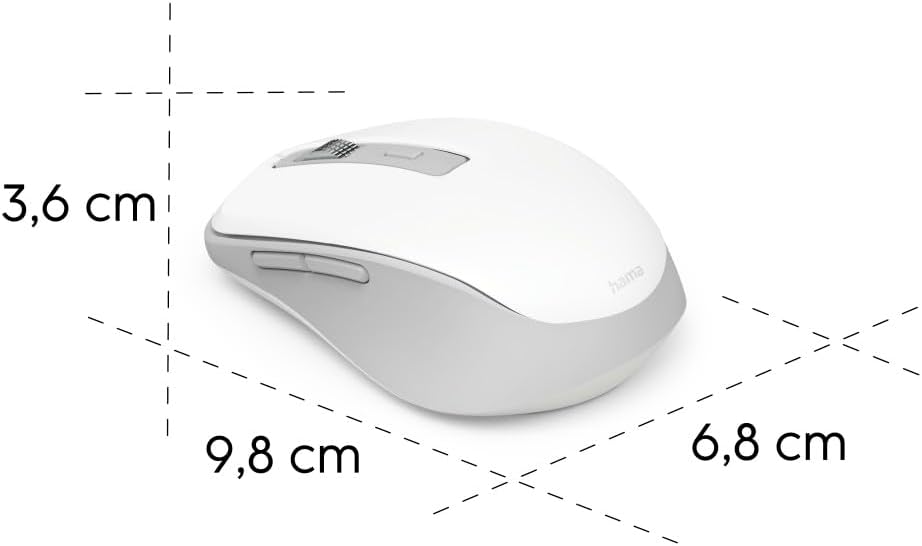
Image 6.1: Dimensional diagram of the Hama WM-450 mouse, indicating its length, width, and height.
| סאָרט | חמא |
| מאָדעל נאָמען | WM-450 |
| מאָדעל נומער | 00173080 |
| קאַנעקטיוויטי טעכנאָלאָגיע | Bluetooth, 2.4 GHz Radio (USB-A) |
| ווירעלעסס ראַנגע | אַרויף צו 10 מעטער |
| סענסאָר טעכנאָלאָגיע | אָפּטיש |
| דפּי סעטטינגס | 800 , 1200 , 1600 |
| נומער פון קנעפּלעך | 7 (including scroll wheel click) |
| מאַכט מקור | 2 X AAA באַטעריז (אַרייַנגערעכנט) |
| דימענסיעס (L X W X H) | 9.8 x 6.8 x 3.6 ס״מ (אומגעפער) |
| וואָג | 140 גראַמז |
| קאַמפּאַטאַבאַל דעוויסעס | PC, Tablet, Laptop, Smartphone, iPad |
| ספּעציעלע פֿעיִקייטן | Multi-device connectivity (3 devices), AI Assist button, Silent click buttons, Side navigation buttons, Retractable USB receiver, Polymer-coated mouse feet, High-quality aluminum scroll wheel. |
| מאַטעריאַל זאַץ | At least 20% recycled materials |
| פּאַקקאַגינג | 100% plastic-free |
7. וואָראַנטי און שטיצן
For warranty information, technical support, or service inquiries, please refer to the warranty card included with your product or visit the official Hama webזייטל. קאָנטאַקט דעטאַלן פֿאַר קונה שטיצע זענען טיפּיש בנימצא אויף די פאַבריקאַנט ס webפּלאַץ.