הקדמה
This manual provides comprehensive instructions for the setup, operation, and maintenance of your ZEBRONICS Glassy 10 Wireless Mouse. Designed for comfort and efficiency, this mouse features dual-mode connectivity (2.4GHz and Bluetooth), adjustable DPI up to 1600, silent operation, and convenient Type-C charging. Please read this manual thoroughly before using the product to ensure optimal performance and longevity.
פּעקל אינהאַלט
- Mouse - 1 unit
- Nano Receiver - 1 unit
- Charging cable - 1 unit
- Quick user Guide - 1 unit
סעטאַפּ אינסטרוקציעס
1. אויפלאָדן די מויז
The ZEBRONICS Glassy 10 mouse features a built-in rechargeable battery and Type-C charging. Connect the provided Type-C charging cable to the mouse's charging port and to a USB power source (e.g., computer, wall adapter). The LED indicator will show charging status and turn off when fully charged.

2. אײַנשטעלן/אויסלעשן און מאָדוס אויסקלייבן
Locate the Mode/Power switch on the underside of the mouse. Slide the switch to turn the mouse ON or OFF, and to select between 2.4GHz wireless mode and Bluetooth mode.
3. Connecting via 2.4GHz Wireless Mode
- Take out the USB Nano Receiver from its storage slot on the underside of the mouse.
- Plug the USB Nano Receiver into an available USB port on your computer or laptop.
- Slide the Mode/Power switch on the mouse to the 2.4GHz position.
- די מויז זאָל זיך אויטאָמאַטיש פֿאַרבינדן צו דיין מיטל.
4. פֿאַרבינדן זיך דורך בלועטוט מאָדע
- Slide the Mode/Power switch on the mouse to the Bluetooth position.
- די מויז וועט אַרייַן אין פּערינג מאָדע (אַן אינדיקאַטאָר ליכט קען בליצן).
- אויף אייער קאָמפּיוטער אָדער מיטל, עפֿנט די בלועטוט סעטטינגס.
- זוכן פֿאַר new devices and select "ZEB-Glassy 10" (or similar) from the list.
- Confirm pairing on your device. The mouse will connect once paired.

אַפּערייטינג ינסטראַקשאַנז
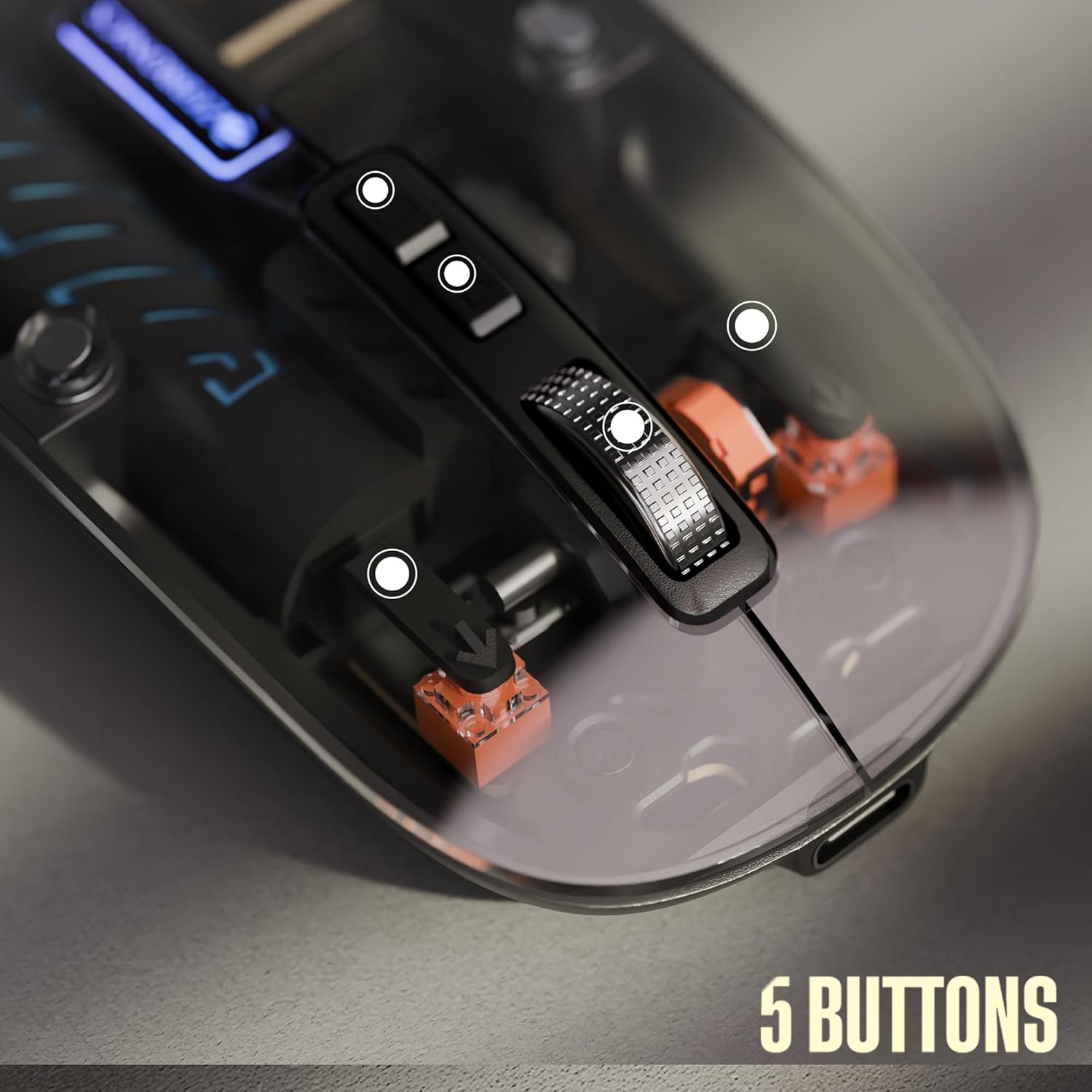
1. Mouse Buttons
The ZEBRONICS Glassy 10 mouse is equipped with 5 buttons for enhanced functionality:
- לינק קליקט: סטאַנדאַרט סעלעקציע און אַקטיוואַציע.
- רעכט גיט: Context menu access.
- Middle Scroll Wheel: פֿאַר דורכקוקן דאָקומענטן און web pages. Can also be clicked for additional functions depending on software.
- DPI Control Button: אַדזשאַסטירט די מויז סענסיטיוויטי (DPI).
- Dedicated Desktop Button: Provides quick access to the desktop or other programmed functions.

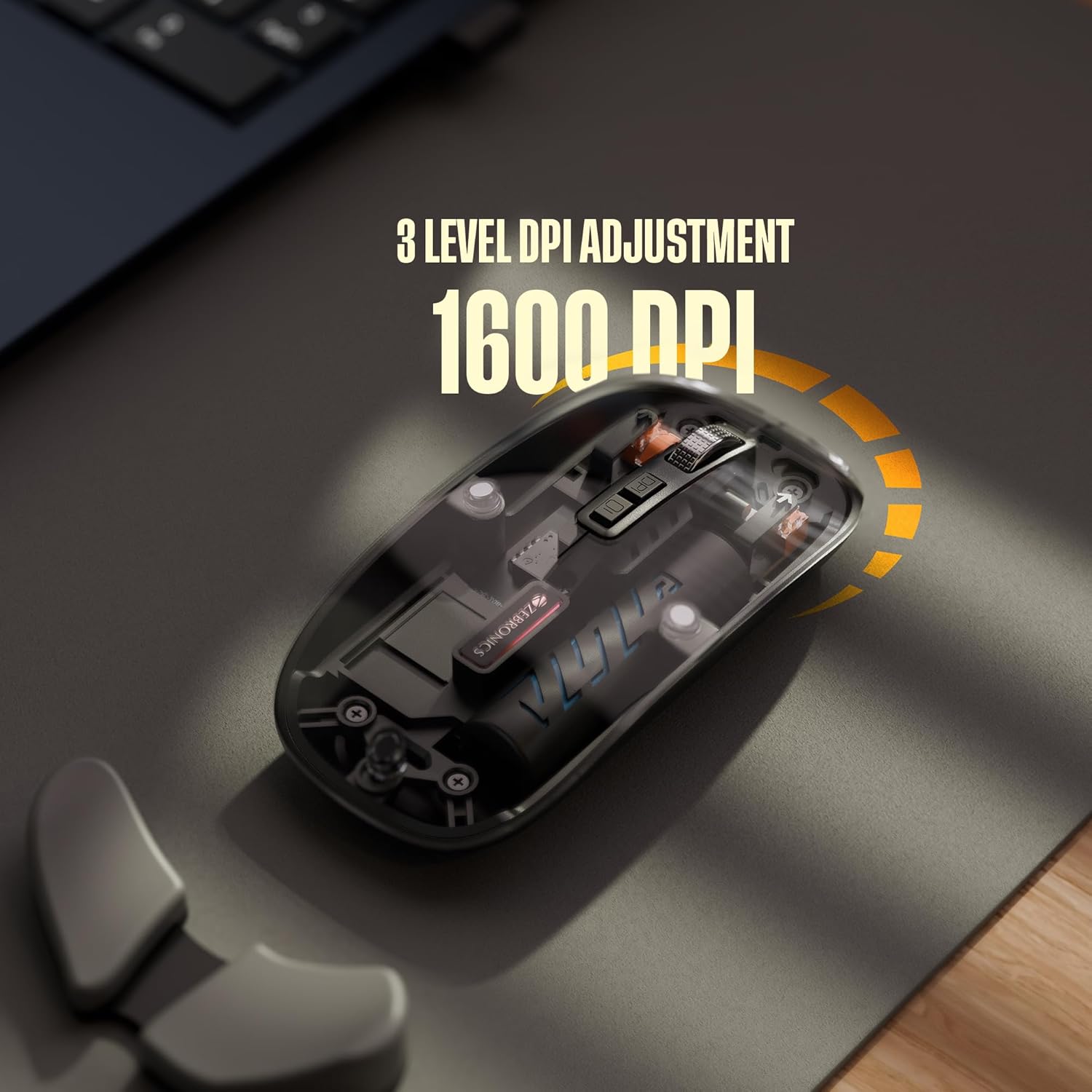
2. דפּי אַדזשאַסטמאַנט
The mouse features 3 levels of DPI adjustment, up to 1600 DPI. Press the DPI control button to cycle through the available sensitivity settings. A higher DPI setting results in faster cursor movement across the screen with less physical mouse movement.
3. Silent Operation
The ZEBRONICS Glassy 10 mouse is designed for silent operation, minimizing click sounds. This feature is beneficial in quiet environments, ensuring a less disruptive user experience.

4. Surface Compatibility
The mouse is ergonomically designed to function effectively on various surfaces, including mouse pads, plain tables, and wooden surfaces, providing consistent tracking performance.
וישאַלט
- רייניקונג: ניצט אַ ווייכע, טרוקענע שטאָף צו רייניקן די מויז. פֿאַרמייַדט ניצן שטרענגע כעמיקאַלן אָדער שרײַבנדיקע מאַטעריאַלן.
- סטאָרידזש: When not in use, store the mouse in a cool, dry place. If storing for an extended period, ensure the mouse is turned off to preserve battery life.
- באַטערי זאָרגן: Recharge the battery regularly. Avoid completely draining the battery frequently to prolong its lifespan.
טראָובלעשאָאָטינג
| פּראָבלעם | מעגלעך לייזונג |
|---|---|
| מויז ניט ריספּאַנדינג |
|
| פארשפּעטיקטע אדער איבערגעבליבענע פארבינדונג |
|
| Cursor movement is too fast/slow |
|
| טשאַרדזשינג אַרויסגעבן |
|
ספּעסאַפאַקיישאַנז
| שטריך | דעטאַל |
|---|---|
| סאָרט | זעבראָניקס |
| מאָדעל | Glassy 10 |
| קאַנעקטיוויטי טעכנאָלאָגיע | Dual Mode (2.4GHz Wireless, Bluetooth) |
| דפּי לעוועלס | Up to 1600 DPI (3-level adjustable) |
| קנעפּלעך | 5 (Left, Right, Scroll Wheel, DPI, Dedicated Desktop) |
| אָפּעראַציע | שטיל קליק |
| טשאַרדזשינג | Type-C, Built-in Rechargeable Battery |
| אַפּערייטינג סיסטעם קאַמפּאַטאַבילאַטי | Mac OS (and generally Windows, Linux compatible) |
| דימענשאַנז (LxWxH) | 11.3 X 5.7 X 0.1 סענטימעטער |
| פּונקט וואָג | 70 ג |
וואָראַנטי און שטיצן
For warranty information and technical support, please refer to the warranty card included in your package or visit the official ZEBRONICS webזייטל. האַלט אייער קויף קוויטל ווי אַ באַווייַז פון קויפן פֿאַר וואָראַנטי קליימז.
פאַבריקאַנט: Zebronics India Private Limited
אַדרעס: No.13/7, Smith Road, Royapettah, Chennai - 600 002, India


