הקדמה
This manual provides essential information for setting up, operating, maintaining, and troubleshooting your Thunderobot Zero 18 Pro 5070 Ti Gaming Laptop. Please read this guide thoroughly to ensure optimal performance and longevity of your device.
וואָס איז אין די קעסטל
ביים אויספּאַקן, קאָנטראָלירט אַז אַלע די זאכן וואָס זענען אויסגערעכנט אונטן זענען פאַראַן:
- טאַנדעראָבאָט זיראָ לאַפּטאָפּ
- מאַכט אַדאַפּטער
- באַניצער מאַנואַל (דעם דאָקומענט)
- וואָראַנטי קאַרד
If any items are missing or damaged, contact your retailer or Thunderobot customer support immediately.
סעטאַפּ
ערשט מאַכט-אויף
- פֿאַרבינדט דעם מאַכט אַדאַפּטער צום לאַפּטאַפּ'ס מאַכט אַרייַנגאַנג פּאָרט און דערנאָך צו אַ וואַנט ווענטיל.
- עפענען די לאַפּטאַפּ דעקל.
- דרוק די מאַכט קנעפּל צו קער אויף די לאַפּטאַפּ.
- פֿאָלגט די אינסטרוקציעס אויף דעם עקראַן צו פֿאַרענדיקן די Windows 11 Home סעטאַפּ.
קאַנעקטינג פּעריפעראַלס
Utilize the available ports to connect external devices such as a mouse, keyboard, external display, or other accessories. Refer to the "Connectivity (Ports)" section for port details.
אַפּערייטינג ינסטראַקשאַנז
מאַכט אויף / אַוועק
- To power on: Press the power button located on the keyboard deck.
- To shut down: Click the Start button, then Power, and select "Shut down".
- To restart: Click the Start button, then Power, and select "Restart".
- To sleep: Close the laptop lid or click the Start button, then Power, and select "Sleep".
Keyboard and RGB Lighting
The laptop features a full-size keyboard with per-key customizable RGB backlighting and a dedicated numeric keypad.
- Per-Key RGB Backlight: Customize individual key lighting through the AI Intelligent Control Center software.
- פֿונקציע קיז: ניצן די Fn key in combination with other keys for various functions (e.g., volume control, screen brightness, keyboard backlight adjustment).
- Performance Mode Switching: Dedicated keys (Fn+Space) allow for quick toggling between performance profiles.
- One-Click Cooling: A dedicated key (often near the numeric keypad) can activate maximum cooling. Ensure cooling mode is exited before using the first three keys to switch modes.
ווייַז פֿעיִקייטן
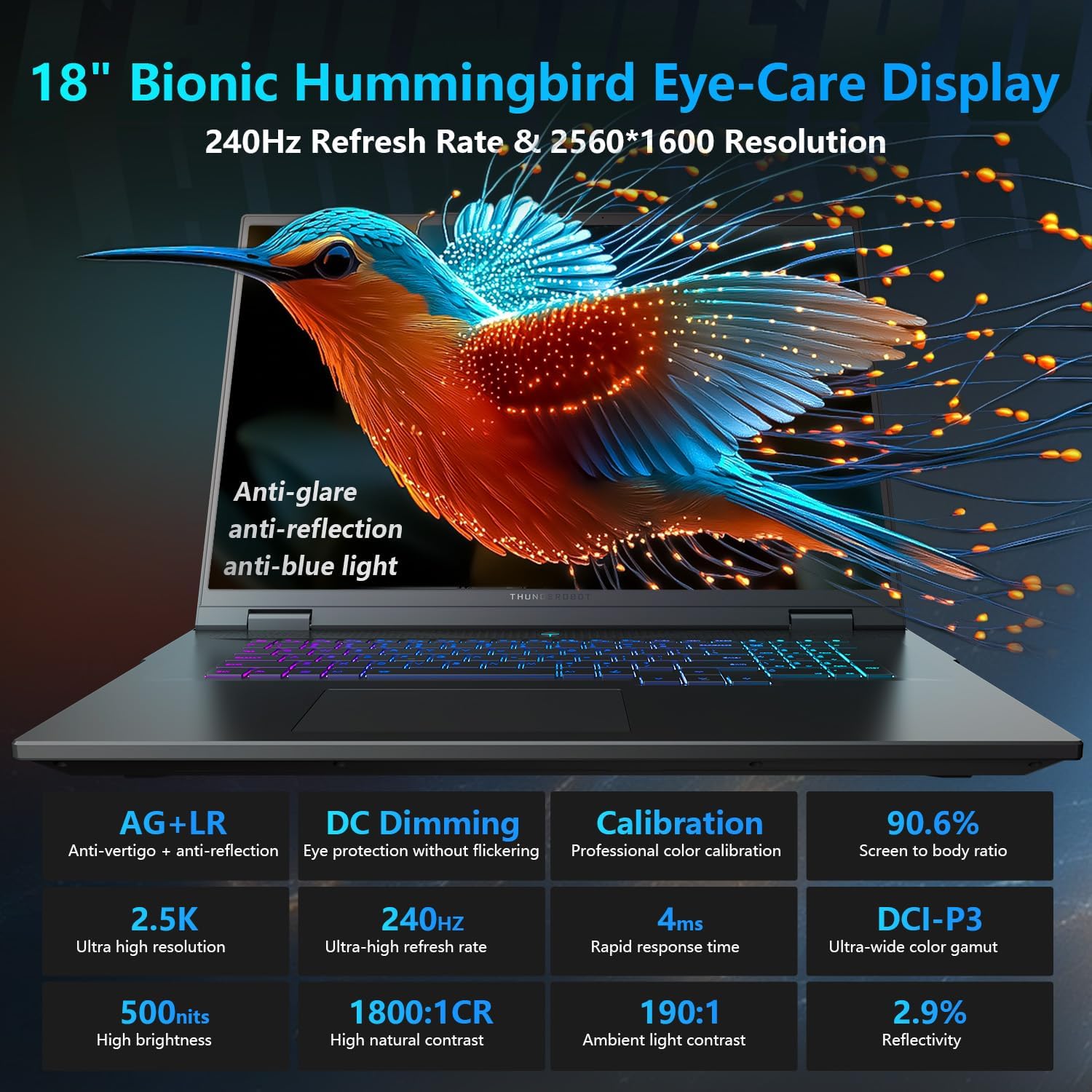
The 18-inch QHD+ (2560x1600) Bionic Hummingbird Eye-Care display offers a 240Hz refresh rate and 4ms response time for clear and fluid visuals. It includes anti-glare, anti-reflection, and anti-blue light technologies for eye comfort.

Connectivity (Ports)
The laptop is equipped with various ports for extensive connectivity:
- 3 x סופּערספּיד יו-עס-בי טיפּ-א פּאָרטן
- 2 x Superspeed USB Type-C ports (including Thunderbolt 5 support)
- 1 x HDMI port (HDMI 2.1)
- 1 x RJ-45 עטהערנעט פּאָרט
- 1 x אַודיאָ פּאָרט (3.5 מ״מ)
- UHS-II SD Card Reader
- Wi-Fi 6E for high-speed wireless internet
- Bluetooth for wireless peripheral connections

קאָאָלינג סיסטעם
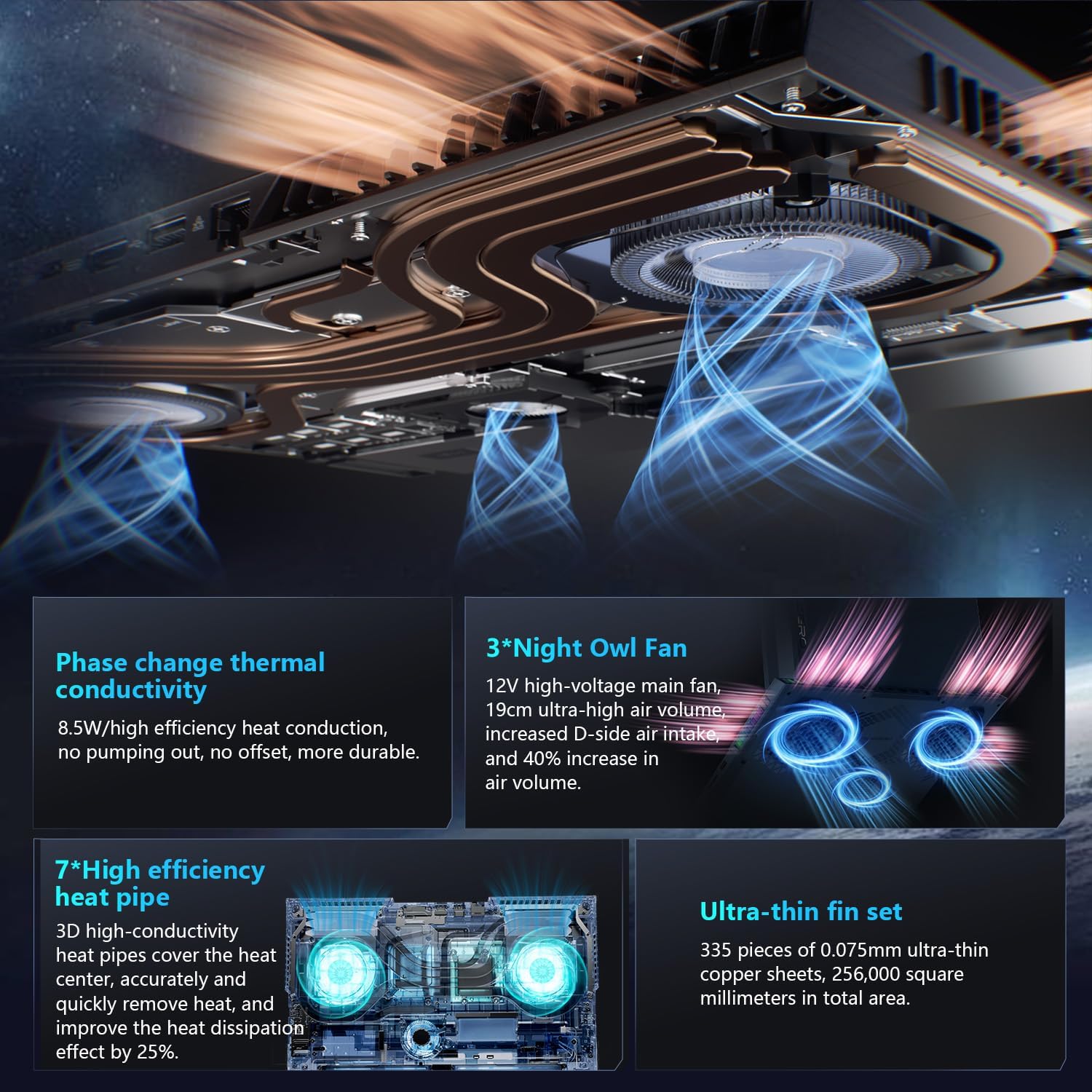
The advanced cooling system features 3 Night Owl fans, 7 high-efficiency heat pipes, and 338 ultra-thin copper fins to ensure optimal thermal management during intensive use, allowing for 270W super performance release.
AI Intelligent Control Center
The AI Intelligent Control Center software allows for comprehensive system management, including performance tuning, intelligent light adjustment, and personalized customization. This includes monitoring CPU/GPU temperatures and fan speeds.
- פאָרשטעלונג טונינג: Adjust power settings for quiet, balanced, or turbo modes.
- Intelligent Light Adjustment: Customize keyboard, strip, and logo RGB lighting effects.
- סיסטעם מאָניטאָרינג: View real-time CPU and GPU status.
באַמערקונג: סיסטעם מאָדע סוויטשינג אין קאָנטראָל צענטער ריקווייערז אַז די מיטל זאָל זיין פארבונדן צו אַ מאַכט מקור.
וישאַלט
רייניקן דיין לאַפּטאָפּ
- פאַרשטעלן: ניצן אַ ווייך, לינט-פֿרייַ שטאָף לייטלי דampגעוואשן מיט וואַסער אָדער אַ פאַרשטעלן רייניגער. פֿאַרמייַדן שטרענגע כעמיקאַליעס.
- קלאַוויאַטור און שאַסי: ניצט אַ ווייכע שטאָף צו ווישן די ייבערפלאַכן. פֿאַר שטויב אין שפּאַלטן, ניצט קאָמפּרעסירטע לופט.
- ווענץ: Periodically clean the cooling vents with compressed air to prevent dust buildup, which can affect performance.
באַטערי קער
- פֿאַרמײַדט אָפֿט פֿולשטענדיק אויסצולאָדן די באַטעריע.
- האַלט דעם לאַפּטאָפּ אין אַ קיל, טרוקן אָרט אויב עס ווערט נישט גענוצט פֿאַר לענגערע צייטן.
- פֿאַר אָפּטימאַלער באַטאַריע געזונט, פֿאַרמייַדט עקסטרעמע טעמפּעראַטורן.
ווייכווארג דערהייַנטיקונגען
Regularly check for and install operating system updates (Windows Update) and driver updates (via Thunderobot's official website or the AI Intelligent Control Center) to ensure system stability and performance.
טראָובלעשאָאָטינג
| פּראָבלעם | מעגלעך סיבה | לייזונג |
|---|---|---|
| דער לאַפּטאָפּ גייט נישט אָן. | קיין מאַכט, אויסגעלאָדעטע באַטאַרייע, אָדער האַרדווער פּראָבלעם. |
|
| דער עקראַן איז ליידיק אָדער שוואַרץ. | דיספּליי סעטטינגס, עקסטערנער מאָניטאָר פֿאַרבונדן, אָדער האַרדווער פּראָבלעם. |
|
| אָוווערכיטינג בעשאַס נוצן. | Blocked vents, high performance settings, or dust buildup. |
|
| Wi-Fi פֿאַרבינדונג פּראָבלעמען. | Wi-Fi דיאַקטיווירט, דרייווער פּראָבלעמען, אָדער ראַוטער פּראָבלעמען. |
|
For further assistance, please contact Thunderobot customer support.
ספּעסאַפאַקיישאַנז
| שטריך | דעטאַל |
|---|---|
| מאָדעל נאָמען | Zero 18 Pro |
| פּראַסעסער | Intel Core Ultra 9 275HX (24 Cores, 24 Threads, up to 5.40GHz) |
| גראַפיקס | NVIDIA GeForce RTX 5070 Ti (8 GB GDDR6 Dedicated) |
| באַראַן | 32 גיגאבייט DDR5 (4800 מעגהערץ) |
| סטאָרידזש | 2 טב פּיסי-איי-סי-עי עם.2 ססד |
| ווייַז | 18-inch QHD+ (2560x1600) 240Hz Bionic Hummingbird Eye-Care Display |
| אָפּערייטינג סיסטעם | Windows 11 היים |
| קאַנעקטיוויטי | Wi-Fi 6E, Bluetooth, 3x USB-A, 2x USB-C (Thunderbolt 5), HDMI 2.1, RJ-45, Audio Port |
| קלאַוויאַטור | Per-Key RGB Backlit, Numeric Keypad |
| דימענשאַנז (LxWxH) | 16.04 X 11.78 X 1.41 אינטשעס |
| פּונקט וואָג | 15 פונט |
| מאַכט מקור | אַק & באַטערי |
וואָראַנטי און שטיצן
יעדער טאַנדעראָבאָט לאַפּטאַפּ כולל אַ 12-חודש וואָראַנטי, offering expert support, thorough diagnostics, and genuine parts if a repair is needed. Additionally, a 90-טאָג וואָראַנטי ווערט צוגעשטעלט אויף אלע גאראנטיע פארטרעטער טיילן, וואס גאראנטירט א פראבלעם-פרייע פארריכטונגען. אייער פולשטענדיגע צופרידנהייט איז אונזער צוזאג.
פֿאַר טעכנישע שטיצע, וואָראַנטי קליימז, אָדער סערוויס אָנפֿרעגן, ביטע באַזוכט די אָפֿיציעלע טאַנדעראָבאָט website or contact their customer service department. Keep your purchase receipt and serial number handy for faster service.