הקדמה
Welcome to the user manual for your new VAIO SX-R Laptop. This document provides essential information to help you set up, operate, maintain, and troubleshoot your device. Please read this manual thoroughly to ensure optimal performance and longevity of your laptop.
פּראָדוקט איבערview
The VAIO SX-R is a high-performance laptop designed for productivity and creative tasks. It features an Intel Core Ultra 7 processor, a vibrant 14-inch WQXGA Touch Display, ampלע זכּרון, און שנעלע סטאָרידזש.
שליסל פֿעיִקייטן
- פּראַסעסער: Intel Core Ultra 7 (16-Core, AI-Boosted) for enhanced speed and responsiveness.
- ווייַז: 14-inch WQXGA Touch Display (2560x1600) offering high resolution and wide color gamut.
- זכּרון: 32GB LPDDR5 RAM for superior multitasking.
- סטאָרידזש: 1TB PCIe NVMe SSD for fast data access and ample סטאָרידזש.
- אַפּערייטינג סיסטעם: Windows 11 Pro with enterprise-grade security and productivity features.
- זיכערהייט: Integrated IR Camera and Fingerprint Reader for secure login.
- שאַסי: Durable Carbon Fiber construction.
Laptop Components and Ports

Figure 1: VAIO SX-R Laptop, illustrating the overall design.
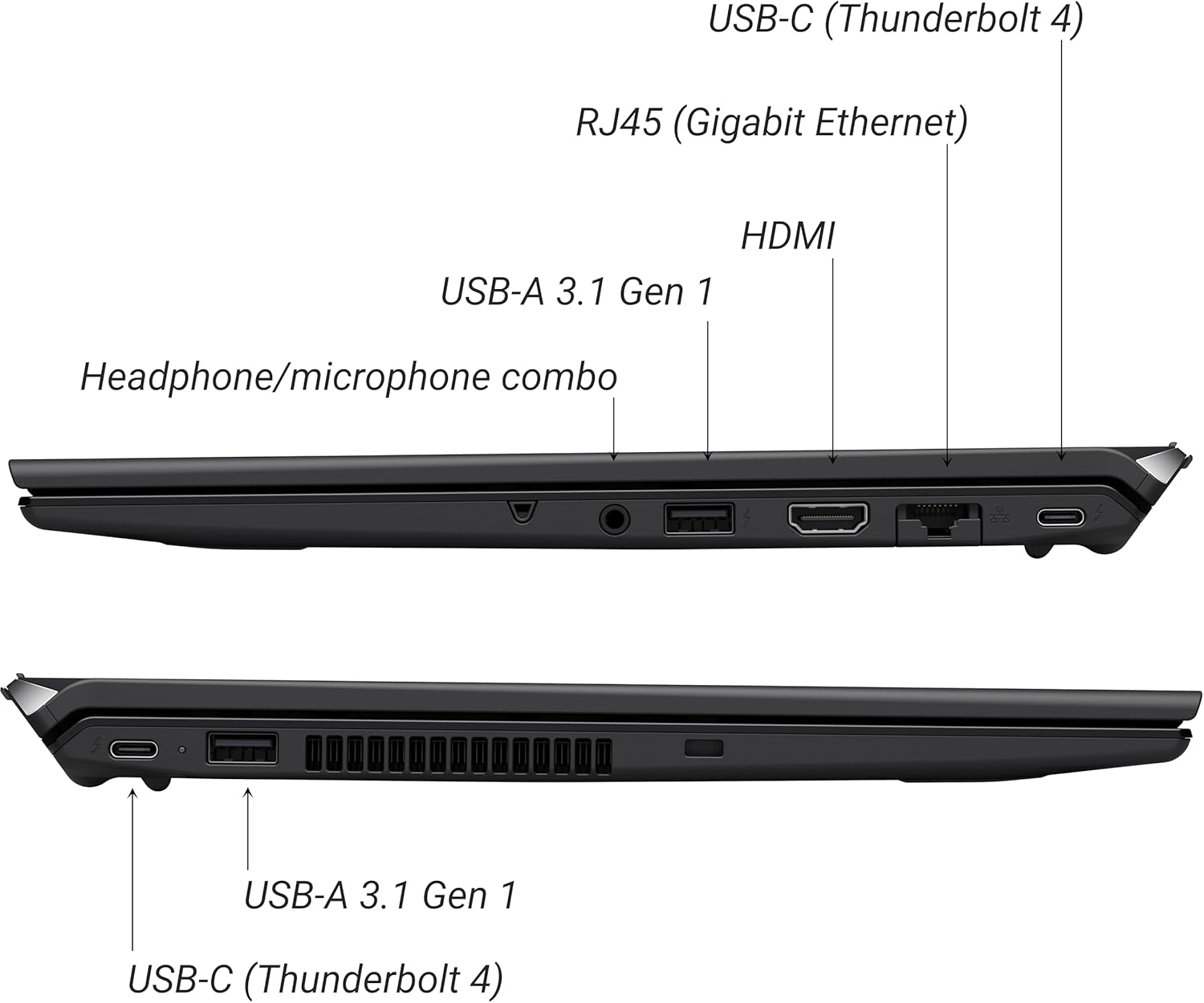
Figure 2: Port layout of the VAIO SX-R Laptop. The left side includes a headphone/microphone combo jack, USB-A 3.1 Gen 1, HDMI, RJ45 (Gigabit Ethernet), and USB-C (Thunderbolt 4). The right side features another USB-C (Thunderbolt 4) and USB-A 3.1 Gen 1 port.
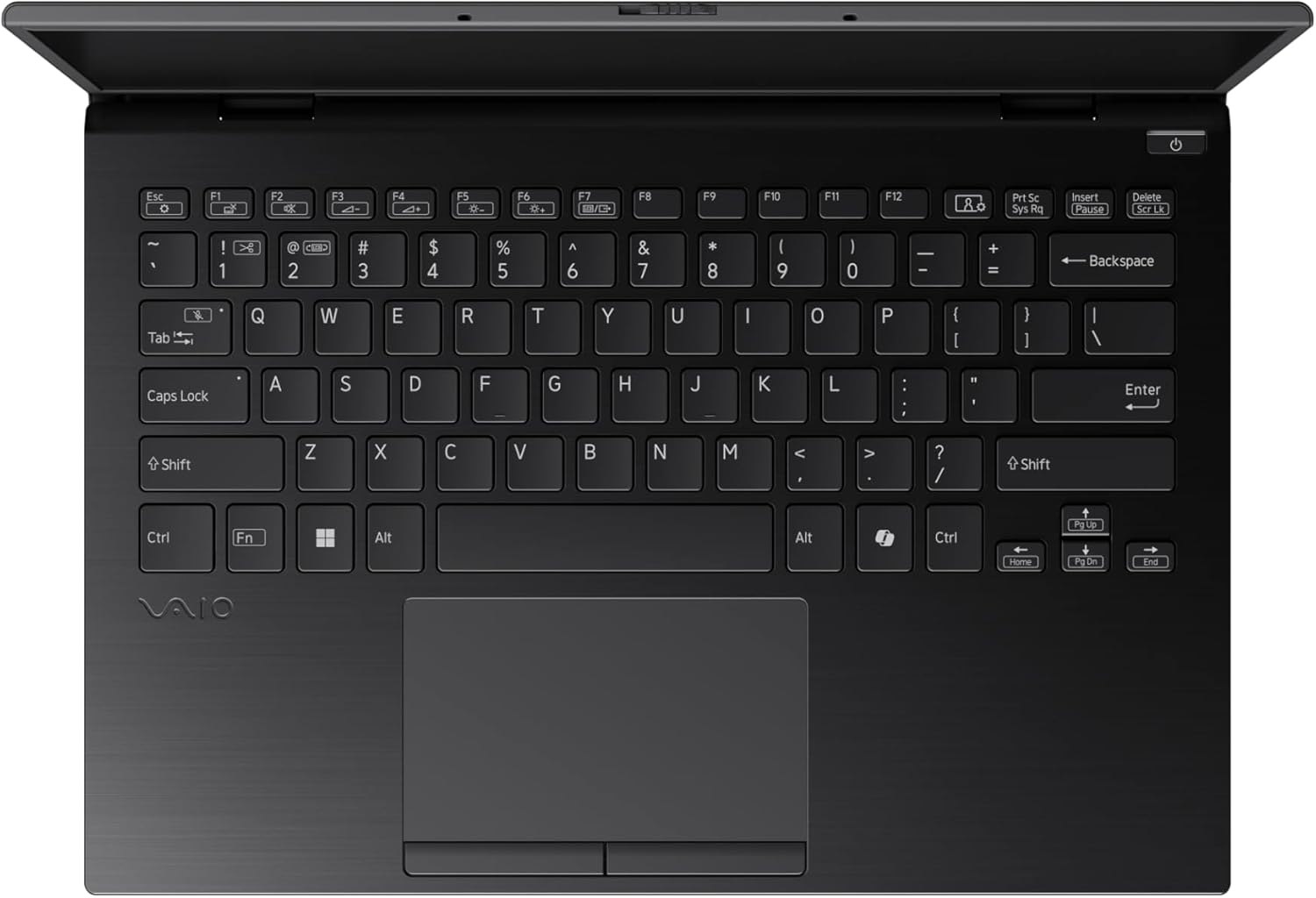
Figure 3: The VAIO SX-R Laptop keyboard and touchpad, featuring a backlit keyboard and integrated fingerprint sensor.
סעטאַפּ
1. ערשטע איינשאַלטונג
- פאַרבינדן מאַכט: שטעקט אריין דעם AC אדאפטער אין דעם לעפטאפ'ס מאכט פארט און דערנאך אין א וואנט אווענטיל.
- עפֿענען לאַפּטאָפּ: פֿאָרזיכטיק עפֿנט דעם דעקל פֿון דעם לאַפּטאָפּ.
- מאַכט אויף: Press the power button, typically located on the top right of the keyboard deck. The power indicator light will illuminate.
2. Windows 11 Pro Setup
Follow the on-screen instructions to complete the initial Windows 11 Pro setup. This includes:
- אויסקלייבן אייער ראיאן און קלאַוויאַטור אויסלייג.
- קאַנעקטינג צו אַ Wi-Fi נעץ.
- אַקצעפּטירן די ליצענץ אָפּמאַך.
- Creating or logging in with a Microsoft account.
- Setting up your PIN, fingerprint, or facial recognition (IR Camera).
3. קאַנעקטינג פּעריפעראַלס
You can connect external devices such as mice, keyboards, external monitors, and USB drives to the available ports as shown in Figure 2.
אַפּערייטינג
1. יקערדיק באַניץ
- קלאַוויאַטור: Use the integrated backlit keyboard for typing. Function keys (F1-F12) often have secondary functions accessible via the 'Fn' key.
- טאָוטשפּאַד: די פּרעציזיע טאָוטשפּאַד שטיצט מולטי-טאָוטש דזשעסטשערז פֿאַר נאַוויגאַציע.
- טאָוטשסקרעען: Interact directly with the 14-inch WQXGA display using touch gestures.
2. זיכערהייַט פֿעיִקייטן
- פינגערפּרינט לייענער: Enroll your fingerprints through Windows Settings > Accounts > Sign-in options for quick and secure login.
- IR Camera: Utilize Windows Hello facial recognition for convenient and secure access. Set this up in Windows Settings > Accounts > Sign-in options.
3. מאַכט מאַנאַגעמענט
- שלאָפן מאָדע: Close the lid or press the power button briefly to put the laptop to sleep.
- שאַט אַראָפּ: Go to Start > Power > Shut down to turn off the laptop completely.
- ריסטאַרט: Go to Start > Power > Restart to reboot the system.
וישאַלט
1. רייניקונג
- פאַרשטעלן: ניצן אַ ווייך, לינט-פֿרייַ שטאָף אַ ביסל דampגעוואשן מיט וואַסער אָדער אַ פאַרשטעלן רייניגער. פֿאַרמייַדן שטרענגע כעמיקאַליעס.
- קלאַוויאַטור און שאַסי: ניצט אַ ווייכע שטאָף. פֿאַר שווערע שמוץ, אַ ביסל דיקamp cloth with mild soap can be used, ensuring no liquid enters openings.
- פּאָרץ: ניצט קאמפרעסט לופט צו פארזיכטיק רייניגן שטויב פון די פארטן.

Figure 4: The VAIO SX-R features a water-resistant keyboard, designed to withstand minor spills.
2. ווייכווארג דערהייַנטיקונגען
Regularly update your Windows operating system and device drivers to ensure optimal performance, security, and compatibility. Access updates via Windows Settings > Windows Update.
3. באַטערי קער
- ויסמיידן עקסטרעם טעמפּעראַטורעס.
- לאָדט נישט אָפט גאָר אויס די באַטאַרייע.
- פֿאַר לאַנג-טערמין סטאָרידזש, לאָד די באַטאַרייע צו וועגן 50-60%.
טראָובלעשאָאָטינג
די סעקציע באהאנדלט אלגעמיינע פראבלעמען וואס איר קענט באגעגענען.
1. לאַפּטאָפּ גייט נישט אָן
- זיכער מאַכן אַז דער AC אַדאַפּטער איז זיכער פארבונדן צו ביידע דעם לאַפּטאַפּ און אַ אַרבעטנדיקן עלעקטרישן ווענטיל.
- קאָנטראָלירט צי די עלעקטרישע אַוטלעט אַרבעט דורך אַרײַנשטעקן אַן אַנדער דעוויס.
- אויב די באַטאַרייע איז גאָר אויסגעשעפּט, לאָזט עס זיך אויפלאָדן פֿאַר לפּחות 30 מינוט איידער איר פּרוּווט עס אָנצוצינדן.
2. פּראָבלעמען מיטן אַרויסווייַזן
- קיין ווייַז: פֿאַרבינדט אַן עקסטערנעם מאָניטאָר צום HDMI פּאָרט צו קאָנטראָלירן צי די פּראָבלעם איז מיטן לאַפּטאָפּ'ס אינערלעכן דיספּליי.
- פליקערנדיק/פארדרייטע דיספלעי: Update your graphics drivers. Adjust display resolution and refresh rate in Windows Settings > System > Display.
3. Wi-Fi Connectivity Problems
- Ensure Wi-Fi is enabled in Windows Settings > Network & internet > Wi-Fi.
- ריסטאַרט דיין ראַוטער און מאָדעם.
- לויפט דעם ווינדאָוס נעטוואָרק טראָובלעשאָאָטער.
4. לאַנגזאַמע פאָרשטעלונג
- שליסט אומנייטיקע אַפּליקאַציעס וואָס לויפן אין הינטערגרונט.
- קוק אין טאַסק מענעדזשער (Ctrl+Shift+Esc) פֿאַר רעסורסן-אינטענסיווע פּראָצעסן.
- Ensure your system is up to date and free from malware.
ספּעסאַפאַקיישאַנז
Below are the detailed specifications for the VAIO SX-R Laptop (Model: VJS4R1X0511B).
| שטריך | באַשרייַבונג |
|---|---|
| סאָרט | VAIO |
| מאָדעל נאָמען | VAIO SX-R |
| נומער מאָדעל נומער | VJS4R1X0511B |
| אָפּערייטינג סיסטעם | Windows 11 פּראָ |
| פּראַסעסער | אינטעל קאָר אולטראַ 7 (1.4 GHz) |
| באַראַן זכּרון | 32 גיגאבייט LPDDR5 |
| שווער דרייוו | 1 טב פּיסי-איי-עי NVMe ססד |
| פאַרשטעלן גרייס | 14 אינטשעס |
| פאַרשטעלן האַכלאָטע | 2560 x 1600 פּיקסעלס (WQXGA) |
| גראַפיקס קאַרד | ינטעגראַטעד ינטעל גראַפיקס |
| ווירעלעסס טיפּ | 802.11bgn |
| וסב 3.0 פּאָרץ | 3 |
| דורכשניטלעך באַטאַרייע לעבן | 10 שעה |
| פּונקט וואָג | 3.1 פונט |
| פּראָדוקט דימענשאַנז | 14.2 X 15 X 3.3 אינטשעס |
| ספּעציעלע פֿעיִקייטן | Backlit Keyboard, Fingerprint Reader, HD Audio, Memory Card Slot, Webקאַם |
וואָראַנטי און שטיצן
1. וואָראַנטי אינפֿאָרמאַציע
Your VAIO SX-R Laptop is covered by a manufacturer's warranty. Please refer to the warranty card included with your product packaging for specific terms, conditions, and duration. Keep your proof of purchase for warranty claims.
2. טעכניש שטיצן
For technical assistance, troubleshooting beyond this manual, or service inquiries, please contact VAIO customer support. You can typically find contact information on the official VAIO website or in the documentation provided with your laptop.
- אָנליין שטיצן: Visit the official VAIO support website for FAQs, driver downloads, and contact options.
- טעלעפאָן שטיצן: Refer to your product documentation for regional support phone numbers.


