1. הקדמה
Thank you for choosing the ZEBRONICS Jaguar V Vertical Wireless Mouse. This manual provides detailed instructions for setting up, operating, and maintaining your new mouse. The Jaguar V is designed for ergonomic comfort and offers versatile dual-mode connectivity (2.4GHz wireless and Bluetooth) for seamless use across multiple devices.

Image 1.1: ZEBRONICS Jaguar V Vertical Wireless Mouse, showcasing its ergonomic design and included USB nano receiver.
2. פּעקל אינהאַלט
ביטע טשעק די פּאַקעט פֿאַר די פאלגענדע זאכן:
- ZEBRONICS Jaguar V Vertical Wireless Mouse - 1 unit
- USB Nano Receiver - 1 unit
- Quick User Guide - 1 unit
3. פּראָדוקט איבערview
The Jaguar V mouse features an ergonomic vertical design to promote a natural hand position, reducing wrist strain. It includes six buttons and a 3-level DPI switch for adjustable precision.

Image 3.1: Diagram illustrating the six buttons on the ZEBRONICS Jaguar V mouse, including the Left Button, Scroll Wheel, 3-Level DPI Switch, Right Button, Forward Button, and Backward Button.

Image 3.2: Visual representation of the LED indicators for 2.4GHz, BT1, and BT2 modes on the mouse, showing their respective colors.
4. סעטאַפּ אינסטרוקציעס
4.1. באַטאַרייע ייַנמאָנטירונג
- געפינען די באַטאַרייע אָפּטייל אויף די אַנדערסייד פון די מויז.
- עפענען די באַטאַרייע אָפּטייל דעקן.
- אַרײַנשטעלן צוויי AAA באַטעריעס, און זיכער מאַכן אַז די פּאָלאַריטעט איז ריכטיק (+/-).
- פאַרמאַכן די באַטאַרייע אָפּטייל דעקן סיקיורלי.
4.2. 2.4GHz ווירעלעס פֿאַרבינדונג
- Take out the USB Nano Receiver from its storage slot on the mouse.
- שטעקט אריין דעם USB נאַנאָ ריסיווער אין אַ פאַראַן USB פּאָרט אויף אייער קאָמפּיוטער.
- קער אויף די מויז ניצן די מאַכט באַשטימען אויף די דנאָ.
- Switch the mode button on the bottom of the mouse to the '2.4G' position. The 2.4GHz indicator LED will light up.
- אייער קאָמפּיוטער זאָל אויטאָמאַטיש דעטעקטירן און אינסטאַלירן די נויטיקע דרייווערס. די מויז איז גרייט פֿאַר באַנוץ.

Image 4.1: The ZEBRONICS Jaguar V mouse connected to a laptop via its USB Nano Receiver, illustrating the 2.4GHz wireless setup.
4.3. בלועטוט פֿאַרבינדונג (BT1 / BT2)
The mouse supports two independent Bluetooth connections (BT1 and BT2).
- קער אויף די מויז ניצן די מאַכט באַשטימען.
- Switch the mode button on the bottom of the mouse to either 'BT1' or 'BT2' position.
- Press and hold the mode button for 3-5 seconds until the corresponding BT indicator LED (BT1 or BT2) starts blinking rapidly. This indicates the mouse is in pairing mode.
- אויף אייער קאָמפּיוטער אָדער מיטל, עפֿנט די בלועטוט סעטטינגס.
- זוכן פֿאַר new devices and select 'Zeb-Jaguar V' from the list.
- Once paired, the BT indicator LED will stop blinking and remain solid for a few seconds before turning off. The mouse is now connected.
- Repeat these steps to connect to a second device using the other Bluetooth channel (BT1 or BT2).
5. אַפּערייטינג ינסטרוקטיאָנס
5.1. דפּי אַדזשאַסטמאַנט
The mouse features a 3-level DPI switch, allowing you to adjust cursor sensitivity. Press the DPI button (located near the scroll wheel) to cycle through the available DPI settings (e.g., 800, 1200, 1600 DPI). Each press changes the sensitivity, providing precise control for various tasks.

Image 5.1: A hand demonstrating the ergonomic grip of the ZEBRONICS Jaguar V mouse, highlighting its high precision capabilities up to 1600 DPI.
5.2. מאַכט שפּאָרן מאָדע
The ZEBRONICS Jaguar V mouse is equipped with a power-saving mode. If the mouse is inactive for a certain period, it will automatically enter sleep mode to conserve battery life. To wake the mouse, simply move it or press any button.
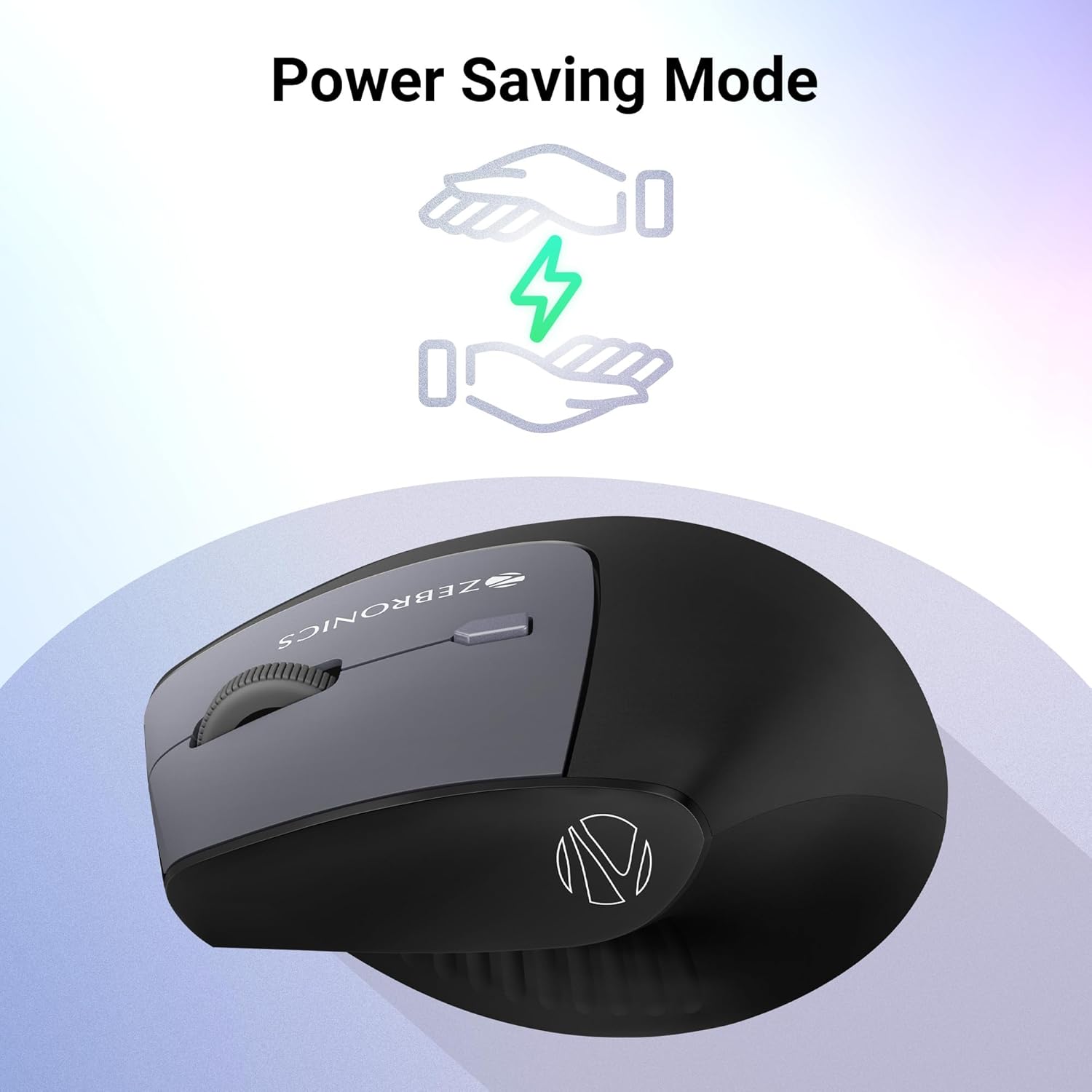
Image 5.2: Graphic illustrating the power-saving mode feature of the mouse, showing hands conserving energy.
5.3. Switching Between Modes
To switch between 2.4GHz wireless and Bluetooth (BT1/BT2) connections, use the mode switch button located on the bottom of the mouse. Simply slide the switch to your desired connection mode. The corresponding LED indicator will briefly light up to confirm the selection.
6. וישאַלט
To ensure the longevity and optimal performance of your ZEBRONICS Jaguar V mouse, follow these maintenance guidelines:
- רייניקונג: ניצט אַ ווייכע, טרוקענע שטאָף צו רייניקן די מויז. פֿאַר שווערע שמוץ, אַ ביסל ווייכער מאַכןampווישט דעם שטאָף מיט וואַסער אָדער אַ מילדער רייניקונג לייזונג. פֿאַרמייַדט שטרענגע כעמיקאַלן אָדער אַברייסיוו מאַטעריאַלן.
- סטאָרידזש: When not in use for extended periods, store the mouse in a cool, dry place. If storing for a long time, it is recommended to remove the batteries to prevent leakage.
- ויסמיידן עקסטרעמע טנאָים: שטעלט נישט אויס די מויז צו עקסטרעמע טעמפּעראַטורן, דירעקטע זונשייַן, אדער הויכע הומידיטי.
- שעפּן מיט זאָרג: פֿאַרמײַדט צו לאָזן פֿאַלן די מויז אָדער זי אויסשטעלן צו שטאַרקע קלאַפּן.
7. טראָובלעשאָאָטינג
If you encounter issues with your ZEBRONICS Jaguar V mouse, refer to the following common solutions:
- מויז ענטפערט נישט:
- מאַכן זיכער אַז די מויז איז אויסגעדרייט אויף.
- Check battery levels and replace if necessary (requires 2x AAA batteries).
- For 2.4GHz mode, ensure the USB Nano Receiver is securely plugged into a working USB port. Try a different USB port.
- For Bluetooth mode, ensure Bluetooth is enabled on your device and the mouse is correctly paired. Try re-pairing the mouse.
- Ensure the mode switch on the bottom of the mouse is set to the correct connection type (2.4G, BT1, or BT2).
- Cursor movement is erratic or lagging:
- רייניקט דעם אָפּטישן סענסאָר אויף דער אונטערשטער טייל פֿון דער מויז.
- זייט זיכער אַז איר ניצט די מויז אויף אַ פּאַסיקער ייבערפלאַך (נישט שטאַרק רעפלעקטיוו אָדער טראַנספּאַרענט).
- Change the DPI setting to a lower value if the cursor is too sensitive.
- Replace batteries if they are low, as this can affect performance.
- קענען ניט פאַרבינדן דורך בלועטאָאָטה:
- Ensure the mouse is in Bluetooth pairing mode (LED blinking rapidly).
- Remove any previous 'Zeb-Jaguar V' entries from your device's Bluetooth list and try pairing again.
- Ensure your device's Bluetooth is turned on and discoverable.
- Try connecting to the other Bluetooth channel (BT1 or BT2).
8. ספּעסאַפאַקיישאַנז
| שטריך | באַשרייַבונג |
|---|---|
| מאָדעל נאָמען | Zeb-Jaguar V |
| קאַנעקטיוויטי | Dual Mode (2.4GHz Wireless + Bluetooth) |
| בלועטאָאָטה ווערסיעס | Dual Bluetooth (BT1, BT2) |
| דפּי לעוועלס | 3-level (up to 1600 DPI) |
| נומער פון קנעפּלעך | 6 קנעפּלעך |
| מאַכט מקור | 2x AAA באַטעריז |
| אַפּערייטינג סיסטעם קאַמפּאַטאַבילאַטי | Windows, Mac, Linux |
| ערגאָנאָמיק פּלאַן | ווערטיקאַל |
| ספּעציעלע פֿעיִקייטן | מאַכט שפּאָרן מאָדע |
| פּראָדוקט דימענשאַנז (LxWxH) | 11.4 x 7.3 x 0.1 cm (Note: 0.1cm height seems incorrect, likely a data entry error, typically vertical mice are taller) |
| פּונקט וואָג | 77 ג |

Image 8.1: Diagram showing the dimensions of the ZEBRONICS Jaguar V mouse (11.4 cm length, 7.3 cm width, 7.5 cm height).
9. וואָראַנטי און שטיצן
Your ZEBRONICS Jaguar V Vertical Wireless Mouse comes with a standard manufacturer's warranty. Please refer to the warranty card included in your package for specific terms and conditions, including warranty period and coverage details.
For technical support, service, or further inquiries, please contact ZEBRONICS customer service through their official webזייטל אדער די קאָנטאַקט אינפֿאָרמאַציע וואָס איז צוגעשטעלט אין אייער פּראָדוקט דאָקומענטאַציע.


