1. הקדמה
Welcome to the user manual for your new UXD A5 Android 13 Tablet. This guide provides essential information on setting up, operating, maintaining, and troubleshooting your device to ensure optimal performance and user experience. Please read this manual thoroughly before using your tablet.
2. פּעקל אינהאַלט
באַשטעטיקט אַז אַלע זאכן וואָס זענען אויסגערעכנט אונטן זענען אַרייַנגערעכנט אין אייער פּעקל:
- UXD A5 Android 13 Tablet
- סטילוס
- סקרין פּראָטעקטאָר
- OTG Dongle
- קלאַוויאַטור
- מויז
- Foldable Bag
- טשאַרדזשינג קאַבלע
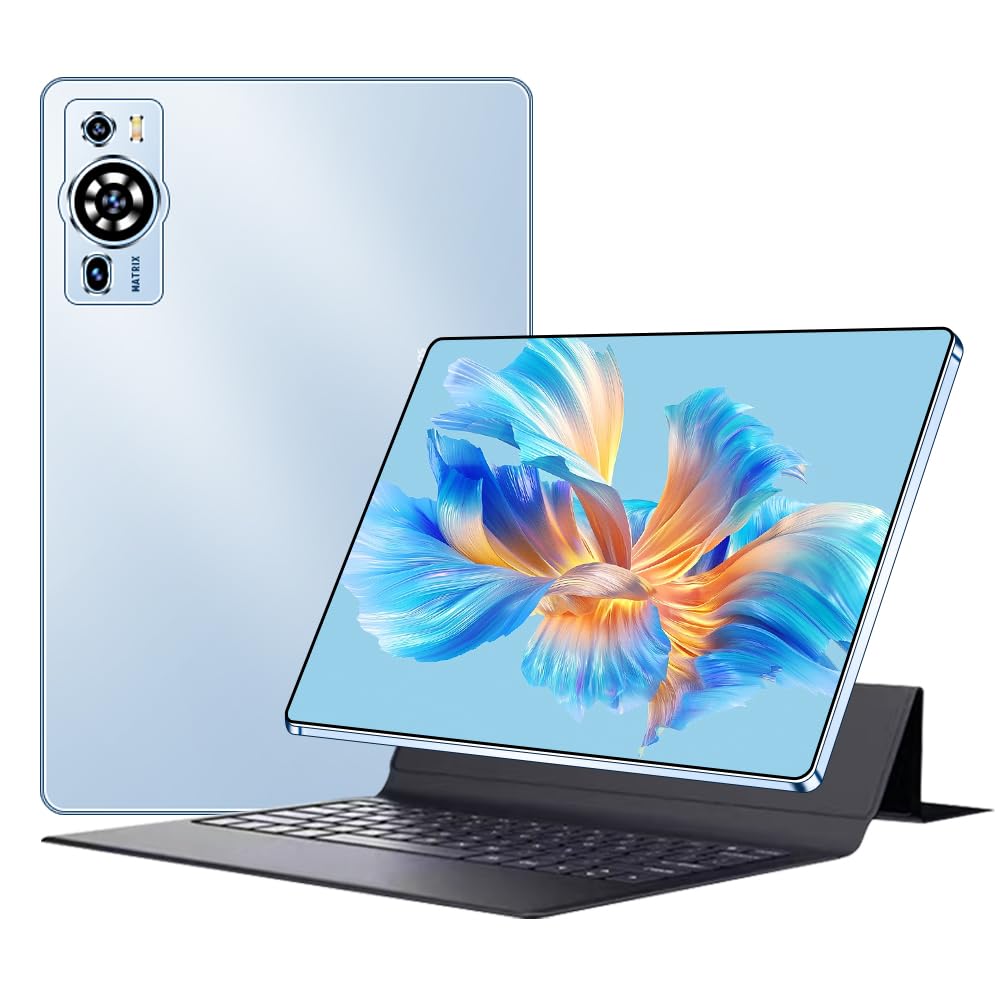
Image 2.1: UXD A5 Tablet with keyboard, mouse, stylus, and other accessories.
3. פּראָדוקט איבערview
מאַכט זיך באַקאַנט מיט די פיזישע קאָמפּאָנענטן פון אייער טאַבלעט:

Image 3.1: Diagram illustrating the tablet's ports and buttons.
- כעדפאָון דזשאַק: פֿאַר פֿאַרבינדן דראָטיקע קאָפּהערער.
- מאַכט קנעפּל: Press and hold to power on/off or restart. Press briefly to wake/sleep the screen.
- באַנד קיז: Adjust the tablet's volume.
- Charging Port (Type C): Connect the provided USB-C cable for charging.
- פראָנט אַפּאַראַט: פֿאַר ווידעאָ קאָלס און סעלפֿיז.
- SIM קאָרט שפּעלטל: Insert a Nano-SIM card for 4G cellular connectivity and a microSD card for expandable storage.
- רעדנער: סטערעאָ רעדנערס פֿאַר אַודיאָ אַרויסגאַנג.
4. ערשט סעטאַפּ
4.1. טשאַרדזשינג די טאַבלעט
Before first use, fully charge your tablet. Connect the provided USB-C charging cable to the tablet's charging port and plug the other end into a power adapter (not always included) or a computer's USB port. The battery indicator on the screen will show charging status.
4.2. פּאָווערינג אויף / אויסגעלאשן
- צו מאַכט אויף: Press and hold the Power Button until the UXD logo appears.
- צו מאַכט אַוועק: Press and hold the Power Button until the power options menu appears, then select "Power off."
- צו ריסטאַרט: Press and hold the Power Button until the power options menu appears, then select "Restart."
4.3. אריינשטעלן סים און מיקראָסד קאַרטלעך
Locate the SIM card slot on the side of the tablet. Use the provided SIM ejector tool (if included) to open the tray. Carefully place your Nano-SIM card and/or microSD card into the designated slots on the tray, ensuring correct orientation. Insert the tray back into the tablet until it clicks into place.
4.4. פֿאַרבינדן אַקסעסאָריעס
- קלאַוויאַטור און מויז: These accessories typically connect via Bluetooth. Go to סעטטינגס > פארבונדענע דעווייסעס > בלועטוט on your tablet, turn on Bluetooth, and pair with the keyboard and mouse. Follow the specific pairing instructions for each accessory.
- סטילוס: The stylus can be used directly on the screen for drawing, writing, and navigation. No pairing is usually required for basic functionality.
- OTG Dongle: Connect the OTG dongle to the tablet's USB-C port to connect USB devices like flash drives or external hard drives.
5. אַפּערייטינג ינסטרוקטיאָנס
5.1. נאַוויגירן אַנדרויד 13
Your tablet runs on Android 13, offering an intuitive user interface. Swipe up from the bottom for the app drawer, swipe down from the top for quick settings and notifications. Use gestures or the navigation bar for Home, Back, and Recent Apps functions.
5.2. קאַנעקטיוויטי
- Wi-Fi 6: To connect to Wi-Fi, go to סעטטינגס> נעץ און אינטערנעט> אינטערנעט, select your desired network, and enter the password.
- בלועטאָאָטה 5.0: For connecting wireless headphones, speakers, or other Bluetooth devices, go to סעטטינגס > פארבונדענע דעווייסעס > בלועטוט.
- 4G סעלולאַר: If you have inserted a SIM card, enable mobile data in סעטטינגס> נעץ & אינטערנעט> מאָביל נעץ.
5.3. ווייַז סעטטינגס
The 10.1-inch HD IPS display offers vibrant visuals. Adjust brightness, dark theme, and font size in סעטטינגס> ווייַז. The tablet supports features like eye protection modes to reduce strain.

Image 5.1: Tablet display highlighting key features like connectivity and eye protection.
5.4. קאַמעראַ יוז
Your tablet is equipped with dual cameras. Open the Camera app to take photos or record videos. Tap on the screen to focus and use the on-screen controls for various modes and settings.
5.5. באַטערי מאַנאַגעמענט
The 8000 mAh battery provides extended usage. To optimize battery life, adjust screen brightness, close unused apps, and enable battery saver mode when needed. Avoid extreme temperatures.

Image 5.2: Battery performance overview for various activities.
5.6. באַניץ סצענאַרן
The UXD A5 tablet is versatile for various tasks:

בילד 5.3: עקס.amples of tablet use for creative, entertainment, and productivity tasks.
- Painting & Drawing: Utilize the stylus for creative applications.
- גיימינג: Enjoy a smooth gaming experience with the Octa-Core processor and 12GB RAM.
- שטודירן און ארבעטן: Use the keyboard and mouse for productivity, and the stylus for note-taking.
- מעדיע קאנסומאציע: Watch videos and listen to music on the HD display and stereo speakers.
6. קער און וישאַלט
- רייניקונג: ניצט אַ ווייכע, לינט-פֿרייע שטאָף צו רייניקן דעם עקראַן און קערפּער. פֿאַרמייַדט שטרענגע כעמיקאַלן.
- סטאָרידזש: האַלט די טאַבלעט אין אַ קיל, טרוקן אָרט אַוועק פון דירעקט זונשייַן און עקסטרעמע טעמפּעראַטורן.
- ווייכווארג דערהייַנטיקונגען: קאָנטראָלירט און אינסטאַלירט רעגולער סיסטעם דערהייַנטיקונגען צו זיכער מאַכן אָפּטימאַלע פאָרשטעלונג און זיכערהייט. גייט צו סעטטינגס > סיסטעם > סיסטעם דערהייַנטיקונג.
- Protecting the Screen: Apply the included screen protector to prevent scratches.
7. טראָובלעשאָאָטינג גייד
די סעקציע באהאנדלט אלגעמיינע פראבלעמען וואס איר קענט באגעגענען:
- Tablet will not turn on: Ensure the tablet is charged. Connect it to a charger for at least 30 minutes, then try powering on again. If it still doesn't turn on, perform a forced restart by holding the power button for 10-15 seconds.
- דער עקראַן רעאַגירט נישט: ריסטאַרט די טאַבלעט. אויב די פּראָבלעם בלייבט, זאָרגט אַז דער עקראַן איז ריין און פריי פון שמוץ.
- ווי-פי קשר ישוז: קוק אויב Wi-Fi איז ענייבאַלד אין סעטטינגס. ריסטאַרט דיין ראַוטער און די טאַבלעט. פֿאַרגעס די נעץ און פֿאַרבינד זיך ווידער.
- לאַנגזאַמע פאָרשטעלונג: Close unused applications. Clear cache data from apps. Consider performing a factory reset (back up your data first).
- אַקסעסאָריעס וואָס פֿאַרבינדן זיך נישט: Ensure Bluetooth is enabled on the tablet and the accessory is in pairing mode. Check battery levels of wireless accessories.
8. טעכניש ספּעסאַפאַקיישאַנז
| סאָרט | UXD |
| מאָדעל נומער | A5 |
| אָפּערייטינג סיסטעם | אַנדרויד 13 |
| פּראַסעסער סאָרט | MediaTek Octa Core |
| באַראַן | 12 גיגאבייט |
| סטאָרידזש קאַפּאַסיטי | 256 גיגאבייט |
| פאַרשטעלן גרייס | 10.1 אינטשעס |
| ווייַז האַכלאָטע | 1920 x 1200 פּיקסעלס (HD IPS) |
| באַטאַרייע קאַפּאַציטעט | 8000 מאַה |
| באַטערי לעבן | אַרויף צו 8 שעה |
| ווירעלעסס קאַנעקטיוויטי | Wi-Fi 6 (802.11ax, 802.11b), Bluetooth 5.0, 4G Cellular |
| ינטערפייסיז | USB Type-C, Bluetooth |
| דימענסיעס (L X W X H) | 24 X 16 X 0.9 סענטימעטער |
| פּראָדוקט וואָג | 1 קילאָ |
| ספּעציעלע פֿעיִקייטן | Detachable Keyboard, Stereo Speakers, USB OTG Support, Stylus Support |

Image 8.1: Tablet showcasing its ultra-slim design and weight.
9. וואָראַנטי און שטיצן
Information regarding specific warranty terms and availability of spare parts is not provided in the product details. For warranty claims, technical support, or inquiries about spare parts, please refer to the manufacturer's official website or contact their customer service directly. Please retain your proof of purchase for any warranty-related requests.


