1. פּראָדוקט איבערview
The Macap MI40 Touch Instant Burr Coffee Grinder is a high-performance appliance designed for precise and consistent coffee grinding. Featuring 65mm flat burrs, a responsive 3.5-inch touchscreen, and multiple operating modes, it is suitable for various brewing methods from espresso to cold brew. Its robust construction ensures quiet operation and stability.
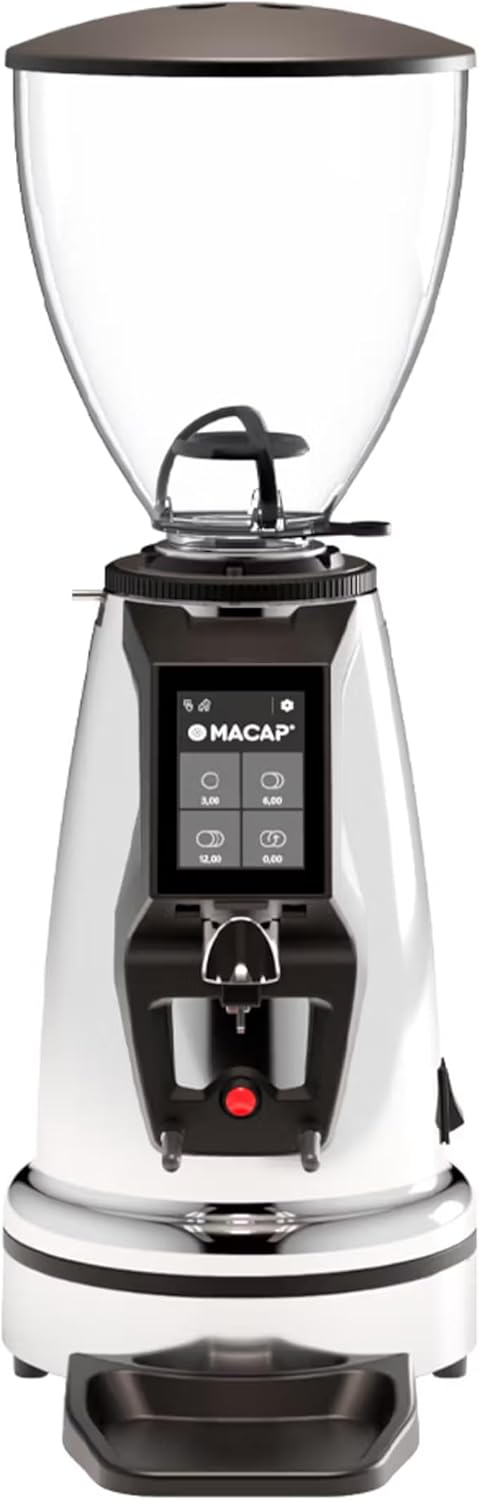
פראָנט view of the Macap MI40 Touch Instant Burr Coffee Grinder, showcasing its sleek chrome finish and integrated touchscreen display.
2. זיכערקייַט אינפֿאָרמאַציע
Please read all safety instructions carefully before operating the grinder to prevent injury or damage.
- Always unplug the grinder from the power outlet before cleaning, maintenance, or if it will be left unattended.
- טונקט נישט אריין דעם מילכל, עלעקטרישע שנור, אדער שטעקער אין וואסער אדער קיין אנדערע פליסיקייט.
- Keep hands and utensils out of the bean hopper and grind chute during operation.
- Ensure the bean hopper lid is securely in place before grinding.
- This appliance is intended for grinding whole roasted coffee beans only. Do not grind other substances.
- ארבעט נישט דעם מילכל מיט א צעבראכן שנור אדער שטעקער, אדער אויב דער אפאראט ארבעט נישט גוט אדער איז צעבראכן געווארן אויף קיין שום אופן.
- האַלטן די אַפּפּליאַנסע אויס פון דערגרייכן פון קינדער.
3. קאַמפּאָונאַנץ
Familiarize yourself with the main components of your MI40 Touch coffee grinder:
בעבל כאַפּער: Transparent container for holding whole coffee beans. Capacity: 1.2 Kilograms.

3.5'' Touchscreen Display: Intuitive interface for controlling grind settings, dose programming, and operating modes.

Grind Adjustment Collar: Stepless micrometric adjustment for precise control over grind particle size.

Portafilter Fork & Drip Tray: Adjustable fork to hold your portafilter for hands-free grinding, with a removable drip tray for easy cleaning.
4. סעטאַפּ
Follow these steps to set up your Macap MI40 Touch grinder:
- אויספּאַקן: Carefully remove the grinder and all accessories from the packaging. Retain the packaging for future transport or storage.
- אָרט: שטעלט דעם מילכל אויף א סטאַבילער, פלאַכער און טרוקענער ייבערפלאַך. זאָרגט אַז עס איז גענוג ווענטילאַציע אַרום דעם אַפּאַראַט.
- ינסטאַלירונג פון כאַפּער: Place the bean hopper onto the grinder body, aligning the tabs. Rotate the hopper clockwise until it locks securely into place.
- ינסטאַלירונג פון דריפּן טאַץ: Slide the removable drip tray into its designated slot at the base of the grinder.
- מאַכט קשר: צאַפּן די מאַכט שנור אין אַ גראָונדעד עלעקטריקאַל ווענטיל.
- ערשט רייניקונג: פארן ערשטן באַנוץ, ווישט אָפּ די אויסערלעכע זייט מיט אַדamp cloth. Ensure the burrs and grind chute are free of any packing debris.

זייַט view of the Macap MI40 Touch grinder, illustrating its compact design and the placement of the bean hopper and drip tray.
5. אַפּערייטינג ינסטרוקטיאָנס
5.1. מאָלן אַדזשאַסטמענט
The MI40 Touch features stepless micrometric grind adjustment, allowing for precise control over particle size. To adjust the grind:
- Ensure the grinder is off or not actively grinding.
- Rotate the grind adjustment collar located below the bean hopper.
- דרייען קלאַקווייז for a finer grind (e.g., for espresso).
- דרייען אַנטקעגן-קלאַקווייז for a coarser grind (e.g., for drip, French press, or cold brew).
- Make small adjustments and test the grind to achieve the desired consistency for your brewing method.
נאָענט-אַרויף view of the grind adjustment collar, showing the numerical markings for reference.
5.2. טאָוטשסקרין צובינד
The 3.5-inch touchscreen allows for intuitive control and customization of your grinding experience. It features four programmable dose buttons and various settings.
The 3.5-inch touchscreen display showing the main interface with programmable dose buttons.
For a detailed demonstration of the touchscreen interface and its functionalities, please refer to the official video below:
This video demonstrates the various features and customization options of the 3.5-inch touchscreen interface on the Macap MI Series coffee grinders, including dose programming, color customization, and different operating modes.
5.3. אַפּערייטינג מאָדעס
The MI40 Touch offers three primary operating modes:
- נאָרמאַל מאָדע: Allows you to select a pre-programmed dose by pressing the corresponding button on the touchscreen. The grinder will dispense the set amount of coffee.
- שטופּן און גריינד מאָדע: Grinding starts when the portafilter activates the button on the fork and stops when the portafilter is removed. This mode is ideal for manual control.
- Barista Hands-Free Mode: Similar to Push and Grind, but designed for continuous grinding as long as the portafilter is in place, allowing baristas to multitask.
6. וישאַלט און רייניקונג
Regular cleaning and maintenance will ensure optimal performance and longevity of your grinder.
6.1. טעגלעך קלינינג
- Grind Chute: Use a brush or vacuum to clear any residual coffee grounds from the grind chute after each use.
- דריפּן טאַץ: Remove and empty the drip tray regularly. Wipe it clean with a damp שטאָף און טרוקן ונ דורך.
- עקסטעריע: ווישט אָפּ די אויסערלעכע זייט פון דער מילכל מיט אַ ווייכן, דamp שטאָף. דו זאלסט נישט נוצן אַברייסיוו קלינערז אָדער סאָלוואַנץ.

The removable drip tray and portafilter fork area, designed for easy cleaning.
6.2. Deep Cleaning (Weekly/Bi-Weekly)
- אָפּשטויסן די מילכל.
- אַראָפּנעמען בעבל כאַפּער: Empty any remaining beans. Rotate the hopper counter-clockwise to unlock and remove it.
- Clean Burrs: Use a stiff brush or a specialized grinder brush to remove accumulated coffee oils and grounds from the burrs. You may need to remove the upper burr for thorough cleaning (refer to specific instructions in the full manual for burr removal).
- Clean Grind Chamber: Use a vacuum cleaner with a narrow attachment to remove grounds from the grind chamber.
- ריאַסעמבאַל: Reinstall the burrs (if removed) and the bean hopper securely.
7. טראָובלעשאָאָטינג
If you encounter issues with your MI40 Touch grinder, refer to the table below for common problems and solutions.
| פּראָבלעם | מעגלעך סיבה | לייזונג |
|---|---|---|
| די מילכל טוט זיך נישט אן. | נישט איינגעשטעקט; שטראָם־שוואַלטער אויסגעלאָשן; קרייַז־ברעכער אויסגעלאָשן. | Check power connection; ensure power switch is on; reset circuit breaker. |
| קיין קאַווע גיט נישט אויס. | Hopper empty; grind chute clogged; burrs jammed. | Fill hopper; clean grind chute; clear any foreign objects from burrs (unplug first). |
| נישט קאנסיסטענטע גרינדונג. | Burrs dirty or worn; grind setting too coarse/fine. | Clean burrs thoroughly; adjust grind setting incrementally. Consider burr replacement if worn. |
| Grinder is excessively noisy. | Foreign object in burrs; loose components. | Unplug and inspect burrs for foreign objects; check for loose parts. If noise persists, contact support. |
| טאָוטשסקרעען ניט ריספּאַנדאַבאַל. | צייטווייליגע ווייכווארג פראבלעם; שטראָם פראבלעם. | Unplug the grinder for 30 seconds, then plug back in. If issue persists, contact support. |
8. ספּעסאַפאַקיישאַנז
Key technical specifications for the Macap MI40 Touch Instant Burr Coffee Grinder:
| שטריך | באַשרייַבונג |
|---|---|
| מאָדעל | MI40 Touch |
| בור טיפּ | Flat Burrs |
| Burr Diameter | 65 מם |
| מאָטאָר מאַכט | 480 וו |
| כאַפּער קאַפּאַציטעט | 1.2 קילאָגראַמס |
| מאָל אַדזשאַסטמאַנט | שטאַפּלאָז מיקראָמעטריק |
| ווייַז | 3.5'' Touchscreen |
| פּראָדוקט דימענשאַנז (L x W x H) | 12" x 7.63" x 22" |
| פּונקט וואָג | 19.58 פונט |
| לאַנד פון אָריגין | איטאליע |
9. וואָראַנטי און שטיצן
Macap products are manufactured to high standards and undergo rigorous quality control. For warranty information, technical support, or service inquiries, please refer to the warranty card included with your product or visit the official Macap website. Please have your model number (MI40 Touch) and purchase date available when contacting support.