הקדמה
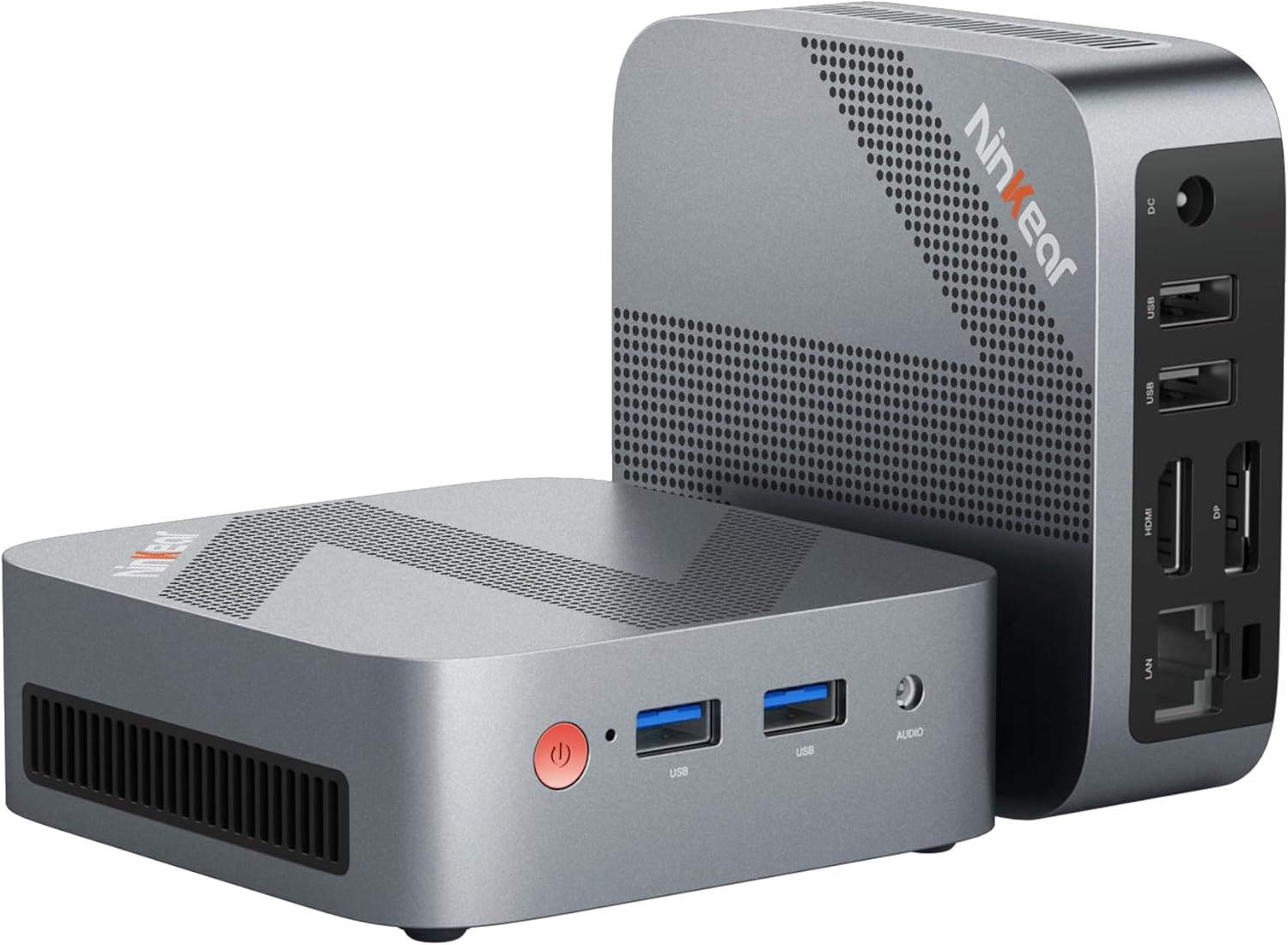
Figure 0.1: Ninkear Mini PC W-11. This compact and powerful mini PC is designed for various computing needs, from office work to multimedia entertainment.
This comprehensive user manual provides detailed instructions for the Ninkear Mini PC W-11 (MBOX 11 Mini PC). It covers initial setup, daily operation, maintenance, troubleshooting common issues, and full technical specifications. Please read this manual carefully to ensure proper use and to maximize the performance and longevity of your Ninkear Mini PC for office, home, and multimedia applications.
1. סעטאַפּ
1.1 אויספּאַקן און פּאַקעט אינהאַלט
Carefully unpack all components from the box. Ensure all items listed below are present. If any item is missing or damaged, please contact customer support.

Figure 1.1: Package Contents. The box includes the Ninkear Mini PC, a user manual, a charging cable, an HDMI cable, and a fixed bracket for mounting.
- Ninkear Mini PC (MBOX 11)
- באַניצער מאַנואַל
- מאַכט אַדאַפּטער/טשאַרדזשינג קאַבל
- HDMI קאַבלע
- Fixed Bracket (for VESA mounting)
1.2 פיזישע פֿאַרבינדונגען
Before powering on, connect all necessary peripherals to the Mini PC. Refer to the diagrams below for port identification.

Figure 1.2: Front and Rear Ports of the Ninkear Mini PC. The front features USB 3.0 ports and an audio jack, while the rear includes LAN, HDMI, DisplayPort, USB 2.0, and DC power input.

Figure 1.3: Multi-purpose Port Diagram. This diagram illustrates the layout and function of each port on the Ninkear Mini PC, including power, USB 3.0, headphone/MIC jack on the front, and RJ45, DP, HDMI, USB 2.0, and DC on the back.
- פאַרבינדן צו ווייַז: Use the provided HDMI cable to connect the Mini PC's HDMI port to your monitor or TV. The device also supports DisplayPort (DP) for alternative display connections.
- פאַרבינדן פּעריפעראַלס:
- קלאַוויאַטור און מויז: Connect your USB keyboard and mouse to the available USB 3.0 ports on the front or USB 2.0 ports on the rear.
- אַודיאָ: Connect headphones or speakers to the 3.5mm audio jack on the front.
- נעץ: For a wired connection, connect an Ethernet cable to the RJ45 LAN port on the rear.
- מאַכט קשר: Connect the power adapter to the DC input port on the rear of the Mini PC, then plug the adapter into a power outlet.
1.3 First Boot and Initial Configuration
Once all connections are secure, press the power button on the front of the Mini PC. The device comes with Windows 11 pre-installed and ready for immediate use. Follow the on-screen prompts to complete the initial Windows setup, including language, region, network connection, and user account creation.
2. אָפּערייטינג
2.1 יקערדיק אָפּעראַציע
- מאַכט אויף: דרוק די מאַכט קנעפּל אויף די פראָנט פון די מיטל.
- מאַכט אַוועק: From the Windows operating system, click the Start button, then select Power > Shut down. Alternatively, you can press and hold the power button for a few seconds to force a shutdown (not recommended for regular use).
- ריסטאַרט: From the Windows operating system, click the Start button, then select Power > Restart.
2.2 צווייפאַכיקע אַרויסווייַזונג סעטאַפּ
The Ninkear Mini PC supports dual 4K@60Hz display output via its HDMI 2.0 and DisplayPort (DP) interfaces, allowing for enhanced multitasking and productivity.

Figure 2.1: 4K Dual Display Setup. The Mini PC can connect to two monitors simultaneously via HDMI and DisplayPort, supporting 4K resolution at 60Hz for an extended desktop experience.
- פֿאַרבינדט אייער הויפּט מאָניטאָר צום HDMI פּאָרט.
- Connect your secondary monitor to the DisplayPort (DP).
- Once both monitors are connected and powered on, Windows should automatically detect them.
- To configure display settings (extend, duplicate, or show only on one screen), right-click on the desktop, select "Display settings," and adjust as needed.
2.3 Connectivity (Wi-Fi, Bluetooth, Ethernet)
The Mini PC offers versatile connectivity options for your network and wireless devices.

Figure 2.2: Multiple Connection Options. The Mini PC supports high-speed Ethernet (RJ45-1000M), WiFi 2.4/5.0 GHz, and Bluetooth 5.0 for comprehensive connectivity.
- ווי-פי: The Mini PC supports Wi-Fi 5 (802.11ac) for fast wireless internet access. To connect, click the Wi-Fi icon in the system tray, select your network, enter the password, and click Connect.
- בלועטאָאָטה: With Bluetooth 5.0, you can connect wireless peripherals suchs as keyboards, mice, headphones, and speakers. Go to Windows Settings > Bluetooth & devices to pair new devices.
- עטהערנעט: For a stable and high-speed wired network connection, plug an Ethernet cable into the RJ45 port. The Mini PC supports Gigabit Ethernet (1000M).
2.4 סטאָרידזש יקספּאַנשאַן
The Ninkear Mini PC comes with a 512 GB M.2 SSD. For additional storage, you can upgrade the M.2 NVMe PCIe3.0 SSD or M.2 SATA SSD up to 2 TB.

Figure 2.3: Efficient and High-Capacity Storage. The Mini PC features 16GB DDR4 RAM and a 512GB M.2 SSD, with the SSD being upgradeable up to 2TB.
Consult a qualified technician or refer to detailed upgrade guides if you plan to expand the internal storage to avoid damaging the device.
3. וישאַלט
3.1 רייניקונג
To maintain optimal performance and extend the lifespan of your Mini PC, regular cleaning is recommended.
- עקסטעריע: Use a soft, dry, lint-free cloth to wipe the exterior surfaces. For stubborn smudges, slightly dampyi די שטאָף מיט וואַסער אָדער אַ מילד, ניט-אַברייסיוו רייניקונג.
- פּאָרץ: Use compressed air to gently clear dust from the USB, HDMI, DP, and other ports. Avoid inserting any objects into the ports.
- ווענטילאַטיאָן: Ensure the ventilation holes are clear of dust and obstructions to allow for proper airflow and cooling.
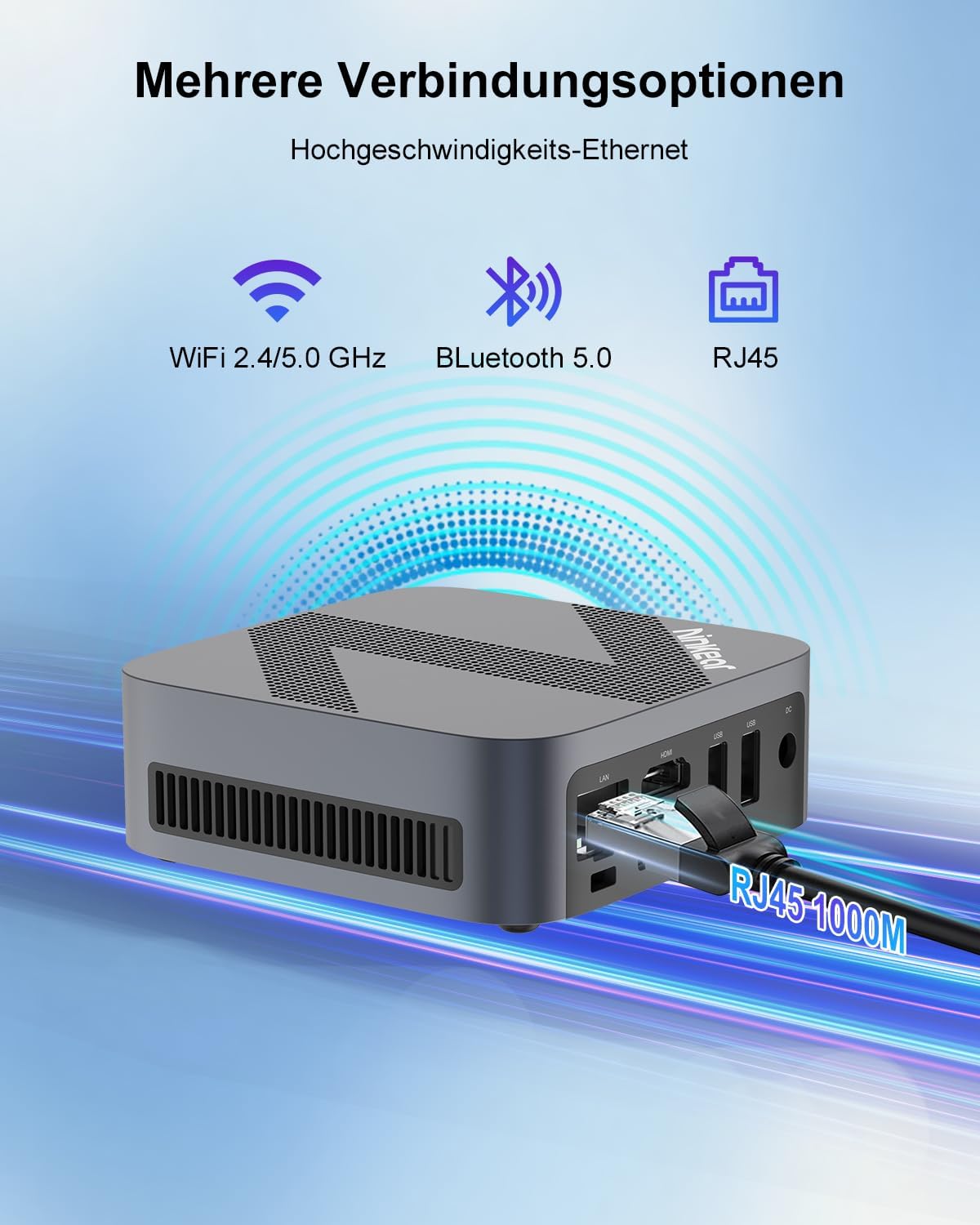
Figure 3.1: Powerful Cooling System. The Mini PC utilizes a copper pipe and aluminum heatsink design for efficient heat dissipation, ensuring quiet operation and low power consumption.
3.2 ווייכווארג דערהייַנטיקונגען
רעגולער אַפּדייט אייער אָפּערייטינג סיסטעם און דרייווערס צו ענשור סיסטעם פעסטקייט, זיכערהייט און אָפּטימאַלע פאָרשטעלונג.
- ווינדאָוס דערהייַנטיקונגען: Go to Windows Settings > Windows Update and check for available updates.
- דרייווער דערהייַנטיקונגען: While Windows Update often handles driver updates, you may occasionally need to check the Ninkear official website for the latest drivers for specific components if you encounter issues.
3.3 סטאָרידזש פאַרוואַלטונג
To maintain the health and performance of your SSD, avoid filling it to full capacity. Periodically clean up unnecessary files און אַפּלאַקיישאַנז.
- דיסק רייניקונג: Use the built-in Windows Disk Cleanup tool to remove temporary files and other non-essential data.
- Uninstall Programs: Remove programs you no longer use from Windows Settings > Apps > Installed apps.
4. טראָובלעשאָאָטינג
This section addresses common issues you might encounter with your Ninkear Mini PC. If the problem persists, please refer to the Warranty and Support section.
4.1 קיין מאַכט
- קוק די מאַכט קאַנעקשאַן: זיכער מאַכן אַז דער מאַכט אַדאַפּטער איז זיכער פארבונדן צו ביידע די מיני פּיסי און אַ אַרבעטנדיק מאַכט ווענטיל.
- טעסט אָוטלעט: Try plugging another device into the same power outlet to confirm it is functional.
- מאַכט קנעפּל: Ensure you are pressing the power button firmly.
4.2 קיין אַרויסווייַזונג רעזולטאַט
- קאַבלע קשר: Verify that the HDMI or DisplayPort cable is securely connected to both the Mini PC and the monitor.
- מאָניטאָר אַרייַנשרייַב: Ensure your monitor is set to the correct input source (e.g., HDMI 1, DP).
- טעסט מיט אן אנדער דיספלעי/קאבל: If possible, try connecting the Mini PC to a different monitor or using a different HDMI/DP cable to rule out display or cable issues.
- ריסטאַרט: Power cycle the Mini PC and the monitor.
4.3 Wi-Fi אדער בלועטוט קאנעקטיוויטי פראבלעמען
- Enable Wi-Fi/Bluetooth: זיכער מאַכן אַז Wi-Fi און בלועטוט זענען ענייבאַלד אין די ווינדאָוז סעטטינגס.
- דרייווער טשעק: Verify that the Wi-Fi and Bluetooth drivers are installed and up to date in Device Manager.
- Router/Device Proximity: Move closer to your Wi-Fi router or Bluetooth device.
- Restart Router/Mini PC: Restart your Wi-Fi router and the Mini PC.
4.4 System Performance Issues (Slowdown, Lag)
- שליסן נישט גענוצטע אַפּליקאַציעס: שליסט צו אלע אפליקאציעס וואס לויפן אין הינטערגרונט וואס ווערן נישט גענוצט.
- טשעק טאַסק מאַנאַדזשער: Open Task Manager (Ctrl+Shift+Esc) to identify processes consuming high CPU, RAM, or disk resources.
- דיסק פּלאַץ: זייט זיכער אז עס איז גענוג פריי פלאץ אויפן SSD.
- מאַלוואַרע סקען: Run a full system scan with antivirus software.
- קאָאָלינג: זיכער מאַכן אַז דער מיני פּיסי האָט גענוג ווענטילאַציע און ווערט נישט איבערהייצט.
5. ספּעסאַפאַקיישאַנז
Below are the detailed technical specifications for the Ninkear Mini PC W-11 (MBOX 11 Mini PC).
| שטריך | באַשרייַבונג |
|---|---|
| סאָרט | נינקעאַר |
| מאָדעל / סעריע | MBOX 11 |
| מאָדעל נומער | MBOX 11 Mini PC |
| קאָליר | גרוי |
| פּראָדוקט דימענשאַנז | 9.9 X 9.9 X 3.3 סענטימעטער |
| פּונקט וואָג | 240 ג |
| פּראַסעסער סאָרט | ינטעל |
| טיפּ פון פּראַסעסער | Celeron N150 (4 Cores, 4 Threads) |
| פּראַסעסער ספּיד | אַרויף צו 3.6 GHz |
| באַראַן גרייס | 16 גיגאבייט |
| זכּרון טעכנאָלאָגיע | DDR4, SO-DIMM |
| Max Supported Storage | 2 TB (M.2 NVMe PCIe3.0 SSD or M.2 SATA SSD) |
| Hard Drive Size (Included) | 512 גיגאבייט |
| האַרט דרייוו טעכנאָלאָגיע | ססד |
| גראַפיקס קאָופּראַסעסער | Intel UHD גראַפיקס |
| גראַפיקס צובינד | ינטעגראַטעד |
| קאַנעקטיוויטי טיפּ | Bluetooth 5.0, Wi-Fi 5 (WLAN) |
| HDMI ינטערפייסיז | 1 (הדמי 2.0) |
| DisplayPort Interfaces | 1 |
| וסב פּאָרץ | 2 קס וסב 3.0 (פראָנט), 2 קס וסב 2.0 (דערציען) |
| עטהערנעט | RJ45 (Gigabit) |
| אַודיאָ דזשאַק | 1x 3.5mm Headphone/MIC Jack |
| אָפּערייטינג סיסטעם | Windows 11 (W11 OS) |
| Batteries (Internal) | 1 C Battery required (included) |
| ליטהיום באַטערי קאַפּאַציטעט | 6 וואט-שעה |
| ליטהיום באַטערי וואָג | 10 גראַמז |
| Number of Lithium-Ion Cells | 1 |
באַמערקונג: ספּעסאַפאַקיישאַנז זענען אונטערטעניק צו טוישן אָן פריערדיק באַמערקן.
6. וואָראַנטי און שטיצן
Ninkear is committed to providing high-quality products and excellent customer service.
6.1 וואָראַנטי אינפֿאָרמאַציע
If you purchase the product and experience a failure due to product defects within 1 year, please contact Ninkear customer support. You will need to provide your order number, a video or photo of the defect, and a detailed description of the issue.
6.2 קונה שטיצן
For any questions, technical assistance, or warranty claims, please contact the Ninkear Official Store or the designated customer service center. They will guide you through the repair process or provide further assistance.
פֿאַר מער אינפֿאָרמאַציע, באַזוכן די Ninkear Store on Amazon.


