1. הקדמה און איבערview
The ASUS NUC 15 Pro Slim Mini PC is a compact and powerful computing solution designed for various applications, from business productivity to everyday personal use. This model (RNUC15CRKI3063CU) comes fully configured with an Intel Series 1 Core 3 100U processor, 16GB DDR5 RAM, a 512GB PCIe G4x4 NVMe SSD, and Windows 11 Pro. It offers extensive connectivity options including Thunderbolt™ 4, Wi-Fi 7, and Bluetooth 5.4, all within a tool-less chassis for easy upgrades.
This manual provides essential information for setting up, operating, maintaining, and troubleshooting your ASUS NUC 15 Pro Slim Mini PC.
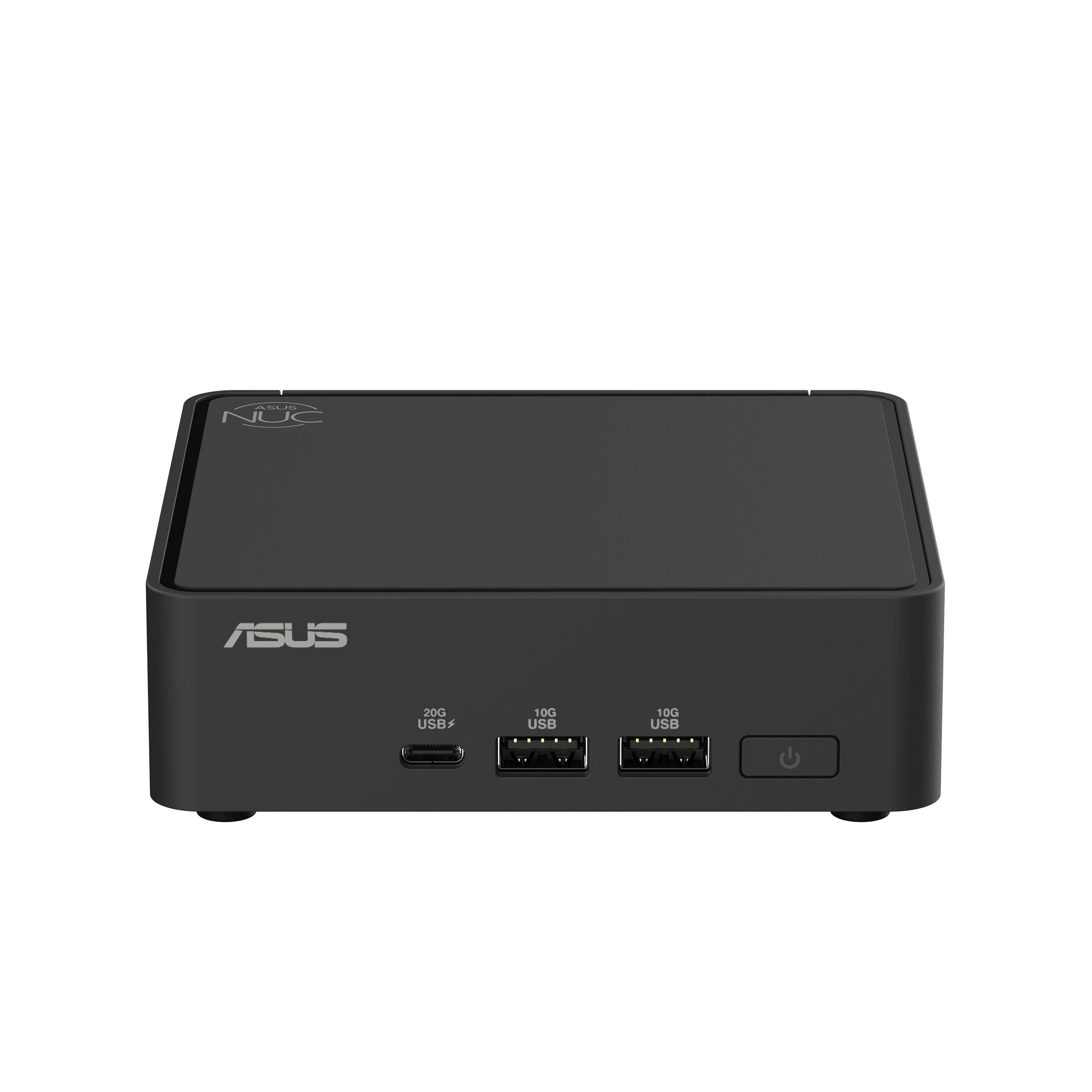
Figure 1: ASUS NUC 15 Pro Slim Mini PC, a compact and powerful computing device.
2. וואָס איז אין דער קעסטל
Carefully unpack your ASUS NUC 15 Pro Slim Mini PC and ensure all items are present:
- ASUS NUC 15 Pro Slim Mini PC (Model: RNUC15CRKI3063CU)
- VESA בארג קיט
- אַק מאַכט אַדאַפּטער
- מאַכט שנור
3. סעטאַפּ אינסטרוקציעס
3.1 קאַנעקטינג פּעריפעראַלס
Before powering on your Mini PC, connect all necessary peripherals:
- פֿאַרבינדן דיספּליי: Use an HDMI 2.1 or Thunderbolt 4 cable to connect your monitor(s) to the corresponding ports on the Mini PC. The device supports up to four 4K displays.
- פֿאַרבינדן קלאַוויאַטור און מויז: שטעקט אריין אייער USB קלאַוויאַטור און מויז אין די פאַראַן USB 3.0 אָדער USB 2.0 פּאָרץ.
- פֿאַרבינדן נעץ (אָפּציאָנאַל): For a wired internet connection, connect an Ethernet cable to the 2.5Gb Ethernet port. For wireless, ensure your Wi-Fi network is available during initial setup.
- פאַרבינדן מאַכט: Plug the AC Power Adapter into the DC-in port on the Mini PC, then connect the power cord to an electrical outlet.

Figure 2: Front ports including USB 3.2 Gen 2x2 Type-C, 2x USB 3.2 Gen2 Type-A, and Power button.

Figure 3: Rear ports including Security mechanism for power cable, HDMI 2.1, 2.5Gb Ethernet, USB 3.2 Gen2 Type-A, USB 2.0 Type-A, and Thunderbolt 4 ports.
3.2 וועסאַ מאָונט אינסטאַלאַציע (אָפּציאָנאַל)
The included VESA mount allows you to attach the Mini PC to the back of a compatible monitor or to a wall, saving desk space. Follow the instructions provided with the VESA mount kit for proper installation.

Figure 4: Flexible configuration with VESA mounting for space-saving setup.
4. אַפּערייטינג ינסטרוקטיאָנס
4.1 פּאַוערינג אויף / אַוועק
- צו מאַכט אויף: דריק דעם מאַכט קנעפּל וואָס געפינט זיך אויף דער פראָנט פון די מיני פּיסי.
- צו מאַכט אַוועק: From Windows 11 Pro, click the Start button, then Power > Shut down. Alternatively, you can press and hold the power button for 4 seconds to force a shutdown (use only when necessary).
4.2 Initial Windows 11 Pro Setup
Upon first boot, follow the on-screen instructions to complete the Windows 11 Pro setup, including region, keyboard layout, network connection, and user account creation.
4.3 נעץ קאָנעקטיוויטי
- ווייערד קשר: If an Ethernet cable is connected, the system will automatically detect and use the wired network.
- ווירעלעסס קשר: During Windows setup or via the Windows Settings menu, select your Wi-Fi network and enter the password. The Mini PC supports Intel Wi-Fi 7 for fast wireless speeds.
4.4 Using Thunderbolt™ 4 Ports
The Thunderbolt™ 4 ports offer versatile connectivity for high-speed data transfer, video output, and power delivery. You can connect external displays, storage devices, or docking stations.
5. וישאַלט
5.1 רייניקונג
Regularly clean the exterior of the Mini PC with a soft, dry cloth. Avoid using liquid cleaners or solvents. Ensure ventilation openings are free from dust and obstructions to maintain optimal cooling.
5.2 ווייכווארג דערהייַנטיקונגען
Keep your Windows 11 Pro operating system and device drivers updated to ensure optimal performance and security. Windows Update can be accessed via Settings > Windows Update.
5.3 Hardware Upgrades (Tool-less Access)
The ASUS NUC 15 Pro Slim features a tool-less chassis design, allowing for easy access to internal components for upgrades such as RAM or storage. Refer to the detailed upgrade guide on the ASUS support webפּלאַץ פֿאַר ספּעציפיש ינסטראַקשאַנז.

Figure 5: Tool-less integration allows for easy and quick hardware upgrades.
6. טראָובלעשאָאָטינג
This section addresses common issues you might encounter with your Mini PC.
| פּראָבלעם | מעגלעך לייזונג |
|---|---|
| קיין מאַכט | Ensure the power adapter and cord are securely connected to both the Mini PC and a working electrical outlet. Test the outlet with another device. |
| קיין ווייַז | Verify that the monitor is powered on and the display cable (HDMI or Thunderbolt) is securely connected to both the Mini PC and the monitor. Try a different display cable or monitor if possible. |
| קיין אינטערנעט פֿאַרבינדונג | For wired connections, check the Ethernet cable and router status. For Wi-Fi, ensure Wi-Fi is enabled in Windows settings, you are connected to the correct network, and the password is correct. Restart your router/modem. |
| System Slowdown / Overheating | Ensure the Mini PC's ventilation openings are clear. Close unnecessary applications. Check for background processes consuming high resources via Task Manager. Ensure drivers and Windows are up to date. |
7. ספּעסאַפאַקיישאַנז
Detailed technical specifications for the ASUS NUC 15 Pro Slim Mini PC (RNUC15CRKI3063CU):
| שטריך | דעטאַל |
|---|---|
| פּראַסעסער | Intel Series 1 Core 3 100U (1.2 GHz) |
| באַראַן | 16 גיגאבייט DDR5 (5600 מעגהערץ) |
| סטאָרידזש | 512 GB PCIe G4x4 NVMe SSD |
| גראַפיקס קאָופּראַסעסער | ינטעגראַטעד ינטעל גראַפיקס |
| אָפּערייטינג סיסטעם | Windows 11 פּראָ |
| מאַקסימום סקרין האַכלאָטע | 3840 x 2160 פּיקסעלס (4K) |
| ווידעא רעזולטאַט | HDMI 2.1, Thunderbolt™ 4 (supports up to four 4K displays) |
| ווירעלעסס קאַנעקטיוויטי | Intel Wi-Fi 7 (802.11.be), Bluetooth 5.4 |
| וסב פּאָרץ | 1x USB 3.2 Gen 2x2 Type-C, 2x USB 3.2 Gen2 Type-A, 1x USB 2.0 Type-A (front); 1x USB 3.2 Gen2 Type-A, 1x USB 2.0 Type-A (rear) |
| עטהערנעט | 2.5 גב עטהערנעט |
| דימענשאַנז (LxWxH) | 4.61 X 4.41 X 1.45 אינטשעס |
| פּונקט וואָג | 12.6 אונסעס |
| Chassis Access | Tool-less 2.0 |
| מאַונטינג | VESA Mount Included |
| רילייאַבילאַטי | 24/7 reliability, MIL-STD-810H certification |
8. וואָראַנטי און שטיצן
פֿאַר וואָראַנטי אינפֿאָרמאַציע, טעכנישע שטיצע, און נאָך רעסורסן, ביטע באַזוכט די אָפֿיציעלע ASUS שטיצע webזייטל. איר קענט דאָרט געפֿינען דרייווערס, אָפֿט געשטעלטע פֿראַגעס, און קאָנטאַקט אינפֿאָרמאַציע פֿאַר קונה סערוויס.
ASUS שטיצן Webפּלאַץ: www.asus.com/support/


