1. הקדמה
This manual provides essential information for the safe and efficient operation of your Machenike Machcreator N17A laptop. Please read this manual thoroughly before using the device and retain it for future reference.
2. פּעקל אינהאַלט
באַשטעטיקן אַז אַלע זאכן זענען פאַראַן אין פּעקל:
- Machenike Machcreator N17A Laptop
- מאַכט אַדאַפּטער
- באַניצער מאַנואַל (דעם דאָקומענט)
3. פּראָדוקט איבערview
The Machenike Machcreator N17A is a 17.3-inch laptop designed for daily computing tasks. It features an Intel N100 Processor, 8GB DDR5 RAM, and a 256GB PCIe SSD for responsive performance. The 17.3" Full HD 120Hz display provides clear visuals, and the laptop runs on Windows 11 Home.
3.1. לאַפּטאָפּ קאָמפּאָנענטן

פיגורע 3.1: פראָנט view of the Machenike Machcreator N17A laptop.
This image shows the overall design of the Machenike Machcreator N17A laptop, highlighting its large 17.3-inch display and sleek chassis.

Figure 3.2: The 17.3-inch Full HD 120Hz display.
א דיטיילד view of the laptop's 17.3-inch Full HD display, emphasizing its narrow bezels and 120Hz refresh rate for smooth visuals.

Figure 3.3: Backlit keyboard and touchpad.
This image highlights the backlit keyboard and the spacious touchpad, designed for comfortable typing and navigation.
3.2. פּאָרטן און קאַנעקטאָרס
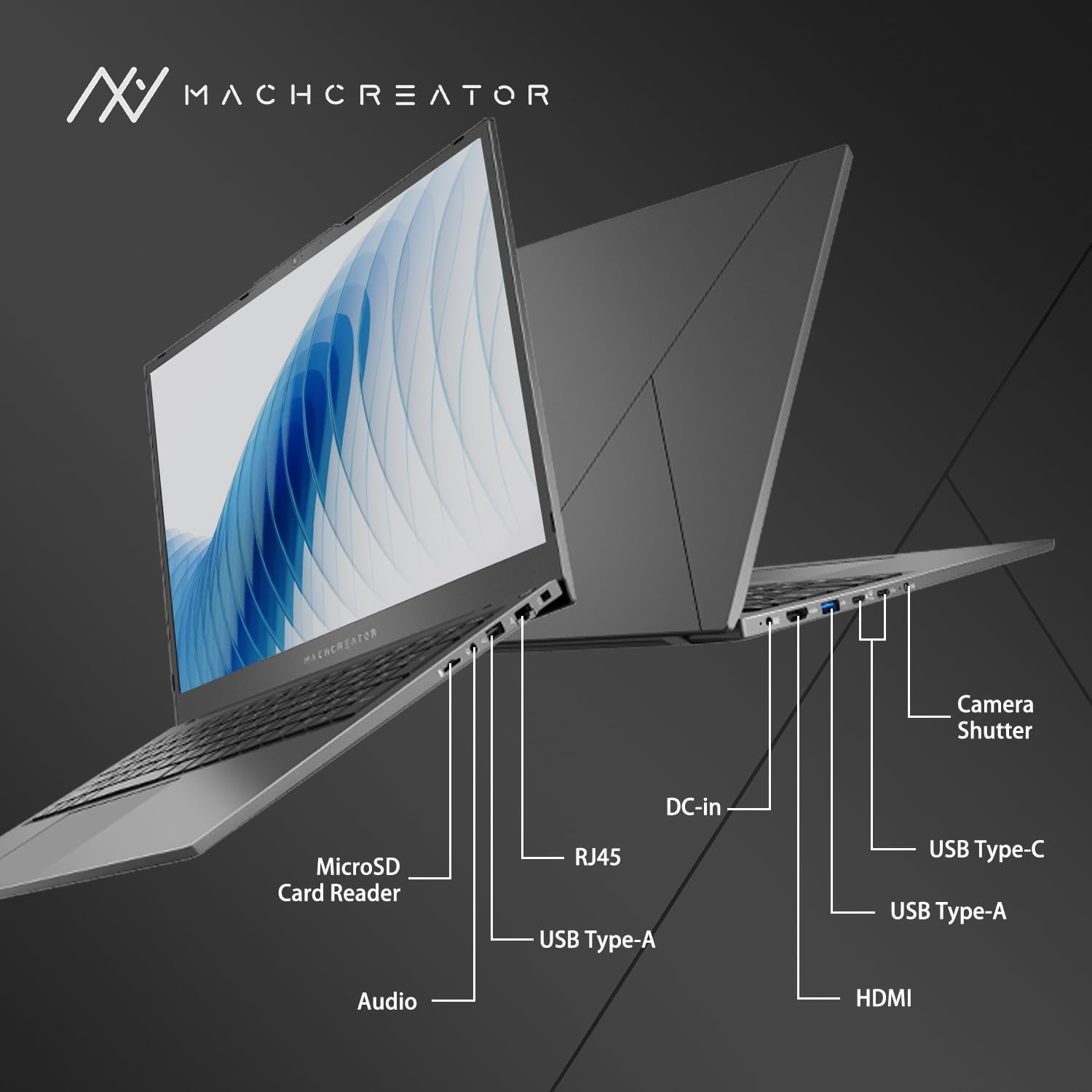
פיגורע 3.4: זייַט view with port labels.
An illustration detailing the various input/output ports available on the laptop, including USB, HDMI, and the SD card reader.
- מיקראָסד קאַרטל לייענער: For reading and writing data to MicroSD cards.
- DC-אין: Connect the power adapter for charging and power supply.
- טאַנדערבאָלט 4 (x2): High-speed data transfer, video output, and power delivery.
- יו-עס-בי 2.0 טיפ-א (x2): פאַרבינדן וסב דעוויסעס.
- הדמי: פאַרבינדן צו עקסטערנע דיספּלייז אָדער פּראָיעקטאָרן.
- RJ45: עטהערנעט פּאָרט פֿאַר ווייערד נעץ פֿאַרבינדונג.
- אַודיאָ דזשאַק: פאַרבינדן כעדפאָונז אָדער פונדרויסנדיק ספּיקערז.
4. סעטאַפּ
4.1. ערשטע איינשאַלטונג
- אויספּאַקן דעם לאַפּטאָפּ און אַלע אַקסעסאָריעס פֿון דער קעסטל.
- Connect the power adapter to the DC-in port on the laptop and then to a power outlet.
- עפענען די לאַפּטאַפּ דעקל.
- דריק דעם מאַכט קנעפּל וואָס געפינט זיך אויף דער קלאַוויאַטור צו אנצינדן דעם לאַפּטאָפּ.
- פֿאָלגט די אינסטרוקציעס אויף דעם עקראַן צו פֿאַרענדיקן דעם Windows 11 Home סעטאַפּ פּראָצעס. דאָס נעמט אַרײַן אויסקלײַבן אײַער ראַיאָן, שפּראַך און אויפֿשטעלן אײַער באַניצער חשבון.
4.2. קאַנעקטינג צו ווי-פי
- During the Windows setup, you will be prompted to connect to a Wi-Fi network. Select your desired network from the list.
- Enter the Wi-Fi password if prompted and click "Connect".
- If you skip this step, you can connect later via Windows Settings: Go to אָנהייב > סעטטינגס > נעץ און אינטערנעט > ווי-פי.
5. אַפּערייטינג ינסטרוקטיאָנס
5.1. ניצן די קלאַוויאַטור און טאָוטשפּאַד
The laptop features a full-size keyboard with a numeric keypad and a large touchpad. The keyboard is backlit, which can be activated or adjusted using the function keys (e.g., Fn + F5).
פיגור 5.1: קלאַוויאַטור און טאָוטשפּאַד אויסלייג.
This image illustrates the keyboard and touchpad, showing the key layout and the size of the touchpad for user interaction.
5.2. קאַנעקטינג פונדרויסנדיק דעוויסעס
ניצט די פאַראַן פּאָרטן צו פאַרבינדן פונדרויסנדיקע דעוויסעס:
- USB דעוויסעס: Plug USB drives, mice, or keyboards into the USB Type-A or Thunderbolt 4 (USB-C) ports.
- פונדרויסנדיק ווייַז: Connect an external monitor or TV using the HDMI port or one of the Thunderbolt 4 ports (with an appropriate adapter, if needed).
- SD קאַרדס: Insert a MicroSD card into the MicroSD Card Reader slot to access its contents.
- ווייערד נעץ: פֿאַרבינדט אַן עטערנעט קאַבל צום RJ45 פּאָרט פֿאַר אַ סטאַבילע דראָטיקע אינטערנעט פֿאַרבינדונג.
5.3. Adjusting the Display Angle
The laptop screen can be adjusted up to a 170-degree angle, providing flexibility for various viewing positions, presentations, or collaborative work.
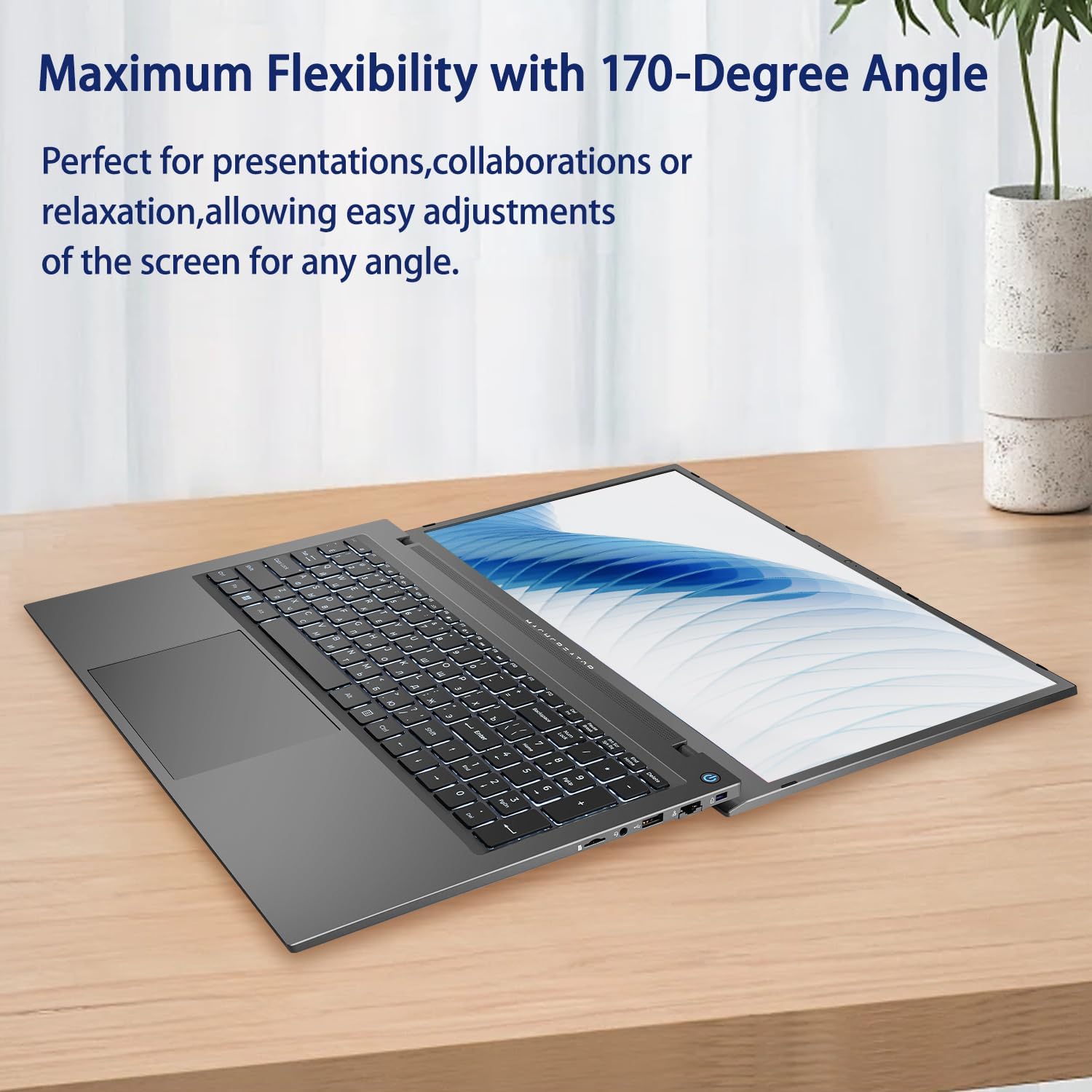
Figure 5.2: Laptop display at 170-degree angle.
This image demonstrates the laptop's ability to open its screen to a wide 170-degree angle, useful for various viewינג סינעריאָוז.
5.4. Charging the Laptop
Connect the provided power adapter to the DC-in port. The laptop also supports fast charging via its USB-C (Thunderbolt 4) ports with a compatible USB-C Power Delivery charger.
6. וישאַלט
6.1. רייניקונג
- Use a soft, lint-free cloth to clean the screen. For stubborn marks, lightly dampווישט דעם שטאָף מיט וואַסער אָדער אַ פאַרשטעלן-רייניקונג לייזונג.
- ווישט אָפּ די קלאַוויאַטור און שאַסי מיט אַ ווייכן, טרוקענעם שטאָף. פֿאַרמייַדט ניצן שאַרפע כעמיקאַלן אָדער אַברייסיוו מאַטעריאַלן.
- זייט זיכער אז דער לאַפּטאַפּ איז אויסגעלאָשן און נישט אַרויסגעטראָגן פון דער פּלאַטע איידער איר רייניקט עס.
6.2. באַטערי קער
- פֿאַרמײַדט אָפֿט פֿולשטענדיק אויסצולאָדן די באַטעריע.
- שטעלט נישט אויס דעם לאַפּטאָפּ צו עקסטרעמע טעמפּעראַטורן.
- אויב איר לייגט אפ דעם לעפטאפ פאר א לענגערע צייט, לאדט אויף די באטעריע ביז בערך 50-70% איידער איר מאכט עס אויס.
6.3. ווייכווארג דערהייַנטיקונגען
רעגלמעסיג אפדעיט אייער ווינדאָוס אָפּערירן סיסטעם און דרייווערס צו ענשור אָפּטימאַל פאָרשטעלונג און זיכערהייט. גייט צו אָנהייב > סעטטינגס > Windows Update צו קאָנטראָלירן פֿאַר דערהייַנטיקונגען.
7. טראָובלעשאָאָטינג
| פּראָבלעם | מעגלעך לייזונג |
|---|---|
| דער לאַפּטאָפּ גייט נישט אָן. |
|
| קיין Wi-Fi פֿאַרבינדונג. |
|
| דער עקראַן איז ליידיק אָדער פליקערט. |
|
| קלאַוויאַטור באַקלייט אַרבעט נישט |
|
8. ספּעסאַפאַקיישאַנז
| שטריך | דעטאַל |
|---|---|
| מאָדעל נאָמען | Machenike Machcreator N17A |
| פּראַסעסער | Intel N100 (4 Cores, up to 3.4 GHz) |
| באַראַן | 8 גיגאבייט DDR5 (4800 מעגהערץ) |
| סטאָרידזש | 256GB PCIe SSD |
| גראַפיקס | אינטעל UHD גראַפיקס (אינטעגרירט) |
| ווייַז | 17.3" FHD (1920x1080) IPS, 120Hz |
| אָפּערייטינג סיסטעם | Windows 11 היים |
| פּאָרץ | 2x Thunderbolt 4, 2x USB 2.0 Type-A, 1x HDMI, 1x RJ45, 1x MicroSD Card Reader, 1x Audio Jack, 1x DC-in |
| ווירעלעסס קאַנעקטיוויטי | Wi-Fi (802.11n) |
| ספּעציעלע פֿעיִקייטן | Backlit Keyboard, Numeric Keypad |
| דימענשאַנז (LxWxH) | 15.6 X 10.32 X 1.02 אינטשעס |
| וואָג | 5.78 לבס |
| קאָליר | גרוי |
9. וואָראַנטי און שטיצן
For warranty information and technical support, please refer to the documentation provided with your purchase or visit the official Machenike webזייטל. האַלט דיין קויפן באַווייַז פֿאַר וואָראַנטי קליימז.
אָנליין רעסורסן:
- מאטשעניקע אפיציעל Webפּלאַץ: www.machenike.com (באַמערקונג: דאָס איז אַ פּלאַץ האָלדער URL, please refer to your product's specific warranty card for the correct support contact.)
10. פּראָדוקט דעמאָנסטראַציע ווידעאָ
Video 10.1: Machcreator N17A Laptop Overview.
דאס ווידעא גיט א וויזועלע איבערבליקview of the Machenike Machcreator N17A laptop, showcasing its design, key features, and various ports. It demonstrates the unboxing experience, the backlit keyboard, and the available connectivity options.


