הקדמה
This manual provides detailed instructions for the JOMAA 20-Key Macro Programmable Numeric Gaming Keyboard. It covers setup, operation, maintenance, troubleshooting, and product specifications to ensure optimal use of your device. Please read this manual thoroughly before using the keyboard.
פּעקל אינהאַלט
- JOMAA 20-Key Macro Programmable Numeric Gaming Keyboard
- וסב טיפּע- C קאַבלע
- באַניצער מאַנואַל (דעם דאָקומענט)
סעטאַפּ אינסטרוקציעס
1. קאַנעקטינג די קלאַוויאַטור
- Locate the USB Type-C port on the back of the JOMAA 20-Key Keyboard.
- פֿאַרבינדט איין עק פֿון דעם צוגעשטעלטן USB טיפּ-C קאַבל צום פּאָרט פֿון דער קלאַוויאַטור.
- Connect the other end of the USB cable to an available USB port on your computer (PC, Laptop, or Gaming Console).
- The keyboard is plug-and-play for basic functionality.

This image highlights the detachable Type-C cable for easy portability and connectivity. It also shows the physical switch used to toggle between office and gaming modes.
2. Driver and Software Installation (Windows Only)
For advanced features such as macro programming and detailed RGB lighting customization, a dedicated driver and software are required. This software is compatible with Windows XP/Vista/7/8/10 systems only.
- Visit the official JOMAA support website to download the latest driver and software for your keyboard.
- גיי די ינסטראַקשאַנז אויף דעם עקראַן צו פאַרענדיקן די ינסטאַלירונג.
- באַמערקונג: If you configure settings on a Windows system, the keyboard will save these memory settings and retain them when connected to other compatible devices (e.g., Mac systems), although the driver itself cannot run on non-Windows operating systems.

A visual representation of the macro programming software, which allows users to define custom functions and macros for the keyboard's 19 programmable keys.
אַפּערייטינג ינסטראַקשאַנז
1. גרונטלעכע שליסל פונקציעס
The JOMAA 20-Key Keyboard functions as a standard numeric keypad or macro pad. Keys are pre-assigned with numeric and basic arithmetic functions by default.
2. מאַקראָ פּראָגראַמירן
The keyboard supports macro definition for 19 keys. This feature allows you to assign complex sequences of commands or single key presses to a single key, enhancing efficiency in gaming or productivity tasks.
- Install the JOMAA software on a Windows PC.
- Launch the software and select the key you wish to program.
- Record or input the desired macro sequence.
- Save the changes to the keyboard. The programmed macros will be stored on the keyboard's internal memory.
3. RGB לייטינג מאָדעס
The keyboard features 12 distinct RGB lighting modes. These modes can be cycled through using a dedicated key on the keyboard.
- Locate the 'Mode Switching Key' (often indicated by a gear or light icon).
- Press this key to cycle through the available lighting effects.
- Further customization of lighting effects may be available through the JOMAA software.
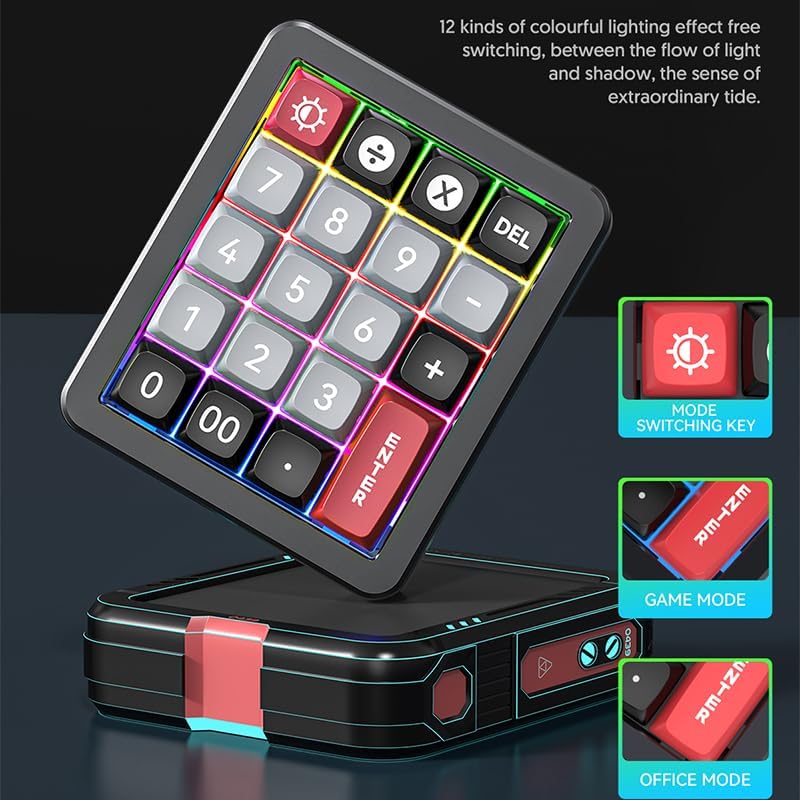
The keyboard features 12 distinct colorful lighting effects. The image also points out the dedicated mode switching key, allowing users to cycle through different lighting presets.
4. Hot-Swappable Keys
The JOMAA 20-Key Keyboard features hot-swappable switches, allowing users to replace individual key switches without soldering. This enables customization of typing feel and sound.
- Use a switch puller tool (not included) to carefully remove the keycap.
- Using the switch puller, gently grip the switch and pull it straight up to remove it from the PCB.
- Align the pins of the new switch with the holes on the PCB and press it firmly until it clicks into place.
- פֿאַרבײַטן די קלאַוויאַטור.
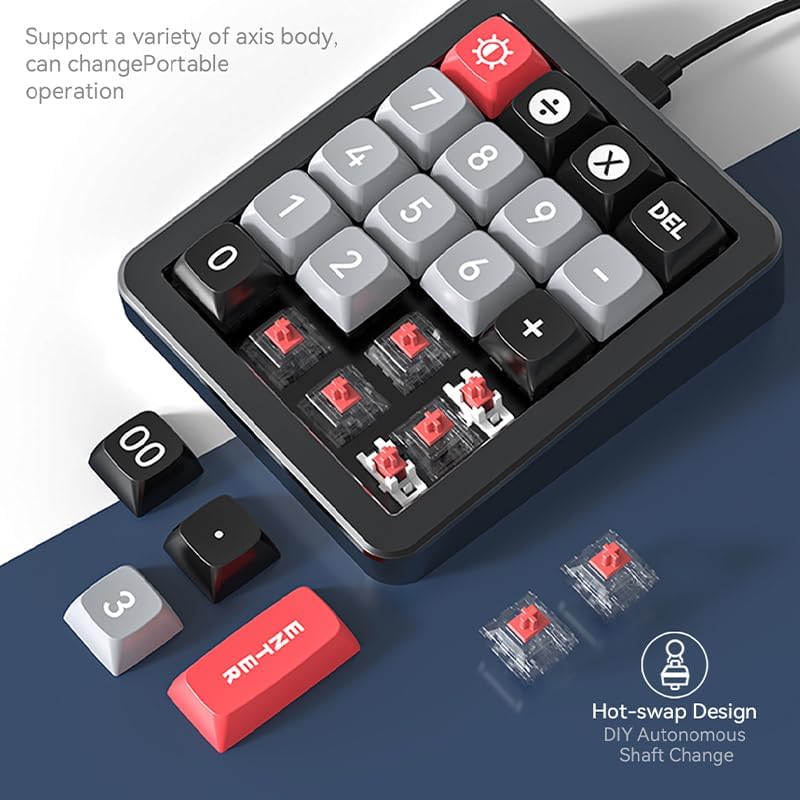
This image illustrates the hot-swappable design of the keyboard, showing how individual key switches can be easily removed and replaced without soldering, enabling customization.
5. Gasket Structure and Aluminum Alloy Body
The keyboard is constructed with an aluminum alloy body and features a gasket structure. The aluminum alloy provides durability and a stable base, while the gasket structure offers a cushioned typing experience, reducing impact noise and improving key feel.

The image emphasizes the keyboard's durable aluminum alloy construction, contributing to its premium feel and stability.

אן אויפגעריסן view diagram detailing the internal gasket structure of the keyboard, which provides a softer, more cushioned typing experience and reduces noise.
וישאַלט
רייניקונג די קלאַוויאַטור
- אָפּשטעקן די קלאַוויאַטור פֿון אייער קאָמפּיוטער איידער איר רייניקט.
- ניצן אַ ווייך, לינט-פֿרייַ שטאָף אַ ביסל דampened with water or a mild cleaning solution to wipe the surface of the keyboard.
- צו רייניקן צווישן די קלאַוויאַטור-קאַפּס, ניצט קאָמפּרעסירטע לופט צו באַזײַטיקן שטויב און שמוץ.
- פֿאַרמײַדט די נוצן פֿון שאַרפֿע כעמיקאַלן, אַברייסיוו רייניגער, אָדער שפּריצן פֿליסיקייטן גלייך אויף דער קלאַוויאַטור.
אַלגעמיינע קער
- Avoid exposing the keyboard to extreme temperatures, direct sunlight, or high humidity.
- לאָזט נישט אַראָפּפֿאַלן און שטעלט נישט אויס די קלאַוויאַטור צו שטאַרקע קלאַפּן.
- Keep liquids away from the keyboard to prevent damage.
טראָובלעשאָאָטינג
קלאַוויאַטור ניט ריספּאַנדינג
- זיכער מאַכן אַז דער USB טיפּ-C קאַבל איז זיכער פארבונדן צו ביידע די קלאַוויאַטור און דעם קאָמפּיוטער.
- פרובירט צו קאנעקטן די קלאַוויאַטור צו אַן אַנדער USB פּאָרט אויף אייער קאָמפּיוטער.
- פּרובירט די קלאַוויאַטור אויף אַן אַנדער קאָמפּיוטער צו אויסשליסן סיסטעם-ספּעציפֿישע פּראָבלעמען.
- אויב איר ניצט אַ USB כאַב, פּרוּווט צו פאַרבינדן גלייך צום קאָמפּיוטער.
RGB ליגהטינג ישוז
- זייט זיכער אז די קלאַוויאַטור איז ריכטיק אָנגעטריבן.
- Press the 'Mode Switching Key' to cycle through different lighting effects.
- If using the software, verify that lighting settings are correctly applied and saved.
Macro Programming Difficulties
- Confirm that the JOMAA software is correctly installed on a Windows PC.
- Ensure you are following the software's instructions for macro recording and saving.
- Be aware that the software may be slow or clunky, requiring patience during configuration. Allow several seconds for changes to apply.
- If macros are not working on a non-Windows device, ensure they were programmed and saved on a Windows PC first, as the driver does not run on other operating systems.
ספּעסאַפאַקיישאַנז
| שטריך | דעטאַל |
|---|---|
| סאָרט | JOMAA |
| מאָדעל | 20-Key Macro Programmable Numeric Gaming Keyboard |
| קאַנעקטיוויטי טעכנאָלאָגיע | USB-C (Detachable Cable) |
| שליסל טיפּ | Hot-Swappable Mechanical Switches |
| גוף מאַטעריאַל | אַלומינום צומיש |
| סטרוקטור | גאַסקאַט סטרוקטור |
| לייטינג | RGB (12 מאָדעס) |
| פּראָגראַממאַבלע קיז | 19 keys for macro definition |
| קאַמפּאַטאַבאַל דעוויסעס | גיימינג קאַנסאָול, לאַפּטאָפּ, פּיסי |
| סיסטעם קאַמפּאַטאַבילאַטי | Windows XP/Vista/7/8/10, Mac (driver for Windows only) |
| פּונקט וואָג | 15.5 אונסעס |
| פּעקל דימענשאַנז | 6.3 X 4.72 X 1.97 אינטשעס |
| אַרייַנגערעכנט קאַמפּאָונאַנץ | וסב קאַבלע |
וואָראַנטי אינפֿאָרמאַציע
JOMAA products are typically covered by a manufacturer's warranty. For specific details regarding the warranty period and terms for your 20-Key Macro Programmable Numeric Gaming Keyboard, please refer to the warranty card included with your product or visit the official JOMAA webזייטל. האַלט דיין קויפן באַווייַז פֿאַר וואָראַנטי קליימז.
קונה שטיצן
If you encounter any issues or have questions not addressed in this manual, please contact JOMAA customer support. Contact information can typically be found on the official JOMAA webוועבזייטל אדער אויף דער פּראָדוקט פּאַקאַדזשינג.


