1. הקדמה
Thank you for choosing the EvoFox Deathray V2 Gaming Keyboard and Mouse Combo. This manual will guide you through the setup, operation, and maintenance of your new gaming peripherals. Designed for precision and comfort, this combo enhances your gaming and productivity experience.

Image: The EvoFox Deathray V2 Gaming Keyboard and Mouse Combo, showcasing both devices connected via their braided cables.
2. פּעקל אינהאַלט
- EvoFox Deathray V2 Gaming Keyboard
- EvoFox Deathray V2 Gaming Mouse
- באַניצער מאַנואַל (דעם דאָקומענט)
3. סעטאַפּ אינסטרוקציעס
- פֿאַרבינדן די קלאַוויאַטור: Plug the USB connector of the EvoFox Deathray V2 Keyboard into an available USB port on your computer.
- פאַרבינדן די מויז: Plug the USB connector of the EvoFox Deathray V2 Mouse into another available USB port on your computer.
- דרייווער ינסטאַלירונג: Your operating system should automatically detect and install the necessary drivers. No additional software installation is typically required for basic functionality.
- אָרט: Place the keyboard and mouse on a flat, stable surface for optimal performance.
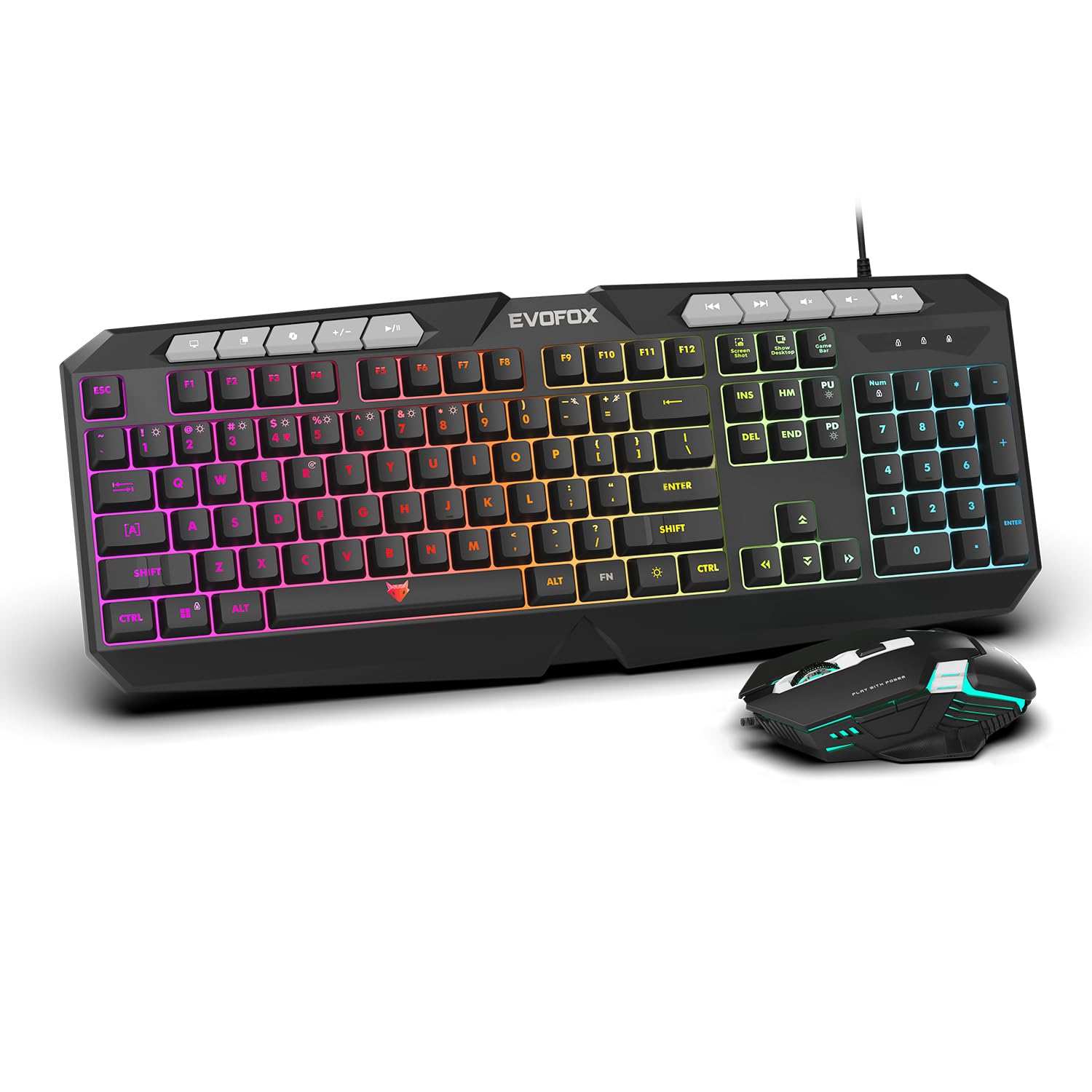
בילד: א נאָענטע בילד view of the EvoFox Deathray V2 Keyboard and Mouse, illustrating their wired connection readiness.
4. אפערירן די קלאַוויאַטור
4.1. יקערדיק פאַנגקשאַנז
The EvoFox Deathray V2 Keyboard features a full-size layout with standard QWERTY keys, a numeric keypad, and function keys (F1-F12).
4.2. מולטימעדיאַ שליסלען
Dedicated multimedia keys are located above the function keys for quick access to media controls:
- Volume Up/Down/Mute: קאָנטראָל אַודיאָ לעוועלס.
- Play/Pause, Previous/Next Track: Manage media playback.
4.3. Special Function Keys
The keyboard includes special shortcut keys for enhanced productivity and gaming:
- סקרעענשאָט: Captures a screenshot of your display.
- ווייַז דעסקטאָפּ: Minimizes all open windows to show the desktop.
- Xbox Game Bar: Opens the Xbox Game Bar for gaming features.
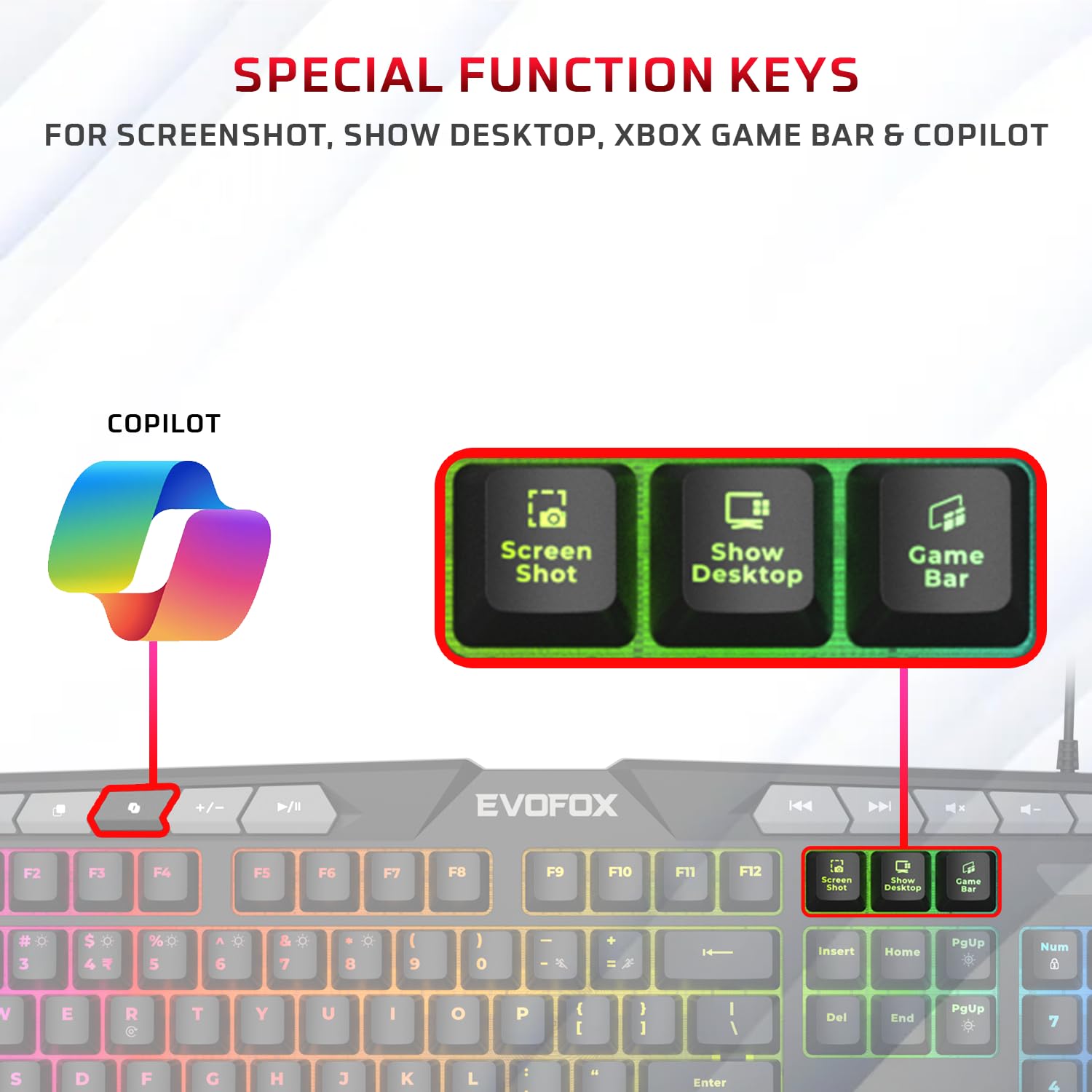
בילד: א דעטאַלירטע view of the EvoFox Deathray V2 Keyboard highlighting the dedicated Screenshot, Show Desktop, and Game Bar keys.
4.4. אַנטי-גאָוסטינג שליסלען
The keyboard features 19 anti-ghosting keys, ensuring that multiple simultaneous key presses are registered accurately, which is crucial for gaming.

Image: The EvoFox Deathray V2 Keyboard, visually indicating the 19 anti-ghosting key zones for precise input.
5. אפערירן די מויז
5.1. קנעפּלעך און פאַנגקשאַנז
The EvoFox Deathray V2 Mouse features 6 buttons for versatile control:
- לינקס דריקט
- רעכט גיט
- Scroll Wheel (Clickable)
- דפּי אַדזשאַסטמאַנט קנעפּל
- פאָרויס קנעפּל
- צוריק קנעפּל
5.2. דפּי אַדזשאַסטמאַנט
The mouse offers adjustable DPI (Dots Per Inch) settings to change cursor sensitivity. Press the DPI button located behind the scroll wheel to cycle through the available DPI levels:
- 1200 דפּי
- 1800 דפּי
- 2400 דפּי
- 3600 דפּי
Each DPI level may be indicated by a specific LED light pattern or color change on the mouse.

Image: The EvoFox Deathray V2 Mouse, illustrating its ergonomic design and the DPI adjustment button.

Image: A close-up of the EvoFox Deathray V2 Mouse, highlighting its 6-button design, rugged braided cable, and magnetic ring for data transmission.
6. Lighting Customization
6.1. קלאַוויאַטור RGB באַקלייטונג
The EvoFox Deathray V2 Keyboard features 6-zone RGB backlighting with multiple lighting modes. Use the dedicated lighting control keys (often marked with a light bulb icon or specific function key combinations) to cycle through different effects and adjust brightness.
- 8 לייטינג מאָדעס: Cycle through various preset lighting effects.
- מנהג לייטינג: Some modes may allow for custom color assignments or patterns.

Image: The EvoFox Deathray V2 Keyboard displaying its vibrant 6-zone customizable RGB backlighting.
6.2. Mouse LED Lighting
The EvoFox Deathray V2 Mouse features 7-color LED lighting, often with a breathing effect, which changes automatically. There are typically no user-adjustable settings for the mouse lighting beyond its default cycling pattern.

Image: The EvoFox Deathray V2 Mouse illuminated with its 7-color rainbow LED lighting, featuring a breathing effect.
7. וישאַלט
Proper maintenance ensures the longevity and optimal performance of your EvoFox Deathray V2 combo.
- רייניקונג: ניצט אַ ווייכע, טרוקענע שטאָף צו ווישן די קלאַוויאַטור און מויז. פֿאַר שווערע שמוץ, אַ ביסל טרוקןamp cloth can be used, ensuring no liquid enters the devices. Avoid harsh chemicals or abrasive materials.
- באַזייַטיקונג פון שטויב: ניצט קאמפרעסט לופט צו באזייטיגן שטויב און שמוץ פון צווישן די קלאַוויאַטור קנעפלעך און אַרום דעם מויז סענסאָר.
- קאַבלע זאָרגן: Avoid sharp bends or excessive pulling on the braided cables to prevent damage.
- סטאָרידזש: ווען נישט אין באַנוץ פֿאַר לענגערע פּעריאָדן, זאָל מען האַלטן די דעווייסעס אין אַ ריינער, טרוקענער סביבה, אַוועק פֿון דירעקטער זון און עקסטרעמע טעמפּעראַטורן.

Image: A close-up of the EvoFox Deathray V2 Keyboard, highlighting its durable design with a 1.8m braided cable and soft membrane keys.
8. טראָובלעשאָאָטינג
| פּראָבלעם | מעגלעך סיבה | לייזונג |
|---|---|---|
| קלאַוויאַטור/מויז רעאַגירט נישט | לויזע USB פֿאַרבינדונג, דעפֿעקטיווער USB פּאָרט, דרייווער פּראָבלעם. |
|
| שליסלען רעגיסטרירן זיך נישט אדער גייען אן | Software conflict, physical obstruction, hardware issue. |
|
| מויז קורסאָר איז נישט סטאַביל אָדער באַוועגט זיך נישט | שמוצער סענסאר, נישט פּאַסיקע ייבערפלאַך, דעפעקטיווער סענסאר. |
|
| RGB לייטינג טוט נישט אַרבעטן | Lighting mode off, brightness too low, software issue. |
|
9. ספּעסאַפאַקיישאַנז
| שטריך | דעטאַל |
|---|---|
| פּראָדוקט מאָדעל | V2 - 2 in 1 |
| קאַנעקטיוויטי | ווייערד וסב |
| קלאַוויאַטור טיפּ | מעמבראַן, פול-גרייס |
| קלאַוויאַטור באַקלייט | 6-Zone RGB with 8 modes |
| אַנטי-גהאָסטינג | 19 קיז |
| מויז קנעפּלעך | 6 Buttons (Left, Right, Scroll Click, DPI, Forward, Backward) |
| מויז דפּי סעטטינגס | 1200 / 1800 / 2400 / 3600 דפּי |
| מויז לייטינג | 7-Color LED Lighting (Breathing Effect) |
| טיפּ קאַבלע | Braided Cable (1.8m for keyboard) |
| מויז סוויטשיז | Huano switches, rated for 10 million clicks |
| פּראָדוקט דימענסיעס (קלאַוויאַטור) | 50 X 18 X 4 סענטימעטער |
| פּונקט וואָג | 800 ג |
| לאַנד פון אָריגין | כינע |
10. וואָראַנטי און שטיצן
EvoFox products are designed for durability and performance. For warranty information, technical support, or service inquiries, please refer to the official EvoFox webזייטל אדער קאנטאקט זייער קאסטומער שטיצע גלייך.
פאַבריקאַנט: Allied Electronics & Magnetics Private Limited
אַדרעס: C-64/4, Okhla Phase - 2, New Delhi - 110020, India
ביטע האַלטן דיין דערווייַז פון קויפן פֿאַר וואָראַנטי קליימז.
11. זיכערקייַט אינפֿאָרמאַציע
- Do not expose the devices to liquid or excessive moisture.
- ויסמיידן עקסטרעם טעמפּעראַטורעס.
- Do not attempt to disassemble or repair the devices yourself. This will void the warranty.
- האַלטן אויס פון דערגרייכן פון קינדער.


