1. הקדמה
Thank you for choosing the EvoFox Deathray v2 Pro Gaming Keyboard. This manual provides detailed instructions for setting up, operating, and maintaining your new gaming keyboard. Please read this manual carefully to ensure optimal performance and longevity of your device.
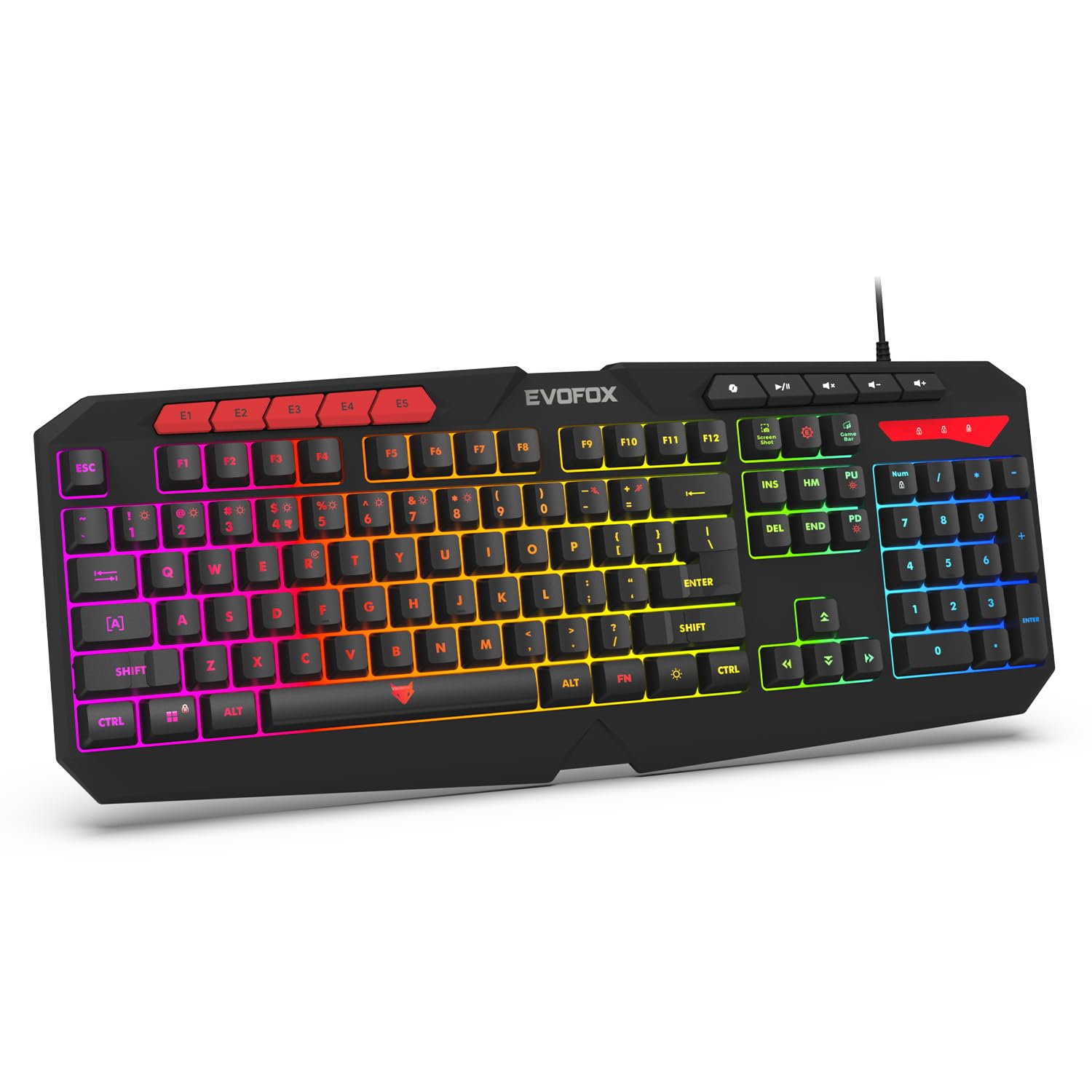
Image 1.1: EvoFox Deathray v2 Pro Gaming Keyboard overview.
2. פּעקל אינהאַלט
- EvoFox Deathray v2 Pro Gaming Keyboard
- באַניצער מאַנואַל
3. סעטאַפּ אינסטרוקציעס
3.1 פֿאַרבינדן די קלאַוויאַטור
- Unpack the EvoFox Deathray v2 Pro Gaming Keyboard from its packaging.
- זוכט אַ פאַראַן USB פּאָרט אויף אייער קאָמפּיוטער (פּיסי אָדער לאַפּטאָפּ).
- שטעקט אריין דעם USB קאַנעקטאָר פֿון דער קלאַוויאַטור אין דעם USB פּאָרט.
- The keyboard will automatically install the necessary drivers. This process may take a few moments.
- Once installed, the RGB backlighting will illuminate, indicating the keyboard is ready for use.
The keyboard features a durable 1.8m braided cable for reliable connectivity.

Image 3.1: Keyboard with durable braided cable and soft membrane keys.
4. אַפּערייטינג ינסטרוקטיאָנס
4.1 RGB באַקלייטונג קאַסטאַמייזיישאַן
The EvoFox Deathray v2 Pro features 6-zone customizable RGB backlighting with 8 dynamic lighting modes. You can personalize your gaming setup for an immersive experience.
- טוישן לייטינג מאָדעס: Use the dedicated lighting control keys (often indicated by a sun or lightbulb icon, or through a combination with the Fn key) to cycle through the 8 available dynamic lighting modes.
- מנהג לייטינג: Refer to the keyboard's software (if available, check the official EvoFox website) for advanced custom lighting profiles and per-key RGB customization.

Image 4.1: Keyboard showcasing 6-zone RGB backlighting with 7 lighting presets and 1 custom lighting option.

Image 4.2: Comparison illustrating the difference between RGB lighting with full color customization per zone and standard rainbow lighting with fixed color zones.
4.2 פּראָגראַמירבאַרע מאַקראָ שליסלען
The keyboard includes 5 programmable macro keys (E1-E5) to streamline your gameplay with customizable macros for lightning-fast responses. These keys allow you to record and assign complex sequences of commands to a single key press.
- מאַקראָו רעקאָרדינג: Typically, macro recording is initiated by a dedicated macro recording key (often labeled 'MR' or similar, or accessed via Fn key combination). Follow the on-screen prompts or software instructions to record your desired key sequence.
- Assigning Macros: Once recorded, assign the macro to one of the programmable macro keys (E1-E5) using the keyboard's software.

Image 4.3: Highlight of the 5 programmable macro keys (E1-E5) for executing complex commands.
4.3 ספּעציעלע פֿונקציע קנעפּלעך
Access essential tools quickly with dedicated shortcuts for Screenshot, Macro Recording, and Xbox Game Bar. These functions are typically accessed via specific keys or Fn key combinations.
- Screenshot Key: Captures a screenshot of your display.
- Macro Recording Key: Initiates macro recording.
- Xbox Game Bar Key: Opens the Xbox Game Bar interface for gaming features.
- קאָפּילאָט שליסל: Activates the Copilot feature (if supported by your operating system).

Image 4.4: Illustration of special function keys for Screenshot, Macro Recording, Xbox Game Bar, and Copilot.
4.4 Anti-Ghosting Keys
The keyboard features 19 anti-ghosting keys, ensuring flawless input during high-stakes moments. This technology allows multiple key presses to be registered simultaneously and accurately, preventing missed commands.

Image 4.5: Keyboard layout highlighting the 19 anti-ghosting keys for precise, uninterrupted gameplay.
4.5 Ergonomic Full-Size Layout
Designed for comfort during extended gaming sessions, the keyboard features an ergonomic full-size layout with soft and silent membrane keys. This design aims to provide precision without sacrificing ease of use.
5. וישאַלט
5.1 רייניקן די קלאַוויאַטור
- אָפּשטעקן די קלאַוויאַטור פֿון אייער קאָמפּיוטער איידער איר רייניקט.
- ניצן אַ ווייך, לינט-פֿרייַ שטאָף אַ ביסל דampened with water or a mild cleaning solution to wipe the surface of the keyboard.
- פֿאַר שטויב און שמוץ צווישן שליסלען, ניצט קאָמפּרעסירטע לופט.
- Avoid using harsh chemicals, abrasive cleaners, or solvents, as these can damage the keyboard's finish and key legends.
- זייט זיכער אז די קלאַוויאַטור איז גאָר טרוקן איידער איר עס ווידער פֿאַרבינדט צום קאָמפּיוטער.
6. טראָובלעשאָאָטינג
6.1 קלאַוויאַטור רעאַגירט נישט
- קוק די USB קאַנעקשאַן: זיכער מאַכן אַז דער USB קאַבל איז זיכער אַרײַנגעשטעקט אין אַ פֿונקציאָנירנדיקן USB פּאָרט אויף אײַער קאָמפּיוטער. פּרוּווט אַן אַנדערן USB פּאָרט.
- ריסטאַרט קאָמפּיוטער: מאנchmal קען א פשוטע ריסטאַרט אויפלעזן קאנעקטיוויטי פראבלעמען.
- דרייווער ריאינסטאַלאַציע: If the issue persists, try uninstalling the keyboard drivers from your computer's Device Manager and then reconnecting the keyboard to allow for automatic reinstallation.
6.2 RGB Backlighting Not Working
- קוק די ברייטנאַס סעטטינגס: Ensure the brightness level is not set to minimum or off. Use the dedicated lighting control keys to adjust brightness.
- ציקל מאָדעס: Cycle through different RGB modes to see if any mode activates.
- ווייכווארג קאָנטראָל: אויב איר ניצט קאַסטאַם פּראָfiles, ensure the keyboard software is running and configured correctly.
6.3 Macro Keys Not Functioning
- ווייכווארג קאָנפיגוראַטיאָן: Verify that macros are correctly recorded and assigned to the desired keys within the keyboard's software.
- Software Running: Ensure the keyboard's macro software (if applicable) is running in the background.
7. ספּעסאַפאַקיישאַנז
| שטריך | באַשרייַבונג |
|---|---|
| סאָרט | עוואָפאָקס |
| מאָדעל | 498 |
| פּראָדוקט דימענשאַנז | 44.7 X 17.2 X 2.6 סענטימעטער |
| פּונקט וואָג | 565 ג |
| ייַזנוואַרג פּלאַטפאָרמע | Windows |
| קאַמפּאַטאַבאַל דעוויסעס | לאַפּטאַפּ, פּיסי |
| ספּעציעלע פֿעיִקייטן | Compact Design, Silent Membrane Keyboard, True Prims RGB |
| קלאַוויאַטור באַשרייַבונג | גיימינג |
| קאַנעקטער טיפּ | וסב |
| מאַטעריאַל | אַבס פּלאַסטיק |
| לאַנד פון אָריגין | כינע |
8. וואָראַנטי און שטיצן
8.1 וואָראַנטי אינפֿאָרמאַציע
The EvoFox Deathray v2 Pro Gaming Keyboard typically comes with a 1-יאָר לימיטעד וואָראַנטי פֿון דעם קויפֿדאַטום. די וואָראַנטי דעקט פֿאַבריקאַציע־דעפֿעקטן און גאַראַנטירט אַז דער פּראָדוקט פֿונקציאָנירט ווי באַשטימט אונטער נאָרמאַלן באַנוץ. ביטע באַהאַלטן אייער קויפֿבאַווײַז פֿאַר וואָראַנטי־קליימז.
8.2 קונה שטיצן
For technical assistance, warranty claims, or any product-related inquiries, please contact EvoFox customer support through their official website or the contact information provided with your product packaging. You may also refer to the Amkette helpline mentioned in some product documentation.