1. הקדמה
This manual provides detailed instructions for the installation, operation, and maintenance of your WEILAILIFE 4K 8MP PoE PTZ Security Camera System. Please read this manual thoroughly before using the product to ensure proper functionality and safety. Keep this manual for future reference.
2. פּראָדוקט איבערview
2.1. פּעקל אינהאַלט
- 4K 8MP 8-Channel Network Video Recorder (NVR) with 1TB HDD: x 1
- 4K 8MP PTZ Camera: x 4
- LAN Cable for Camera (18.2 meters): x 4
- Instruction Manual: x 1
- Warning Label: x 1
- Camera Mounting Screws Pack: x 4
- NVR Power Supply (48V2A): x 1
- ווייַט קאָנטראָל: X 1
- USB Mouse: x 1
- HDMI Cable (1 meter): x 1
- LAN Cable (1 meter): x 1
2.2. שליסל פֿעיִקייטן
- 4K 8MP Ultra High Resolution: Captures video at 3264 x 2488 pixels for clear surveillance.
- PTZ קאָנטראָל: Pan 355° horizontally and Tilt 90° vertically for comprehensive area coverage.
- אויטאָ-טראַקינג: Automatically detects and follows human movement, ensuring critical events are recorded.
- צוויי-וועג אַודיאָ: ערמעגליכט רעאל-צייט קאמוניקאציע דורך די קאמערא דורך די מאביל אפליקאציע.
- PIR & AI Dual Detection: Advanced human detection technology reduces false alarms by distinguishing people from other moving objects.
- 130° Ultra-Wide Angle Lens: אָפערט אַ ברייטע פעלד פון view to minimize blind spots.
- H.265 קאמפרעשאן: Efficient video compression saves storage space and bandwidth while maintaining video quality.
- IP66 וועטערפּרוף: Designed for both indoor and outdoor use, resistant to dust and water.
- PoE (מאַכט איבער עטהערנעט): פאַרפּשוטערט די אינסטאַלאַציע דורך צושטעלן מאַכט און דאַטן דורך אַן איינציקן עטהערנעט קאַבל.
- Free Mobile App: אַקסעס לעבן view and recordings without monthly fees using the 'Honestview' or 'Eseecloud' app.

בילד 2.1: איבערview of the WEILAILIFE 4K 8MP PoE PTZ Security Camera System, including the NVR, four cameras, 1TB HDD, and remote control.
3. סעטאַפּ גייד
3.1. ערשטע פֿאַרבינדונג
- Connect NVR to Power: Plug the NVR power adapter (48V2A) into the NVR and a power outlet.
- פֿאַרבינדן NVR צום מאָניטאָר: Use the provided HDMI cable to connect the NVR to a monitor or TV.
- פאַרבינדן USB מויז: שטעקט אריין די USB מויז אין א USB פארט אויף די NVR פאר נאַוויגאַציע.
- פֿאַרבינדן קאַמעראַס: Connect each camera to an available PoE port on the NVR using the provided LAN cables. The cameras will power on automatically.
- Connect NVR to Internet (Optional for Remote Access): פֿאַרבינדט דעם NVR'ס LAN פּאָרט צו אייער ראַוטער מיט אַן עטהערנעט קאַבל.

Image 3.1: Illustration showing the simple connection of a camera to the NVR using a single LAN cable for both power and data, supporting up to 200 meters of transmission distance.
3.2. מאָביל אַפּ סעטאַפּ
- אראפקאפיע אַפּ: זוכן פֿאַר 'Honestview' or 'Eseecloud' in your smartphone's App Store (iOS) or Play Store (Android) and install it.
- רעגיסטרירן אַקאַונט: עפֿנט די אַפּ און פֿאָלגט די אינסטרוקציעס אויף דעם עקראַן צו רעגיסטרירן אַ נײַעם חשבון.
- לייג דיווייס: On the NVR's monitor, locate the device ID (usually found in the system settings or on a label). In the app, select 'Add Device' and scan the QR code or manually enter the device ID.
- לעבן View: Once added, you should be able to view לעבן פאָאָtage from your cameras and access NVR settings remotely.

Image 3.2: The system supports remote monitoring from various devices including smartphones, tablets, laptops, and desktop computers.
4. אַפּערייטינג ינסטרוקטיאָנס
4.1. לייוו View און פּלייַבאַקק
- אויף מאָניטאָר: Use the USB mouse to navigate the NVR interface. Click on camera feeds to view them in full screen. Access playback options from the main menu.
- אויף רירעוודיק אַפּ: Select a camera from the device list to view איר לעבן פיד. ניצט די ווידערשפּיל פונקציע צו ווידערview רעקאָרדעד פוtage stored on the NVR.
4.2. PTZ קאָנטראָל
The PTZ (Pan-Tilt-Zoom) cameras can be controlled remotely via the mobile app or NVR interface.
- פּאַן / טילט: אין לעבן view, use the directional controls to rotate the camera horizontally (355°) and vertically (90°).
- דיגיטאַל פארגרעסער: Use the zoom controls to digitally magnify the image up to 5x.
- אויטאָ-טראַקינג: Enable auto-tracking in the camera settings. The camera will automatically follow detected human movement within its field of view.

Image 4.1: Demonstrates PTZ control (355° pan, 90° tilt) and 10x digital zoom functionality managed through a smartphone application.

Image 4.2: Visual representation of the automatic tracking feature, where the camera follows a person's movement.
4.3. צוויי-וועגיק אודיאָ
The cameras are equipped with a microphone and speaker for two-way communication.
- אַקטאַווייט: In the mobile app's live view, tap the microphone icon to speak through the camera. Tap the speaker icon to hear audio from the camera's location.
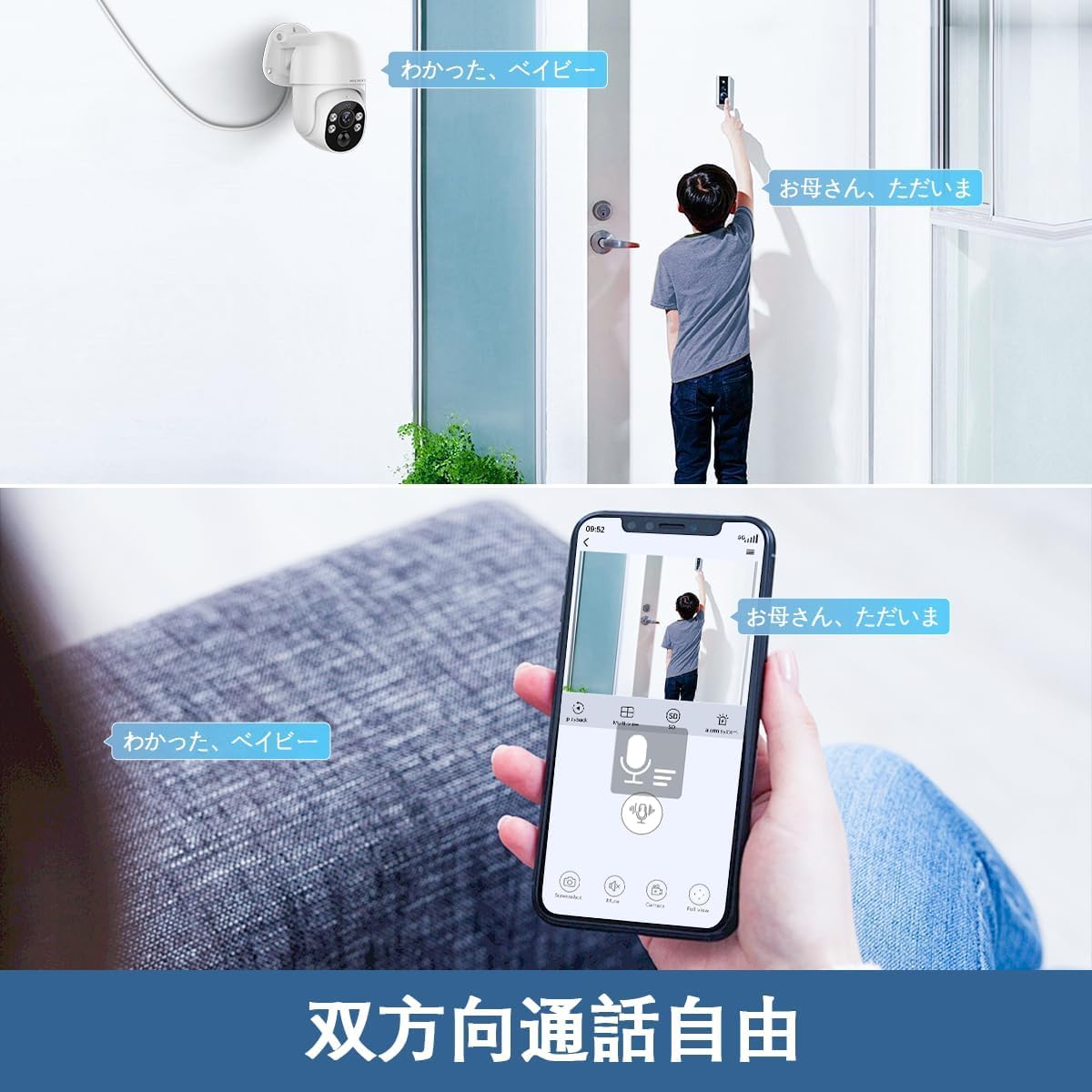
Image 4.3: A user communicating through the camera's two-way audio feature using a smartphone app, allowing interaction with someone at the door.
4.4. באַוועגונג דעטעקציע און וואָרענונגען
The system uses PIR and AI dual detection to accurately identify human movement and send alerts.
- קאָנפיגורירן דעטעקציע זאָנעס: In the NVR or app settings, you can define specific areas for motion detection to avoid unnecessary alerts.
- Alert Notifications: When motion is detected, the system can send real-time notifications to your smartphone, email alerts, or trigger a siren.

Image 4.4: Visual explanation of PIR and AI dual detection, highlighting how the system differentiates human movement from other objects like cars to reduce false alarms.

בילד 4.5: אן עקסample of a real-time alert notification displayed on a smartphone when an intruder is detected by the security camera.

Image 4.6: Diagram illustrating how users can define specific motion detection areas to focus surveillance on critical zones and ignore irrelevant movements outside the designated area.
5. וישאַלט
- רעגולער רייניקונג: רייניקן די קאַמעראַ לענסעס פּעריִאָדיש מיט אַ ווייכן, דamp שטאָף צו ענשור קלאָר בילד קוואַליטעט. ניצט נישט שטרענגע כעמיקאַלן.
- Firmware דערהייַנטיקונגען: Check the WEILAILIFE webוועבזייטל אדער אַפּ פֿאַר פֿאַראַן פירמווער דערהייַנטיקונגען צו ענשור אָפּטימאַל פאָרשטעלונג און זיכערהייט.
- קאַבלע דורכקוק: קאָנטראָלירט רעגולער אַלע קייבלס פֿאַר יעדע סימן פֿון טראָגן אָדער שאָדן, ספּעציעל פֿאַר דרויסנדיקע אינסטאַלאַציעס.
- סטאָרידזש פאַרוואַלטונג: די 1TB HDD גיט ample storage. Periodically review און באַקאַפּן וויכטיקע פודtage. The H.265 compression helps maximize storage efficiency.

Image 5.1: The camera is designed to withstand various weather conditions, operating effectively between -10°C and 50°C, and is IP66 waterproof.

Image 5.2: Detail of the waterproof connector design, ensuring the LAN connection remains protected from rain and moisture when installed outdoors.
6. טראָובלעשאָאָטינג
| פּראָבלעם | מעגלעך סיבה | לייזונג |
|---|---|---|
| קיין בילד פון קאַמעראַ | Power issue, loose cable, NVR port issue | Check power supply to NVR and camera. Ensure LAN cable is securely connected. Try a different NVR port. |
| קענען ניט פאַרבינדן צו אַפּ | NVR not connected to internet, incorrect device ID, app issues | Verify NVR internet connection. Double-check device ID. Restart app or NVR. |
| נעבעך בילד קוואַליטעט | שמוציקע לינז, שוואַך ליכט, נעץ באַנדווידט | Clean camera lens. Ensure adequate lighting or check night vision settings. Verify network speed. |
| פאַלשע באַוועגונג אַלאַרמס | Incorrect detection zone, sensitivity too high | Adjust motion detection zones to exclude irrelevant areas. Lower sensitivity settings. |
| PTZ קאָנטראָל רעאַגירט נישט | Network delay, camera malfunction | Check network connection. Restart camera/NVR. If issue persists, contact support. |
7. ספּעסאַפאַקיישאַנז
- ווידעא כאַפּן האַכלאָטע: 4K 2160P, 800 million pixels (3264×2488)
- קאָליר: ווייַס
- נומער פון זאכן: 1 (System)
- נומער פון טשאַנאַלז: 8
- פאָרם פאַקטאָר: קופּאָל
- פעלד פון View: 130 דיגריז
- נאַכט וויזשאַן קייט: 20 מעטער
- ראַם קורס: 15 fps
- מאַטעריאַל: אַלומינום
- Voltage: 110 וואלטס (AC)
- וואָסtage: 60 וו
- פּראָדוקט דימענשאַנז (LxWxH): 28 X 16 X 31 סענטימעטער
- וואַסער קעגנשטעל מדרגה: IP66 (וואָטערפּרוף און דוסטפּראָאָף)
- ימאַגינג סענסאָר: קמאָס
- Zoom Ratio (Digital): 5:1
- Lens Configuration: ברייט ווינקל
- מאָטאָר טיפּ: דיגיטאַל פארגרעסער
- פּראָדוקט מאָדעל נומער: WL-POE-PTZ80041T
- רעקאַמענדיד נוצן: דרינענדיק זיכערהייט, דרויסנדיק זיכערהייט
- קאַנעקטיוויטי טעכנאָלאָגיע: ווייערד (PoE)
- פֿעיִקייטן: 130° Ultra-Wide Angle, H.265 Compression, PIR & AI Dual Detection, Two-Way Audio, Free APP & No Monthly Fees
- דרינענדיק/דרויסנדיק נוצן: דרינענדיק, דרויסנדיק
- קאַמפּאַטאַבאַל דעוויסעס: Camera, Smartphone, Tablet, TV, Desktop
- מאַכט מקור: קאָרדעד עלעקטריק
- קשר פּראָטאָקאָל: ONVIF
- קאָנטראָללער טיפּ: אַפּ קאָנטראָל, ווייַט קאָנטראָל
- מאַונטינג טיפּ: וואנט בארג
8. וואָראַנטי און שטיצן
8.1. וואָראַנטי אינפֿאָרמאַציע
WEILAILIFE provides a 12-חודש קוואַליטעט וואָראַנטי for this product. This warranty covers manufacturing defects and ensures stable, high-quality performance. Please retain your proof of purchase for warranty claims.
8.2. קונה שטיצן
For any questions, concerns, or technical assistance regarding your WEILAILIFE security camera system, please contact our support team:
- E- בריוו שטיצן: info-jp@weilailifetech.com (24-hour response time)
- באַאַמטער Webפּלאַץ: jp.weilailifetech.com
- LINE Service: For quick support, add us on LINE: https://lin.ee/EqPKtnq

Image 8.1: Details on the 12-month warranty, official website, and email support for WEILAILIFE products.


