1. הקדמה
This manual provides essential instructions for setting up, operating, and maintaining your aiprotablet A30 10.1-inch Android 15 Tablet. Please read this guide thoroughly before using your device to ensure proper function and longevity.
2. פּעקל אינהאַלט
באַשטעטיקן אַז אַלע זאכן זענען פאַראַן אין דיין פּעקל:
- aiprotablet A30 Tablet
- בלועטאָאָטה קיבאָרד
- פּראַטעקטיוו קאַסע
- סטילוס פּען
- ווירעלעסס מאַוס
- Charging Cables (USB Type-C)
- מאַכט אַדאַפּטער
- Tempered Film (Screen Protector)
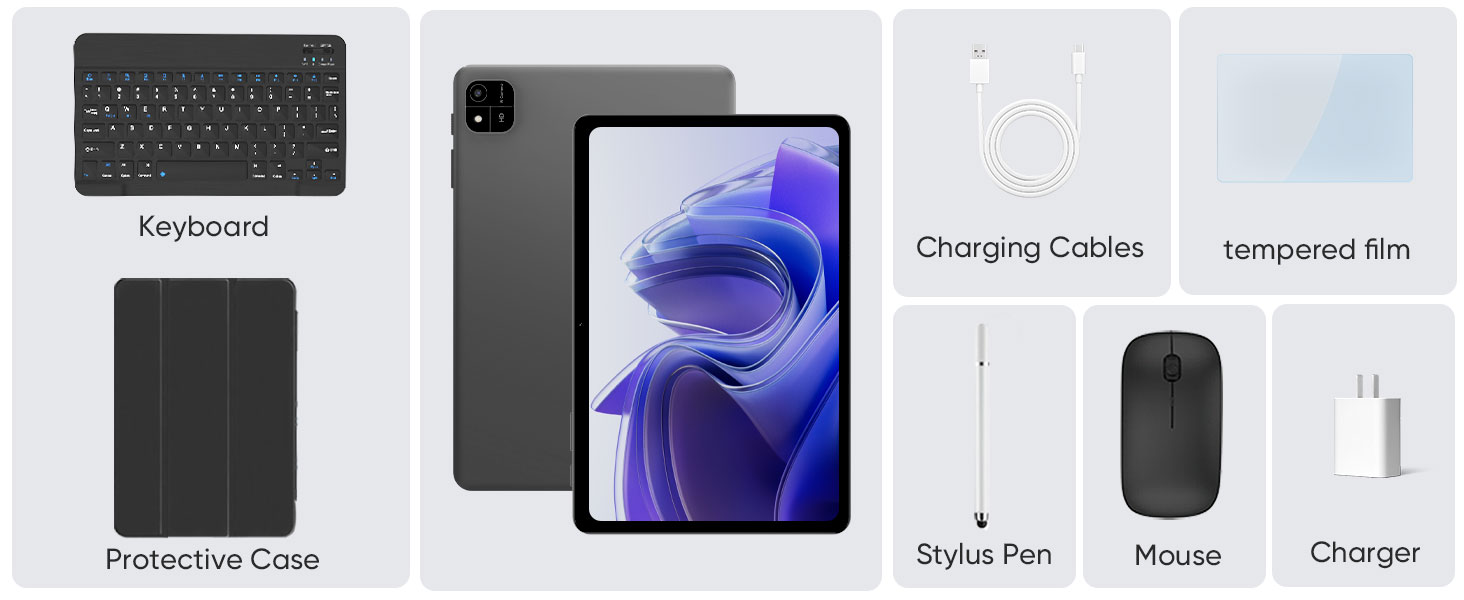
Image: The complete package contents for the aiprotablet A30, showing the tablet, Bluetooth keyboard, wireless mouse, stylus, protective case, charging cable, power adapter, and screen protector.
3. געטינג סטאַרטעד
3.1 פּאַוערינג אויף / אַוועק
To power on the tablet, press and hold the power button located on the side until the screen illuminates. To power off, press and hold the power button, then select "Power off" from the options that appear on the screen.
3.2 Initial Setup (Android 15)
Upon first use, the tablet will guide you through the initial setup process. This includes selecting your language, connecting to a Wi-Fi network, setting up your Google account, and configuring basic security settings. Follow the on-screen prompts to complete the setup.
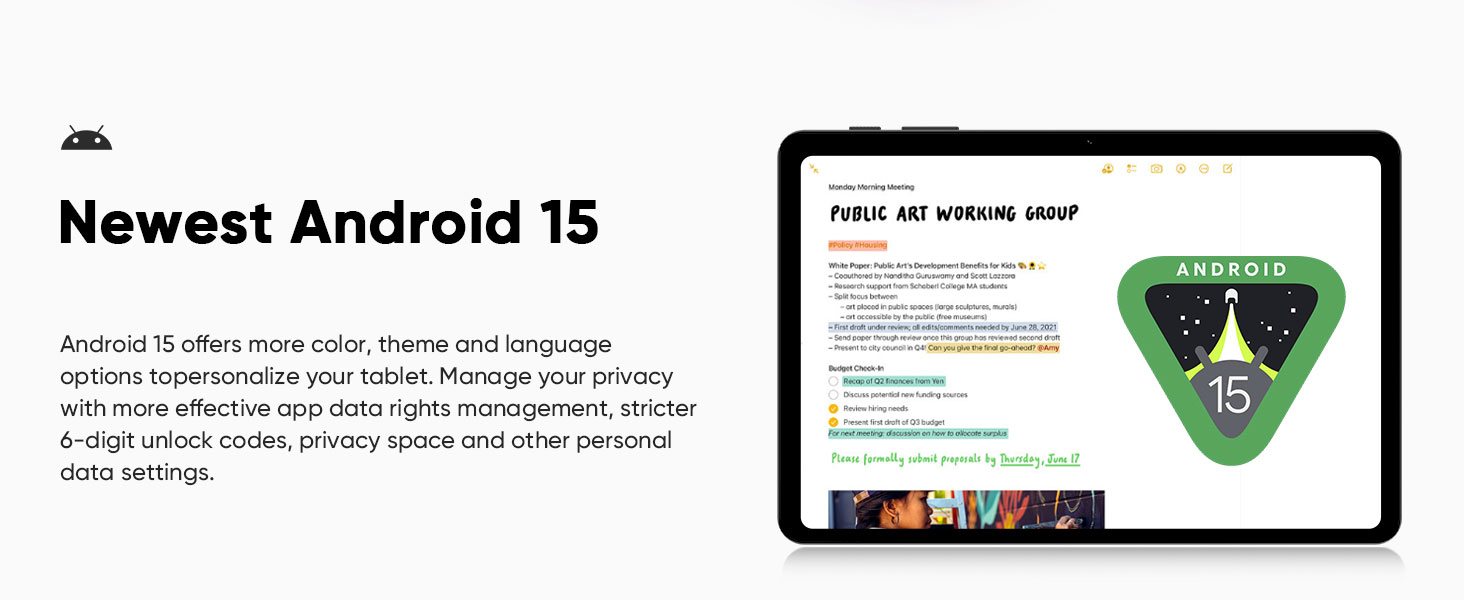
בילד: איבערview of Android 15 features, including Widevine L1 support, parental controls, GPS navigation, face unlock, split screen functionality, and wireless screen mirroring.
3.3 קאַנעקטינג צו Wi-Fi
- גיין צו סעטטינגס > נעץ און אינטערנעט > ווי-פי.
- Toggle Wi-Fi to On.
- אויסקלייבן אייער געוואונטשענע נעץ פון דער ליסטע.
- אַרייַן די פּאַראָל אויב געבעטן און צאַפּן פאַרבינדן.
The tablet supports 2.4GHz and 5GHz dual-band Wi-Fi for stable and fast network connections.
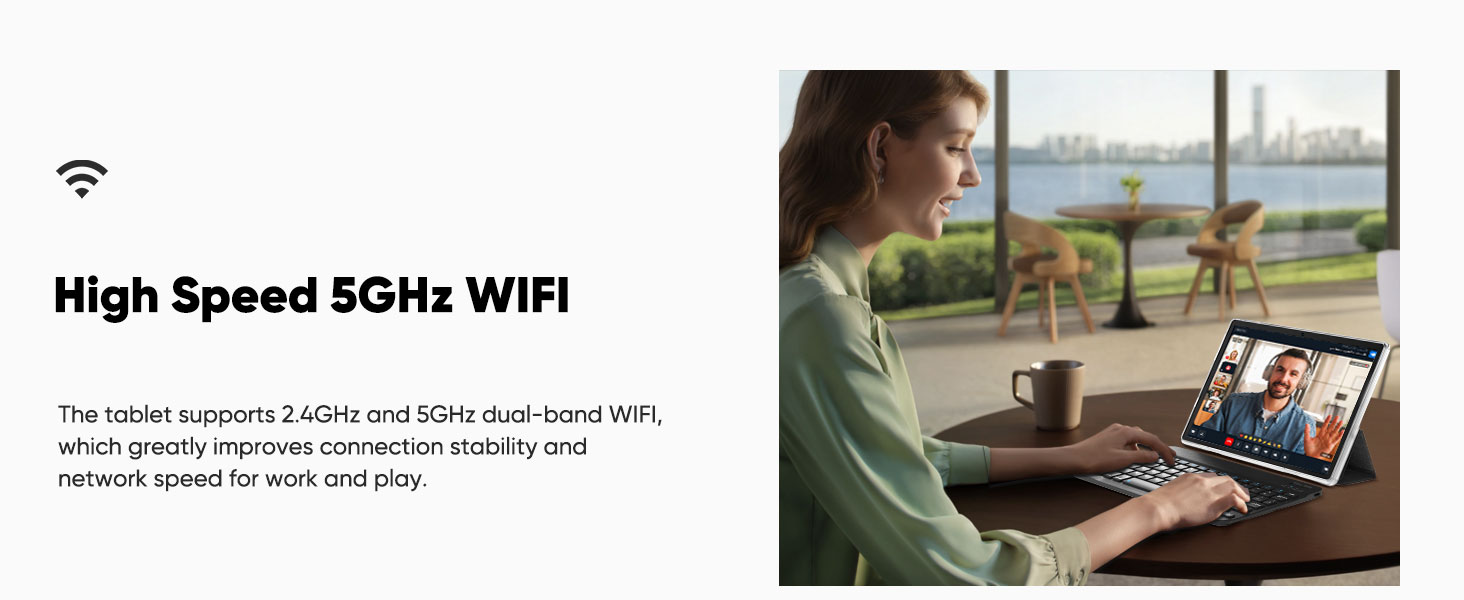
Image: A user working on the tablet with a keyboard, highlighting the high-speed 5GHz Wi-Fi capability for improved connection stability and network speed.
3.4 Connecting Bluetooth Accessories
Your tablet comes with a Bluetooth keyboard and a wireless mouse. Follow these steps to pair them:
3.4.1 Bluetooth Keyboard Connection
- Turn the power switch on the keyboard to the ON שטעלע.
- דרוק FN+C on the keyboard. The Bluetooth indicator will start blinking, indicating pairing mode.
- אויף אייער טאַבלעט, גייט צו סעטטינגס > קאָננעקטעד דעוויסעס > בלועטאָאָטה.
- Ensure Bluetooth is enabled. Tap פאַרבינדן אַ נייַ מיטל.
- Find "Bluetooth Keyboard" in the list of available devices and tap to pair. Confirm pairing if prompted.
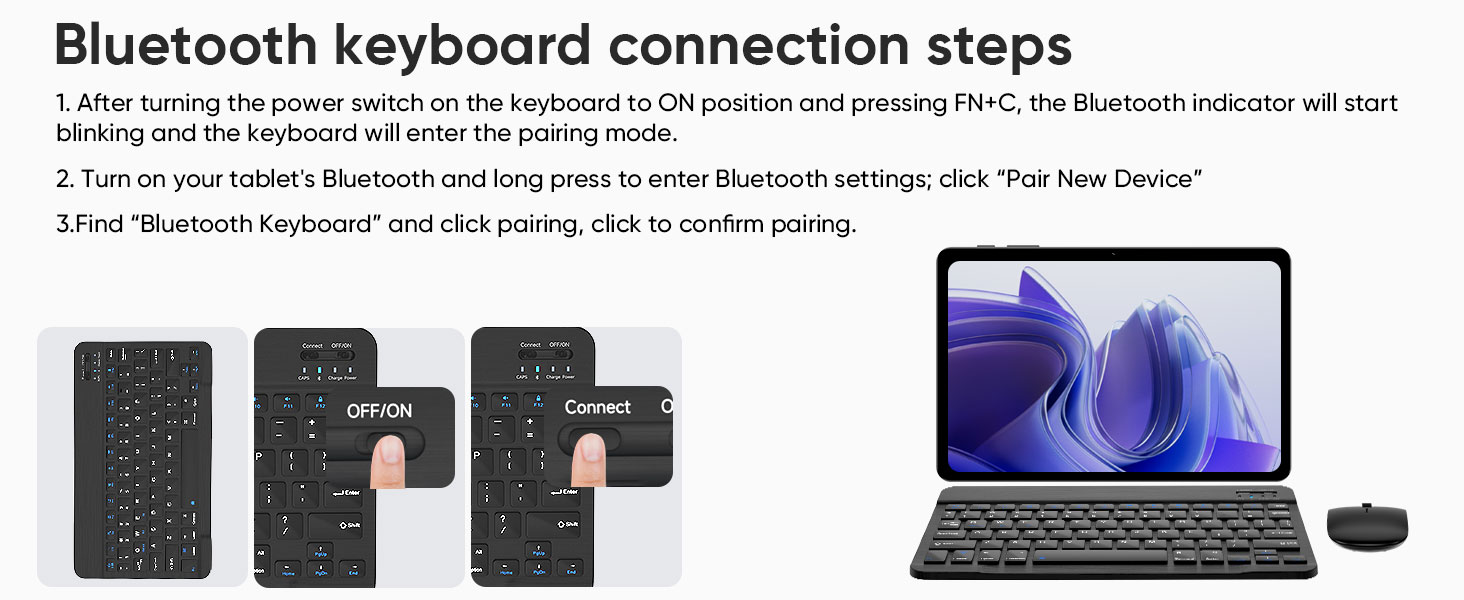
Image: Visual guide demonstrating the steps to connect the Bluetooth keyboard, including turning on the keyboard and pressing FN+C to activate pairing mode.
3.4.2 Bluetooth Mouse Connection
- Open the battery cover on the back of the mouse and insert the required AAA batteries (not included).
- צינד אן די מויז. עס זאָל אויטאָמאַטיש אַרייַן אין פּערינג מאָדע.
- אויף אייער טאַבלעט, גייט צו סעטטינגס > קאָננעקטעד דעוויסעס > בלועטאָאָטה.
- Ensure Bluetooth is enabled. Tap פאַרבינדן אַ נייַ מיטל.
- Find "BT5.2 Mouse" (or similar) in the list of available devices and tap to pair. Confirm pairing if prompted.
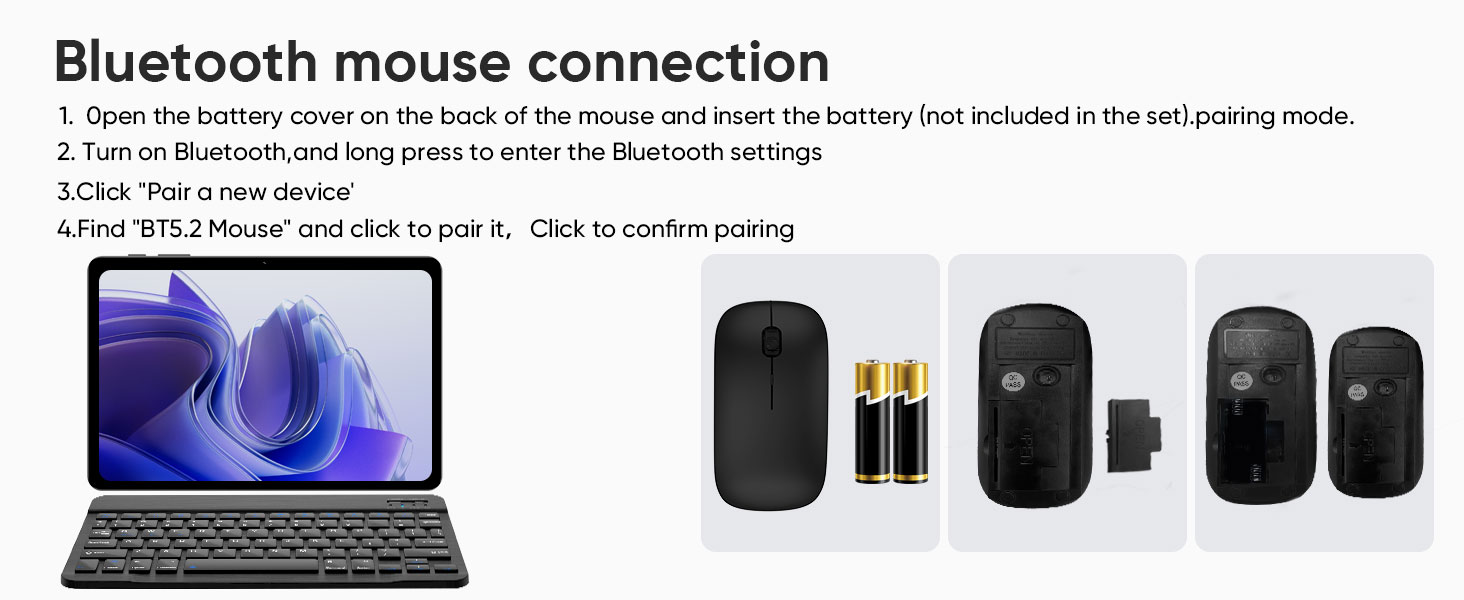
Image: Visual guide for connecting the Bluetooth mouse, illustrating how to insert batteries and the pairing process via the tablet's Bluetooth settings.
4. אפערירן אייער טאַבלעט
4.1 אויסשטעלונג און וויזשוואַלן
The aiprotablet A30 features a 10.1-inch IPS HD display with a resolution of 1280x800 pixels, providing clear and vivid visuals. It supports Widevine L1, enabling high-quality streaming from platforms like Netflix, Prime Video, Hulu, HBO Max, YouTube, and Disney+ in HD/1080P.
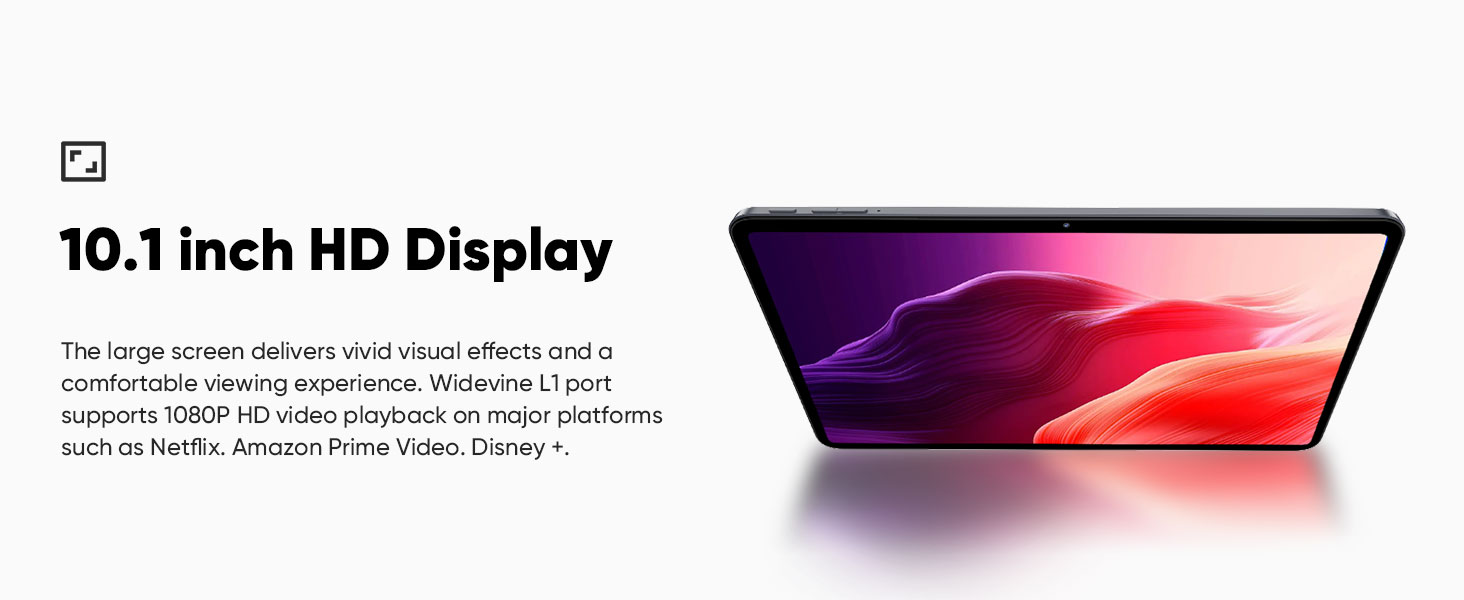
Image: The 10.1-inch HD display showcasing vibrant visual effects, emphasizing the comfortable viewing experience and Widevine L1 support for 1080P video playback.
4.2 פאָרשטעלונג
Powered by an Unisoc T606 octa-core processor and 12GB RAM (4GB physical + 8GB virtual memory), the tablet delivers smooth performance for multitasking, gaming, and multimedia consumption. It includes 64GB of internal storage, expandable up to 2TB via a Micro SD card (sold separately).
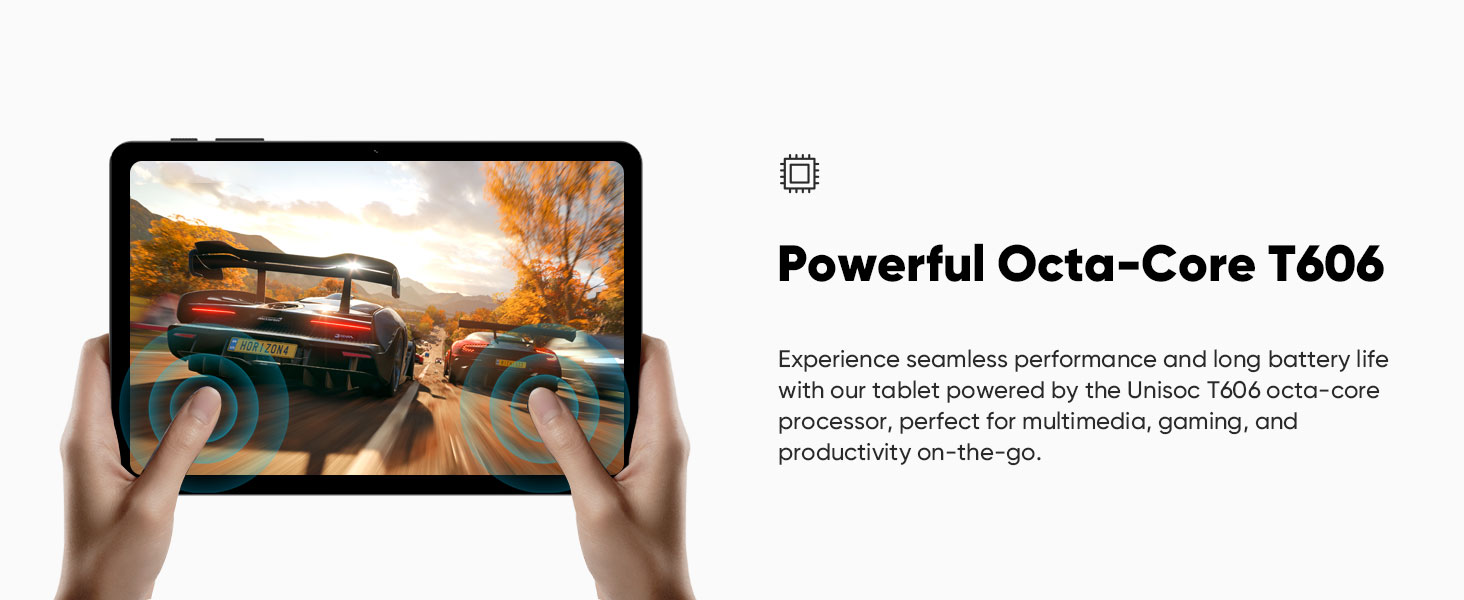
Image: A user playing a racing game on the tablet, demonstrating the seamless performance and long battery life provided by the Unisoc T606 octa-core processor, suitable for gaming and productivity.
4.3 קאַמעראַס
The tablet is equipped with a 5MP front camera and an 8MP rear camera, suitable for video calls, capturing photos, and supporting facial recognition for unlocking the device.
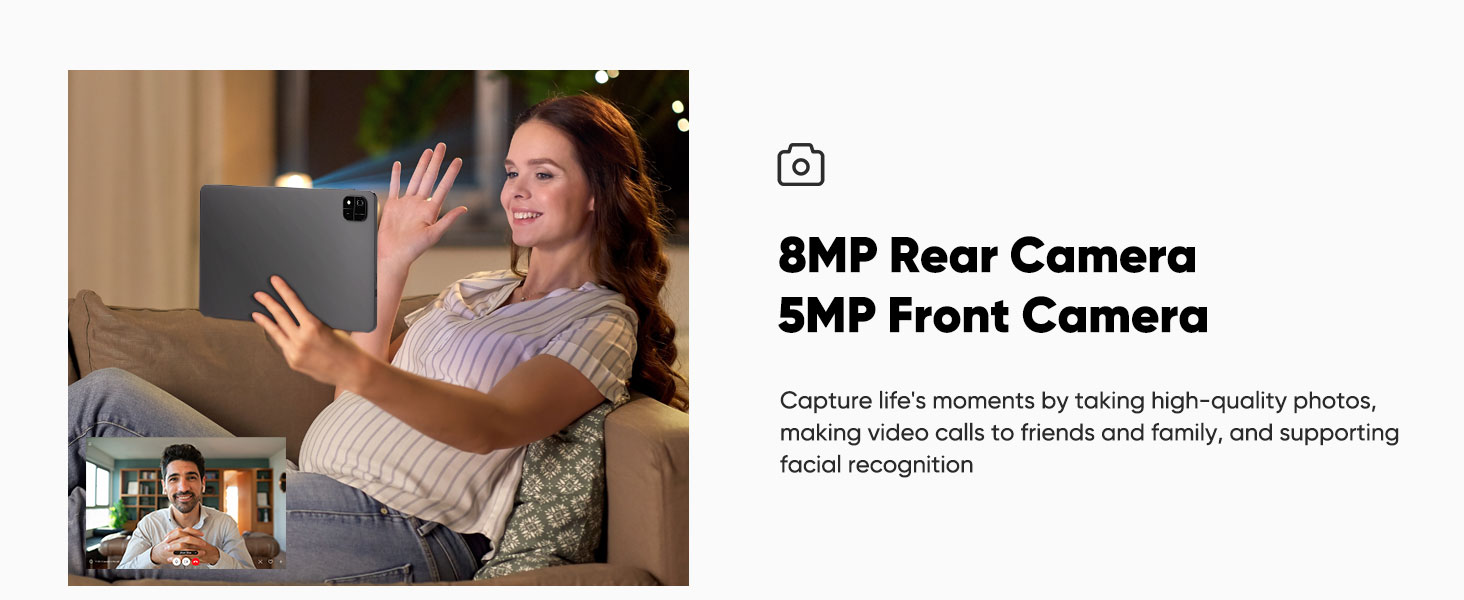
Image: A woman engaged in a video call on the tablet, illustrating the use of the 8MP rear camera and 5MP front camera for high-quality photos, video calls, and facial recognition.
4.4 אַודיאָ
Experience immersive audio with the tablet's dual speakers, featuring volume boost for an enhanced listening experience.
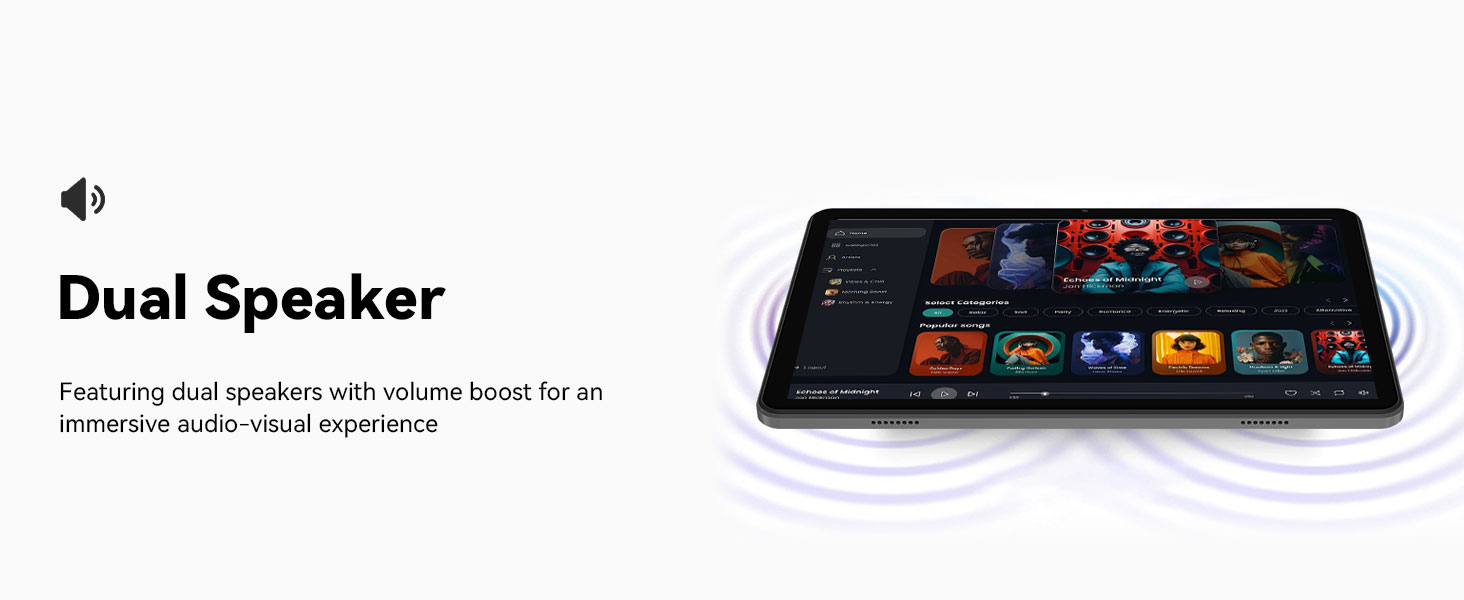
Image: The tablet displaying sound waves from its dual speakers, indicating an immersive audio-visual experience with volume boost.
4.5 Multitasking (Split Screen)
The Android 15 operating system supports split-screen functionality, allowing you to run two applications simultaneously. For example, you can video call a friend while browsing the web or take notes while watching a video.
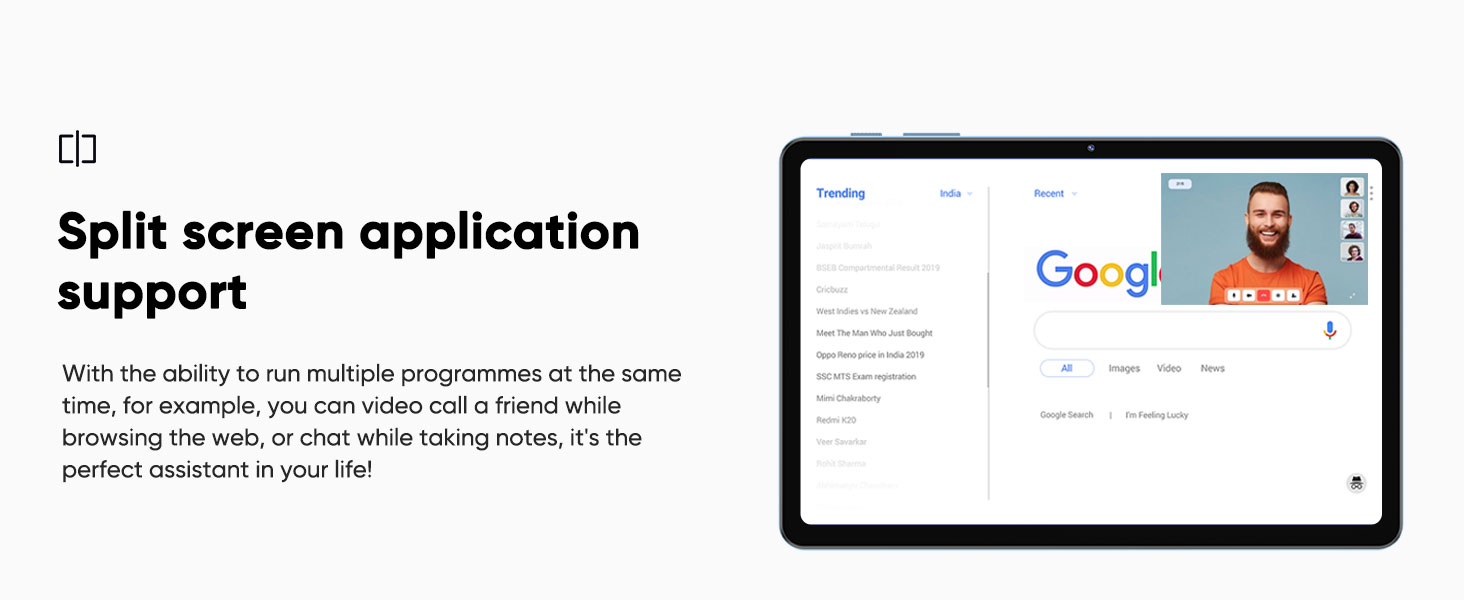
Image: The tablet screen demonstrating split-screen application support, with Google search on one side and a video call on the other, illustrating multitasking capabilities.
4.6 דראָטלאָזע סקרין קאַסטינג
Wirelessly cast your tablet's screen to a compatible display (e.g., smart TV) for an enhanced viewעקספיריענס. די אייגנשאפט פארפּשוטערט טיילן אינהאַלט אָן קאָמפּליצירטע קאַבל קאַנעקשאַנז.
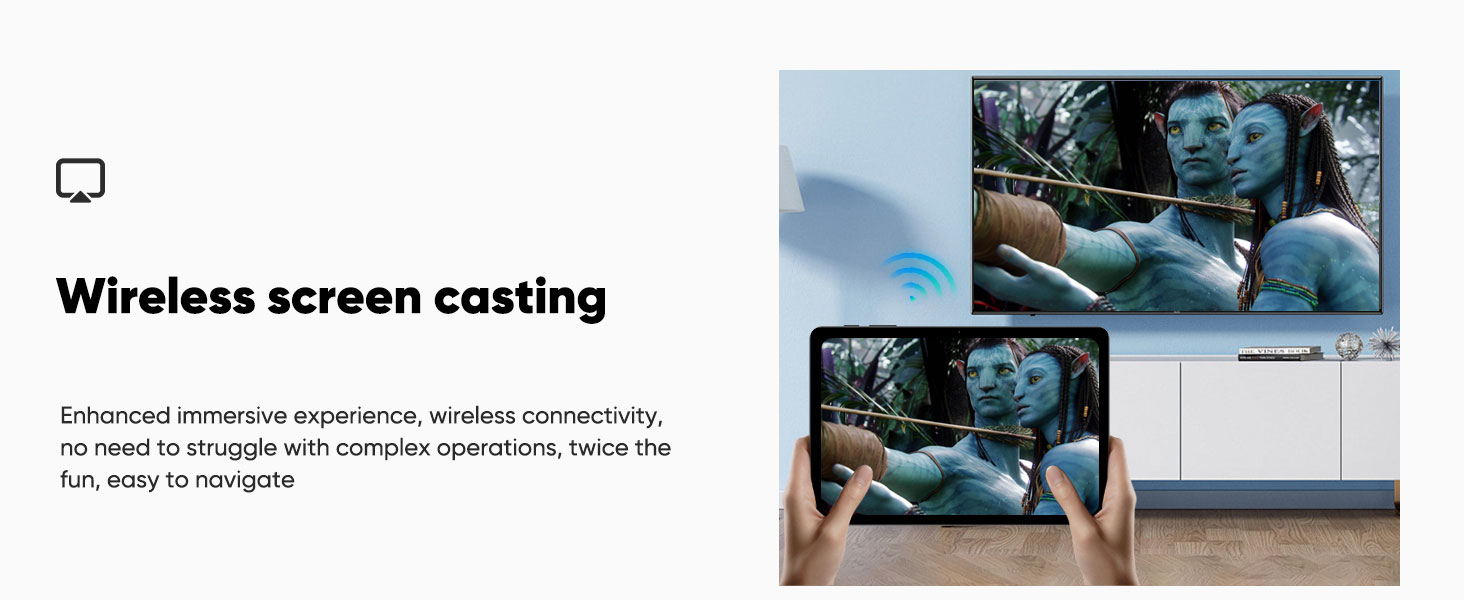
Image: The tablet's screen being wirelessly cast to a television, demonstrating the wireless screen casting feature for an enhanced and easy-to-navigate immersive experience.
4.7 גפּס נאַוויגאַציע
The tablet supports GPS positioning, allowing for navigation and location-based services. This can be useful for travel or finding directions.
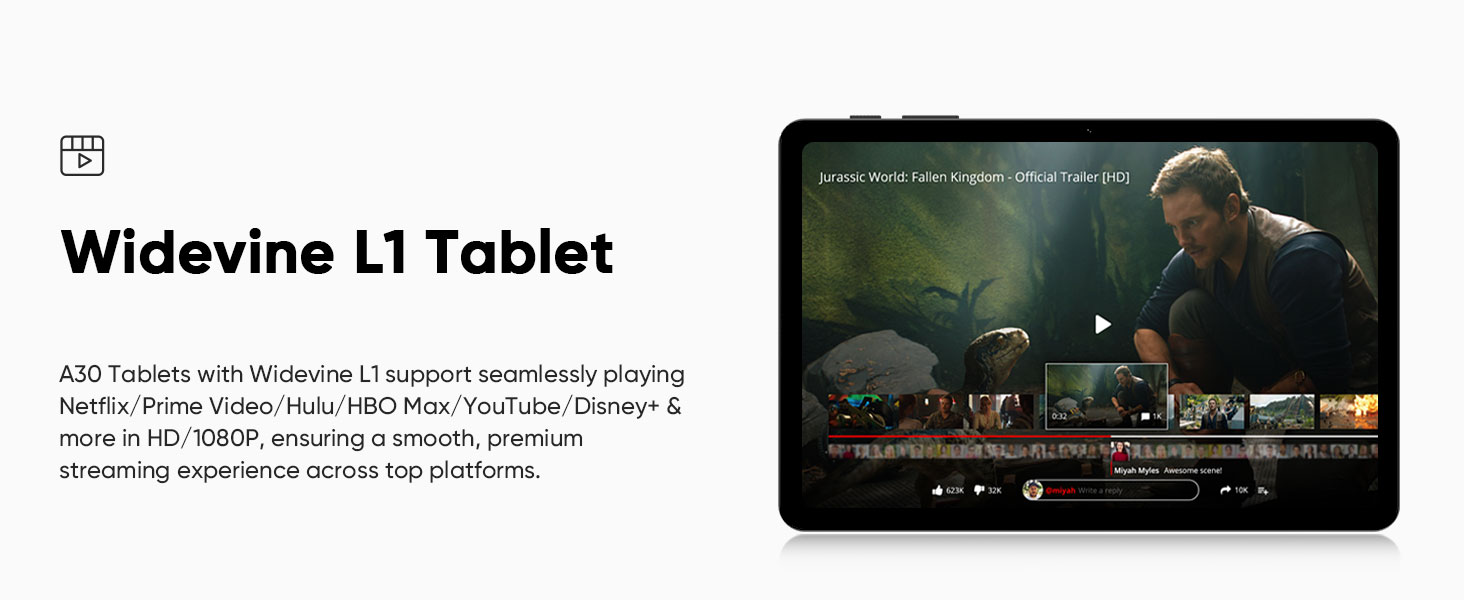
Image: The tablet displaying a navigation map, illustrating its GPS positioning support for use in vehicles or for general navigation.
5. וישאַלט
5.1 באַטערי טשאַרדזשינג
The tablet is equipped with a 6000mAh battery. Use the provided USB Type-C charging cable and power adapter to charge the device. The tablet supports 18W PD fast charging, which can significantly reduce charging time compared to standard 5V2A chargers.
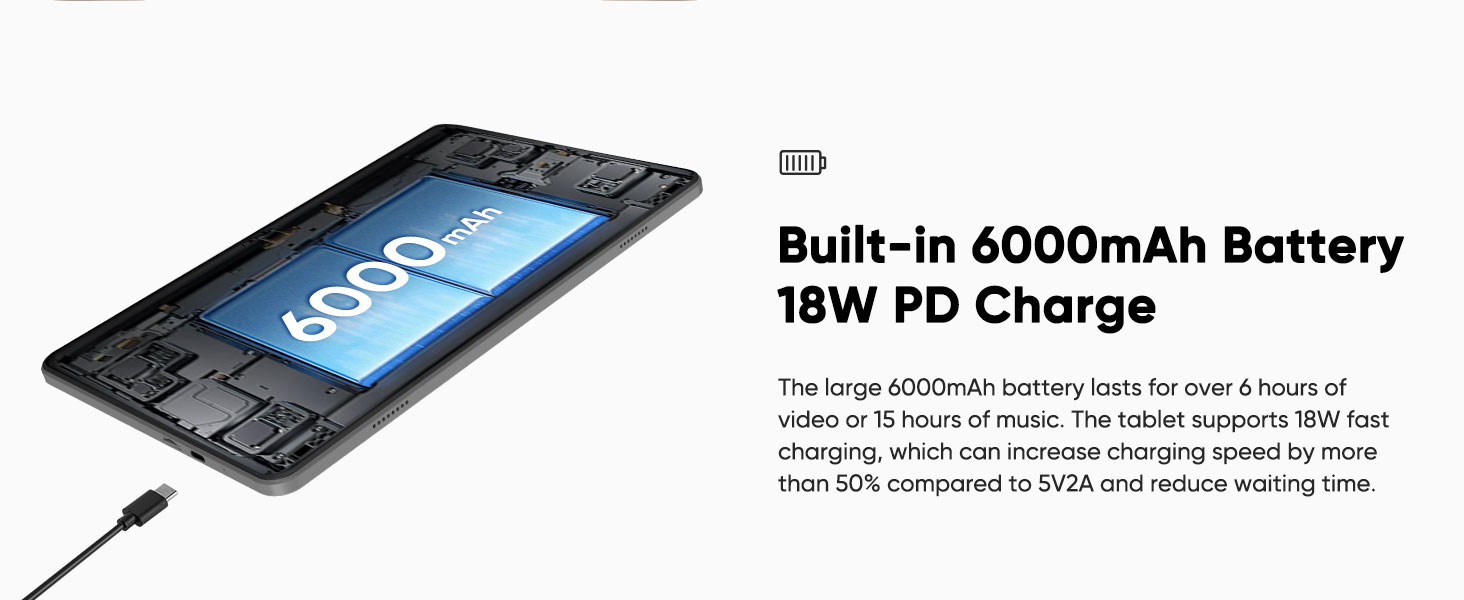
Image: An internal diagram of the tablet highlighting the built-in 6000mAh battery and the USB Type-C charging port, indicating 18W PD fast charging capability.
5.2 סטאָרידזש יקספּאַנשאַן
The tablet has 64GB of internal storage. To expand storage, insert a Micro SD card (up to 2TB, sold separately) into the designated slot. This allows for more space for applications, photos, videos, and documents.
6. טראָובלעשאָאָטינג
- טאַבלעט טוט זיך נישט אָן: Ensure the battery is charged. Connect the charger and try again. If unresponsive, press and hold the power button for 10-15 seconds for a forced restart.
- קענען ניט פאַרבינדן צו Wi-Fi: Check if Wi-Fi is enabled in settings. Ensure the password is correct. Restart your router and the tablet.
- Bluetooth accessories not pairing: Ensure the accessories are in pairing mode and fully charged. Check the tablet's Bluetooth settings and try re-pairing.
- לאַנגזאַמע פאָרשטעלונג: Close unnecessary background applications. Clear cache from apps. Consider performing a factory reset if issues persist (back up data first).
- עקראַן רעאַגירט נישט: ריסטאַרט די טאַבלעט. אויב די פּראָבלעם גייט ווייטער, קאָנטאַקטירט קונה שטיצע.
7. פּראָדוקט ספּעסאַפאַקיישאַנז
| שטריך | באַשרייַבונג |
|---|---|
| מאָדעל נאָמען | A30 |
| אָפּערייטינג סיסטעם | אַנדרויד 15 |
| פּראַסעסער | יוניסאָק ט606 אָקטאַ-קאָר (1.6 גיגאַהערץ) |
| באַראַן | 12 גיגאבייט (4 גיגאבייט פיזיש + 8 גיגאבייט ווירטועל) |
| אינערלעכער סטאָרידזש | 64 גיגאבייט ראַם |
| יקספּאַנדאַבאַל סטאָרידזש | ביז 2TB דורך מיקראָ SD קאַרטל |
| פאַרשטעלן גרייס | 10.1 אינטשעס |
| פאַרשטעלן האַכלאָטע | 1280 x 800 Pixels (IPS HD) |
| גראַפיקס קאָופּראַסעסער | מאַלי-G57 1 קאָר @ 850MHz |
| דערציען אַפּאַראַט | 8MP |
| פראָנט אַפּאַראַט | 5MP |
| באַטאַרייע קאַפּאַציטעט | 6000 מאַה |
| טשאַרדזשינג פּאָרט | USB Type-C (18W PD Fast Charging) |
| ווירעלעסס קאַנעקטיוויטי | Wi-Fi 802.11ac (2.4GHz/5GHz), Bluetooth 5.0 |
| דימענשאַנז (LxWxH) | 9.65 X 6.02 X 0.25 אינטשעס |
| פּונקט וואָג | 1.16 פונט |
8. זיכערקייַט אינפֿאָרמאַציע
- Do not expose the tablet to extreme temperatures, direct sunlight, or moisture.
- ניצט נאָר באַשטעטיקטע טשאַרדזשערס און אַקסעסאָריעס.
- פֿאַרמײַדט צו לאָזן פאַלן אָדער אויסשטעלן די טאַבלעט צו שווערע קלאַפּן.
- Keep the tablet away from children and pets.
- פּרוּווט נישט צו צענעמען אָדער פאַרריכטן די טאַבלעט אַליין. ווענדט זיך צו קוואַליפֿיצירטע סערוויס פּערסאָנעל.
9. וואָראַנטי און שטיצן
For warranty information, technical support, or service inquiries, please refer to the official aiprotablet website or contact their customer service directly. Details can typically be found on the manufacturer's packaging or webפּלאַץ.


