הקדמה
The iRobot Roomba® 105 Combo Robot Vacuum Cleaner with Mop Function is designed to provide comprehensive floor cleaning. This advanced robot combines powerful vacuuming with effective mopping, offering a versatile solution for various floor types. It features intelligent navigation, multiple cleaning modes, and convenient control options through the Roomba Home App, voice assistants, or direct button presses.
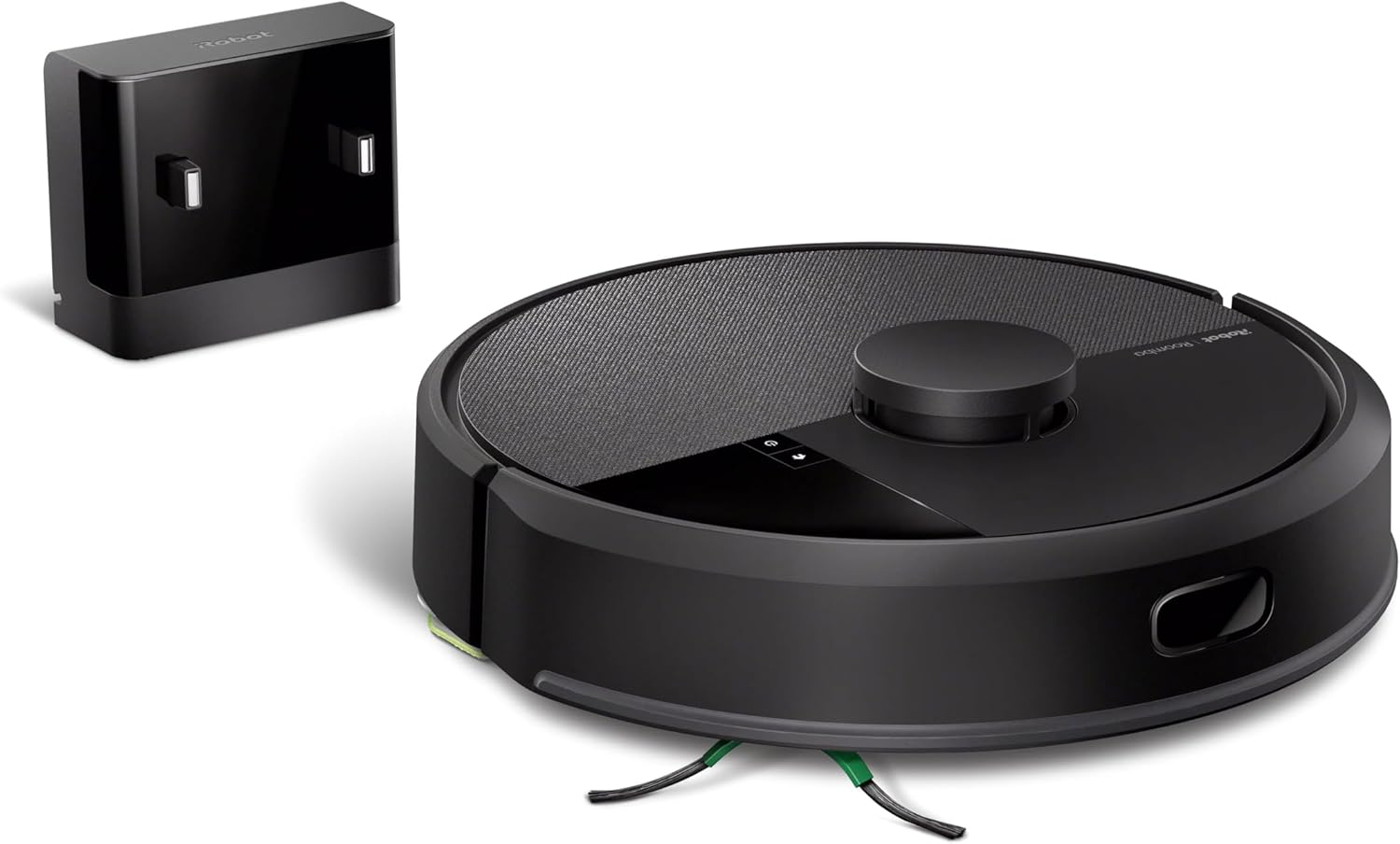
Image: The iRobot Roomba 105 Combo Robot Vacuum Cleaner in black, shown with its charging home base.
סעטאַפּ
- Unpack and Place the Home Base: Remove all packaging materials. Place the Home Base on a hard, level surface against a wall, ensuring there are no obstacles for at least 0.5 meters (1.5 feet) on either side and 1.2 meters (4 feet) in front. Plug the Home Base into a power outlet.
- באַשולדיקן די ראָבאָט: Place the Roomba 105 Combo onto the Home Base. Ensure the charging contacts on the robot align with those on the Home Base. The light ring on the robot will indicate charging status. Allow the robot to fully charge before its first use (typically several hours).
- Download the Roomba Home App: Download the iRobot Home App from your device's app store (iOS or Android).
- פאַרבינדן צו Wi-Fi: Open the app and follow the on-screen instructions to connect your robot to your home Wi-Fi network. וויכטיק: The Roomba 105 Combo requires a 2.4 GHz Wi-Fi network for setup and operation. If you have a dual-band router, ensure your device is connected to the 2.4 GHz band during setup.
- ערשטע מאַפּינג לויף: אַמאָל פארבונדן, וועט די אַפּ אייך פירן דורך אַן ערשטן מאַפּינג לויף. דאָס דערלויבט דעם ראָבאָט צו לערנען די אויסשטעל פון אייער הויז און שאַפֿן אַ קלוגע מאַפּע פֿאַר עפֿעקטיוו רייניקונג.
אַפּערייטינג די ראָבאָט
רייניקונג מאָדעס
די רומבאַ 105 קאָמבאָ אָפפערט פלעקסיבלע רייניקונג אָפּציעס:
- נאָר וואַקוום: פֿאַר טרוקענע שמוץ אויף אַלע טיפּן שטאָק.
- נאָר מאָפּ: For wet cleaning hard floors.
- Combo Vac-Mop: Simultaneously vacuums and mops hard floors. The robot automatically detects and avoids carpets when in mopping mode to prevent them from getting wet.
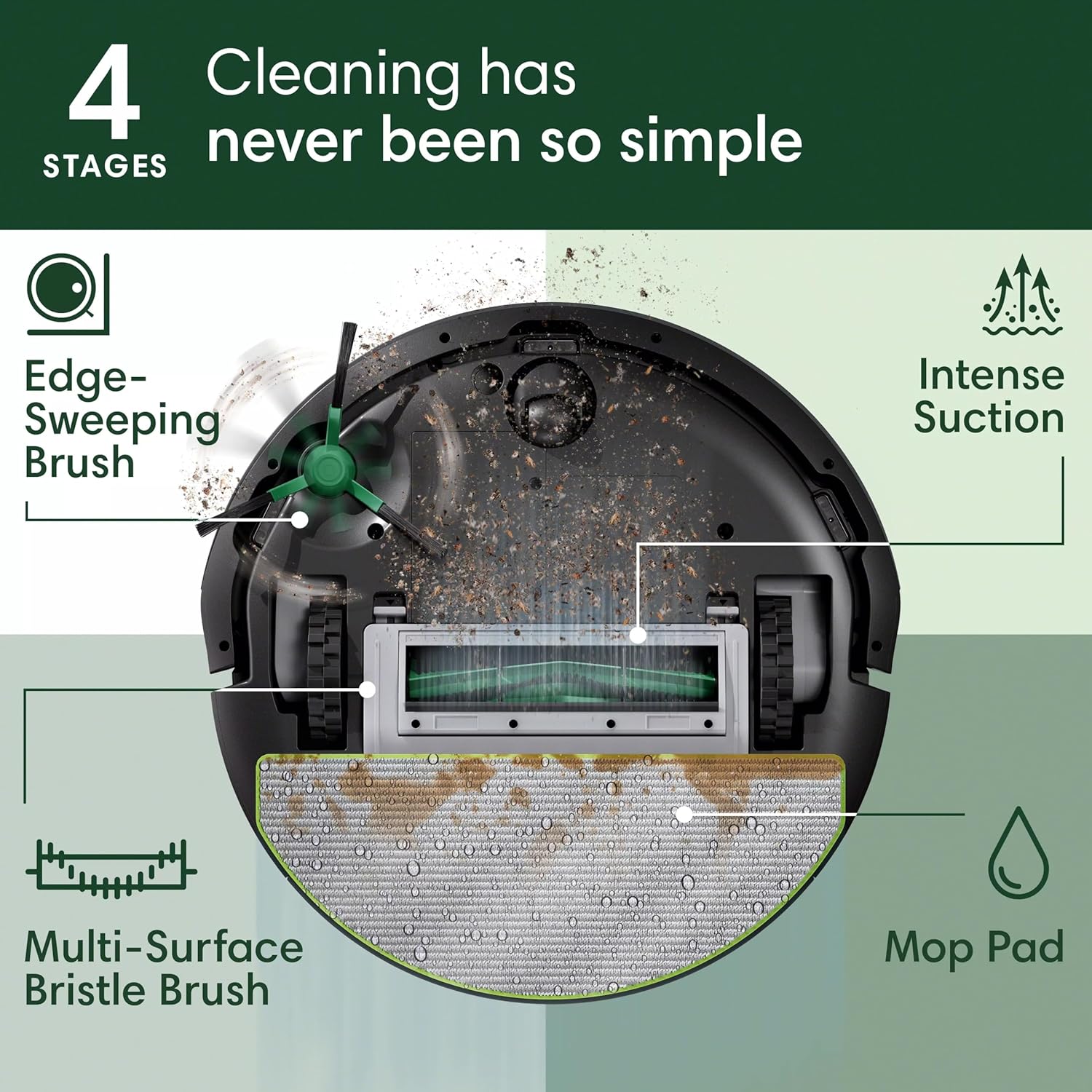
Image: Visual representation of the three cleaning modes: vacuum only, mop only, and combined vacuum and mop.
קאָנטראָל אָפּציעס
-
Roomba Home App:
The app provides full control over your robot. You can:
- Schedule cleaning sessions for specific times and days.
- Select specific rooms or areas to clean.
- Adjust cleaning preferences: number of cleaning passes, suction power levels (Eco, Medium, High, Max), and mopping solution amount.
- Set up Keep Out Zones to prevent the robot from entering certain areas.
- Monitor cleaning progress and view רייניקונג געשיכטע.
- Receive maintenance alerts.

Image: Screenshot of the Roomba Home App displaying options for scheduling cleaning and maintenance alerts.
-
שטימע אַססיסטאַנט:
Control your Roomba using voice commands with compatible devices (e.g., Amazon Alexa, Google Assistant, Apple Siri). Link your iRobot account in the respective voice assistant app.
Example commands: "Alexa, tell Roomba to start cleaning," "Hey Google, ask Roomba to go home," "Siri, start Roomba."
-
ראָבאָט קנעפּלעך:
The robot has physical buttons for basic control:
- CLEAN קנעפּל: Press to start or pause a cleaning cycle. Press and hold to send the robot back to its Home Base.
- SPOT Clean Button: Press to perform a concentrated clean in a small area.
וישאַלט
Regular maintenance ensures optimal performance of your Roomba 105 Combo. The iRobot Home App will provide maintenance alerts.
-
Emptying the Dirt Bin:
The dirt bin is located at the back of the robot. Press the bin release button and slide out the bin. Open the bin door and empty debris into a waste bin. Tap the bin to dislodge any trapped dirt. For best results, empty after each cleaning cycle.

Image: The underside of the Roomba 105 Combo, illustrating the dirt bin and collected debris.
-
רייניקונג די פילטער:
Remove the filter from the dirt bin. Tap the filter against a waste bin to remove debris. Do not wash the filter with water. Replace the filter every 2-3 months, or as indicated by the app.
-
Cleaning the Multi-Surface Bristle Brush and Edge-Sweeping Brush:
Remove hair and debris from the main brush and the side brush regularly. Use the cleaning tool provided with your robot to cut and remove tangled hair.

בילד: אן עקספלאדירטע view of the Roomba 105 Combo's underside, highlighting the Edge-Sweeping Brush, Multi-Surface Bristle Brush, and Mop Pad as part of its 4-stagE רייניקונג סיסטעם.
-
Cleaning the Mop Pad:
The microfiber mop pad is washable. Remove it from the robot after each mopping session and rinse thoroughly with water. For deeper cleaning, it can be machine washed according to care instructions.
-
רייניקונג סענסאָרן און טשאַרדזשינג קאָנטאַקטן:
Wipe the robot's sensors (cliff sensors, wall-following sensor) and charging contacts on both the robot and Home Base with a clean, dry cloth. This prevents dust buildup from affecting navigation and charging.
טראָובלעשאָאָטינג
If your Roomba 105 Combo encounters an issue, the light ring on the robot may change color or flash, and the app may provide specific error messages. Here are some common issues and solutions:
| אַרויסגעבן | מעגלעך סיבה | לייזונג |
|---|---|---|
| ראָבאָט פֿאַרבינדט זיך נישט צו Wi-Fi | Incorrect Wi-Fi band (needs 2.4 GHz), incorrect password, router issues. | Ensure your router is broadcasting a 2.4 GHz network. Verify Wi-Fi password. Try restarting your router and the robot. If issues persist, temporarily disable 5 GHz on your router during setup. |
| Robot gets stuck or lost | Obstacles, tangled brushes, dirty sensors, changes in home layout. | Clear obstacles from the cleaning path. Clean the main brushes and side brush. Wipe all sensors with a clean, dry cloth. If the map is incorrect, try re-mapping your home via the app. |
| נעבעך רייניקונג פאָרשטעלונג | Full dirt bin, dirty filter, worn brushes, low battery. | Empty the dirt bin. Clean or replace the filter. Clean or replace the brushes. Ensure the robot is fully charged before cleaning. |
| ראָבאָט נישט טשאַרדזשינג | Dirty charging contacts, Home Base unplugged, robot not properly docked. | Clean the charging contacts on both the robot and Home Base. Ensure the Home Base is plugged in and powered on. Re-dock the robot, ensuring proper alignment. |
| Mop function not working | Empty water tank, clogged nozzle, dry mop pad, carpet detection engaged. | Fill the water tank. Ensure the mop pad is properly attached and moist. Check for any blockages in the water dispensing system. Ensure the robot is not on carpet when attempting to mop. |
For more detailed troubleshooting or persistent issues, refer to the iRobot Home App's help section or visit the official iRobot support webפּלאַץ.
ספּעסאַפאַקיישאַנז
- סאָרט: iRobot
- מאָדעל נאָמען: iRobot ROOMBA® 105 COMBO ROBOT, Noir
- מאָדעל נומער: Y311040
- קאָליר: שוואַרץ
- פּראָדוקט דימענשאַנז: 33.6L x 33.5W x 10.4H סענטימעטער (33.6 x 33.5 x 10.4 ס״מ)
- נומער וואָג: 2.9 קג
- Voltage: 12.8 וואלטס
- ספּעציעלע פֿעיִקייטן: Simultaneous vacuuming and wiping, Carpet Detect prevents carpet wiping, Navigation with ClearView™ LiDAR, 4-step cleaning system.
וואָראַנטי און שטיצן
iRobot products are designed for durability and performance. For information regarding your product's warranty, please refer to the documentation included with your purchase or visit the official iRobot support webפּלאַץ.
וויכטיק: iRobot does not certify the quality or authenticity of products purchased from non-authorized resellers on Amazon. Warranty claims, service, and replacements are only covered for products purchased from authorized resellers.
For technical assistance, troubleshooting, or to order replacement parts, please contact iRobot Customer Support through their official webוועבזייטל אדער די iRobot Home אפליקאציע.

Image: An illustration emphasizing the importance of purchasing from authorized resellers to protect your iRobot investment.