הקדמה
Thank you for choosing the CRUA 27-inch 4K UHD 144Hz IPS Gaming Monitor. This monitor is designed to deliver an immersive visual experience with its high resolution, fast refresh rate, and vibrant color reproduction. This manual provides essential information for the proper installation, operation, and maintenance of your new monitor. Please read it thoroughly before use and retain it for future reference.
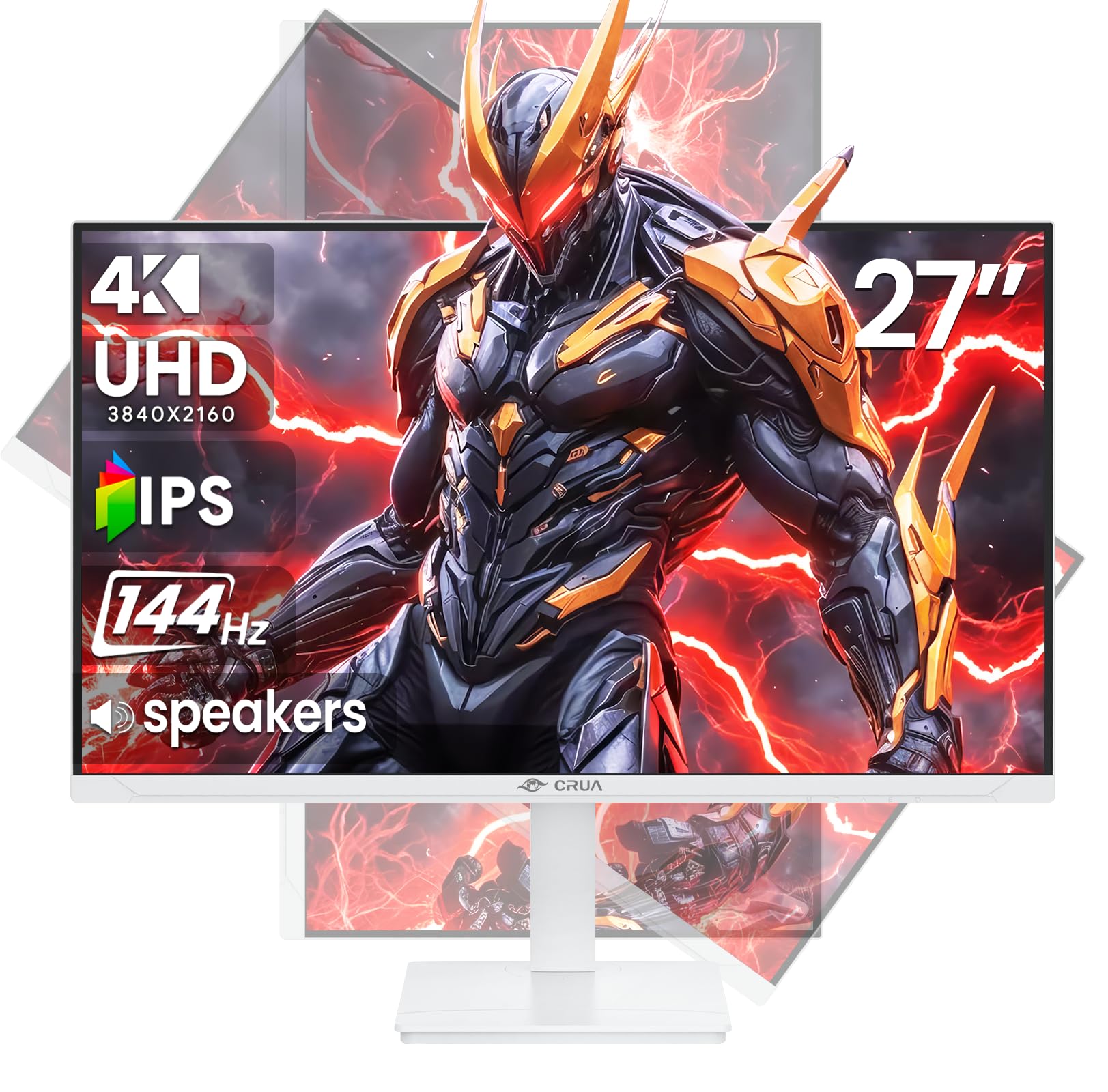
בילד: פראָנט view of the CRUA 27-inch 4K UHD 144Hz IPS Gaming Monitor.
וואָס איז אין די קעסטל
ביטע קאָנטראָלירט דעם אינהאַלט פֿון אייער פּאַקעט. אויב עס פֿעלן אָדער זענען געשעדיגט עפּעס, קאָנטאַקטירט אייער הענדלער.
- 27-אינטש מאָניטאָר
- דפּ קאַבלע
- Base and Support
- באַניצער מאַנואַל
- מאַכט צושטעלן
פּראָדוקט פֿעיִקייטן
- 27" 4K Display with IPS Panel: Experience ultra-clear visuals with a 3840x2160P resolution.
- 144Hz דערפרישן קורס: Enjoy fluid and sharp motion, ideal for competitive gaming and fast-paced content.
- 120% sRGB Color Accuracy: Delivers rich and accurate tones with 350cd/m² brightness and 1000:1 high-contrast.
- געבויט-אין ספּיקערז: Provides clear audio for daily use.
- Full Ergonomic Adjustment: Features height, pivot, tilt, and rotation adjustments for optimal viewינג אַנגלעס.
- עטלעכע קאַנעקטיוויטי אָפּציעס: Equipped with 2x HDMI 2.1 and 2x DP 1.4 ports.
- AMD FreeSync שטיצע: Synchronizes the monitor's refresh rate with your GPU for tear-free gaming.
- וואַנט מאָונטאַבלע: Supports VESA 75mm x 75mm wall mounts for flexible installation.
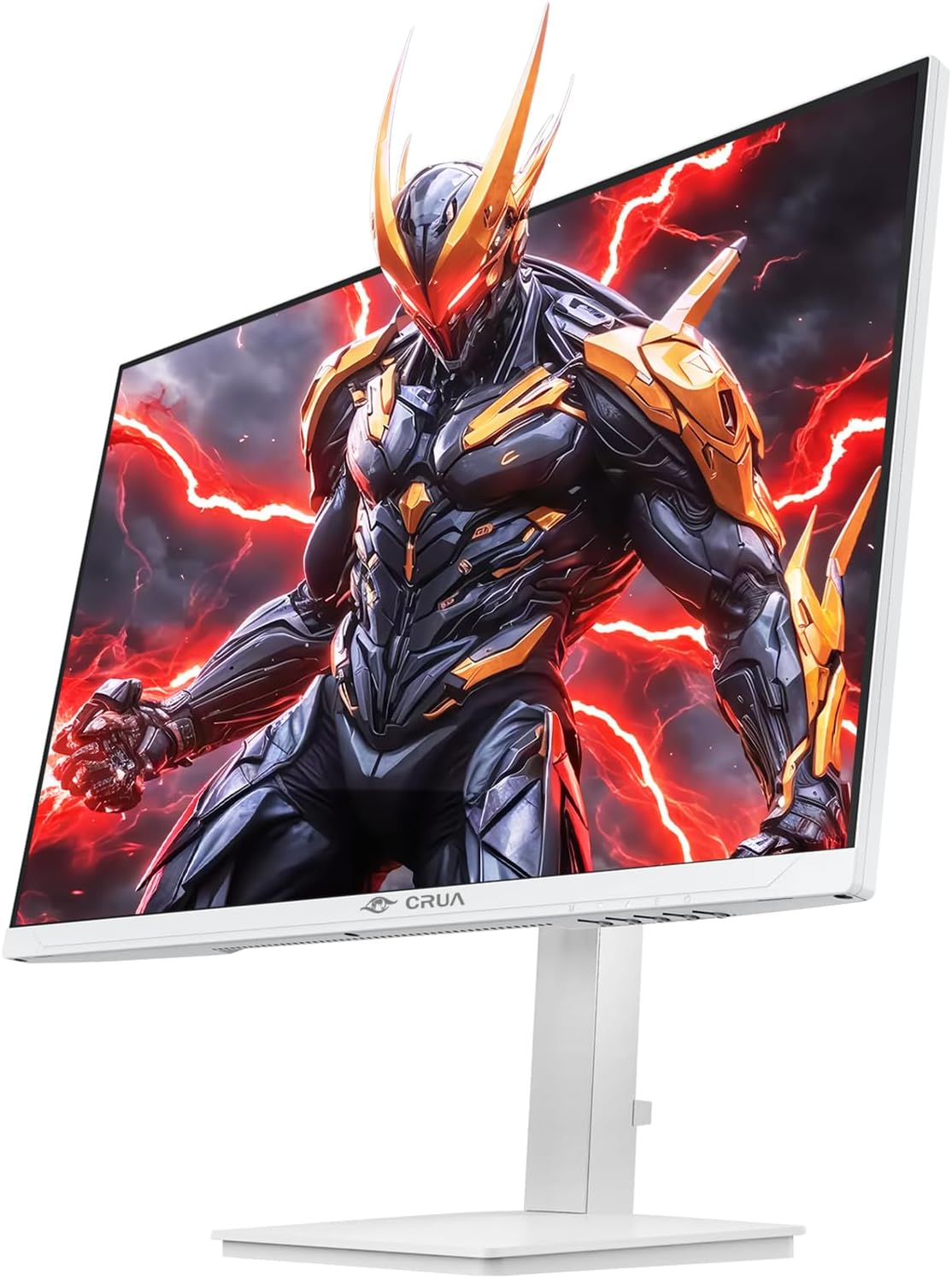
בילד: פראָנט view of the CRUA 27-inch 4K UHD 144Hz IPS Gaming Monitor displaying a game scene.

בילד: הינטערשטע view of the CRUA 27-inch 4K UHD 144Hz IPS Gaming Monitor showing the stand and RGB lighting.

בילד: הינטערשטע view of the CRUA 27-inch 4K UHD 144Hz IPS Gaming Monitor highlighting the input ports (2x DP 1.4, 2x HDMI 2.1, and 3.5mm Audio Port).

Image: Diagram illustrating the adjustable height (110mm), tilt (-5° to +15°), swivel (±30°), and pivot (90°) features of the CRUA 27-inch 4K UHD 144Hz IPS Gaming Monitor.
סעטאַפּ אינסטרוקציעס
1. אַסעמבאַל די שטיין
- נעמט פֿאָרזיכטיק אַרויס דעם מאָניטאָר און שטאַנד קאָמפּאָנענטן פֿון דער פּאַקאַדזשינג.
- באַפעסטיקט דעם שטאַנד האַלדז צום מאָניטאָר פּאַנעל. מאַכט זיכער אַז עס קליקט זיכער אין פּלאַץ אָדער איז באַפעסטיקט מיט שרויפן אויב עס איז צוגעשטעלט.
- Attach the base to the stand neck, securing it with the thumb screw or other fasteners.
- שטעלט דעם צוזאַמענגעשטעלטן מאָניטאָר אויף אַ סטאַבילער, גלאַטער ייבערפלאַך.
2. וואַנט מאָונטינג (אַפּשאַנאַל)
The monitor supports VESA 75mm x 75mm wall mounts. Remove the stand before attaching a compatible wall mount bracket (not included). Follow the instructions provided with your wall mount.
3. קאַנעקטינג קאַבלעס
- מאַכט: Connect the power supply to the monitor's power input and then to a power outlet.
- ווידעא ינפּוט: Connect one end of the provided DP cable (or an HDMI cable) to the corresponding port on your computer's graphics card and the other end to a DP 1.4 or HDMI 2.1 port on the monitor.
- Audio Output (Optional): If using external speakers or headphones, connect them to the 3.5mm audio jack on the monitor.
4. ערשטע אויפשטעל
Press the power button on the monitor. The monitor should automatically detect the input signal. If not, you may need to manually select the input source using the OSD menu.
אַפּערייטינג ינסטראַקשאַנז
1. מאַכט אויף / אויסגעלאשן
דריק דעם מאַכט קנעפּל וואָס געפינט זיך אויפן מאָניטאָר צו עס אנצינדן אָדער אויסלעשן.
2. אָסד מעניו נאַוויגאַציע
The On-Screen Display (OSD) menu allows you to adjust various monitor settings. Navigate the menu using the joystick or buttons typically located on the back or bottom of the monitor.
- דריק דעם דזשויסטיק/קנעפל צו עפענען דעם OSD מעניו.
- Move the joystick up/down or use corresponding buttons to navigate through menu options.
- באַוועגט דעם דזשויסטיק לינקס/רעכטס אָדער ניצט די קאָרעספּאָנדירנדיקע קנעפּלעך צו סטרויערן ווערטן אָדער אַרייַן סוב-מעניועס.
- Press the joystick/button again to confirm selections or exit sub-menus.
3. אַרייַנשרייַב מקור סעלעקציע
If the monitor does not automatically detect the correct input, open the OSD menu, navigate to "Input Source," and select the active input (e.g., HDMI1, HDMI2, DP1, DP2).
4. אַדזשאַסטינג ווייַז סעטטינגס
Within the OSD menu, you can customize settings such as:
- ברייטנאַס / קאַנטראַסט: סטרויערן די אַלגעמיינע לומינאַנס און קאָנטראַסט לעוועלס.
- קאָליר סעטטינגס: פֿײַן-אײַנשטימען קאָליר טעמפּעראַטור, גאַמאַ, און יחידישע RGB ווערטן.
- בילד קוואַליטעט: Select preset modes (e.g., Standard, Game, Movie) or customize sharpness and dynamic contrast.
- האַכלאָטע & דערפרישן קורס: Ensure your computer's display settings match the monitor's native 4K UHD (3840x2160P) resolution and 144Hz refresh rate for optimal performance.
- AMD FreeSync: Enable FreeSync in the OSD menu and your graphics card control panel for adaptive synchronization.
5. אַודיאָ סעטטינגס
Adjust the volume of the built-in speakers or connected external audio devices through the OSD menu's audio section. You can also mute the audio if desired.
6. ערגאָנאָמישע אַדזשאַסטמאַנץ
סטרויערן די מאָניטאָר צו דיין בילכער viewפּאָזיציע:
- הייך: Gently push or pull the monitor up or down along the stand.
- טילט: Tilt the screen forward or backward.
- סוויוול: דריי דעם מאָניטאָר לינקס אָדער רעכטס אויף זיין באַזע.
- דרייט: Rotate the screen 90 degrees for vertical orientation.
וישאַלט
רייניקונג די פאַרשטעלן
- שטענדיק אויסלעשן דעם מאָניטאָר און אַרויסציען דעם עלעקטרישן שנור איידער איר רייניגט עס.
- ניצן אַ ווייך, לינט-פֿרייַ שטאָף לייטלי דampאָפּגעווישט מיט וואַסער אָדער אַ ספּעציעלן עקראַן רייניגער.
- שפריצט נישט רייניגער גלייך אויפן עקראַן.
- Avoid using abrasive cleaners, alcohol, or ammonia-based solutions, as they can damage the screen surface.
אַלגעמיינע קער
- האַלט דעם מאָניטאָר אַוועק פון דירעקטער זון, היץ קוועלער און צו פיל שטויב.
- זיכערט זיך אז עס זאָל זיין גענוג ווענטילאַציע אַרום דעם מאָניטאָר כדי צו פאַרמייַדן איבערהיצונג.
- לייגט נישט קיין שווערע אביעקטן אויפן מאָניטאָר אדער זיינע קאַבלען.
- ויסמיידן רירנדיק די פאַרשטעלן מיט שאַרף אַבדזשעקץ.
טראָובלעשאָאָטינג
| פּראָבלעם | מעגלעך לייזונג |
|---|---|
| קיין בילד אויף פאַרשטעלן |
|
| קיין געזונט פון ספּיקערז |
|
| בילד פליקערינג אדער פארדרייונג |
|
| קנעפּלעך נישט ריספּאַנדינג |
|
For further assistance, please refer to the CRUA support webפּלאַץ אָדער קאָנטאַקט קונה דינסט.
ספּעסאַפאַקיישאַנז
| שטריך | דעטאַל |
|---|---|
| מאָדעל נומער | CR270E |
| פאַרשטעלן גרייס | 27 אינטשעס |
| האַכלאָטע | 4K UHD (3840 x 2160 פּיקסעלס) |
| דערפרישן קורס | 144 הז |
| טאַפליע טיפּ | IPS |
| אַספּעקט פאַרהעלטעניש | 16:9 |
| קאָליר גאַמע | 120% sRGB |
| ברייטנאַס | 350 קאַנדעלאַ (cd/m²) |
| קאַנטראַסט פאַרהעלטעניש | 1000:1 |
| קאַנעקטיוויטי | 2x DP 1.4, 2x HDMI 2.1, 1x 3.5mm Audio Jack |
| אַדאַפּטיוו סינק | AMD FreeSync |
| ערגאָנאָמיקס | Height, Pivot, Tilt, Rotate Adjustable |
| וואנט בארג | VESA 75 מם X 75 מם |
| געבויט-אין ספּיקערז | יא |
| פּראָדוקט דימענשאַנז | 2.5 X 24 X 14 אינטשעס |
| פּונקט וואָג | 11.38 פונט |
וואָראַנטי און שטיצן
CRUA provides high-quality computer monitors and premium services. For warranty information, technical support, or any questions regarding your monitor, please visit the official CRUA website or contact their customer service team. Details can typically be found on the product packaging or the CRUA brand store on Amazon.
קאָנטאַקט אינפֿאָרמאַציע: Refer to your purchase documentation or the CRUA official webזייטל פֿאַר די מערסט אַרויף-צו-דאַטע שטיצע קאָנטאַקט דעטאַילס.